Tag: forms

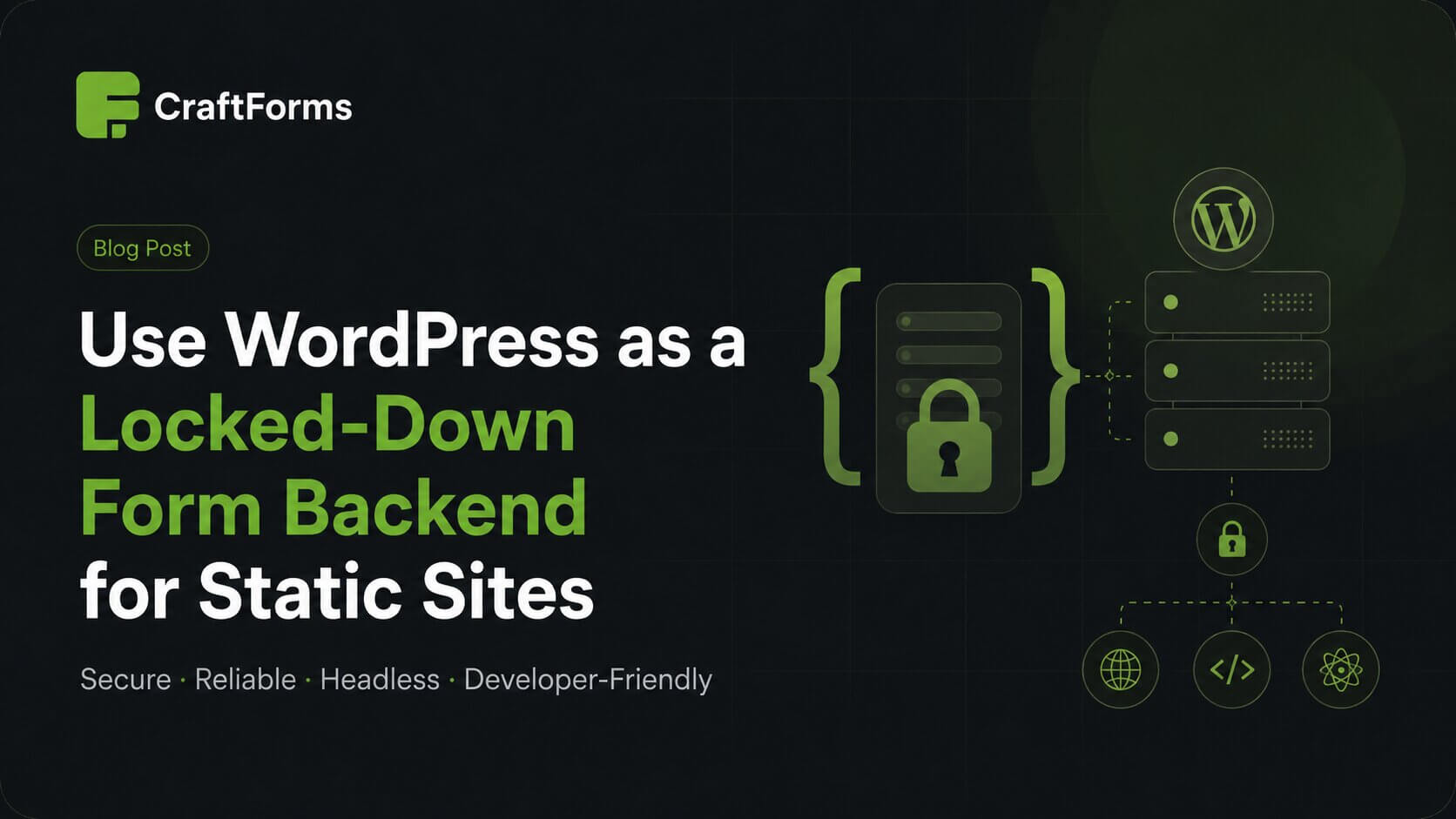
  • Use WordPress as a Locked-Down Form Backend for Static Sites

    Use WordPress as a Locked-Down Form Backend for Static Sites

    Static sites are fast, cheap to host, and nearly impossible to compromise — but they can’t process a contact form. Every static site eventually hits the same wall: you need a backend.

    Most developers reach for a third-party service (Formspree, Netlify Forms, Basin) or bolt on a separate server. Both options add a dependency you don’t control, a recurring cost, and submission data stored on someone else’s infrastructure. There is a third option that gives you full ownership, unlimited forms, and a security profile close to zero: a locked-down WordPress installation used exclusively as a form backend.

    One WordPress install. Zero public pages. Every form submission from every static site you own — handled, stored, and routed — on infrastructure you control.

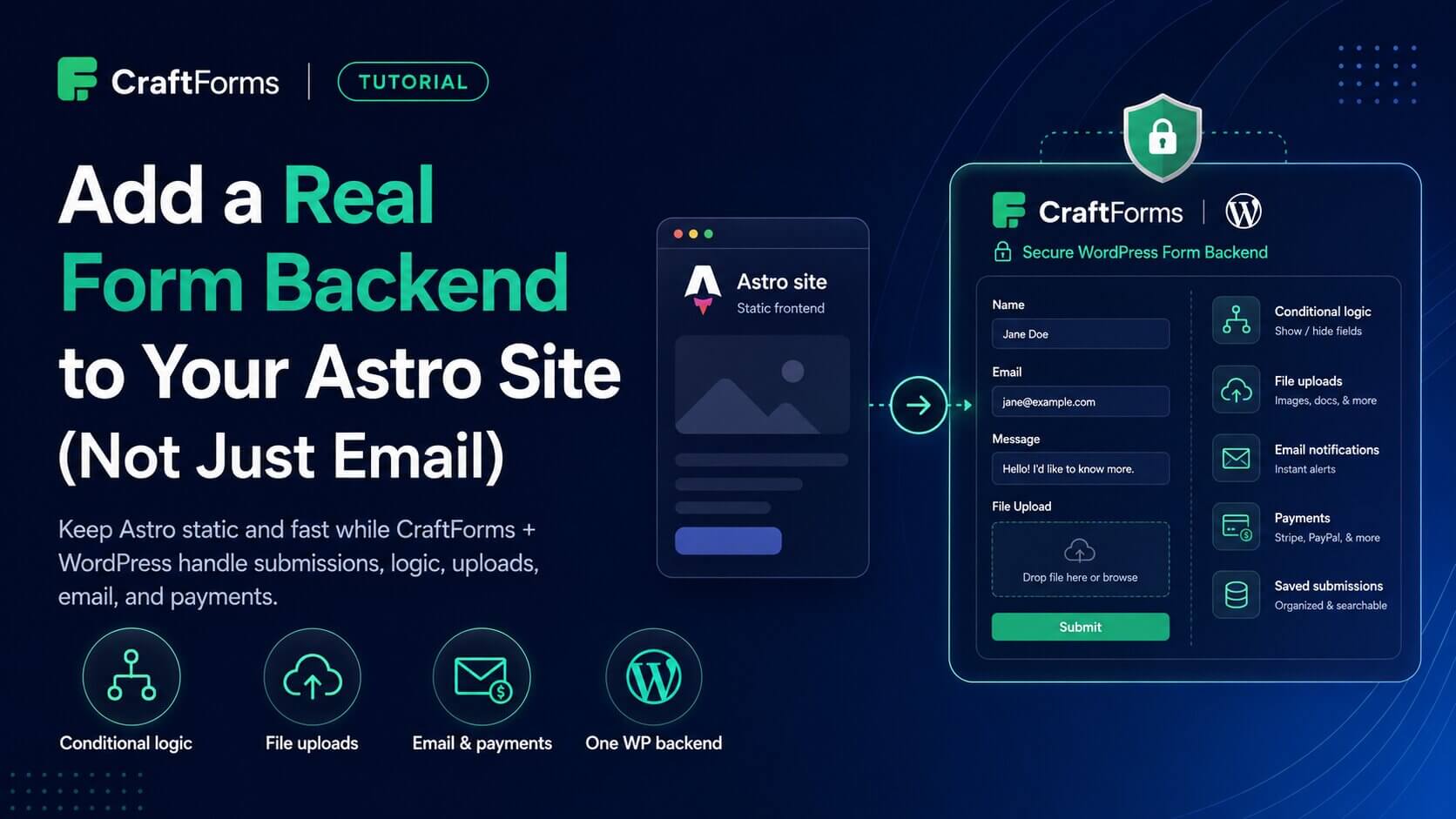
    This article is an evolution of Using WordPress as a Form Backend for Static Sites and Web Apps. That article introduced the idea — a single WordPress install as a submission endpoint. This one picks up where it left off: the site is locked down and invisible to visitors, improved security setup. CraftForms now supports embedded forms — the backend serves the form HTML directly to any external page, with no markup required on the static site side — and the full ecommerce and booking stack that comes with them. The same backend that took contact form submissions can now handle bookings, inventory on a site that has no server of its own.


    Part 1 — The Architecture: One Backend, Many Static Sites

    The Stack

    Three tools, each doing exactly one job:

    • WordPress — the backend. Locked down so aggressively it no longer resembles a normal WP install. No theme, no public content, no extra plugins.
    • CraftForms — the form engine. Handles form building, validation, submissions, conditional logic, file uploads, and email notifications.
    • Builderius — the optional static site builder. Design your pages visually and export clean HTML/CSS/JS files with no WordPress dependency in production.
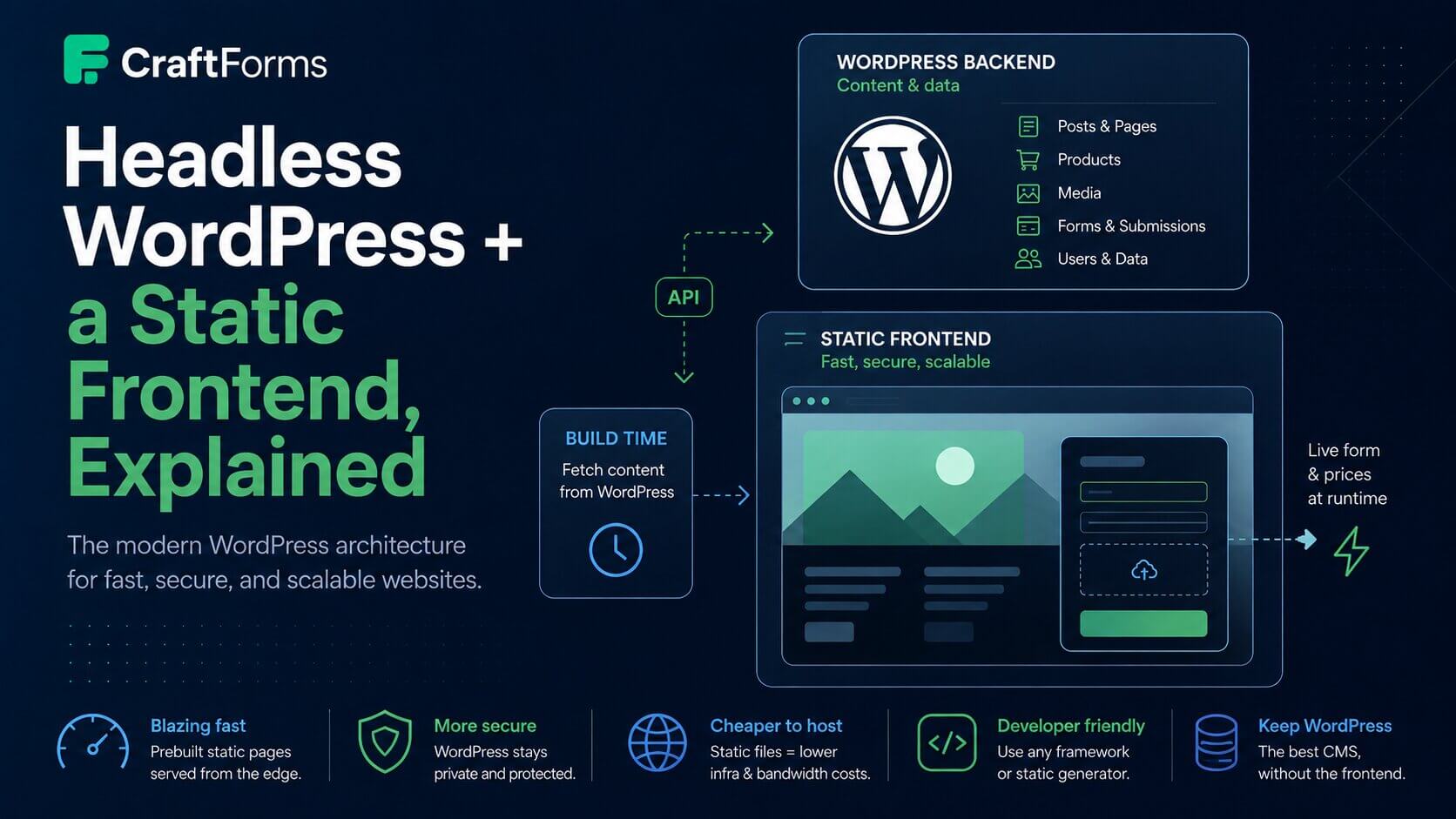
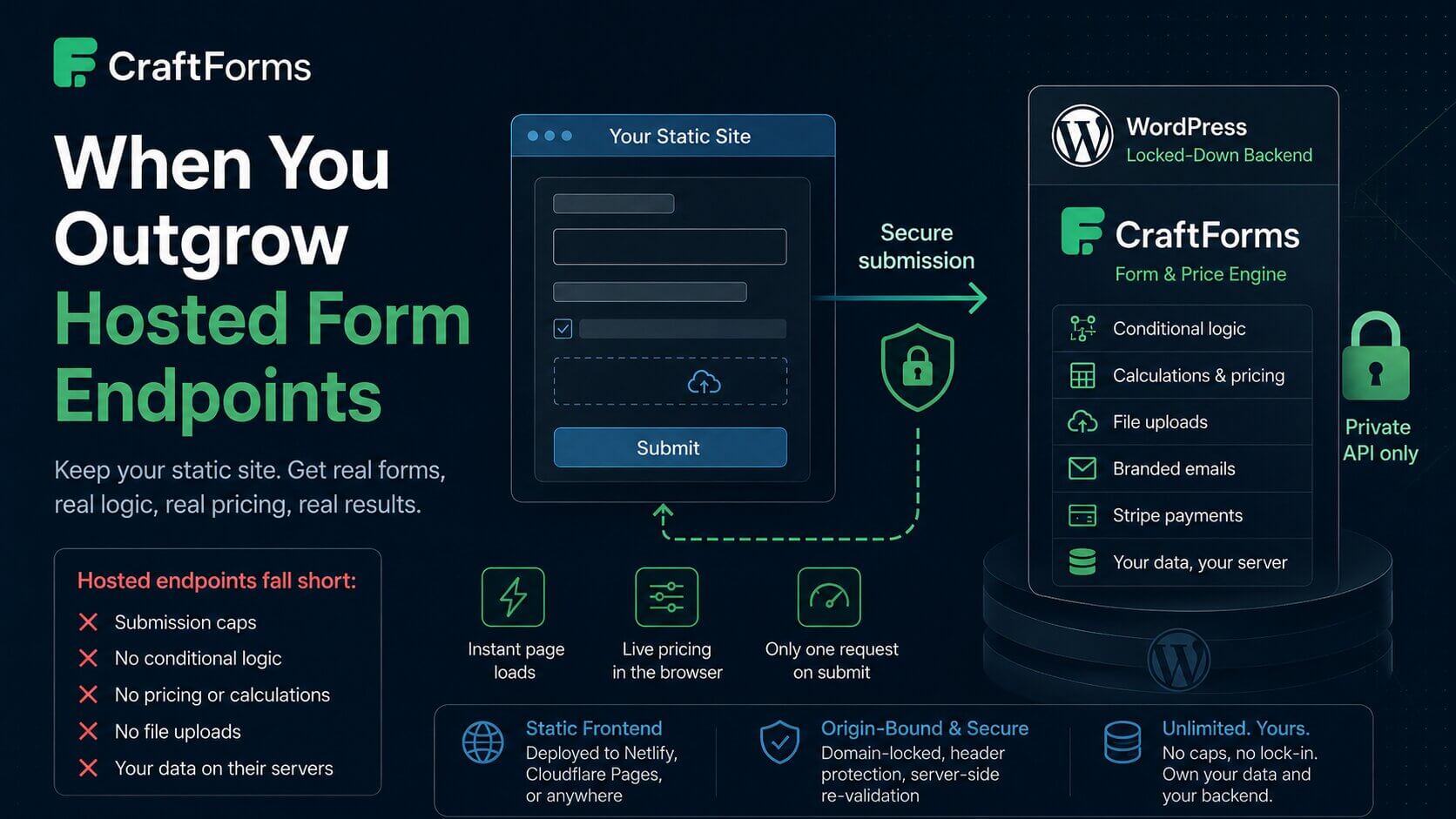
    Static sites embed schema

    Your static sites connect to the WordPress backend over HTTPS. Static site A makes a direct fetch call on form submit. Static sites B and C use CraftForms’ embed feature — the form HTML is served from WordPress and rendered on the page automatically. Both methods hit the same craftforms/v1 REST endpoint; everything else on the WordPress install is locked down.

    What the locked-down WP install does NOT have

    • No public frontend — all page and post requests return 403
    • No theme vulnerabilities — no theme is active
    • No page builder, no WooCommerce, no third-party contact form plugin
    • No XML-RPC
    • No /wp-login.php at its default path

    A JAMstack site on Cloudflare Pages or Netlify serves your visitors. WordPress never touches a public HTTP request. It only processes form submissions.


    Part 2 — Locking Down the WordPress Installation

    Why One Plugin Changes Everything

    The most common vector for WordPress compromise is not your hosting provider — it’s outdated plugins. Every plugin in your install is a potential attack surface: a page builder you added for one client project, a contact form plugin with a stored XSS CVE published last week, a WooCommerce extension that stopped receiving updates.

    A WordPress installation with one plugin and a blocked public frontend has an attack surface close to zero. No theme vulnerabilities, no page builder vulnerabilities, no contact form plugin vulnerabilities — because none of those exist on this install.

    The steps below lock down the remaining standard entry points.


    Step 1 — Block the WordPress Frontend

    The template_redirect action fires before WordPress outputs anything. For any visitor who is not logged in, the hook returns a 403 and exits — no page, no post, no homepage is ever served. Because this runs in PHP it works on any server: Apache, nginx, or a local PHP built-in server. No .htaccess rules or server configuration required.

    template_redirect does not fire for REST API requests or wp-admin, so the CraftForms submission endpoint and the admin panel remain fully accessible to logged-in users and external form submissions.

    The implementation is in the complete mu-plugin below.


    Step 2 — Restrict the REST API to CraftForms Only

    All REST namespaces except craftforms/v1 return 403. This closes user enumeration (GET /wp-json/wp/v2/users), route discovery (GET /wp-json/), and every standard WordPress REST exploit in one filter. The filter fires after WordPress resolves the CORS OPTIONS preflight, so cross-origin submissions from your static sites continue to work correctly.

    Create wp-content/mu-plugins/craftforms-backend.php — files in mu-plugins/ load automatically on every request, no activation required. The full implementation is in the complete mu-plugin below.


    Step 3 — Hide the WordPress Login URL

    Automated brute-force scripts target /wp-login.php by default. Moving the login to an unpredictable URL removes your install from every automated scan. Pick a slug that is long, random, and only you know — and store it somewhere safe. Your login page will be at https://your-wp-backend.com/your-secret-slug. Losing the slug means you cannot log in.

    The full implementation is in the complete mu-plugin below.


    Complete mu-plugin

    Create a new PHP file craftforms-backend.php Drop this single file in wp-content/mu-plugins/ and all four measures are active immediately:

    <?php
    /**
     * CraftForms backend — security measures.
     * Place in: wp-content/mu-plugins/craftforms-backend.php
     */
    if ( ! defined( 'ABSPATH' ) ) exit;
    
    // ── 1. Restrict REST API to craftforms/v1 only ──────────────────────────────
    add_filter( 'rest_pre_dispatch', function ( $result, $server, $request ) {
        $route = $request->get_route();
        if ( strpos( $route, '/craftforms/' ) === 0 ) {
            return $result;
        }
        return new \WP_Error(
            'rest_restricted',
            'REST API is disabled on this installation.',
            [ 'status' => 403 ]
        );
    }, 10, 3 );
    
    // ── 2. Disable XML-RPC ───────────────────────────────────────────────────────
    add_filter( 'xmlrpc_enabled', '__return_false' );
    
    // ── 3. Custom login URL ──────────────────────────────────────────────────────
    if ( ! defined( 'CF_LOGIN_SLUG' ) ) {
        define( 'CF_LOGIN_SLUG', 'my-secret-access-8k2m9x' ); // ← CHANGE THIS
    }
    
    add_action( 'init', function () {
        global $pagenow;
        $request_path = parse_url( $_SERVER['REQUEST_URI'] ?? '', PHP_URL_PATH );
    
        if ( $request_path === '/' . CF_LOGIN_SLUG ) {
            // wp-login.php reads $user_login and $error before conditionally setting
            // them; initialise here to prevent PHP 8 "Undefined variable" warnings.
            global $error;
            $error      = $error ?? null;
            $user_login = '';
            require_once ABSPATH . 'wp-login.php';
            exit;
        }
    
        if ( $pagenow === 'wp-login.php' ) {
            status_header( 404 );
            nocache_headers();
            exit( 'Not found.' );
        }
    } );
    
    // Rewrite site_url( 'wp-login.php', 'login|login_post' ) calls so the login
    // form action POSTs to the custom slug instead of the blocked wp-login.php.
    add_filter( 'site_url', function ( $url, $path, $scheme ) {
        if ( 'wp-login.php' === $path && in_array( $scheme, [ 'login', 'login_post' ], true ) ) {
            return home_url( CF_LOGIN_SLUG );
        }
        return $url;
    }, 10, 3 );
    
    add_filter( 'login_url', function ( $url, $redirect, $force_reauth ) {
        $custom = home_url( CF_LOGIN_SLUG );
        if ( $redirect ) {
            $custom = add_query_arg( 'redirect_to', urlencode( $redirect ), $custom );
        }
        return $custom;
    }, 10, 3 );
    
    add_filter( 'logout_url', function ( $url ) {
        return str_replace( 'wp-login.php', CF_LOGIN_SLUG, $url );
    } );
    
    // ── 4. Block all public frontend requests ───────────────────────────────────
    add_action( 'template_redirect', function () {
        if ( is_user_logged_in() ) {
            return;
        }
        status_header( 403 );
        nocache_headers();
        exit;
    } );
    

    Verify the setup

    # Should return 403
    curl https://your-wp-backend.com/wp-json/wp/v2/
    
    # Should return form data
    curl https://your-wp-backend.com/wp-json/craftforms/v1/embed/YOUR_KEY
    

    Nathan Foley has prepared a GIST – an updated version of this my MU plugin version. The comment was published in our FB group, you can check it here.


    Security Measures Summary

    MeasureWhat it blocks
    Minimal plugin countEvery plugin not installed = zero CVEs from that plugin
    PHP frontend blockWeb scrapers, bots, and crawlers requesting WordPress pages — works on any server without .htaccess
    REST API namespace restrictionUser enumeration (/wp/v2/users), route discovery, WordPress REST exploits
    XML-RPC disabledBrute-force via XML-RPC, pingback DDoS amplification
    Hidden login URLAutomated brute-force scripts targeting /wp-login.php

    Part 3 — CraftForms: External Submissions and Embedding

    Enable External Submissions

    Open any CraftForms form in the WordPress editor. Scroll to the Advanced Settings panel at the bottom of the settings sidebar — it shows the form’s submission URL and a button to open the full configuration.

    Advanced settings
    Advanced Settings on the form edit page

    Click Configure Submission Settings. The modal opens with everything you need: the toggle, the endpoint URL, a ready-to-run cURL example, and the field validation table.

    Advanced settings modal
    Submission Settings

    Toggle Allow External Submissions on. The API Reference section below it shows the endpoint — the form’s REST name (a human-readable slug you set when creating the form, e.g. contact-form):

    POST https://your-wp-backend.com/wp-json/craftforms/v1/submit/contact-form
    

    Submitting from Your Static Site

    CraftForms accepts application/json. For most static site integrations this is the cleanest approach:

    cURL:

    curl -X POST "https://your-wp-backend.com/wp-json/craftforms/v1/submit/contact-form" \
      -H "Content-Type: application/json" \
      -d '{"name":"John Doe","email":"[email protected]","message":"Hello from curl"}'
    

    Vanilla JavaScript:

    <form id="contact-form">
      <input name="name" type="text" placeholder="Name" required />
      <input name="email" type="email" placeholder="Email" required />
      <textarea name="message" placeholder="Message"></textarea>
      <button type="submit">Send</button>
      <p id="status"></p>
    </form>
    
    <script>
    document.getElementById('contact-form').addEventListener('submit', async (e) => {
      e.preventDefault();
      const status = document.getElementById('status');
      status.textContent = 'Sending…';
    
      const data = Object.fromEntries(new FormData(e.target));
    
      const res = await fetch(
        'https://your-wp-backend.com/wp-json/craftforms/v1/submit/contact-form',
        {
          method: 'POST',
          headers: { 'Content-Type': 'application/json' },
          body: JSON.stringify(data),
        }
      );
    
      const json = await res.json();
      if (json.success) {
        status.textContent = json.data.successMsg || 'Sent!';
        e.target.reset();
      } else {
        status.textContent = json.data.errorMsg || 'Something went wrong.';
      }
    });
    </script>
    

    Field names must match the Name attribute of each CraftForms field block. The Field Validation table in the Submission Settings modal shows the exact field names and their validation rules:

    Advanced settings field valdiation
    Field validation schema

    Required Request Headers

    For an extra layer of spam protection, require a shared secret on every submission. Open the Submission Settings modal and click + Add required header in the Required Request Headers section. Any request that omits the header — or sends the wrong value — is rejected before the form is processed.

    The header name is entirely up to you — X-CF-Token is just one example. Pick any name and any value:

    Header nameHeader value
    X-CF-Tokenyour-secret-value

    Add the header to every fetch call from your static site:

    const res = await fetch(
      'https://your-wp-backend.com/wp-json/craftforms/v1/submit/contact-form',
      {
        method: 'POST',
        headers: {
          'Content-Type': 'application/json',
          'X-CF-Token': 'your-secret-value',
        },
        body: JSON.stringify(data),
      }
    );
    

    Note: This header is visible in the browser’s DevTools Network panel, so it is not a true secret for public-facing forms. It raises the bar for automated spam — scripts that don’t know the header will be rejected — but it is not a substitute for rate limiting. For server-to-server calls (a serverless function proxying the submission) it acts as a proper shared secret.


    Embedding a Form

    With embedding you don’t build a form on the external site at all. CraftForms renders the form HTML and delivers it — along with all required styles and scripts — directly to the external page. The form submits back to the same WordPress backend automatically.

    Setup:

    1. Make sure Allow External Submissions is enabled on the form (step above).
    2. Go to CraftForms → Settings → Embed tab. Click Generate new key, select the form, and enter the external domain (e.g. mysite.com — no protocol, no trailing slash).
    Settings embed
    Add embed key
    1. Click the Snippet button on the new row.
    Settings embed modal
    Embed snippet

    Copy the snippet and paste it anywhere in your HTML page:

    <div
      data-craftforms-embed="aHR0cHM6Ly9zYW5kYm94LnRlc3Q.oHrv6dPVreM">
    </div>
    <script
      src="https://your-wp-backend.com/wp-content/plugins/craftforms/build/webcomponents/embed.js"
      defer>
    </script>
    

    The <div> is replaced by the live form at page load — no configuration on the static site side, no build step, no manual form markup.

    What you get for free with an embedded form:

    • Every CraftForms field type — text, email, file uploads, dropdowns, date pickers, conditional fields, multi-step flows.
    • Advanced components — star ratings, range sliders, repeater groups, catalog selectors.
    • Client-side validation built in — required fields, email format, character limits, custom error messages. Everything works out of the box; you write zero validation JavaScript.
    • Consistent UI — the form looks and behaves identically everywhere it is embedded, because it is the same rendered output from the same source.

    Compare that to building the form manually: custom markup, a validation library, wiring up field names, handling error states, writing the fetch call, testing cross-browser. With embedding, that work is already done.

    All form submissions use the ?rest_route= URL format — fully compatible with the locked-down setup in Part 2, even if /wp-json/ is blocked at the server level.

    With a catalog resource (booking, product, etc.):

    <div
      data-craftforms-embed="aHR0cHM6Ly9zYW5kYm94LnRlc3Q.oHrv6dPVreM"
      data-resource-id="42">
    </div>
    <script src="…/embed.js" defer></script>
    

    What Your Static Site Gains

    Third-party form services (Formspree, Netlify Forms, Basin) give you one thing: an email on form submit. CraftForms gives you a backend.

    Email that doesn’t land in spam

    CraftForms routes email through a real SMTP provider — not PHP’s wp_mail. Under SMTP Servers in the admin menu, add as many providers as you need — Postmark, SendGrid, Mailgun, your own mail server — each with its own credentials. Then, inside each form’s submit actions, the Send Email and Send Email Template actions each have an SMTP server selector: pick which provider handles that delivery. A contact form can send notifications via Postmark; a booking form can use a separate provider tied to your reservations mailbox. No shared infrastructure, no sender reputation you don’t control.

    Branded HTML email templates — designed in WordPress

    The email template designer is a Gutenberg editor. Add headings, images, buttons, and text blocks; insert {{field_name}} variables anywhere. CraftForms compiles the design to optimised, email-client-compatible HTML automatically. The confirmation email a customer gets after booking a stay looks like it came from a real hospitality brand — because you designed it, in the same editor you use for everything else.

    With an embedded form, your static site gets ecommerce and booking

    This is where the gap between a third-party service and CraftForms widens the most. An embedded CraftForms form isn’t just a contact form — it can be any form type the plugin supports, and Pro forms include:

    • File uploads — with server-side MIME validation and automatic import into the WordPress Media Library
    • Price calculator — Smart Variables evaluate a formula as the user selects options; the live price updates in real time before they submit, and the server recalculates on submission so the charged amount can never be manipulated client-side
    • Booking datepicker — hotel-style checkin/checkout ranges, fixed time-slot grids, or single-date selection; blocked dates and advance-notice requirements enforced visually
    • Catalog and inventory — attach a resource to a form; availability is tracked per date and per slot automatically; pre-submission stock checks prevent double-booking
    • iCal sync — paste an Airbnb or Booking.com iCal URL and those dates are marked unavailable in your datepicker automatically; a private .ics feed goes back the other direction so external platforms stay in sync

    A static site on Cloudflare Pages with a CraftForms embedded form can take bookings, calculate and charge prices, manage inventory, and send a branded confirmation email — all without a server of its own, and without stitching together five separate services.


    Part 4 — Builderius: Build the Static Frontend Without Code

    Builderius is a visual site builder that runs inside WordPress. Design your pages with drag-and-drop, then export the result as pure HTML, CSS, and JavaScript — no PHP, no database, no WordPress dependency in production.

    Workflow:

    1. Build your site in Builderius — on a local or staging WordPress install, completely separate from the locked-down form backend.
    2. Export the static build. The output is clean HTML files and assets. No server-side code, no theme files, nothing to maintain.
    3. Deploy to Cloudflare Pages (free tier, globally distributed CDN, deploys from a git push in seconds) or GitHub pages. Or download the static site as ZIP archive and deploy anywhere you want.
    4. Connect to CraftForms:
      • Option A — Embed: paste the CraftForms snippet into your exported HTML. The form renders automatically on page load. Zero custom JavaScript required.
      • Option B — Custom fetch: build your form directly in Builderius — its form builder lets you design a fully styled form with complete control over every element and its markup. Submit the form data to the endpoint URL provided by CraftForms. You own the design; CraftForms handles the processing.

    The result: a static CDN site with millisecond load times and a tiny security surface on the frontend. The WordPress backend handles form processing and storage — it never serves a single page to a visitor.


    All features described in this article — external submissions, required headers, and form embedding — are part of CraftForms PRO.

  • How to Create an Online Order Form for Your Small Business (2026)

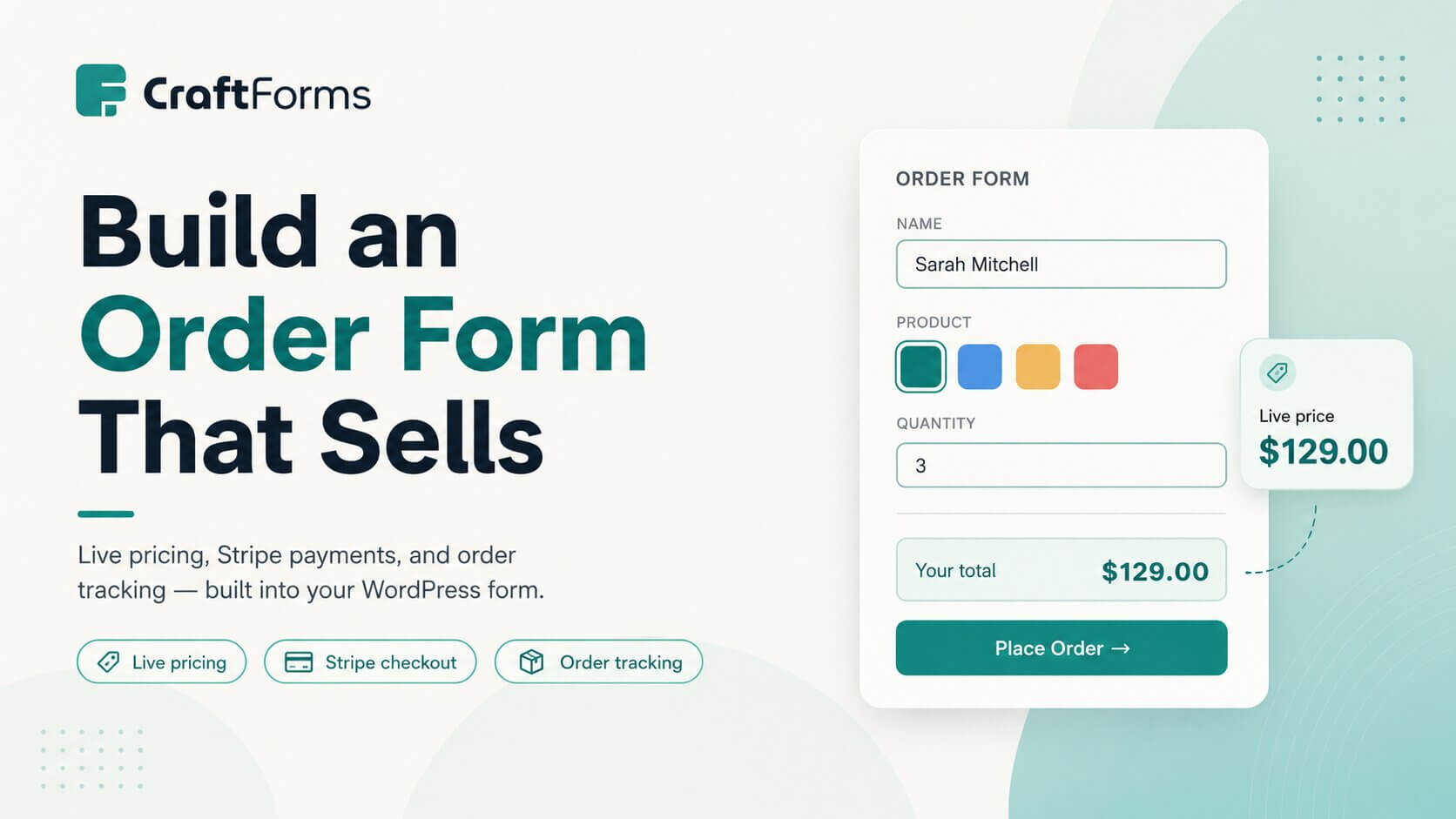
    How to Create an Online Order Form for Your Small Business (2026)

    If you’re still taking orders by phone, email, or a basic “contact us” form, you’re doing extra work every single time someone wants to buy from you. You have to reply, confirm details, quote a price, wait, chase payment — and none of it is recorded anywhere unless you write it down yourself.

    A proper online order form handles all of that automatically: it shows customers what they’re paying before they submit, collects card payment at the same time, and drops every order into your WordPress admin so nothing slips through. This guide walks you through building one from scratch using CraftForms — no WooCommerce, no page builder, no coding required.


    Why a Contact Form Isn’t Enough for Taking Orders

    A standard contact form sends you an email. That’s it. It has no concept of what the customer wants to buy, what it costs, or whether they’ve paid. Every submission kicks off a manual thread: you email back with a price, they reply to confirm, you send a payment link, they pay (maybe), you note it in a spreadsheet.

    That process works for three customers. It breaks at thirty.

    What a proper order form does differently:

    • Shows a live price as the customer configures their order, so they know what they’re committing to before they hit submit
    • Collects payment in the same step — no chasing invoices
    • Saves every order to your WordPress admin with the customer’s details, choices, and payment status
    • Sends a confirmation email automatically, so the customer has a record and you don’t have to reply manually

    The form you build in this guide does all four.


    What You’ll Need

    • WordPress with CraftForms installed (the free version covers the form builder; the Pro version adds pricing, payment, and order management)
    • A Stripe account — free to create at stripe.com; Stripe takes a small per-transaction fee but there’s no monthly cost
    • About 20–30 minutes for a simple form; longer if you have complex pricing
    Small business form
    Example of nice form for business

    Step 1 — Build the Order Form

    Go to CraftForms → Forms in your WordPress admin and click Add New. Give the form a name (you’ll see it in the forms list later) and you’ll land in the block editor with an empty form canvas.

    Adding the right fields

    A typical product order form needs:

    Customer details Add a Text Input Field for the customer’s name, another for their email address (set the input type to “Email” in the block settings), and optionally a phone number field.

    What they’re ordering This is where order forms differ from contact forms. Instead of a plain text box, use structured fields:

    • Select Field for a straightforward product list (a dropdown the customer picks from)
    • Radio Field if you want the options laid out as clickable cards — especially useful when you have 3–6 distinct products or service tiers

    For either field, you can attach a price to each option. When you edit the options list in the block sidebar, each option has a label, a value, and a price field. The price you enter here flows into your pricing formula later.

    Quantity Add a Text Input Field and set the input type to “Number”. Give it the field name quantity — you’ll reference this in the pricing formula.

    Notes or special instructions A Textarea Field covers any free-text requirements: dimensions, delivery notes, custom messages, etc.

    File upload (optional) If your customers need to send artwork, a logo, or technical drawings, add a File Upload Field. You can restrict it to specific file types (PDF, PNG, AI, etc.) in the block settings.

    Using swatches for product variants

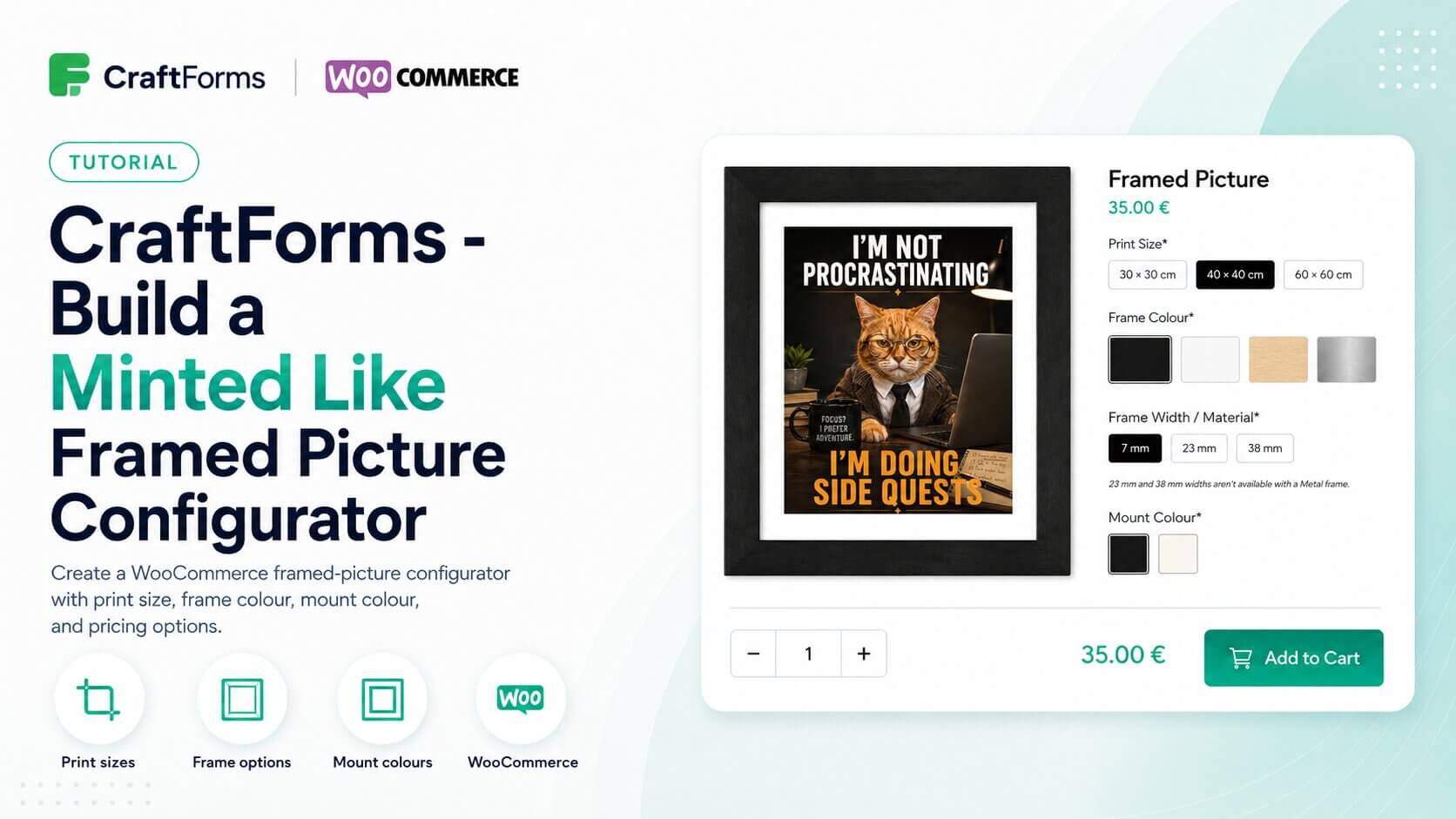
    If your product comes in colours or materials, plain dropdown text doesn’t do it justice. Radio Fields and Checkboxes Fields both support image swatches and colour swatches — switch the display mode in the block sidebar under “Option Style”.

    With image swatches, each option shows a small thumbnail. With colour swatches, each option shows a filled circle or square. Either way, the customer clicks a swatch to select it, which feels much more like shopping than filling in a form.

    Editor swatches
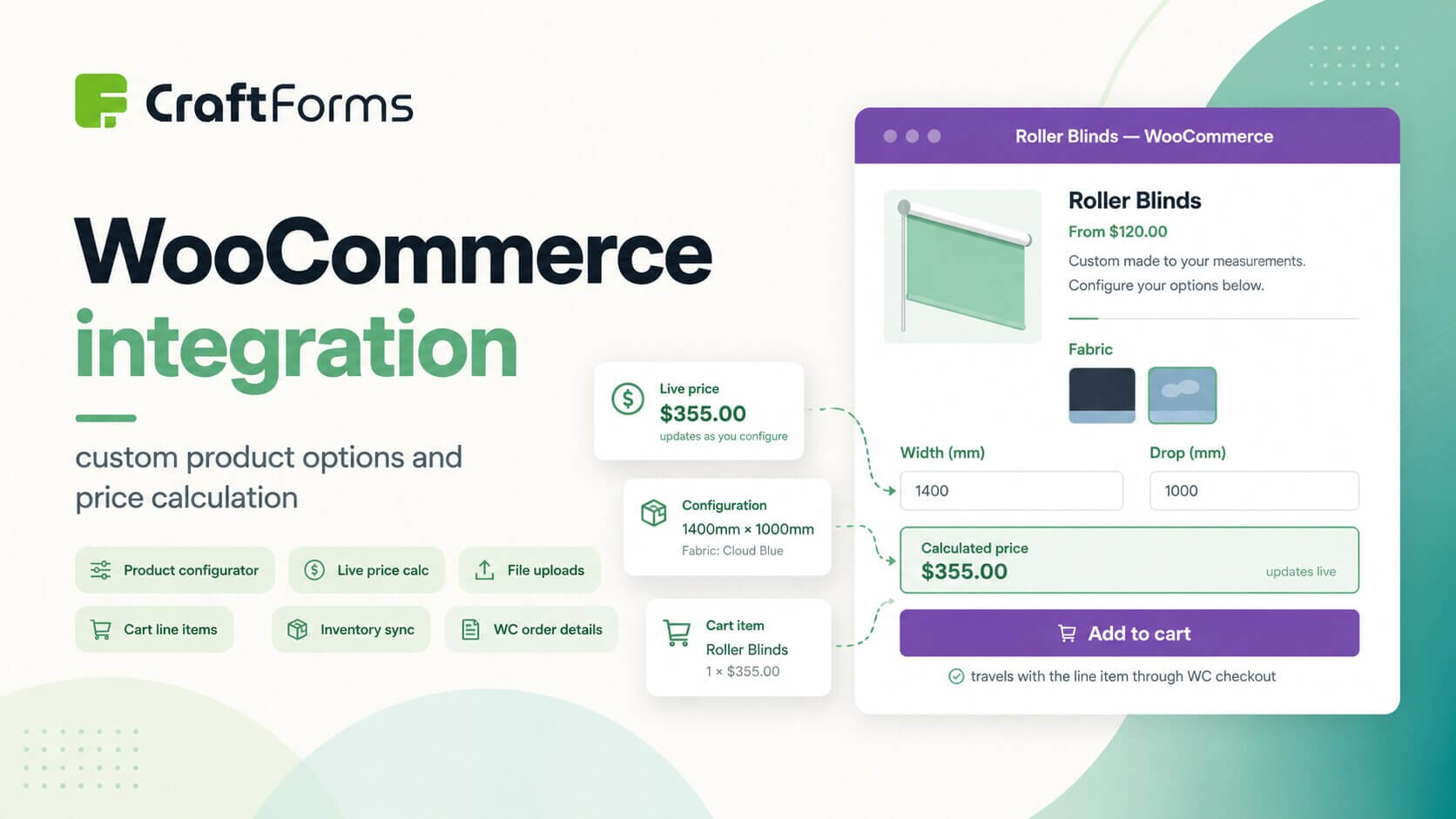
    Example of Roller Blinds product form

    Step 2 — Add a Live Price Calculation

    This is what separates a configurator from a contact form. CraftForms calculates the order total from your field values and shows it live on the form as the customer makes selections.

    Bridging option prices into your formula with Linked variables

    Smart variable rubber
    Example of Rubber option pricing setup

    In Step 1 you attached a price to each option in your Radio or Select field. To use those prices in a formula, you first need to surface them as a Smart Variable.

    Open the Smart Variables panel and click Manage Smart Variables. Create a new variable, set the type to Linked, and point it at your product field with the lookup set to price. Give the variable a name — say, product_price. CraftForms will now automatically hold the price of whichever option the customer selects in that variable.

    Writing a pricing formula

    In the form editor, look for the Pricing panel in the right-hand sidebar (you may need to click into the form root block to see it). Enter either a fixed number (e.g. 29.99) or a formula that references your field names and Smart Variable names.

    With the Linked variable in place, a simple quantity × unit price formula looks like this:

    quantity * product_price
    

    Where quantity is the name of your number field and product_price is the Linked Smart Variable you created above.

    The server recalculates this formula when the form is submitted — meaning customers cannot tamper with the price in the browser. What they see is always what gets charged.

    More complex pricing with Expression variables

    For anything beyond a single multiplication — tiered pricing, add-on fees, bundle discounts — create an Expression variable in Smart Variables (custom formulas with access to functions like round(), min(), max(), and ceil()). If you have a “rush” field whose selected option carries a price, create a second Linked variable rush_fee for it the same way, then combine them:

    round((quantity * product_price) + rush_fee, 2)
    

    For pricing that depends on two dimensions — such as width and height, or distance and weight — use a Table variable. You define rows and columns, populate the cells with prices, and CraftForms does the lookup automatically. You can type the values in manually or import them from a CSV if you already have a price sheet.

    If your business sells custom-sized products where the price changes based on dimensions, the Table variable is the right tool. For a detailed real-world walkthrough, see the roller blinds product configurator tutorial — it builds a complete two-variable pricing setup from scratch.

    Displaying the price on the form

    Once your formula is set, add an InfoBlock anywhere in the form (it’s a standard block you can insert from the block inserter). Inside the InfoBlock, type something like:

    Your total: {{form.price}} {{form.currency}}
    

    The {{form.price}} tag is replaced with the calculated total, and {{form.currency}} shows the currency symbol. The InfoBlock updates in real time as the customer fills in or changes any field — no page reload required.


    Step 3 — Connect Stripe and Take Payment

    Go to CraftForms → Payment Settings in your WordPress admin. This is where you wire up Stripe.

    Connecting your Stripe account

    You’ll need two keys from your Stripe dashboard — the Publishable Key (starts with pk_) and the Secret Key (starts with sk_). Stripe provides both test and live versions; paste the test keys first so you can run through a payment without charging anyone.

    In Payment Settings, set the mode to “Test”, enter your test publishable and secret keys, and save. While you’re there, set your currency (18 options available, including USD, EUR, GBP, and CAD) and fill in the success URL — the page you want customers to land on after a successful payment.

    You’ll also need to configure a webhook in your Stripe dashboard. CraftForms shows you the exact webhook URL to use (it looks like yoursite.com/wp-json/craftforms/v1/stripe/webhook). The webhook tells CraftForms when a payment has been confirmed, which is what updates the order status from “pending” to “paid”.

    Enabling payment on the form

    Back in the form editor, add the CraftForms Payment block to your form from the block inserter — place it near the bottom, just before the submit button. Adding this block is what activates the payment flow for the form; without it, the form submits as normal without charging anyone.

    Going live

    When you’re ready to accept real payments, return to CraftForms → Payment Settings, switch the mode to “Live”, and replace the test keys with your live keys. Everything else stays the same.

    Payment settings
    CraftForms pricing settings

    Step 4 — Set Up a Confirmation Email

    After a successful order, the customer should receive an email summarising what they ordered and what they paid. Go to the form’s action settings and add an email action — set the recipient to {{email}} (or whatever you named your email field) and write the body.

    You can reference any field value with {{field_name}} and include the order total with {{email.price}}. For a branded email with a header image, logo, and styled layout, create an Email Template under CraftForms → Email Templates and select it in the email action.


    Managing Orders in the WordPress Admin

    Every paid order appears in CraftForms → Orders. The orders list shows the customer name, form, order total, payment status, and submission date. Clicking an order opens the full detail: every field value the customer submitted, the Stripe payment reference, and the current order status.

    Order statuses follow a simple flow: pending → confirmed → paid → refunded. You can update the status manually if needed (for example, marking a cash order as confirmed), or statuses update automatically via the Stripe webhook.


    What Else Can You Build With This?

    An order form is one pattern. If your business sells time — hotel nights, rental periods, event slots, or appointments — you need availability management on top of what’s covered here: a date picker that blocks out already-booked dates and prevents double bookings. That’s a different setup, and we’ve written a complete guide for it: How to Build a B&B Booking Form with Availability and Orders.


    Summary

    Here’s what you’ve built:

    1. A structured order form with the right field types for your product or service
    2. A live price calculation that updates as the customer configures their order — using a simple formula or a Smart Variables Table for more complex pricing
    3. A Stripe payment step that charges the customer at the same time they submit
    4. Automatic confirmation emails with the order details
    5. An order list in your WordPress admin where you can track every order and its payment status

    The whole thing runs inside WordPress, no third-party platform required, and you keep 100% of the order data.


  • How to Use WordPress as a Form Backend for Static Sites And Web Apps

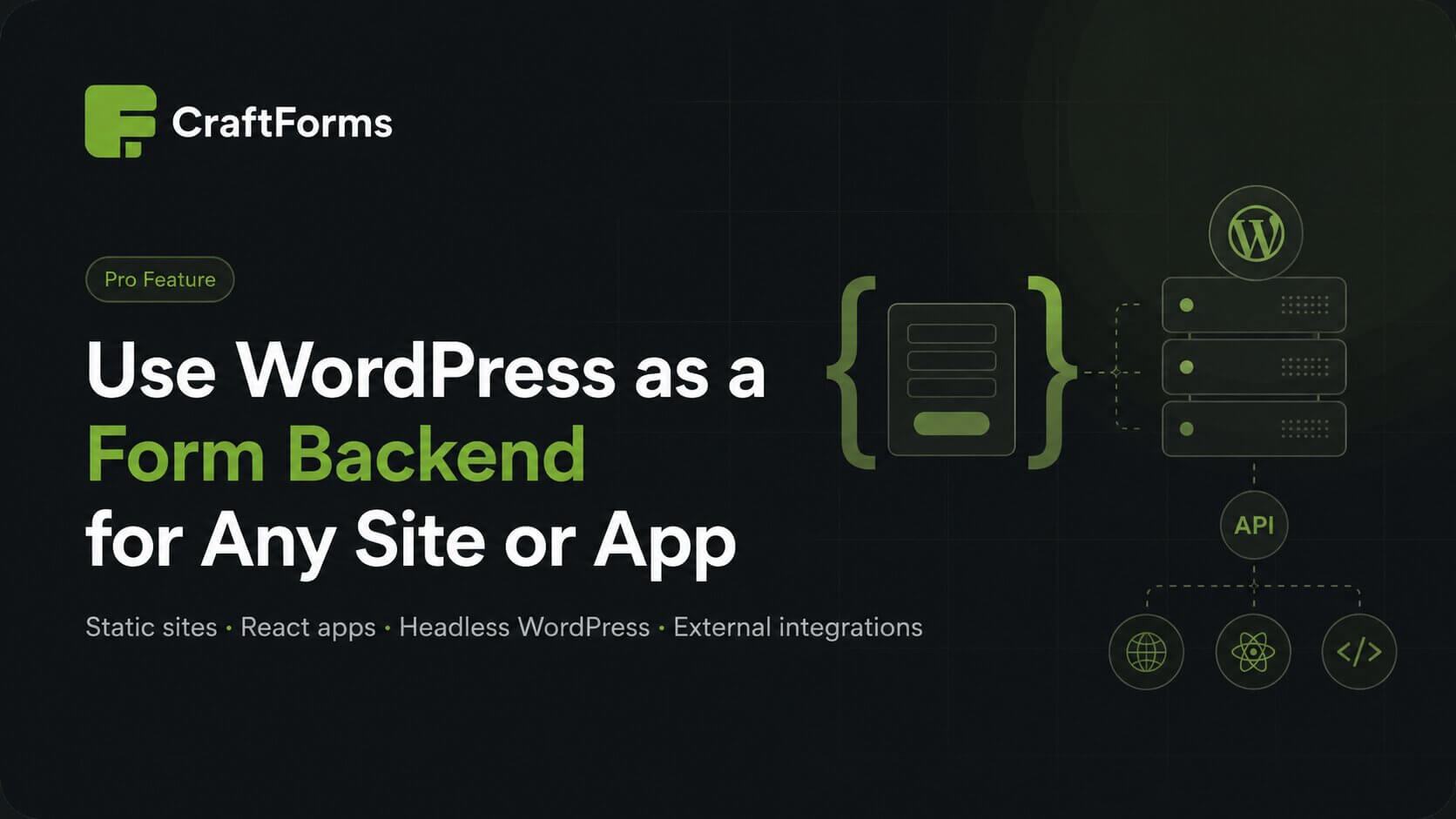
    How to Use WordPress as a Form Backend for Static Sites And Web Apps

    TL;DR: CraftForms Pro can receive form submissions from any website or app — not just pages on the WordPress site where it’s installed. Configure the form once in WordPress, submit to it from anywhere. Your data stays in your WordPress admin, server-side validation is always enforced on every request.


    Most WordPress form plugins do one thing well: they put a form on a WordPress page. That’s fine when your site is entirely built in WordPress. But what happens when it isn’t?

    Static sites built with Next.js, Gatsby, or Astro don’t have a PHP backend. React and Vue apps run in the browser with no server of their own. WordPress plugins and themes sometimes need to collect feedback but have no dedicated website to host a form. In each of these cases, the standard “create a form, add it to a page” workflow simply doesn’t apply.

    The usual answer is a third-party form service. Formspree, Netlify Forms, Basin, Getform — they all accept POST requests from any site and forward the submissions somewhere. They work, but they come with strings attached: per-submission limits on free plans, monthly fees once you grow, no control over validation rules, and — most importantly — your submissions living in someone else’s system, accessible from someone else’s dashboard.

    There’s a better option if you already have a WordPress site: use CraftForms as your form backend.

    Note: The feature described in this post — Allow External Submissions — is part of CraftForms Pro.


    The Idea: Separate the Form from the Backend

    A form is really two things:

    1. The interface — the HTML inputs, the layout, the labels, the button
    2. The backend — validation, sanitization and data storage, and optional email notifications

    These two things don’t have to live on the same site or even in the same technology stack. CraftForms normally handles both. But with external submissions enabled, you can take the interface anywhere and leave the backend exactly where it is — running on WordPress, handling everything it always handled.


    Craftforms architecture diagram

    How It Works

    Every CraftForms form has its own submission endpoint — a REST API URL that the form posts to when a user clicks Submit. By default, CraftForms only accepts submissions from pages on the same WordPress site. Enable Allow External Submissions and that restriction is lifted: the endpoint accepts POST requests from any origin.

    The endpoint format is:

    https://yoursite.com/index.php?rest_route=/craftforms/v1/submit/your-form-name
    

    The your-form-name part is what you set in the Form REST Name field. You can use anything descriptive — contact, support, quote-request — as long as it’s unique across your forms. If you don’t set a REST name, CraftForms uses an auto-generated unique ID instead.


    Setting It Up

    Step 1 — Build the form in CraftForms

    Create and configure the form exactly as you would for any WordPress page: add fields, set required rules, configure submit actions (Save Submission, Send Email Template, whatever you need). This is where all the logic lives — the form interface on your external site is just the visible layer on top.

    Step 2 — Open Advanced Settings

    In the form editor, open the settings panel and navigate to the Advanced tab (or open the Form Settings modal). You’ll find two settings here:

    • Form REST Name — set a short, readable slug for your endpoint (e.g., contact)
    • Allow External Submissions — toggle this on
    Image

    Step 3 — Use the generated curl example

    Once you enable external submissions, a panel appears showing your exact endpoint URL and a ready-to-use curl command. It’s not a generic example — CraftForms builds it from your actual form: the correct field names, the right data types, any custom header requirements. You can copy it directly to test the endpoint before writing a single line of frontend code.

    The panel also lists all form fields with their names, types, and validation rules — everything you need to know to replicate the form structure on your frontend.


    What You Get — Without Rebuilding Anything

    When a submission arrives from an external site, it goes through exactly the same processing as a submission from a WordPress page:

    Server-side validation is always enforced. Required fields, min/max rules, email format, file type restrictions — all of it runs on the server regardless of what the browser does. It cannot be bypassed by inspecting the page or submitting manually crafted requests.

    Submissions are saved to your WordPress database. Every entry lands in CraftForms → Submissions with all field values, timestamps, and metadata. Nothing gets lost in a forwarded email. Important: submit action “Save Submission” must be enabled for the form.

    Email Templates. Any Send Email Template actions configured on the form run as normal — it is a possibility to render nice, branded template based emails.

    The delivery log tracks every outgoing email. If a notification failed to arrive, you can check the log and know exactly what happened.


    Real-World Use Cases

    Static sites (Next.js, Gatsby, Astro, plain HTML)

    Static sites have no backend. If you want to handle form submissions, you either need an external service or you need to reach a backend somewhere. With CraftForms, that backend is your WordPress site. Build your form UI in whatever framework or plain HTML — wire the submit action to your CraftForms endpoint — and that’s it. Validation, storage, and email are all handled without writing any server-side code.

    React and Vue apps

    Single-page apps often already have an API they talk to, but that API rarely includes a full form-processing stack. Rather than building validation rules, and setting up email notifications from scratch — or paying a third-party service per submission — you can point your form’s POST request at CraftForms and let it handle all of that.

    WordPress plugin and theme developers

    This use case is closer to home for many developers. If you ship a WordPress plugin or theme, you might want to include a support form, a feedback collector, or a feature request button — without hosting a separate form service.

    The “Request a Feature” button in the CraftForms admin is exactly this pattern in practice. It opens a modal with a form built in plain HTML. When submitted, the request is sent to craftformswp.com — a standard CraftForms installation with a form configured to accept external submissions. The submission goes straight into the submissions inbox, triggers a notification email, and is stored in the WordPress database. No third-party service involved, no per-submission fees, full control over what gets stored and how notifications are worded.

    SCR 20260507 osbi

    If you build and sell a WordPress plugin, this means you can include a polished feedback or support form in your own product and receive everything centralised on your own site.

    Agencies managing multiple client sites

    If you manage several WordPress installations for clients but want submissions from all of them flowing into one place, external submissions make that possible without installing CraftForms on every client site. One CraftForms Pro install on your agency site can serve as the collection point for forms across any number of external properties.


    Why This Beats Third-Party Form Services

    The pitch for services like Formspree is convenience — you get a form backend without setting anything up. But once you already have a WordPress site, that convenience trade-off looks different:

    You own the data. Submissions are in your WordPress database. You export them whenever you want. If you stop paying for something, your data doesn’t disappear — because your data was never somewhere else to begin with.

    No per-submission pricing. Third-party services charge by volume. CraftForms Pro is a flat annual fee. A contact form that receives 5,000 submissions a month costs the same as one that receives 50.

    Validation rules are yours to configure. With a third-party service, you validate on the frontend (which can be bypassed) or accept whatever comes in. With CraftForms, you define the rules in the form editor and they’re enforced server-side on every request, automatically.

    Email templates are fully branded. You design the confirmation email in Gutenberg, using your own logo and colours, and reference any submitted field value with {{email.fieldname}} — not a plain-text forward with no formatting control.

    Submissions sit next to your other business data. Everything is in the same WordPress admin you already work in every day. No separate dashboard to check, no separate login to remember.


    Getting Started

    If you have a CraftForms Pro licence and a WordPress site, there’s nothing additional to install. Create your form, open its Advanced Settings, set a Form REST Name, toggle Allow External Submissions on, and copy the generated endpoint URL.

    For full documentation on the settings and the request format, see the Advanced Settings reference in the CraftForms knowledge base.


    Using CraftForms as a headless form backend? If you’ve built something interesting with external submissions — a plugin feedback form, a static site contact form, a multi-site collection setup — we’d be interested to hear about it. Join our FB community group!

  • How to Migrate from Contact Form 7 to CraftForms (Step-by-Step)

    How to Migrate from Contact Form 7 to CraftForms (Step-by-Step)

    TL;DR: CraftForms can import your existing CF7 forms automatically. If you’ve ever lost a submission, had an email silently fail, or wished CF7 had a submissions inbox — this guide is for you.


    Contact Form 7 powers millions of WordPress sites. It’s free, lightweight, and it gets the job done — until it doesn’t.

    If you’ve ever had a client call to say “I filled in your contact form but never heard back,” you’ve already hit CF7’s biggest limitation. The form sent the message (maybe). CF7 has no idea whether it arrived.

    This guide walks through what CF7 is missing, what CraftForms imports for you automatically, and how to get fully up and running in under 15 minutes.


    What Contact Form 7 Doesn’t Give You

    CF7 was built in a different era of WordPress — before Gutenberg, before the rise of sophisticated spam bots, before anyone expected a plugin to save form submissions to the database. It’s not that CF7 is broken. It’s that the bar has moved.

    Here’s what you won’t find in CF7:

    No submissions database

    CF7 sends an email and forgets the submission ever happened. There’s no inbox, no export, no way to go back and review what was submitted. If the email fails — or lands in spam — the lead is gone forever.

    The workaround most people reach for is Flamingo (a separate free plugin by the same author). It helps, but it’s not integrated: submissions live in a separate screen, aren’t connected to your form settings, and offer no filtering or export out of the box.

    No email delivery log

    You can’t tell whether an email was delivered, bounced, or rejected. When a client says “I never got the notification,” there’s no log to check. You’re left guessing whether the problem was the form, the server, the spam filter, or the client’s inbox.

    No native spam scoring

    CF7 relies on reCAPTCHA or Akismet to filter spam. Both work — but reCAPTCHA v2 puts a “I’m not a robot” checkbox in front of every legitimate user. Akismet requires an API key and flags submissions after the fact rather than blocking them silently.

    There’s no built-in behaviour-based scoring that catches bots without adding any friction for real users.

    Not a native block

    CF7 embeds forms via a shortcode: [contact-form-7 id="123"]. That shortcode can go inside a paragraph block, but the form itself isn’t a block — you can’t add it to a block template, control its layout with block spacing tools, or edit it inline in the Gutenberg editor. You drop a shortcode and hope for the best.


    What CraftForms Imports from CF7

    CraftForms includes a one-click importer that reads your existing CF7 forms and recreates them as native CraftForms forms. Here’s what comes across automatically:

    • All standard fields — text, email, URL, telephone, number, textarea, select, checkboxes, radio buttons, and file upload fields
    • Field labels — the visible labels you set in CF7 are preserved
    • Placeholder text — any placeholder text carries over as-is
    • Required field rules — fields marked required in CF7 are marked required in CraftForms

    What the importer doesn’t bring over:

    • Custom CF7 validation hooks (PHP-level custom validation that lived in your theme or another plugin — these need to be recreated manually)
    • Flamingo submission history — past submissions stored by Flamingo stay in Flamingo; the importer handles form structure, not historical data
    • Mail templates — CF7’s mail tab configuration is not imported; you’ll configure email sending fresh in CraftForms using submit actions and email templates

    Running the Import — Step by Step

    Before you start: keep CF7 active during the import. The importer reads CF7’s database entries directly, so CF7 needs to be installed and its data needs to be present.

    Step 1 — Install CraftForms

    If you haven’t already, install CraftForms from the WordPress plugin repository. Go to Plugins → Add New, search for CraftForms, install, and activate.

    Step 2 — Open the importer

    In your WordPress admin, go to CraftForms → Forms. On the forms list page, click the Import from CF7 button. Make sure Contact Form 7 plugin is active, otherwise the button for importing CF7 forms will not appear!

    Step 3 — Select a form and import

    A modal appears showing all CF7 forms found in your database. Select the form you want to import from the dropdown, then click Import. Repeat for each form you want to migrate.

    Step 4 — Continue editing

    The import is instant. As soon as it completes, CraftForms opens the imported form directly in the editor, ready for you to review and configure.


    What to Verify After Import

    Don’t just assume the import is perfect — spend five minutes checking each form before you make it live.

    Check field names

    CraftForms uses field names (slugs) to reference field values in email templates, dynamic tags, and other logic. The importer assigns names based on your CF7 field names, but it’s worth opening each imported form and confirming the names look right — especially if your CF7 forms used custom name attributes.

    To check: open the form in the CraftForms editor, click each field, and look at the Field Name setting in the sidebar.

    Check required field rules

    Open each field and confirm the Required toggle matches your original CF7 setup. The importer maps this automatically, but a quick review takes 30 seconds and will save you from a form that silently accepts incomplete submissions.

    Check the submit button

    CF7’s submit button text is not always imported cleanly. Open the form, find the Submit button block, and confirm the button label says what you want.

    Test the form on the frontend

    Add the form to a page as a synced pattern (or use a staging page you’ve set aside for testing), submit a test entry with real data, and confirm the submission appears in CraftForms → Submissions.


    Immediate Upgrades to Make Right After Import

    Once the form is working, it takes another five minutes to unlock features that CF7 simply doesn’t have.

    1. Add a Save Submission action

    Open your form and go to its Submit Actions tab. Add a Save Submission action. This is the single most important step — your form now has a database-backed inbox. Every submission is stored, searchable, and exportable. No more “the email probably went to spam” conversations.

    2. Connect an SMTP server

    Go to CraftForms → SMTP Servers and add your SMTP connection. Brevo (formerly Sendinblue) offers 300 free emails per day and takes about five minutes to set up. Once connected, CraftForms logs every outgoing email with its delivery status — sent, failed, or bounced — so you always know whether a notification reached its destination.

    WordPress’s default wp_mail() function uses your hosting server’s sendmail configuration. On most shared hosts this means no authentication, no DKIM or SPF, and a high chance of landing in spam. An external SMTP service fixes all of this.

    3. Spam protection — nothing to configure

    CraftForms includes behaviour-based spam scoring out of the box. It runs automatically on every submission, watching mouse movement, focus events, keystroke timing, and paste behaviour to assign a risk score. Bots that fill forms instantly with no mouse activity score high and are blocked silently — no CAPTCHA, no setup, no settings to touch.

    4. Set up email sending

    CF7’s mail configuration doesn’t import, so you need to add email sending as a submit action. CraftForms handles this through email templates — you design the email once, connect your form data using dynamic tags, and then attach the template to your form.

    Create an email template

    Go to CraftForms → Email Templates and create a new template. Build the email layout using the Gutenberg editor: add your logo, brand colours, and a message body. To pull in submitted values, use dynamic tags in the format {{email.fieldname}} — for example, {{email.name}} inserts whatever the user typed into the “name” field. You can also reference site-level variables like {{site.name}} or {{site.admin_email}}.

    Set the email subject in the template settings (dynamic tags work there too).

    Attach the template to your form

    Back in your form, go to the Submit Actions tab and add a Send Email Template action. Select the email template you just created. Configure the recipient address — use {{email.email}} to send a confirmation back to the person who submitted, or enter a fixed address to notify yourself or your team.

    Add separate Send Email Template actions for each recipient: one pointing to your admin address, another pointing back to the submitter’s email field.


    Going Further

    Once your forms are working and your submit actions are configured, CraftForms Pro unlocks several capabilities that CF7 never offered:

    The features below are part of CraftForms Pro (paid upgrade). They are not available in the free version.

    Conditional logic — Show or hide fields based on what the user has already selected. For example: show a “preferred contact time” field only if the user selects “Phone” as their preferred contact method. This keeps forms shorter and completion rates higher.

    Live price calculation — If you’re using forms for quotes, orders, or bookings, you can write pricing formulas using Smart Variables and display a running total as the user fills in the form. No separate calculator plugin needed.

    Stripe payments — Collect card payments directly through the form without WooCommerce. Useful for deposits, one-off service fees, or booking payments. The price is always validated server-side — the browser never sets the charge amount.

    Post creation — Map form submissions directly to WordPress posts. Useful for job boards, event submissions, community directories, or any scenario where a form submission should create a new piece of content.


    Summary

    Contact Form 7 is a solid starting point, but it’s showing its age. No submission storage, no email log, no spam scoring, and no native block integration add up to a meaningful gap — especially if you’re relying on these forms for real business enquiries.

    The migration itself is fast: CraftForms imports your fields, labels, and required rules automatically. The post-import steps — adding a Save Submission action, connecting an SMTP server, and setting up email templates — take less time than debugging one missed email in CF7.

    If you’ve been putting off the switch because you didn’t want to rebuild your forms from scratch, the importer removes that barrier entirely.


    Ready to migrate? Install CraftForms, head to CraftForms → Forms, and click Import from CF7.