Category: Video

  • Build a Custom Wallpaper Configurator in WordPress — Inspired by HappyWall

    Build a Custom Wallpaper Configurator in WordPress — Inspired by HappyWall

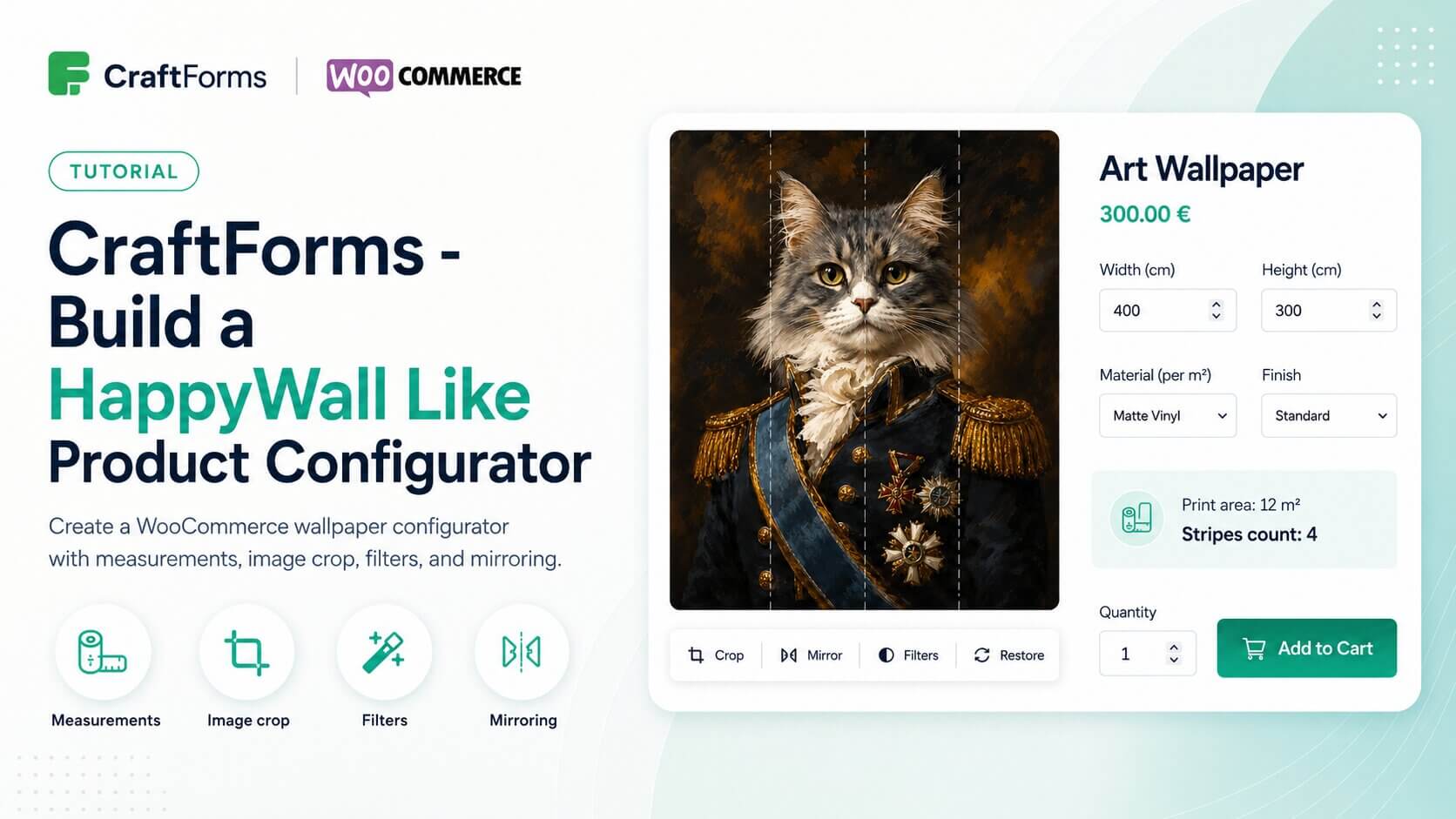
    Sites like HappyWall have set a high bar for how custom-printed products should be sold online. The customer enters their wall dimensions, sees the price update instantly based on square metres, crops the design to their exact wall ratio, applies a filter or mirrors the image if they want, and places the order. The whole process feels tailored and precise — because it is. In this tutorial we build exactly that kind of configurator in WordPress using CraftForms Pro and WooCommerce.

    The form uses width and height number inputs to drive a price formula: area in square metres multiplied by a per-m² rate that varies by material choice, with a finish selector adding a second modifier. A Smart Variable calculates the print area and stripe count automatically as the customer types, and both are displayed live in an Info block before checkout. The image editor embedded in the form lets the customer crop the uploaded image to match their wall ratio, apply brightness or contrast filters, and toggle horizontal mirroring — so what they see on screen matches what will be printed.

    The form is attached to a WooCommerce product. On submission, the selected options, the cropped image, the calculated area, and the final price travel with the line item through the standard WooCommerce checkout and appear on the order in the admin panel exactly as configured. This tutorial is applicable to any made-to-measure printed product — wall murals, canvas prints, custom posters, or any product where the price depends on customer-specified dimensions.

    Link to YT video: https://youtu.be/IhAnyZEncVM

  • Build a Bean Bag Product Configurator in WooCommerce

    Build a Bean Bag Product Configurator in WooCommerce

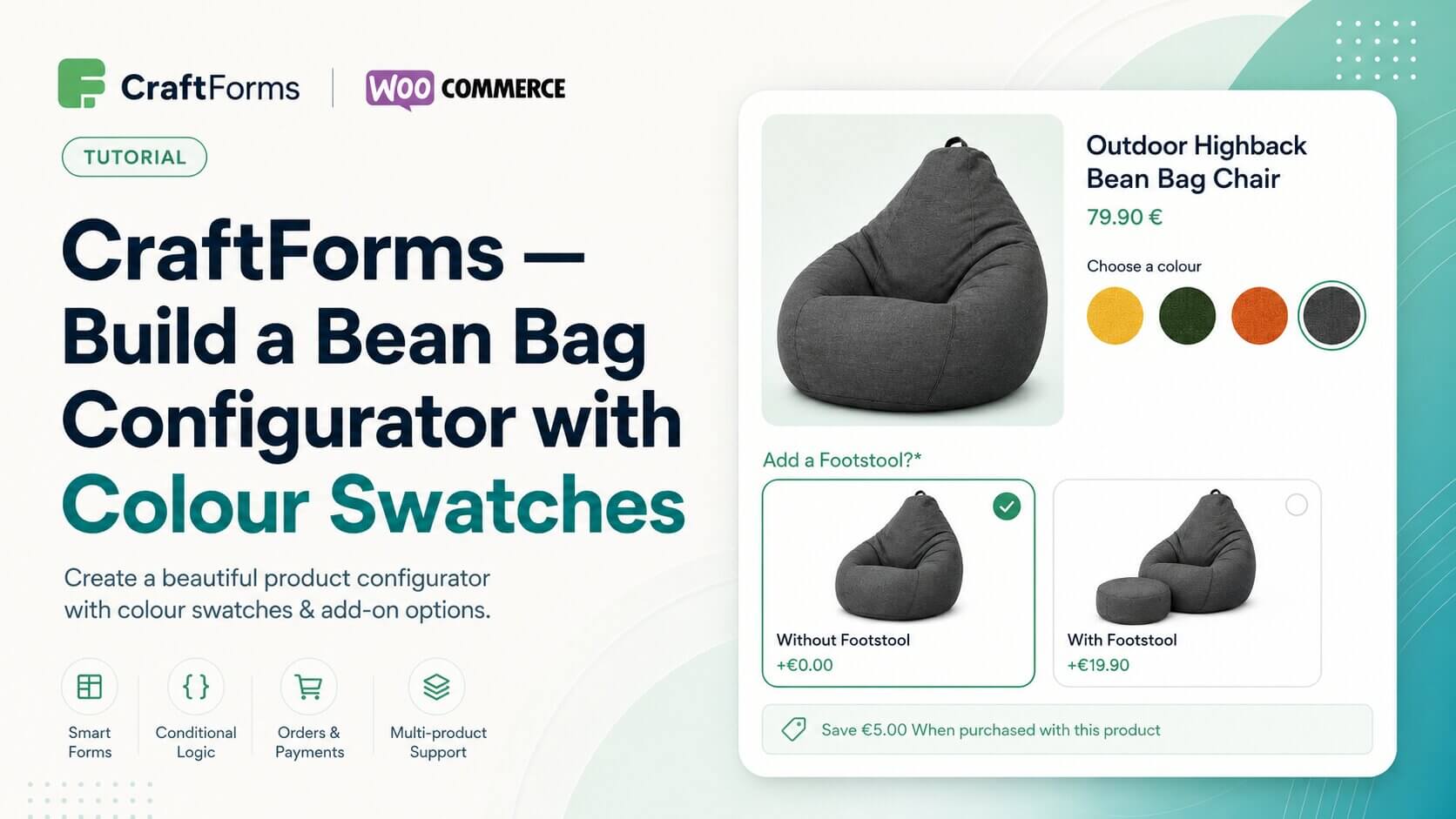
    Some of the best product pages make configuration feel effortless — pick a colour, choose an optional extra, see the price update, add to cart. Big Bertha Original does this well on their bean bag chair pages: fabric colour swatches, an optional footstool as a visual choice with a clear price difference, and a bundle saving shown inline. In this tutorial we recreate exactly that kind of experience in WordPress using CraftForms Pro attached to a WooCommerce product.

    The form uses a radio field with image swatches for colour selection and a second radio field for the footstool option, each showing its own image and price modifier. A Smart Variable adds the footstool price on top of the base when selected, displayed as a live total before the customer hits Add to Cart — all built inside Gutenberg, no custom code required.

    Once connected to a WooCommerce product, the selected options and calculated price travel with the line item through standard WooCommerce checkout and appear on the order in the admin panel exactly as configured.

    The full tutorial is on YouTube and CraftForms Pro is available at craftformswp.com.

  • CraftForms + WooCommerce: Custom Product Options

    CraftForms + WooCommerce: Custom Product Options

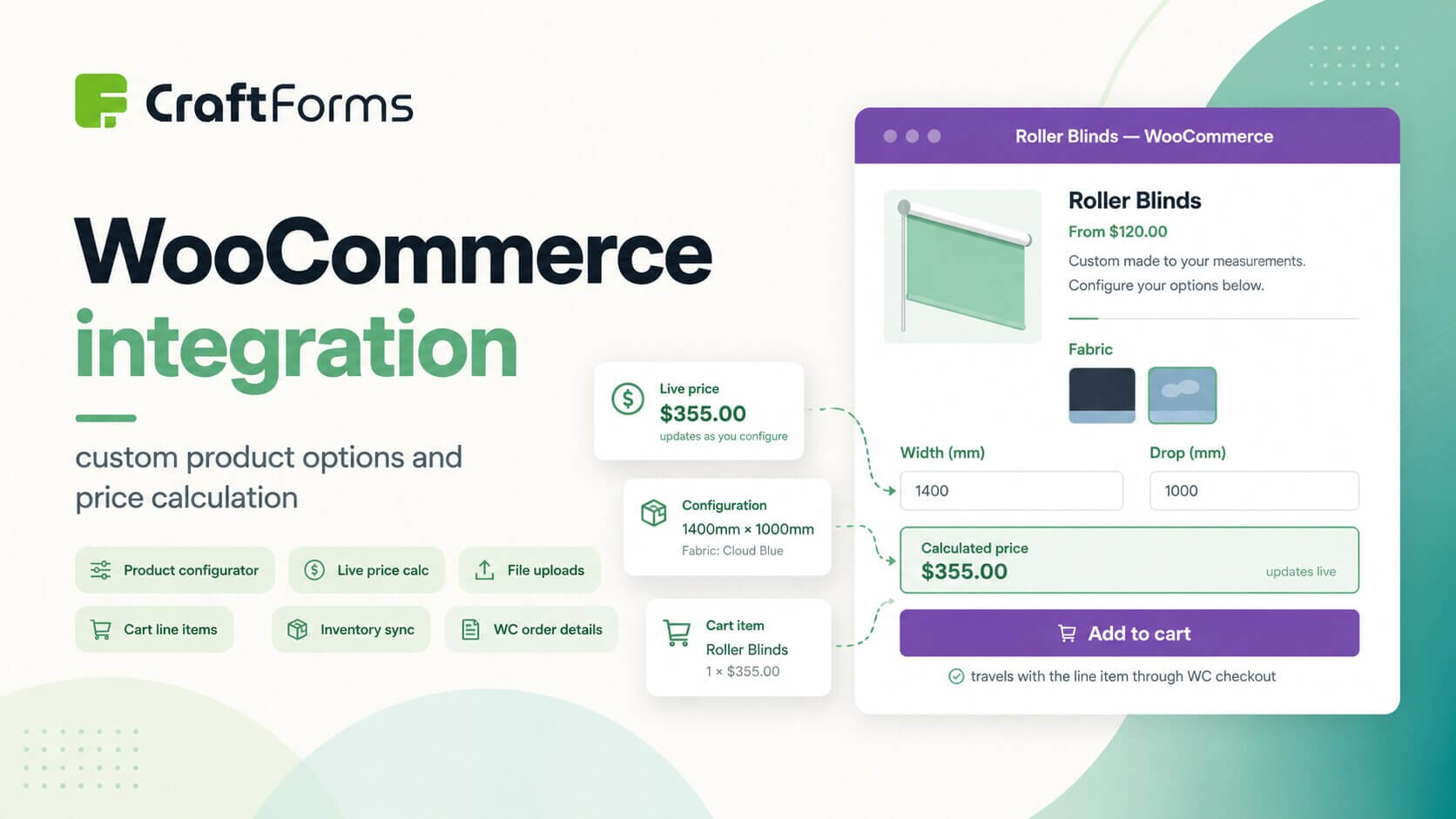
    WooCommerce handles the checkout, the cart, and the order flow well — but it has a long-standing gap when it comes to collecting custom configuration from the customer before they add to cart. The default product options are limited, and the plugins that fill that gap tend to be either overly complex or disconnected from the rest of your site. CraftForms Pro bridges that gap by letting you attach any form you build in Gutenberg directly to a WooCommerce product page.

    Inventory is another area where the integration earns its place. Stock defined in the CraftForms Catalog and WooCommerce product stock stay in sync automatically — so whether a sale comes through the CraftForms order system or the WooCommerce checkout, the available quantity updates in both places. This matters most when you are selling physical or made-to-order products where overselling is a real problem.

    The wider point the tutorial demonstrates is flexibility: one CraftForms form can serve multiple WooCommerce products, each with its own pricing logic and default options defined at the catalog item level. If you sell a range of products that share the same configuration structure — different materials, different size ranges, different price tables — you build the form once and create a catalog item per product. The full tutorial is on YouTube.

  • Build a B&B Booking Form with Availability and Orders

    Build a B&B Booking Form with Availability and Orders

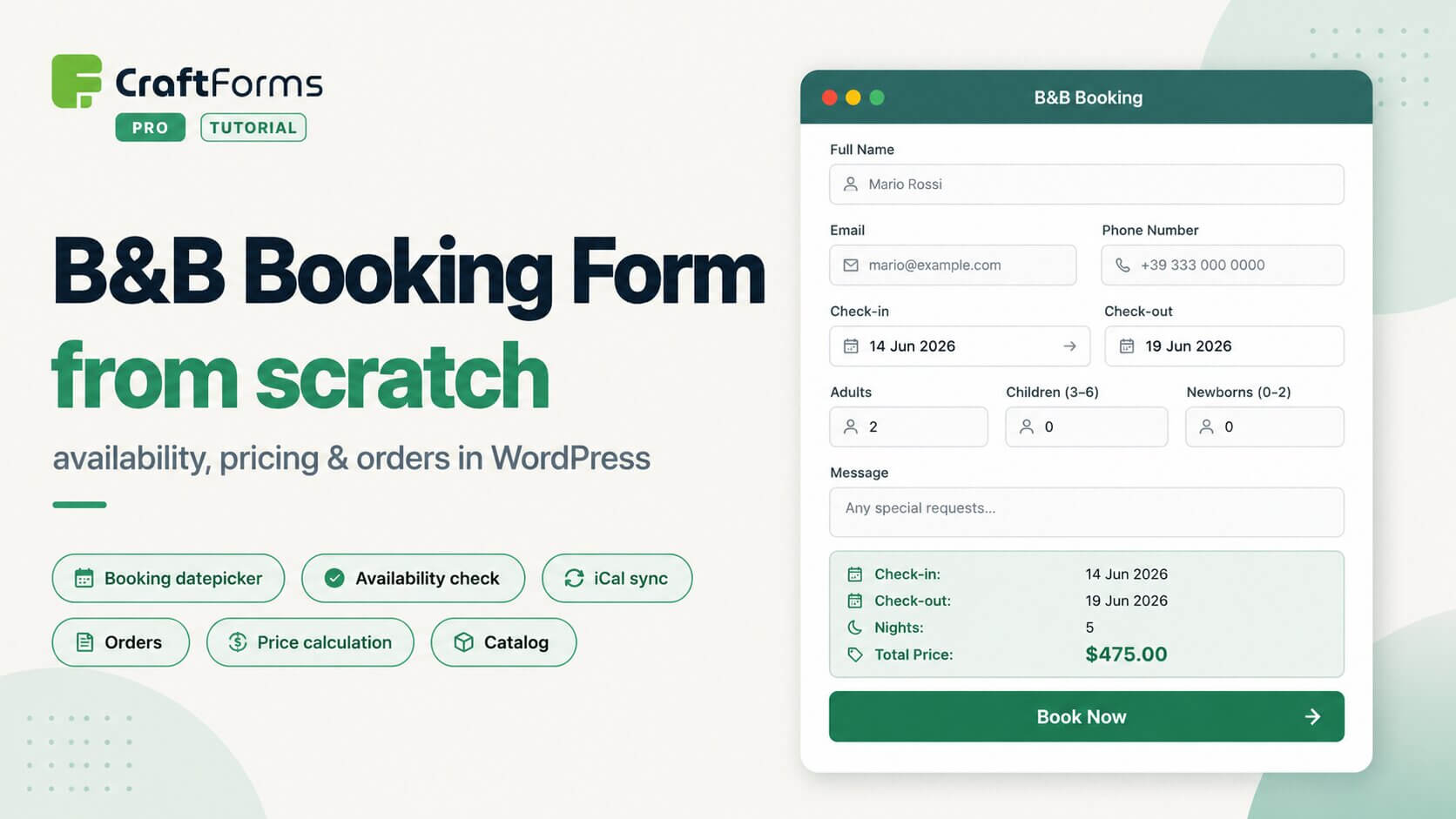
    A full walkthrough of building a real accommodation booking form in CraftForms Pro. The form covers all the standard fields — guest name, email, phone, check-in/check-out datepicker, adults and children counts, and a message field — with live price calculation based on number of nights and a summary block that updates before the guest submits. Availability is tracked per date so confirmed bookings automatically block those dates for future visitors.

    The second part connects the form to a catalog item, turning each submission into a tracked order with a full status lifecycle. It is not covered in the video, but CraftForms has iCal sync — importing feeds from external booking system automatically, and exporting a private feed so external platforms stay in sync. No WooCommerce, everything inside WordPress.

    Link to the tutorial on YT: https://www.youtube.com/watch?v=QcBEftYyi1A