Category: Tutorials

  • Build Branded Email Templates in WordPress

    Build Branded Email Templates in WordPress


    TL;DR

    • CraftForms has a visual email template builder inside the WordPress block editor — no HTML, no coding.
    • Add dynamic tags like {{email.name}}, {{email.checkin_date}}, or {{email.price}} and they fill in with real submission data on send.
    • Connect the template to any form via the Send Email Template action.
    • Add Mailtrap’s free sandbox as an SMTP server to catch test emails in a browser inbox — nothing reaches a real address while you’re still building.
    • Check CraftForms → Email Logs to confirm every send: which server delivered it, whether it succeeded, and the full email body.

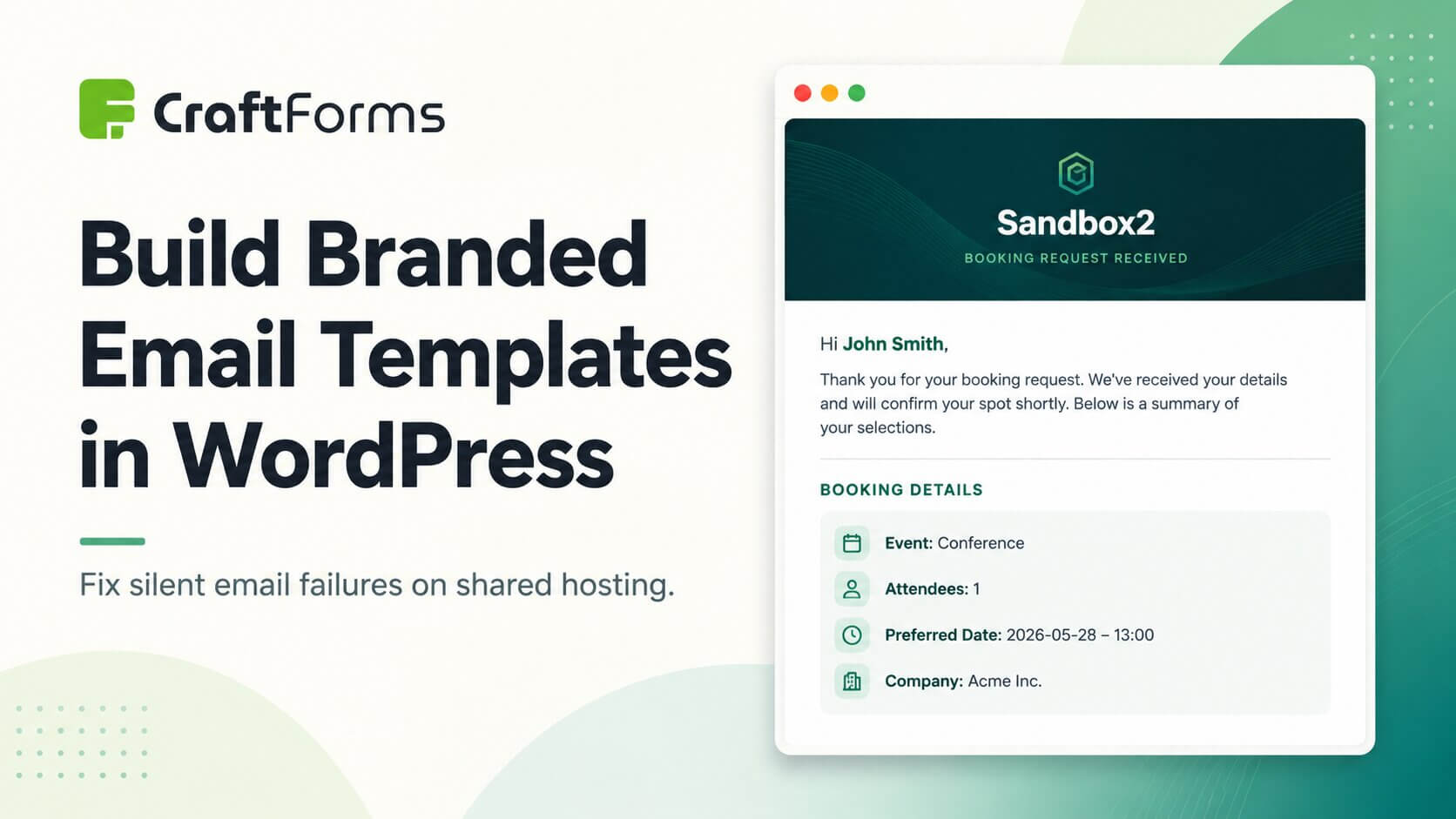
    A booking confirmation lands in the guest’s inbox five seconds after they submit your form. It has your logo at the top, the check-in and check-out dates they chose, the total they’re paying, a button to add the stay to their calendar. It looks like it came from a real hospitality business — because it did.

    That’s not a third-party email marketing tool. It’s CraftForms’ built-in email template builder, and it took about twenty minutes to set up.

    Visual email template builder is a FREE version functionality! ❤️

    Most WordPress contact form plugins send a notification that looks like this: a plain white email, monospace font, a dump of every field value, your WordPress site URL at the bottom. It gets the information across. It also tells your customer they’re dealing with a website held together with default settings.

    Your confirmation email is often the first thing a customer receives from you after making a booking or placing an order. It’s the moment when the transaction becomes real for them. A branded, well-structured email builds trust, reduces the “did it actually go through?” anxiety, and sets the tone for everything that follows.

    CraftForms includes a visual template builder for this — inside the WordPress block editor you already know. Here’s how to use it.


    What the CraftForms email template builder actually is

    The template builder isn’t a custom editor bolted onto the plugin. It’s the native WordPress block editor — the same Gutenberg interface you use to write posts and pages — applied to email.

    You add blocks: headings, paragraphs, images, buttons, columns, spacers. You set colours and typography. You arrange sections visually. When you save, CraftForms automatically compiles the result into email-safe HTML: CSS is inlined so it renders correctly in Gmail, Outlook, and Apple Mail. You never touch a line of code.

    The right sidebar gives you tools that are specific to email:

    • Starter Templates — a library of pre-built designs to start from instead of a blank canvas
    • Email Template Preview — opens a modal showing exactly how the compiled email renders
    • Dynamic Data — a panel that lists all available dynamic tags for the template, including every field from any connected form
    • Email Settings — set a default subject line and recipient address directly in the template
    • Styles — background colour for the email body

    The result is a WYSIWYG email editor with the full capability of the block editor behind it.


    Step 1: Create a new email template

    Go to CraftForms → Email Templates in your WordPress admin and click Add New.

    The block editor opens. Before you start designing from scratch, click Starter Templates in the right sidebar. A modal shows a selection of pre-built designs — booking confirmations, order receipts, contact acknowledgements. Pick one that’s close to what you need and click Insert — it loads into the editor as fully editable blocks.

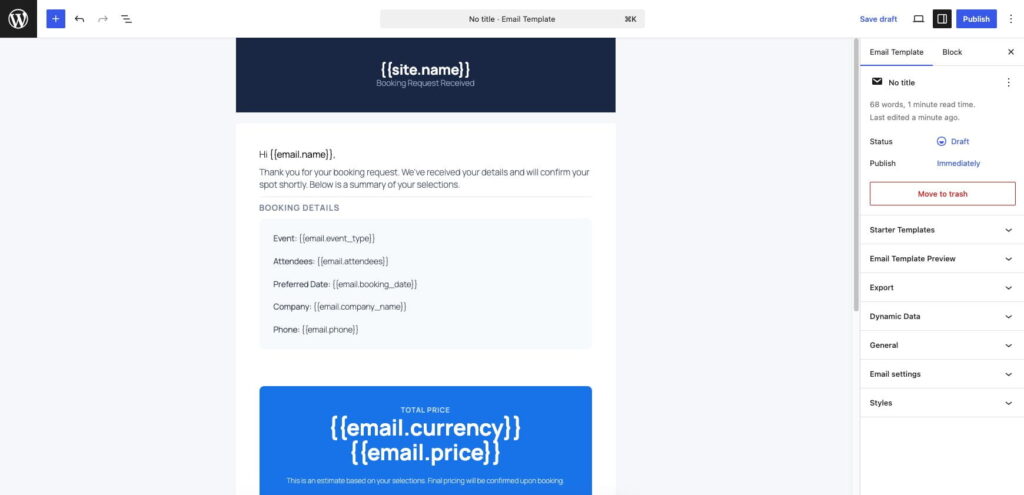
    CraftForms email template editor with a starter template loaded — header section, body text, CTA button, and the Starter Templates panel visible in the sidebar
    Craftforms email template builder
    CraftForms email templates builder

    Give the template a name using the document title field at the top (e.g. “Booking Confirmation — Guest”).


    Step 2: Design the template visually

    Edit the template exactly as you would a WordPress page. Click any block to select it, then use the block toolbar and right sidebar to adjust it.

    Useful patterns for confirmation emails:

    • Full-width header block with your site name or logo image and a headline like “Your booking is confirmed”
    • Two-column layout for booking details — label on the left, value on the right (e.g. “Check-in” / {{email.checkin_date}})
    • A prominent button block linking to your site, your cancellation policy page, or a calendar download
    • Footer section with your contact details and a note about how to get in touch

    For colours, use the Styles panel in the right sidebar to set the email background. Individual blocks follow the standard block editor colour controls.

    When you want to see how it all looks as a real email, click Open the preview in the “Email Template Preview” sidebar panel. A modal opens with the fully compiled, CSS-inlined HTML rendered as it will appear in an email client.


    Step 3: Add dynamic tags

    This is where the template goes from a generic design to a personalised confirmation. Dynamic tags are placeholders that CraftForms replaces with actual submission data when the email is sent.

    Open the Dynamic Data panel in the right sidebar. It lists all the tags available for the template, organised by category.

    Site tags (always available, no form required):

    • {{site.name}} — your WordPress site name
    • {{site.url}} — your site URL
    • {{site.admin_email}} — the admin email address

    Form field tags (appear once you connect a form — see Step 4):

    • {{email.field_name}} — the value of any named field in the form
    • For booking date pickers: {{email.checkin_date}}, {{email.checkout_date}}
    • For single-date pickers: {{email.date}}, {{email.time}}
    • For price: {{email.price}}, {{email.currency}}
    • Smart Variables (calculated fields marked as exposed): {{email.variable_name}}

    Click any tag in the panel to copy it, then paste it into a text block in the editor. The tag appears as literal text while you’re editing — it’s replaced with the real value at send time.

    Craftforms dynamic data email template
    Dynamic Data panel in Email Template builder

    A practical booking confirmation body might look like this:

    Hi {{email.first_name}},

    Your booking at {{site.name}} is confirmed.

    Check-in: {{email.checkin_date}} Check-out: {{email.checkout_date}} Total: {{email.price}} {{email.currency}}

    We look forward to welcoming you. If you need to make any changes, reply to this email.

    The subject line and default recipient address go in the Email Settings panel. The subject supports tags too — Booking confirmed — {{email.first_name}} works as a subject line.

    When you’re happy, click Save. CraftForms compiles the template to email-safe HTML in the background. It’s ready to use.


    Step 4: Connect the template to a form

    Open the form you want to trigger this email, or create a new one. In the form editor, go to the Actions section (the tab or panel that lists what happens after submission).

    Add a Send Email Template action if one isn’t already there. Configure it:

    1. Email Template — select the template you just created from the dropdown
    2. Recipient — enter the email address to send to, or use a tag like {{email.email_field}} to send to the address the user entered in the form
    3. SMTP Server — tick Use custom SMTP server and select your SMTP server from the dropdown (we’ll add the Mailtrap sandbox server next)
    Craftforms send email template submit action
    Send Email Template submit action with email template chosen

    Save the form.


    Step 5: Test with Mailtrap’s free sandbox

    Before this email reaches any real address, test it. Mailtrap is a free service that acts as a catch-all SMTP server for testing: any email your site sends to it gets intercepted and displayed in a web interface — you see the full HTML render, the raw source, the headers, and a spam score. Nothing lands in a real inbox.

    Set up a Mailtrap account:
    1. Sign up at mailtrap.io — the free plan gives you up to five sandbox inboxes with 1,000 test emails per month, no credit card required.
    2. In the Mailtrap dashboard, go to Sandboxes → Add Sandbox to create a new one. Then click on that newly created inbox to access its settings.
    3. Under SMTP, you’ll see the credentials for this inbox.

    Add Mailtrap as an SMTP server in CraftForms:

    1. Go to CraftForms → SMTP Servers and click Add New.
    2. Fill in:
      • Name: Mailtrap Sandbox (or any label you’ll recognise)
      • Host: sandbox.smtp.mailtrap.io
      • Port: 2525
      • Username: your inbox username from Mailtrap
      • Password: your inbox password from Mailtrap
    3. Click Save.

    The server is now available to any email action in CraftForms. Go back to your form, open the Send Email Template action, and make sure Mailtrap Sandbox is selected as the SMTP server.
    Run the test:

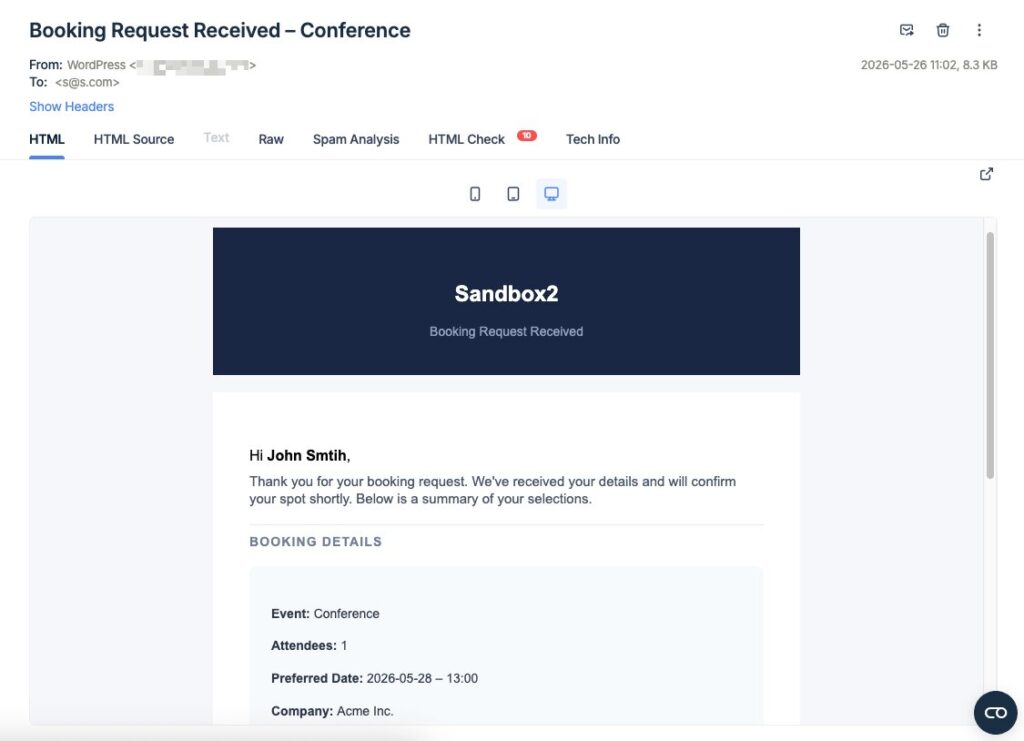
    Fill in and submit the form as a real visitor would. Open Mailtrap’s dashboard and click into your inbox. Within a few seconds the test email appears. Click it to open the preview.

    Craftforms mailtrap email

    You can see exactly how the email renders, inspect every header, and check the spam analysis. If the layout needs adjusting, go back to the template, make changes, save, and submit the form again. Because Mailtrap catches every send, you can iterate freely without any risk.


    Step 6: Check the email log in CraftForms

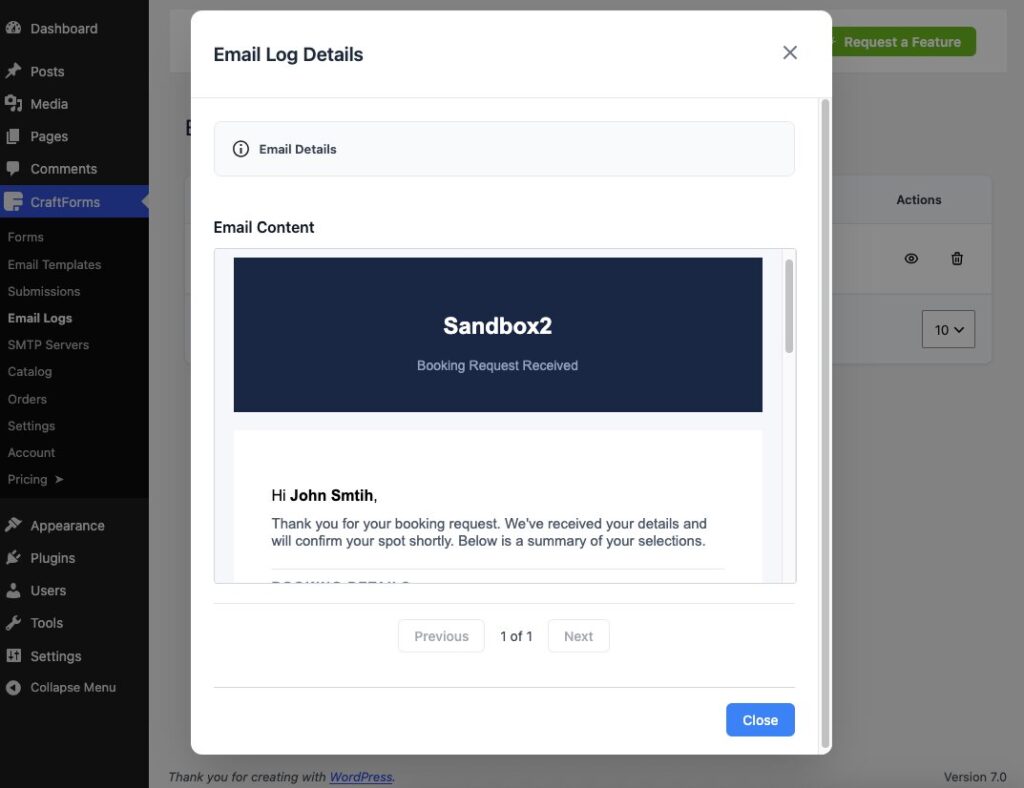
    CraftForms logs every outgoing email regardless of which transport sent it. Go to CraftForms → Email Logs.

    Each row in the log shows:

    • Date — when the email was attempted
    • Transport — which server sent it (in this case, SMTP: Mailtrap Sandbox)
    • Status — a green “Success” badge or a red “Failed” badge
    • Actions — click to view the full email body and any error message
    Craftforms email log email

    If the send failed, the error message is recorded — wrong password, port blocked by the host’s firewall, rate limit exceeded. This is significantly faster to diagnose than chasing down a missing email with no trail.

    The log is a permanent audit trail of every notification your forms have sent. You can filter by status (all / success / failed), view the full HTML body of any email, and delete old entries when you’re done with them.


    Going live: connect a production SMTP server

    When the template looks right and test submissions are arriving cleanly in Mailtrap, the only remaining step is to switch the SMTP server in the Send Email Template action to your production sender.

    If you don’t have one set up yet, our guide to the best free SMTP services for WordPress covers the main options — including Brevo (easiest to set up, 300 emails/day free), Mailgun (best deliverability for bookings and high-value confirmations), Gmail SMTP, and others. Add whichever you choose under CraftForms → SMTP Servers, then update the action to use it instead of Mailtrap Sandbox.

    From that point on, every form submission sends the real branded email to the real recipient — through an authenticated SMTP server, with a delivery log you can actually read.


    Summary

    CraftForms’ email template builder gives you a complete WYSIWYG workflow inside WordPress:

    1. Design a branded template in the block editor — no HTML required
    2. Insert dynamic tags from the Dynamic Data panel to personalise every send
    3. Preview the compiled result before connecting it to anything
    4. Test safely with Mailtrap’s free sandbox — catch and inspect every test send in a browser inbox
    5. Confirm delivery in CraftForms → Email Logs — transport, status, and full body for every email
    6. Go live by connecting a production SMTP server when you’re ready to send to real recipients

    The difference between a plain-text notification and a properly designed confirmation email is the difference between a site that processes submissions and a business that communicates.

  • Best Free SMTP for WordPress — CraftForms Setup Guide

    Best Free SMTP for WordPress — CraftForms Setup Guide


    TL;DR

    • WordPress’s built-in PHP mail fails silently on most shared hosting — form notifications vanish with no error logged anywhere.
    • Before signing up for anything, use CraftForms’ built-in email test to confirm whether your server’s default mail actually works. You might not need SMTP at all.
    • If it fails: pick a free SMTP provider. Brevo is the easiest to set up (300 emails/day free). Mailgun gives the best deliverability for bookings and high-value confirmations.
    • Add it under CraftForms → SMTP Servers, assign it to your form’s email actions, confirm in the email log — about 10 minutes end to end.

    You built a contact form, tested it, watched the “Thank you” message appear — and assumed everything was working. Three weeks later a client mentions they never heard back. You check WordPress and the submission is there, sitting in the database. So where did the notification email go?

    This scenario is far more common than it should be. WordPress sends email using your web server’s built-in PHP mail function. On a properly configured dedicated server that works fine. On the shared hosting plans that most WordPress sites run on, it fails silently — emails leave WordPress, get rejected by recipient mail servers, land in spam, or simply disappear with no error logged anywhere.

    The fix is SMTP: a dedicated email service that handles authentication, delivery tracking, and spam reputation so your form notifications actually arrive. Most SMTP providers have a free tier that is more than enough for a small business or personal site.

    This guide covers the five best free options, how each one compares, and step-by-step instructions for connecting any of them to CraftForms.


    Why WordPress email breaks in the first place

    When WordPress calls wp_mail(), it hands the message to PHP’s built-in mail() function, which asks your web server to deliver it directly. This approach has three problems on shared hosting:

    No authentication. Spam filters on receiving servers (Gmail, Outlook, your client’s corporate mail) expect email to come from an authenticated sender. A bare php mail() call carries no authentication at all, so the receiving server has no way to verify the email is legitimate.

    No SPF or DKIM. These DNS records tell the world which servers are allowed to send mail for your domain. Shared hosting servers send mail for hundreds of domains simultaneously, so they can’t be listed in everyone’s SPF records. The result is a soft fail that often means spam or rejection.

    Silent failures. PHP’s mail() returns true when it hands the message to the local mail daemon — not when the message is delivered. If the daemon queues it and it later bounces, WordPress never finds out. You have no log, no error, and no idea.

    SMTP fixes all three. You authenticate with a dedicated service using a username and password or API key, the service is listed in your SPF/DKIM records, and it gives you a delivery log you can actually read.


    Check if your default WordPress email is working

    Before signing up for any SMTP service, it’s worth confirming whether you actually have a problem. On some hosts the built-in mailer works fine — and if it does, you don’t need to change anything.

    CraftForms has a built-in tool for exactly this. Go to CraftForms → SMTP Servers in your WordPress admin. At the top of the page you’ll see a panel titled “Check Your Default Email First.”

    Craftforms smtp servers manager
    CarftForms SMTP servers manager

    Enter an email address you can check (your own is fine) and click Send Test Email. CraftForms sends a message with a 6-digit code. If the email arrives, enter the code to confirm — the panel will show a green “Confirmed — email is working” badge. Your server’s default mailer is fine and you can stop here.

    If the email doesn’t arrive within a minute, or you see a “NOT OK — send failed” badge, your server’s built-in mail is broken. Continue to the provider comparison and setup steps below.


    The five best free SMTP services

    Here is a practical comparison of the services that work best with WordPress, ordered by ease of setup.


    1. Brevo (formerly Sendinblue) — best for beginners

    Free tier: 300 emails per day, unlimited contacts, no credit card required.

    Brevo is the easiest to set up. Sign up, verify your sending domain (a copy-paste DNS record), and you have SMTP credentials in under five minutes. The free plan is generous enough for most small business contact forms and booking notifications. The dashboard shows real-time delivery stats, bounces, and spam complaints.

    SMTP settings (values you will enter in CraftForms when adding your SMTP server — see Step 1 below):

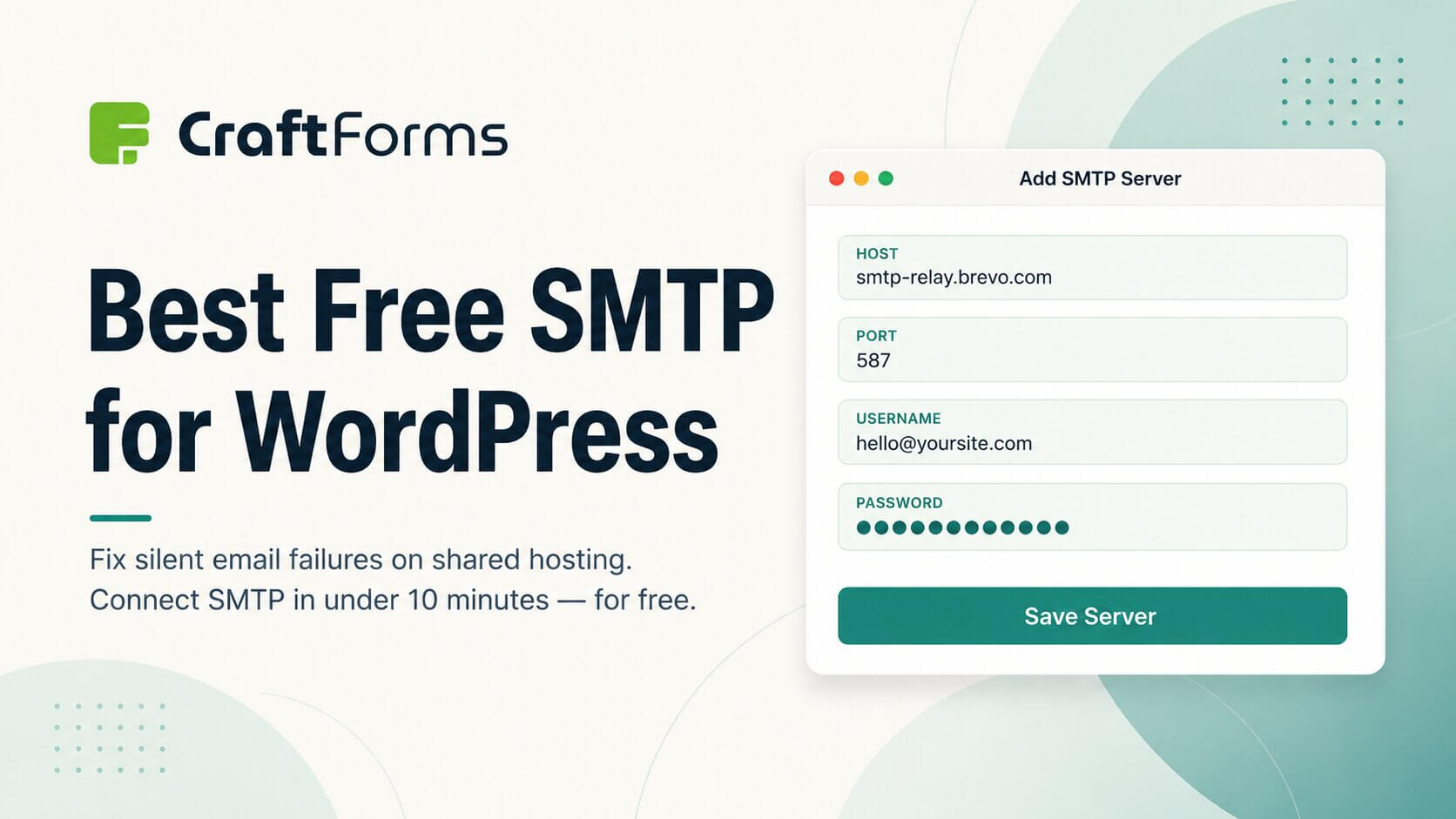
    • Host: smtp-relay.brevo.com
    • Port: 587 (TLS)
    • Username: your Brevo login email
    • Password: your SMTP key from Brevo’s SMTP & API page (not your account password)

    Best for: Sites that want the quickest possible setup and don’t need more than ~9,000 emails per month.


    2. Mailgun — best deliverability

    Free tier: 100 emails per day on the Flex plan.

    Mailgun is what large SaaS products use for transactional email. Deliverability is excellent because Mailgun’s IP reputation is actively managed, and the logs are detailed — you can see exactly when a message was opened, bounced, or complained about. The setup is slightly more involved: you add DNS records to verify your domain before you can send.

    SMTP settings (values you will enter in CraftForms when adding your SMTP server — see Step 1 below):

    • Host: smtp.mailgun.org
    • Port: 587 (TLS)
    • Username: [email protected] (shown in Mailgun’s domain settings)
    • Password: your Mailgun SMTP password from the domain settings page

    Best for: Sites where deliverability matters most — high-value bookings, payment confirmations, order notifications.


    3. SendGrid — best for growth

    Free tier: 100 emails per day permanently, no expiry.

    SendGrid is owned by Twilio and has an enormous sending infrastructure. The free plan doesn’t expire, making it a solid long-term option. Domain authentication is required (DNS records), and SendGrid’s interface is more technical than Brevo’s, but the reliability and logs are excellent.

    SMTP settings (values you will enter in CraftForms when adding your SMTP server — see Step 1 below):

    • Host: smtp.sendgrid.net
    • Port: 587 (TLS)
    • Username: apikey (literally the string “apikey”)
    • Password: your SendGrid API key (generated in Settings → API Keys, with “Mail Send” permission)

    Best for: Sites likely to grow, where you want a provider with a clear upgrade path and no surprises.


    4. Gmail SMTP — free with any Google account

    Free tier: 500 emails per day (Google Workspace: 2,000/day).

    If you already have a Google account, you can use Gmail’s SMTP server without signing up for anything. The catch: Google no longer allows your regular password — you need to create an “App Password” in your Google account security settings, which requires 2-Step Verification to be enabled first.

    Using a personal @gmail.com address as your “from” address looks unprofessional for business forms. Gmail SMTP is best used with a Google Workspace account so you can send from [email protected].

    SMTP settings (values you will enter in CraftForms when adding your SMTP server — see Step 1 below):

    • Host: smtp.gmail.com
    • Port: 587 (TLS)
    • Username: your full Gmail address
    • Password: your App Password (16-character code from Google Account → Security → App Passwords)

    Best for: Sites already using Google Workspace, or personal projects where the volume is low and you don’t want to create another account.


    5. Amazon SES — cheapest at scale

    Free tier: $0.10 per 1,000 emails — effectively free at low volume, cheapest option once you exceed other free tiers.

    Amazon SES has the best price-to-deliverability ratio if you expect significant volume. The setup is the most technical — you need an AWS account, domain verification, and starting in the SES “sandbox” means you can only send to verified addresses until you request production access.

    SMTP settings (values you will enter in CraftForms when adding your SMTP server — see Step 1 below):

    • Host: email-smtp.[region].amazonaws.com (e.g. email-smtp.eu-west-1.amazonaws.com)
    • Port: 587 (TLS)
    • Username and password: generated SMTP credentials from AWS IAM (not your AWS login)

    Best for: Sites already using AWS infrastructure, or high-volume senders who have outgrown free tiers.


    6. Mailtrap — best for testing and staging

    Free tier: 1,000 test emails per month on the Email Testing plan; also 1,000 sends per month on the free Email Sending plan. No credit card required.

    Mailtrap is different from the other services on this list. Its signature feature is a virtual sandbox inbox: instead of delivering emails to real addresses, the sandbox intercepts them and displays them in a web interface where you can inspect the full HTML render, raw source, headers, and spam score. Nothing reaches a real inbox — which makes it the safest way to test a new form setup, a new email template, or a new SMTP configuration without any risk of sending half-finished emails to customers.

    The free Email Testing plan gives you up to five sandbox inboxes, each with its own SMTP credentials. Switch to these credentials in CraftForms while you’re building and testing; when everything looks right, swap in your production SMTP server (Brevo, Mailgun, etc.) with a single settings change.

    SMTP settings for the sandbox inbox (values you will enter in CraftForms when adding your SMTP server — see Step 1 below):

    • Host: sandbox.smtp.mailtrap.io
    • Port: 2525 (also accepts 587 and 465)
    • Username: the inbox username shown in Mailtrap under Inboxes → SMTP/POP3
    • Password: the inbox password shown alongside the username

    Best for: Anyone actively building or testing a form who wants to see exactly what the outgoing email looks like before it goes to a real recipient. Also useful for staging sites where the default WordPress mailer is disabled.


    Quick comparison

    ProviderFree emails/daySetup difficultyBest for
    Brevo300EasyQuick setup, beginners
    Mailgun100MediumBest deliverability, bookings
    SendGrid100MediumLong-term, scalable
    Gmail SMTP500Easy–mediumGoogle Workspace users
    Amazon SESLow costHardHigh volume, AWS users
    Mailtrap1,000 test/moEasyTesting, staging, template dev

    Connecting SMTP to CraftForms

    Step 1: Add your SMTP server in CraftForms

    Once you have credentials from your chosen provider, adding them to CraftForms takes about two minutes.

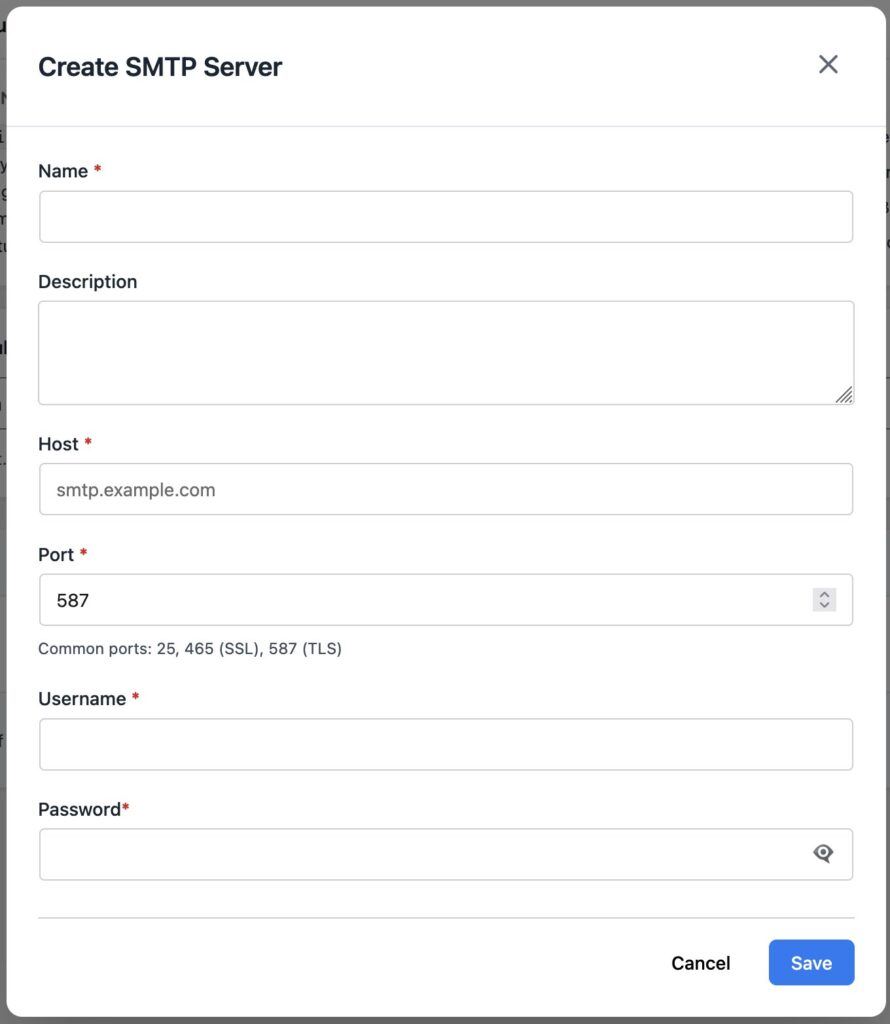
    1. Go to CraftForms → SMTP Servers.
    2. Click Add New.
    3. Fill in the fields in the dialog that opens:
    Sc
    Add new SMTP server in CraftForms
    • Name — a label for your own reference, e.g. “Brevo — main site”
    • Description — optional note about what this server is used for
    • Host — the SMTP hostname from your provider (e.g. smtp-relay.brevo.com)
    • Port — use 587 for TLS (recommended) or 465 for SSL. CraftForms detects the encryption type automatically from the port you enter.
    • Username and Password — from your provider’s SMTP settings page (see the per-provider sections above for the exact values)
    1. Click Save.

    The password is stored encrypted in your database using AES-256 — it is never stored in plain text.

    You can add as many SMTP servers as you like. A common setup is one server for important transactional emails (booking confirmations, payment receipts) and a separate one for lower-priority contact form alerts.


    Step 2: Use the SMTP server in a form’s email action

    By default, every Send Email and Send Email Template action in CraftForms uses your site’s default WordPress mailer. To route a specific email action through your new SMTP server:

    1. Open the form in the form editor.
    2. Click on the Send Email or Send Email Template action you want to change.
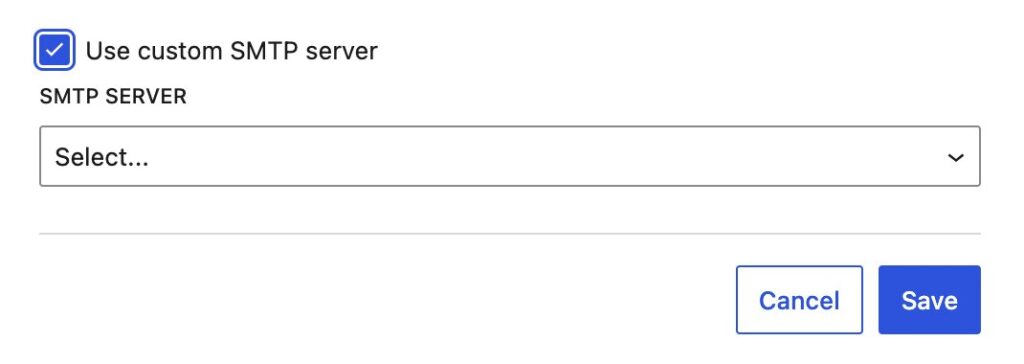
    3. Tick Use custom SMTP server and select the server from the dropdown.
    CraftForms Send Email action showing the 'Use custom SMTP server' checkbox ticked with a server dropdown below
    Sc
    Choose SMTP server for Send Email/Send Email Template submit actions
    1. Click Save.

    This is set per action, not per form — so you can have a booking confirmation routed through Mailgun for maximum reliability while a low-priority internal alert uses the default WordPress mail, all within the same form.


    Step 3: Check the email log after your next submission

    CraftForms logs every outgoing email, regardless of whether it was sent through SMTP or the default mailer.

    Go to CraftForms → Email Logs. Each row shows:

    • Recipient — who the email was sent to
    • Subject — the email subject line
    • Transport — which mailer sent it (e.g. “SMTP: Brevo — main site” or “WP mailer”)
    • Status — Success or Failed
    • Error message — if the send failed, the provider’s error reason is recorded here

    If you see a Failed entry, the error message tells you exactly what went wrong — wrong password, invalid hostname, port blocked by your host’s firewall, or rate limit exceeded. This makes diagnosis much faster than chasing down a missing email with no trail.

    You can filter the log by status and delete old entries. Entries moved to trash are automatically removed after 30 days.


    Summary

    For most WordPress sites with contact forms and booking notifications, Brevo is the right starting point — 300 emails per day for free, the easiest setup of any provider, and a generous free tier that suits the majority of small business sites.

    If you’re running a property rental, a service business taking bookings online, or any setup where a missed email costs real money, go with Mailgun. The extra DNS setup step is worth it for the deliverability.

    Either way, the CraftForms setup is the same: add the server under CraftForms → SMTP Servers, assign it to your email actions, and confirm delivery through CraftForms → Email Logs. Ten minutes of setup and you’ll never silently lose a form notification again.

  • Use WordPress as a Locked-Down Form Backend for Static Sites

    Use WordPress as a Locked-Down Form Backend for Static Sites

    Static sites are fast, cheap to host, and nearly impossible to compromise — but they can’t process a contact form. Every static site eventually hits the same wall: you need a backend.

    Most developers reach for a third-party service (Formspree, Netlify Forms, Basin) or bolt on a separate server. Both options add a dependency you don’t control, a recurring cost, and submission data stored on someone else’s infrastructure. There is a third option that gives you full ownership, unlimited forms, and a security profile close to zero: a locked-down WordPress installation used exclusively as a form backend.

    One WordPress install. Zero public pages. Every form submission from every static site you own — handled, stored, and routed — on infrastructure you control.

    This article is an evolution of Using WordPress as a Form Backend for Static Sites and Web Apps. That article introduced the idea — a single WordPress install as a submission endpoint. This one picks up where it left off: the site is locked down and invisible to visitors, improved security setup. CraftForms now supports embedded forms — the backend serves the form HTML directly to any external page, with no markup required on the static site side — and the full ecommerce and booking stack that comes with them. The same backend that took contact form submissions can now handle bookings, inventory on a site that has no server of its own.


    Part 1 — The Architecture: One Backend, Many Static Sites

    The Stack

    Three tools, each doing exactly one job:

    • WordPress — the backend. Locked down so aggressively it no longer resembles a normal WP install. No theme, no public content, no extra plugins.
    • CraftForms — the form engine. Handles form building, validation, submissions, conditional logic, file uploads, and email notifications.
    • Builderius — the optional static site builder. Design your pages visually and export clean HTML/CSS/JS files with no WordPress dependency in production.
    Static sites embed schema

    Your static sites connect to the WordPress backend over HTTPS. Static site A makes a direct fetch call on form submit. Static sites B and C use CraftForms’ embed feature — the form HTML is served from WordPress and rendered on the page automatically. Both methods hit the same craftforms/v1 REST endpoint; everything else on the WordPress install is locked down.

    What the locked-down WP install does NOT have

    • No public frontend — all page and post requests return 403
    • No theme vulnerabilities — no theme is active
    • No page builder, no WooCommerce, no third-party contact form plugin
    • No XML-RPC
    • No /wp-login.php at its default path

    A JAMstack site on Cloudflare Pages or Netlify serves your visitors. WordPress never touches a public HTTP request. It only processes form submissions.


    Part 2 — Locking Down the WordPress Installation

    Why One Plugin Changes Everything

    The most common vector for WordPress compromise is not your hosting provider — it’s outdated plugins. Every plugin in your install is a potential attack surface: a page builder you added for one client project, a contact form plugin with a stored XSS CVE published last week, a WooCommerce extension that stopped receiving updates.

    A WordPress installation with one plugin and a blocked public frontend has an attack surface close to zero. No theme vulnerabilities, no page builder vulnerabilities, no contact form plugin vulnerabilities — because none of those exist on this install.

    The steps below lock down the remaining standard entry points.


    Step 1 — Block the WordPress Frontend

    The template_redirect action fires before WordPress outputs anything. For any visitor who is not logged in, the hook returns a 403 and exits — no page, no post, no homepage is ever served. Because this runs in PHP it works on any server: Apache, nginx, or a local PHP built-in server. No .htaccess rules or server configuration required.

    template_redirect does not fire for REST API requests or wp-admin, so the CraftForms submission endpoint and the admin panel remain fully accessible to logged-in users and external form submissions.

    The implementation is in the complete mu-plugin below.


    Step 2 — Restrict the REST API to CraftForms Only

    All REST namespaces except craftforms/v1 return 403. This closes user enumeration (GET /wp-json/wp/v2/users), route discovery (GET /wp-json/), and every standard WordPress REST exploit in one filter. The filter fires after WordPress resolves the CORS OPTIONS preflight, so cross-origin submissions from your static sites continue to work correctly.

    Create wp-content/mu-plugins/craftforms-backend.php — files in mu-plugins/ load automatically on every request, no activation required. The full implementation is in the complete mu-plugin below.


    Step 3 — Hide the WordPress Login URL

    Automated brute-force scripts target /wp-login.php by default. Moving the login to an unpredictable URL removes your install from every automated scan. Pick a slug that is long, random, and only you know — and store it somewhere safe. Your login page will be at https://your-wp-backend.com/your-secret-slug. Losing the slug means you cannot log in.

    The full implementation is in the complete mu-plugin below.


    Complete mu-plugin

    Create a new PHP file craftforms-backend.php Drop this single file in wp-content/mu-plugins/ and all four measures are active immediately:

    <?php
    /**
     * CraftForms backend — security measures.
     * Place in: wp-content/mu-plugins/craftforms-backend.php
     */
    if ( ! defined( 'ABSPATH' ) ) exit;
    
    // ── 1. Restrict REST API to craftforms/v1 only ──────────────────────────────
    add_filter( 'rest_pre_dispatch', function ( $result, $server, $request ) {
        $route = $request->get_route();
        if ( strpos( $route, '/craftforms/' ) === 0 ) {
            return $result;
        }
        return new \WP_Error(
            'rest_restricted',
            'REST API is disabled on this installation.',
            [ 'status' => 403 ]
        );
    }, 10, 3 );
    
    // ── 2. Disable XML-RPC ───────────────────────────────────────────────────────
    add_filter( 'xmlrpc_enabled', '__return_false' );
    
    // ── 3. Custom login URL ──────────────────────────────────────────────────────
    if ( ! defined( 'CF_LOGIN_SLUG' ) ) {
        define( 'CF_LOGIN_SLUG', 'my-secret-access-8k2m9x' ); // ← CHANGE THIS
    }
    
    add_action( 'init', function () {
        global $pagenow;
        $request_path = parse_url( $_SERVER['REQUEST_URI'] ?? '', PHP_URL_PATH );
    
        if ( $request_path === '/' . CF_LOGIN_SLUG ) {
            // wp-login.php reads $user_login and $error before conditionally setting
            // them; initialise here to prevent PHP 8 "Undefined variable" warnings.
            global $error;
            $error      = $error ?? null;
            $user_login = '';
            require_once ABSPATH . 'wp-login.php';
            exit;
        }
    
        if ( $pagenow === 'wp-login.php' ) {
            status_header( 404 );
            nocache_headers();
            exit( 'Not found.' );
        }
    } );
    
    // Rewrite site_url( 'wp-login.php', 'login|login_post' ) calls so the login
    // form action POSTs to the custom slug instead of the blocked wp-login.php.
    add_filter( 'site_url', function ( $url, $path, $scheme ) {
        if ( 'wp-login.php' === $path && in_array( $scheme, [ 'login', 'login_post' ], true ) ) {
            return home_url( CF_LOGIN_SLUG );
        }
        return $url;
    }, 10, 3 );
    
    add_filter( 'login_url', function ( $url, $redirect, $force_reauth ) {
        $custom = home_url( CF_LOGIN_SLUG );
        if ( $redirect ) {
            $custom = add_query_arg( 'redirect_to', urlencode( $redirect ), $custom );
        }
        return $custom;
    }, 10, 3 );
    
    add_filter( 'logout_url', function ( $url ) {
        return str_replace( 'wp-login.php', CF_LOGIN_SLUG, $url );
    } );
    
    // ── 4. Block all public frontend requests ───────────────────────────────────
    add_action( 'template_redirect', function () {
        if ( is_user_logged_in() ) {
            return;
        }
        status_header( 403 );
        nocache_headers();
        exit;
    } );
    

    Verify the setup

    # Should return 403
    curl https://your-wp-backend.com/wp-json/wp/v2/
    
    # Should return form data
    curl https://your-wp-backend.com/wp-json/craftforms/v1/embed/YOUR_KEY
    

    Nathan Foley has prepared a GIST – an updated version of this my MU plugin version. The comment was published in our FB group, you can check it here.


    Security Measures Summary

    MeasureWhat it blocks
    Minimal plugin countEvery plugin not installed = zero CVEs from that plugin
    PHP frontend blockWeb scrapers, bots, and crawlers requesting WordPress pages — works on any server without .htaccess
    REST API namespace restrictionUser enumeration (/wp/v2/users), route discovery, WordPress REST exploits
    XML-RPC disabledBrute-force via XML-RPC, pingback DDoS amplification
    Hidden login URLAutomated brute-force scripts targeting /wp-login.php

    Part 3 — CraftForms: External Submissions and Embedding

    Enable External Submissions

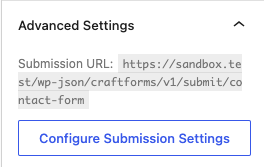
    Open any CraftForms form in the WordPress editor. Scroll to the Advanced Settings panel at the bottom of the settings sidebar — it shows the form’s submission URL and a button to open the full configuration.

    Advanced settings
    Advanced Settings on the form edit page

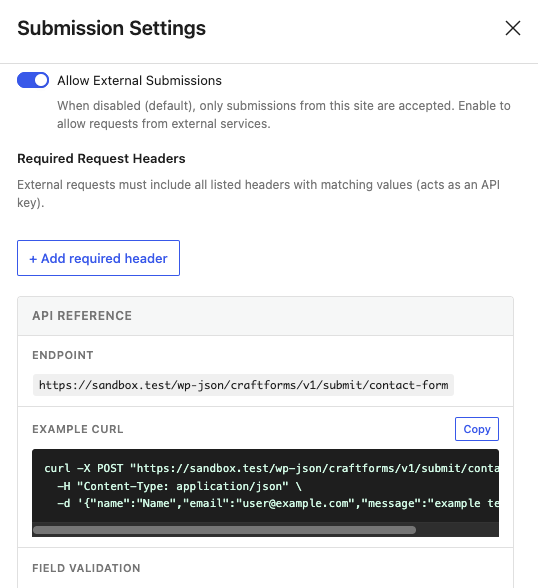
    Click Configure Submission Settings. The modal opens with everything you need: the toggle, the endpoint URL, a ready-to-run cURL example, and the field validation table.

    Advanced settings modal
    Submission Settings

    Toggle Allow External Submissions on. The API Reference section below it shows the endpoint — the form’s REST name (a human-readable slug you set when creating the form, e.g. contact-form):

    POST https://your-wp-backend.com/wp-json/craftforms/v1/submit/contact-form
    

    Submitting from Your Static Site

    CraftForms accepts application/json. For most static site integrations this is the cleanest approach:

    cURL:

    curl -X POST "https://your-wp-backend.com/wp-json/craftforms/v1/submit/contact-form" \
      -H "Content-Type: application/json" \
      -d '{"name":"John Doe","email":"[email protected]","message":"Hello from curl"}'
    

    Vanilla JavaScript:

    <form id="contact-form">
      <input name="name" type="text" placeholder="Name" required />
      <input name="email" type="email" placeholder="Email" required />
      <textarea name="message" placeholder="Message"></textarea>
      <button type="submit">Send</button>
      <p id="status"></p>
    </form>
    
    <script>
    document.getElementById('contact-form').addEventListener('submit', async (e) => {
      e.preventDefault();
      const status = document.getElementById('status');
      status.textContent = 'Sending…';
    
      const data = Object.fromEntries(new FormData(e.target));
    
      const res = await fetch(
        'https://your-wp-backend.com/wp-json/craftforms/v1/submit/contact-form',
        {
          method: 'POST',
          headers: { 'Content-Type': 'application/json' },
          body: JSON.stringify(data),
        }
      );
    
      const json = await res.json();
      if (json.success) {
        status.textContent = json.data.successMsg || 'Sent!';
        e.target.reset();
      } else {
        status.textContent = json.data.errorMsg || 'Something went wrong.';
      }
    });
    </script>
    

    Field names must match the Name attribute of each CraftForms field block. The Field Validation table in the Submission Settings modal shows the exact field names and their validation rules:

    Advanced settings field valdiation
    Field validation schema

    Required Request Headers

    For an extra layer of spam protection, require a shared secret on every submission. Open the Submission Settings modal and click + Add required header in the Required Request Headers section. Any request that omits the header — or sends the wrong value — is rejected before the form is processed.

    The header name is entirely up to you — X-CF-Token is just one example. Pick any name and any value:

    Header nameHeader value
    X-CF-Tokenyour-secret-value

    Add the header to every fetch call from your static site:

    const res = await fetch(
      'https://your-wp-backend.com/wp-json/craftforms/v1/submit/contact-form',
      {
        method: 'POST',
        headers: {
          'Content-Type': 'application/json',
          'X-CF-Token': 'your-secret-value',
        },
        body: JSON.stringify(data),
      }
    );
    

    Note: This header is visible in the browser’s DevTools Network panel, so it is not a true secret for public-facing forms. It raises the bar for automated spam — scripts that don’t know the header will be rejected — but it is not a substitute for rate limiting. For server-to-server calls (a serverless function proxying the submission) it acts as a proper shared secret.


    Embedding a Form

    With embedding you don’t build a form on the external site at all. CraftForms renders the form HTML and delivers it — along with all required styles and scripts — directly to the external page. The form submits back to the same WordPress backend automatically.

    Setup:

    1. Make sure Allow External Submissions is enabled on the form (step above).
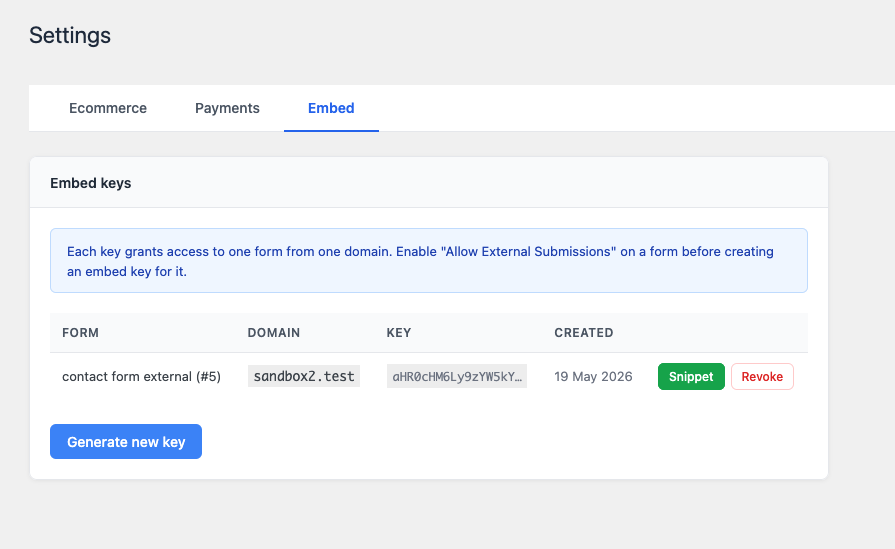
    2. Go to CraftForms → Settings → Embed tab. Click Generate new key, select the form, and enter the external domain (e.g. mysite.com — no protocol, no trailing slash).
    Settings embed
    Add embed key
    1. Click the Snippet button on the new row.
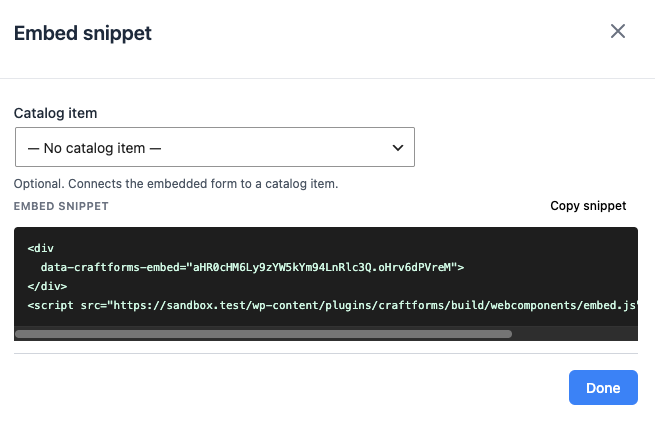
    Settings embed modal
    Embed snippet

    Copy the snippet and paste it anywhere in your HTML page:

    <div
      data-craftforms-embed="aHR0cHM6Ly9zYW5kYm94LnRlc3Q.oHrv6dPVreM">
    </div>
    <script
      src="https://your-wp-backend.com/wp-content/plugins/craftforms/build/webcomponents/embed.js"
      defer>
    </script>
    

    The <div> is replaced by the live form at page load — no configuration on the static site side, no build step, no manual form markup.

    What you get for free with an embedded form:

    • Every CraftForms field type — text, email, file uploads, dropdowns, date pickers, conditional fields, multi-step flows.
    • Advanced components — star ratings, range sliders, repeater groups, catalog selectors.
    • Client-side validation built in — required fields, email format, character limits, custom error messages. Everything works out of the box; you write zero validation JavaScript.
    • Consistent UI — the form looks and behaves identically everywhere it is embedded, because it is the same rendered output from the same source.

    Compare that to building the form manually: custom markup, a validation library, wiring up field names, handling error states, writing the fetch call, testing cross-browser. With embedding, that work is already done.

    All form submissions use the ?rest_route= URL format — fully compatible with the locked-down setup in Part 2, even if /wp-json/ is blocked at the server level.

    With a catalog resource (booking, product, etc.):

    <div
      data-craftforms-embed="aHR0cHM6Ly9zYW5kYm94LnRlc3Q.oHrv6dPVreM"
      data-resource-id="42">
    </div>
    <script src="…/embed.js" defer></script>
    

    What Your Static Site Gains

    Third-party form services (Formspree, Netlify Forms, Basin) give you one thing: an email on form submit. CraftForms gives you a backend.

    Email that doesn’t land in spam

    CraftForms routes email through a real SMTP provider — not PHP’s wp_mail. Under SMTP Servers in the admin menu, add as many providers as you need — Postmark, SendGrid, Mailgun, your own mail server — each with its own credentials. Then, inside each form’s submit actions, the Send Email and Send Email Template actions each have an SMTP server selector: pick which provider handles that delivery. A contact form can send notifications via Postmark; a booking form can use a separate provider tied to your reservations mailbox. No shared infrastructure, no sender reputation you don’t control.

    Branded HTML email templates — designed in WordPress

    The email template designer is a Gutenberg editor. Add headings, images, buttons, and text blocks; insert {{field_name}} variables anywhere. CraftForms compiles the design to optimised, email-client-compatible HTML automatically. The confirmation email a customer gets after booking a stay looks like it came from a real hospitality brand — because you designed it, in the same editor you use for everything else.

    With an embedded form, your static site gets ecommerce and booking

    This is where the gap between a third-party service and CraftForms widens the most. An embedded CraftForms form isn’t just a contact form — it can be any form type the plugin supports, and Pro forms include:

    • File uploads — with server-side MIME validation and automatic import into the WordPress Media Library
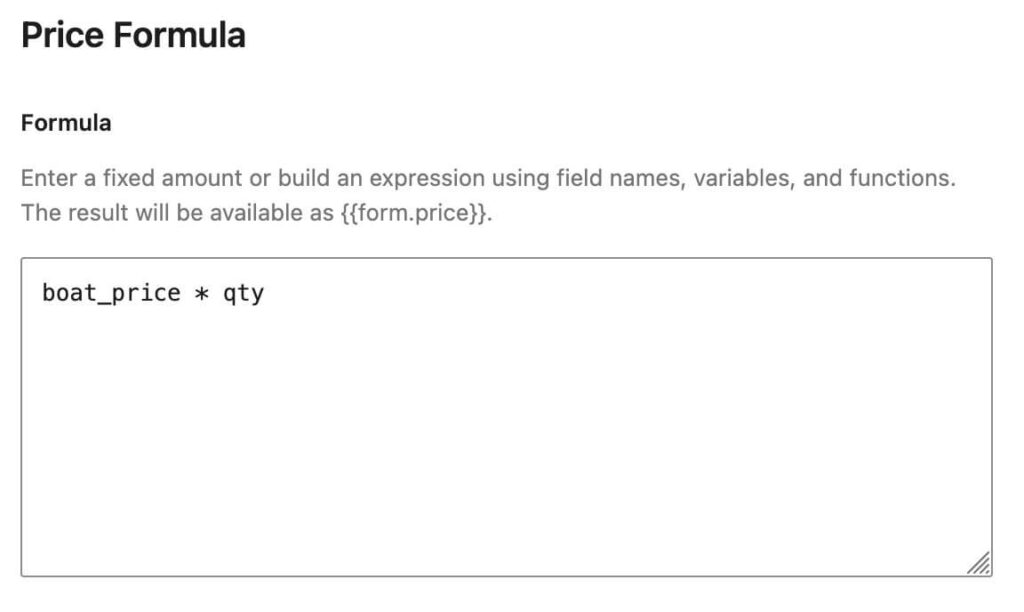
    • Price calculator — Smart Variables evaluate a formula as the user selects options; the live price updates in real time before they submit, and the server recalculates on submission so the charged amount can never be manipulated client-side
    • Booking datepicker — hotel-style checkin/checkout ranges, fixed time-slot grids, or single-date selection; blocked dates and advance-notice requirements enforced visually
    • Catalog and inventory — attach a resource to a form; availability is tracked per date and per slot automatically; pre-submission stock checks prevent double-booking
    • iCal sync — paste an Airbnb or Booking.com iCal URL and those dates are marked unavailable in your datepicker automatically; a private .ics feed goes back the other direction so external platforms stay in sync

    A static site on Cloudflare Pages with a CraftForms embedded form can take bookings, calculate and charge prices, manage inventory, and send a branded confirmation email — all without a server of its own, and without stitching together five separate services.


    Part 4 — Builderius: Build the Static Frontend Without Code

    Builderius is a visual site builder that runs inside WordPress. Design your pages with drag-and-drop, then export the result as pure HTML, CSS, and JavaScript — no PHP, no database, no WordPress dependency in production.

    Workflow:

    1. Build your site in Builderius — on a local or staging WordPress install, completely separate from the locked-down form backend.
    2. Export the static build. The output is clean HTML files and assets. No server-side code, no theme files, nothing to maintain.
    3. Deploy to Cloudflare Pages (free tier, globally distributed CDN, deploys from a git push in seconds) or GitHub pages. Or download the static site as ZIP archive and deploy anywhere you want.
    4. Connect to CraftForms:
      • Option A — Embed: paste the CraftForms snippet into your exported HTML. The form renders automatically on page load. Zero custom JavaScript required.
      • Option B — Custom fetch: build your form directly in Builderius — its form builder lets you design a fully styled form with complete control over every element and its markup. Submit the form data to the endpoint URL provided by CraftForms. You own the design; CraftForms handles the processing.

    The result: a static CDN site with millisecond load times and a tiny security surface on the frontend. The WordPress backend handles form processing and storage — it never serves a single page to a visitor.


    All features described in this article — external submissions, required headers, and form embedding — are part of CraftForms PRO.

  • How To Build a Product Configurator With Live Pricing in WordPress — a Roller Blinds Example

    How To Build a Product Configurator With Live Pricing in WordPress — a Roller Blinds Example

    Most form plugins stop at collecting data. CraftForms Pro lets you go further: define a pricing formula, show the customer a live price before they hit submit, and turn every submission into a tracked order — all inside the block editor, without WooCommerce or a separate booking plugin.

    To make this concrete, this tutorial builds a real-world example: a roller blinds configurator. The form has a fabric selector with image swatches, width and drop number inputs, a roll direction radio group, and an optional rubber insert checkbox. The price is calculated using a 2D pricing matrix — width against drop — with the optional insert added on top as a flat fee. Smart Variables handle the formula; the result appears live in an Info block as the customer configures their blind.


    Roller blinds tutorial1
    Editing form in Gutenberg

    Roller blinds tutorial2
    Smart variables

    Roller blinds tutorial3
    Front end form

    From there we show two modes of operation. In the first, the form works as a quote request: the submission is saved as a record, and an email notification goes out. In the second, the form is connected to a catalog item, and every confirmed submission creates an order with a full status lifecycle — pending, confirmed, paid — identified by a secure token-based URL you can share directly with the customer.

    The last part of the tutorial demonstrates a key design principle: one form, multiple products. A second catalog item — double roller blinds — is created and attached to the same form. It brings its own pricing table and adds one extra option, but the form itself is unchanged. If you sell a range of products that share the same configuration logic, you define the form once and create a catalog item per product. Price logic and defaults live on the catalog item; the shared form handles layout, validation, and submission.


    The full tutorial is on YouTube:

  • How to Migrate from Contact Form 7 to CraftForms (Step-by-Step)

    How to Migrate from Contact Form 7 to CraftForms (Step-by-Step)

    TL;DR: CraftForms can import your existing CF7 forms automatically. If you’ve ever lost a submission, had an email silently fail, or wished CF7 had a submissions inbox — this guide is for you.


    Contact Form 7 powers millions of WordPress sites. It’s free, lightweight, and it gets the job done — until it doesn’t.

    If you’ve ever had a client call to say “I filled in your contact form but never heard back,” you’ve already hit CF7’s biggest limitation. The form sent the message (maybe). CF7 has no idea whether it arrived.

    This guide walks through what CF7 is missing, what CraftForms imports for you automatically, and how to get fully up and running in under 15 minutes.


    What Contact Form 7 Doesn’t Give You

    CF7 was built in a different era of WordPress — before Gutenberg, before the rise of sophisticated spam bots, before anyone expected a plugin to save form submissions to the database. It’s not that CF7 is broken. It’s that the bar has moved.

    Here’s what you won’t find in CF7:

    No submissions database

    CF7 sends an email and forgets the submission ever happened. There’s no inbox, no export, no way to go back and review what was submitted. If the email fails — or lands in spam — the lead is gone forever.

    The workaround most people reach for is Flamingo (a separate free plugin by the same author). It helps, but it’s not integrated: submissions live in a separate screen, aren’t connected to your form settings, and offer no filtering or export out of the box.

    No email delivery log

    You can’t tell whether an email was delivered, bounced, or rejected. When a client says “I never got the notification,” there’s no log to check. You’re left guessing whether the problem was the form, the server, the spam filter, or the client’s inbox.

    No native spam scoring

    CF7 relies on reCAPTCHA or Akismet to filter spam. Both work — but reCAPTCHA v2 puts a “I’m not a robot” checkbox in front of every legitimate user. Akismet requires an API key and flags submissions after the fact rather than blocking them silently.

    There’s no built-in behaviour-based scoring that catches bots without adding any friction for real users.

    Not a native block

    CF7 embeds forms via a shortcode: [contact-form-7 id="123"]. That shortcode can go inside a paragraph block, but the form itself isn’t a block — you can’t add it to a block template, control its layout with block spacing tools, or edit it inline in the Gutenberg editor. You drop a shortcode and hope for the best.


    What CraftForms Imports from CF7

    CraftForms includes a one-click importer that reads your existing CF7 forms and recreates them as native CraftForms forms. Here’s what comes across automatically:

    • All standard fields — text, email, URL, telephone, number, textarea, select, checkboxes, radio buttons, and file upload fields
    • Field labels — the visible labels you set in CF7 are preserved
    • Placeholder text — any placeholder text carries over as-is
    • Required field rules — fields marked required in CF7 are marked required in CraftForms

    What the importer doesn’t bring over:

    • Custom CF7 validation hooks (PHP-level custom validation that lived in your theme or another plugin — these need to be recreated manually)
    • Flamingo submission history — past submissions stored by Flamingo stay in Flamingo; the importer handles form structure, not historical data
    • Mail templates — CF7’s mail tab configuration is not imported; you’ll configure email sending fresh in CraftForms using submit actions and email templates

    Running the Import — Step by Step

    Before you start: keep CF7 active during the import. The importer reads CF7’s database entries directly, so CF7 needs to be installed and its data needs to be present.

    Step 1 — Install CraftForms

    If you haven’t already, install CraftForms from the WordPress plugin repository. Go to Plugins → Add New, search for CraftForms, install, and activate.

    Step 2 — Open the importer

    In your WordPress admin, go to CraftForms → Forms. On the forms list page, click the Import from CF7 button. Make sure Contact Form 7 plugin is active, otherwise the button for importing CF7 forms will not appear!

    Step 3 — Select a form and import

    A modal appears showing all CF7 forms found in your database. Select the form you want to import from the dropdown, then click Import. Repeat for each form you want to migrate.

    Step 4 — Continue editing

    The import is instant. As soon as it completes, CraftForms opens the imported form directly in the editor, ready for you to review and configure.


    What to Verify After Import

    Don’t just assume the import is perfect — spend five minutes checking each form before you make it live.

    Check field names

    CraftForms uses field names (slugs) to reference field values in email templates, dynamic tags, and other logic. The importer assigns names based on your CF7 field names, but it’s worth opening each imported form and confirming the names look right — especially if your CF7 forms used custom name attributes.

    To check: open the form in the CraftForms editor, click each field, and look at the Field Name setting in the sidebar.

    Check required field rules

    Open each field and confirm the Required toggle matches your original CF7 setup. The importer maps this automatically, but a quick review takes 30 seconds and will save you from a form that silently accepts incomplete submissions.

    Check the submit button

    CF7’s submit button text is not always imported cleanly. Open the form, find the Submit button block, and confirm the button label says what you want.

    Test the form on the frontend

    Add the form to a page as a synced pattern (or use a staging page you’ve set aside for testing), submit a test entry with real data, and confirm the submission appears in CraftForms → Submissions.


    Immediate Upgrades to Make Right After Import

    Once the form is working, it takes another five minutes to unlock features that CF7 simply doesn’t have.

    1. Add a Save Submission action

    Open your form and go to its Submit Actions tab. Add a Save Submission action. This is the single most important step — your form now has a database-backed inbox. Every submission is stored, searchable, and exportable. No more “the email probably went to spam” conversations.

    2. Connect an SMTP server

    Go to CraftForms → SMTP Servers and add your SMTP connection. Brevo (formerly Sendinblue) offers 300 free emails per day and takes about five minutes to set up. Once connected, CraftForms logs every outgoing email with its delivery status — sent, failed, or bounced — so you always know whether a notification reached its destination.

    WordPress’s default wp_mail() function uses your hosting server’s sendmail configuration. On most shared hosts this means no authentication, no DKIM or SPF, and a high chance of landing in spam. An external SMTP service fixes all of this.

    3. Spam protection — nothing to configure

    CraftForms includes behaviour-based spam scoring out of the box. It runs automatically on every submission, watching mouse movement, focus events, keystroke timing, and paste behaviour to assign a risk score. Bots that fill forms instantly with no mouse activity score high and are blocked silently — no CAPTCHA, no setup, no settings to touch.

    4. Set up email sending

    CF7’s mail configuration doesn’t import, so you need to add email sending as a submit action. CraftForms handles this through email templates — you design the email once, connect your form data using dynamic tags, and then attach the template to your form.

    Create an email template

    Go to CraftForms → Email Templates and create a new template. Build the email layout using the Gutenberg editor: add your logo, brand colours, and a message body. To pull in submitted values, use dynamic tags in the format {{email.fieldname}} — for example, {{email.name}} inserts whatever the user typed into the “name” field. You can also reference site-level variables like {{site.name}} or {{site.admin_email}}.

    Set the email subject in the template settings (dynamic tags work there too).

    Attach the template to your form

    Back in your form, go to the Submit Actions tab and add a Send Email Template action. Select the email template you just created. Configure the recipient address — use {{email.email}} to send a confirmation back to the person who submitted, or enter a fixed address to notify yourself or your team.

    Add separate Send Email Template actions for each recipient: one pointing to your admin address, another pointing back to the submitter’s email field.


    Going Further

    Once your forms are working and your submit actions are configured, CraftForms Pro unlocks several capabilities that CF7 never offered:

    The features below are part of CraftForms Pro (paid upgrade). They are not available in the free version.

    Conditional logic — Show or hide fields based on what the user has already selected. For example: show a “preferred contact time” field only if the user selects “Phone” as their preferred contact method. This keeps forms shorter and completion rates higher.

    Live price calculation — If you’re using forms for quotes, orders, or bookings, you can write pricing formulas using Smart Variables and display a running total as the user fills in the form. No separate calculator plugin needed.

    Stripe payments — Collect card payments directly through the form without WooCommerce. Useful for deposits, one-off service fees, or booking payments. The price is always validated server-side — the browser never sets the charge amount.

    Post creation — Map form submissions directly to WordPress posts. Useful for job boards, event submissions, community directories, or any scenario where a form submission should create a new piece of content.


    Summary

    Contact Form 7 is a solid starting point, but it’s showing its age. No submission storage, no email log, no spam scoring, and no native block integration add up to a meaningful gap — especially if you’re relying on these forms for real business enquiries.

    The migration itself is fast: CraftForms imports your fields, labels, and required rules automatically. The post-import steps — adding a Save Submission action, connecting an SMTP server, and setting up email templates — take less time than debugging one missed email in CF7.

    If you’ve been putting off the switch because you didn’t want to rebuild your forms from scratch, the importer removes that barrier entirely.


    Ready to migrate? Install CraftForms, head to CraftForms → Forms, and click Import from CF7.