TL;DR
- WordPress’s built-in PHP mail fails silently on most shared hosting — form notifications vanish with no error logged anywhere.
- Before signing up for anything, use CraftForms’ built-in email test to confirm whether your server’s default mail actually works. You might not need SMTP at all.
- If it fails: pick a free SMTP provider. Brevo is the easiest to set up (300 emails/day free). Mailgun gives the best deliverability for bookings and high-value confirmations.
- Add it under CraftForms → SMTP Servers, assign it to your form’s email actions, confirm in the email log — about 10 minutes end to end.
You built a contact form, tested it, watched the “Thank you” message appear — and assumed everything was working. Three weeks later a client mentions they never heard back. You check WordPress and the submission is there, sitting in the database. So where did the notification email go?
This scenario is far more common than it should be. WordPress sends email using your web server’s built-in PHP mail function. On a properly configured dedicated server that works fine. On the shared hosting plans that most WordPress sites run on, it fails silently — emails leave WordPress, get rejected by recipient mail servers, land in spam, or simply disappear with no error logged anywhere.
The fix is SMTP: a dedicated email service that handles authentication, delivery tracking, and spam reputation so your form notifications actually arrive. Most SMTP providers have a free tier that is more than enough for a small business or personal site.
This guide covers the five best free options, how each one compares, and step-by-step instructions for connecting any of them to CraftForms.
Why WordPress email breaks in the first place
When WordPress calls wp_mail(), it hands the message to PHP’s built-in mail() function, which asks your web server to deliver it directly. This approach has three problems on shared hosting:
No authentication. Spam filters on receiving servers (Gmail, Outlook, your client’s corporate mail) expect email to come from an authenticated sender. A bare php mail() call carries no authentication at all, so the receiving server has no way to verify the email is legitimate.
No SPF or DKIM. These DNS records tell the world which servers are allowed to send mail for your domain. Shared hosting servers send mail for hundreds of domains simultaneously, so they can’t be listed in everyone’s SPF records. The result is a soft fail that often means spam or rejection.
Silent failures. PHP’s mail() returns true when it hands the message to the local mail daemon — not when the message is delivered. If the daemon queues it and it later bounces, WordPress never finds out. You have no log, no error, and no idea.
SMTP fixes all three. You authenticate with a dedicated service using a username and password or API key, the service is listed in your SPF/DKIM records, and it gives you a delivery log you can actually read.
Check if your default WordPress email is working
Before signing up for any SMTP service, it’s worth confirming whether you actually have a problem. On some hosts the built-in mailer works fine — and if it does, you don’t need to change anything.
CraftForms has a built-in tool for exactly this. Go to CraftForms → SMTP Servers in your WordPress admin. At the top of the page you’ll see a panel titled “Check Your Default Email First.”

Enter an email address you can check (your own is fine) and click Send Test Email. CraftForms sends a message with a 6-digit code. If the email arrives, enter the code to confirm — the panel will show a green “Confirmed — email is working” badge. Your server’s default mailer is fine and you can stop here.
If the email doesn’t arrive within a minute, or you see a “NOT OK — send failed” badge, your server’s built-in mail is broken. Continue to the provider comparison and setup steps below.
The five best free SMTP services
Here is a practical comparison of the services that work best with WordPress, ordered by ease of setup.
1. Brevo (formerly Sendinblue) — best for beginners
Free tier: 300 emails per day, unlimited contacts, no credit card required.
Brevo is the easiest to set up. Sign up, verify your sending domain (a copy-paste DNS record), and you have SMTP credentials in under five minutes. The free plan is generous enough for most small business contact forms and booking notifications. The dashboard shows real-time delivery stats, bounces, and spam complaints.
SMTP settings (values you will enter in CraftForms when adding your SMTP server — see Step 1 below):
- Host:
smtp-relay.brevo.com - Port:
587(TLS) - Username: your Brevo login email
- Password: your SMTP key from Brevo’s SMTP & API page (not your account password)
Best for: Sites that want the quickest possible setup and don’t need more than ~9,000 emails per month.
2. Mailgun — best deliverability
Free tier: 100 emails per day on the Flex plan.
Mailgun is what large SaaS products use for transactional email. Deliverability is excellent because Mailgun’s IP reputation is actively managed, and the logs are detailed — you can see exactly when a message was opened, bounced, or complained about. The setup is slightly more involved: you add DNS records to verify your domain before you can send.
SMTP settings (values you will enter in CraftForms when adding your SMTP server — see Step 1 below):
- Host:
smtp.mailgun.org - Port:
587(TLS) - Username:
[email protected](shown in Mailgun’s domain settings) - Password: your Mailgun SMTP password from the domain settings page
Best for: Sites where deliverability matters most — high-value bookings, payment confirmations, order notifications.
3. SendGrid — best for growth
Free tier: 100 emails per day permanently, no expiry.
SendGrid is owned by Twilio and has an enormous sending infrastructure. The free plan doesn’t expire, making it a solid long-term option. Domain authentication is required (DNS records), and SendGrid’s interface is more technical than Brevo’s, but the reliability and logs are excellent.
SMTP settings (values you will enter in CraftForms when adding your SMTP server — see Step 1 below):
- Host:
smtp.sendgrid.net - Port:
587(TLS) - Username:
apikey(literally the string “apikey”) - Password: your SendGrid API key (generated in Settings → API Keys, with “Mail Send” permission)
Best for: Sites likely to grow, where you want a provider with a clear upgrade path and no surprises.
4. Gmail SMTP — free with any Google account
Free tier: 500 emails per day (Google Workspace: 2,000/day).
If you already have a Google account, you can use Gmail’s SMTP server without signing up for anything. The catch: Google no longer allows your regular password — you need to create an “App Password” in your Google account security settings, which requires 2-Step Verification to be enabled first.
Using a personal @gmail.com address as your “from” address looks unprofessional for business forms. Gmail SMTP is best used with a Google Workspace account so you can send from [email protected].
SMTP settings (values you will enter in CraftForms when adding your SMTP server — see Step 1 below):
- Host:
smtp.gmail.com - Port:
587(TLS) - Username: your full Gmail address
- Password: your App Password (16-character code from Google Account → Security → App Passwords)
Best for: Sites already using Google Workspace, or personal projects where the volume is low and you don’t want to create another account.
5. Amazon SES — cheapest at scale
Free tier: $0.10 per 1,000 emails — effectively free at low volume, cheapest option once you exceed other free tiers.
Amazon SES has the best price-to-deliverability ratio if you expect significant volume. The setup is the most technical — you need an AWS account, domain verification, and starting in the SES “sandbox” means you can only send to verified addresses until you request production access.
SMTP settings (values you will enter in CraftForms when adding your SMTP server — see Step 1 below):
- Host:
email-smtp.[region].amazonaws.com(e.g.email-smtp.eu-west-1.amazonaws.com) - Port:
587(TLS) - Username and password: generated SMTP credentials from AWS IAM (not your AWS login)
Best for: Sites already using AWS infrastructure, or high-volume senders who have outgrown free tiers.
6. Mailtrap — best for testing and staging
Free tier: 1,000 test emails per month on the Email Testing plan; also 1,000 sends per month on the free Email Sending plan. No credit card required.
Mailtrap is different from the other services on this list. Its signature feature is a virtual sandbox inbox: instead of delivering emails to real addresses, the sandbox intercepts them and displays them in a web interface where you can inspect the full HTML render, raw source, headers, and spam score. Nothing reaches a real inbox — which makes it the safest way to test a new form setup, a new email template, or a new SMTP configuration without any risk of sending half-finished emails to customers.
The free Email Testing plan gives you up to five sandbox inboxes, each with its own SMTP credentials. Switch to these credentials in CraftForms while you’re building and testing; when everything looks right, swap in your production SMTP server (Brevo, Mailgun, etc.) with a single settings change.
SMTP settings for the sandbox inbox (values you will enter in CraftForms when adding your SMTP server — see Step 1 below):
- Host:
sandbox.smtp.mailtrap.io - Port:
2525(also accepts587and465) - Username: the inbox username shown in Mailtrap under Inboxes → SMTP/POP3
- Password: the inbox password shown alongside the username
Best for: Anyone actively building or testing a form who wants to see exactly what the outgoing email looks like before it goes to a real recipient. Also useful for staging sites where the default WordPress mailer is disabled.
Quick comparison
| Provider | Free emails/day | Setup difficulty | Best for |
|---|---|---|---|
| Brevo | 300 | Easy | Quick setup, beginners |
| Mailgun | 100 | Medium | Best deliverability, bookings |
| SendGrid | 100 | Medium | Long-term, scalable |
| Gmail SMTP | 500 | Easy–medium | Google Workspace users |
| Amazon SES | Low cost | Hard | High volume, AWS users |
| Mailtrap | 1,000 test/mo | Easy | Testing, staging, template dev |
Connecting SMTP to CraftForms
Step 1: Add your SMTP server in CraftForms
Once you have credentials from your chosen provider, adding them to CraftForms takes about two minutes.
- Go to CraftForms → SMTP Servers.
- Click Add New.
- Fill in the fields in the dialog that opens:
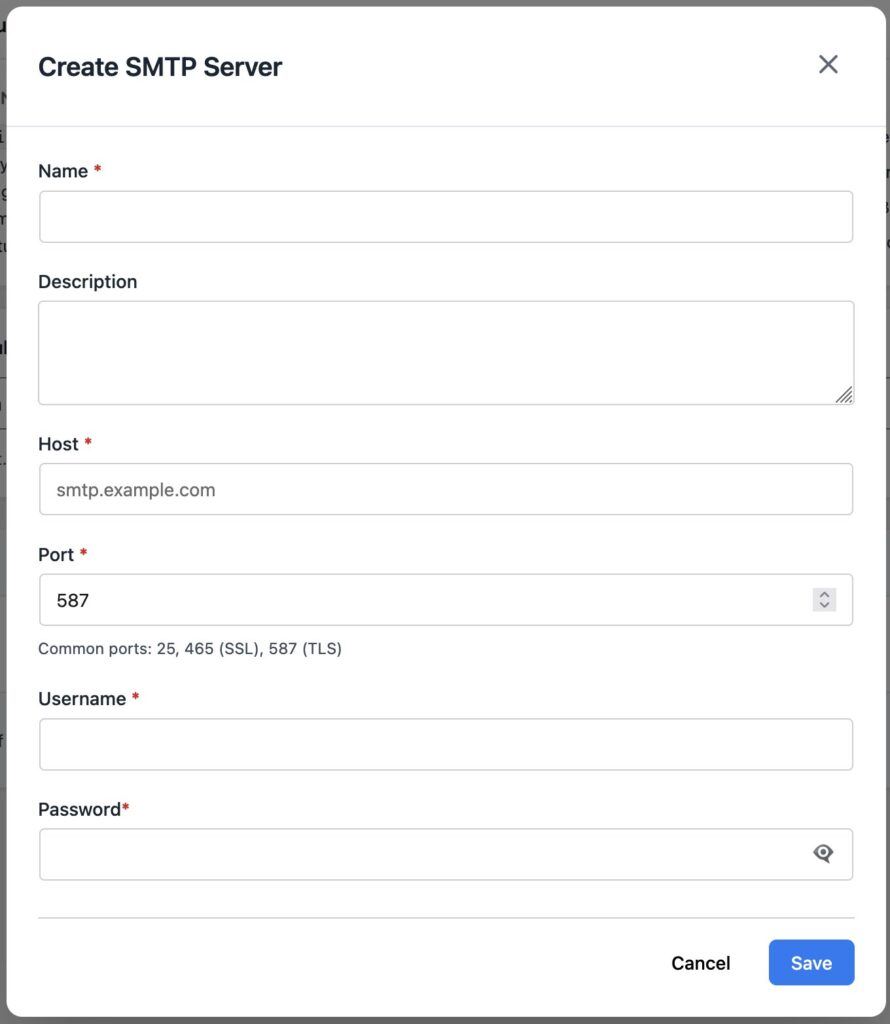
- Name — a label for your own reference, e.g. “Brevo — main site”
- Description — optional note about what this server is used for
-
Host — the SMTP hostname from your provider (e.g.
smtp-relay.brevo.com) -
Port — use
587for TLS (recommended) or465for SSL. CraftForms detects the encryption type automatically from the port you enter. - Username and Password — from your provider’s SMTP settings page (see the per-provider sections above for the exact values)
- Click Save.
The password is stored encrypted in your database using AES-256 — it is never stored in plain text.
You can add as many SMTP servers as you like. A common setup is one server for important transactional emails (booking confirmations, payment receipts) and a separate one for lower-priority contact form alerts.
Step 2: Use the SMTP server in a form’s email action
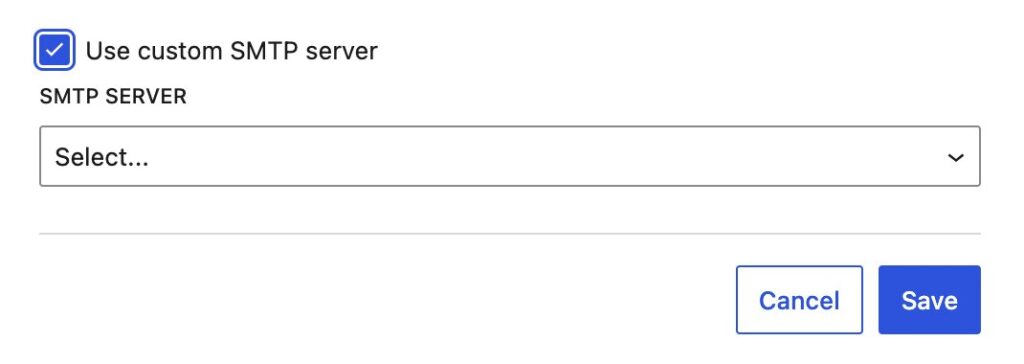
By default, every Send Email and Send Email Template action in CraftForms uses your site’s default WordPress mailer. To route a specific email action through your new SMTP server:
- Open the form in the form editor.
- Click on the Send Email or Send Email Template action you want to change.
- Tick Use custom SMTP server and select the server from the dropdown.

- Click Save.
This is set per action, not per form — so you can have a booking confirmation routed through Mailgun for maximum reliability while a low-priority internal alert uses the default WordPress mail, all within the same form.
Step 3: Check the email log after your next submission
CraftForms logs every outgoing email, regardless of whether it was sent through SMTP or the default mailer.
Go to CraftForms → Email Logs. Each row shows:
- Recipient — who the email was sent to
- Subject — the email subject line
- Transport — which mailer sent it (e.g. “SMTP: Brevo — main site” or “WP mailer”)
- Status — Success or Failed
- Error message — if the send failed, the provider’s error reason is recorded here
If you see a Failed entry, the error message tells you exactly what went wrong — wrong password, invalid hostname, port blocked by your host’s firewall, or rate limit exceeded. This makes diagnosis much faster than chasing down a missing email with no trail.
You can filter the log by status and delete old entries. Entries moved to trash are automatically removed after 30 days.
Summary
For most WordPress sites with contact forms and booking notifications, Brevo is the right starting point — 300 emails per day for free, the easiest setup of any provider, and a generous free tier that suits the majority of small business sites.
If you’re running a property rental, a service business taking bookings online, or any setup where a missed email costs real money, go with Mailgun. The extra DNS setup step is worth it for the deliverability.
Either way, the CraftForms setup is the same: add the server under CraftForms → SMTP Servers, assign it to your email actions, and confirm delivery through CraftForms → Email Logs. Ten minutes of setup and you’ll never silently lose a form notification again.