TL;DR
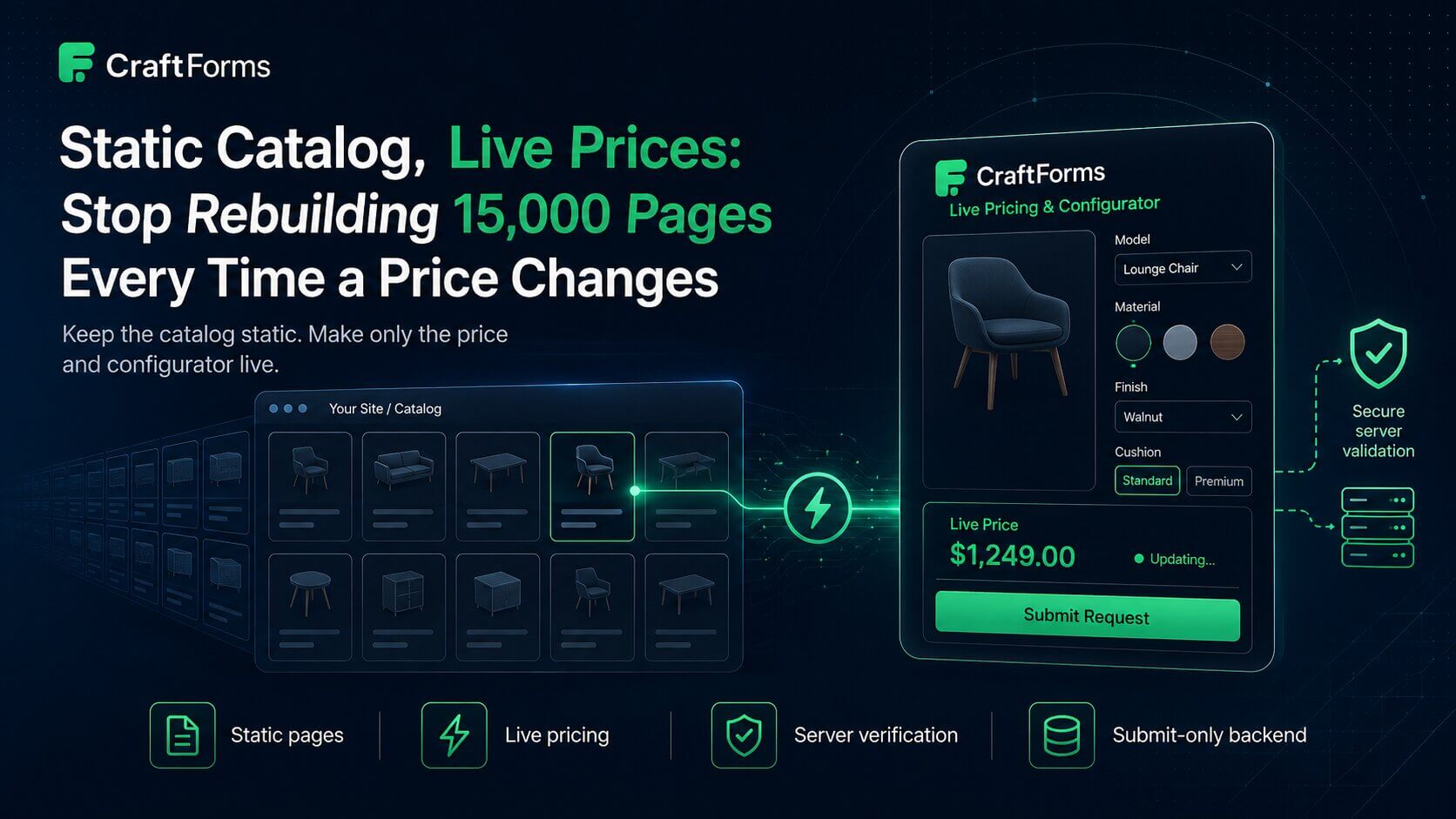
- The most common CraftForms modelling mistake is assuming one form = one thing you sell. It doesn’t. A form is a question set; a catalog item is the thing being sold. The relationship is one form to many items.
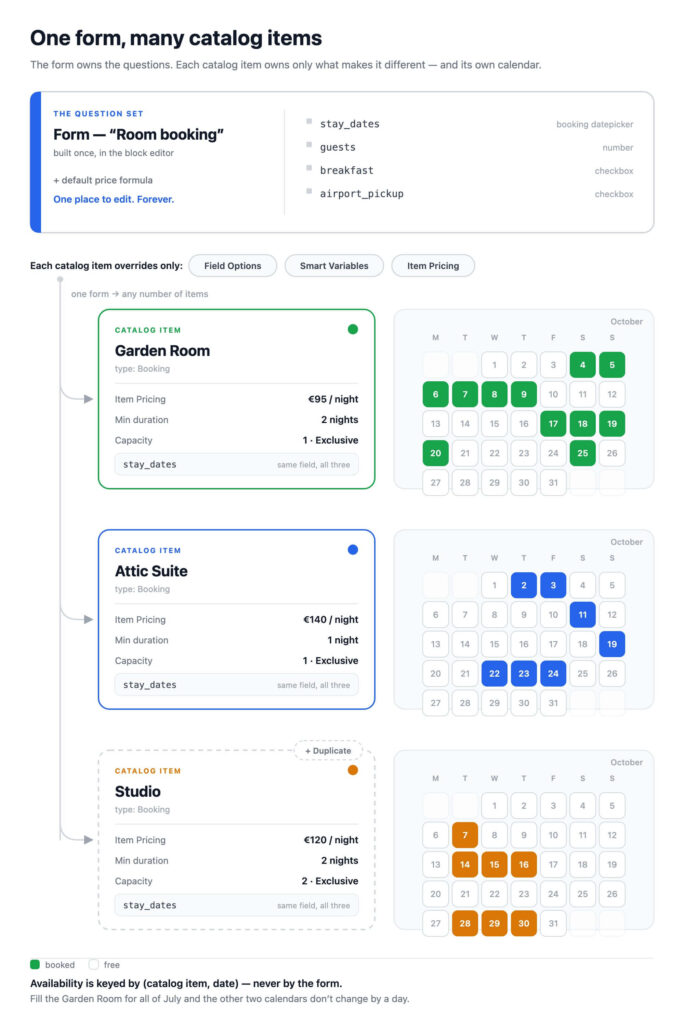
- A two-room B&B needs one booking form and two booking catalog items. Both rooms ask the same questions (dates, guests, extras) — and because availability is tracked per catalog item, Room 1 selling out has zero effect on Room 2.
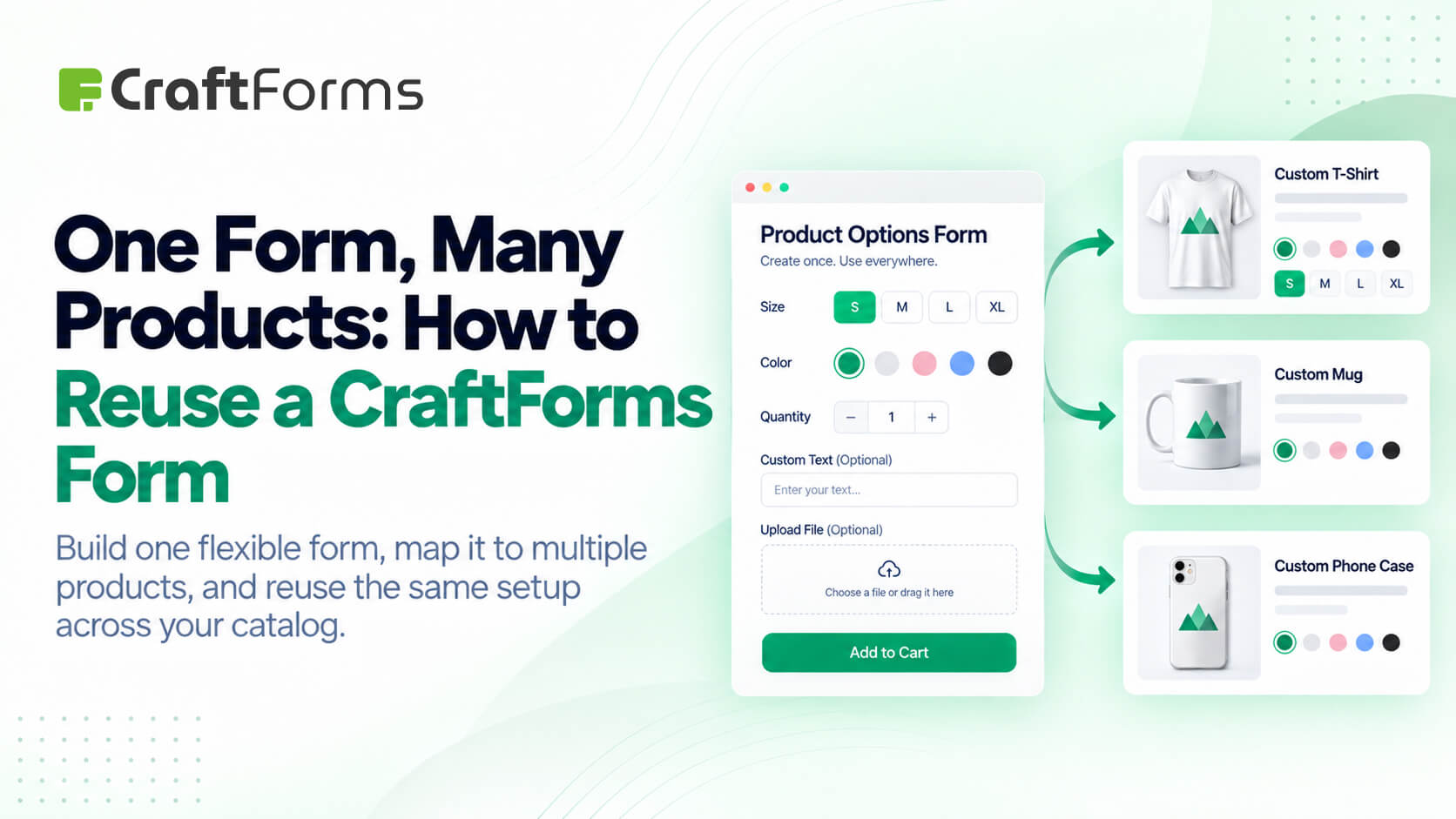
- Same story for products: one “size / colour / quantity” form can back a dozen catalog items that each override the choices, the prices, and the formula — via Field Options, Smart Variables and Item Pricing.
- Same story for WooCommerce: the form is selected per product, so any number of products can point at one form, each with its own option set, pricing, dynamic SKU and stock table.
- The non-obvious part is how the link is made. It’s per placement, not per form: insert the form’s synced pattern, then pick Linked Catalog Item in the sidebar (or the block toolbar). Two placements of the same form on one page can link two different items.
- The trap: the form selector inside a catalog item is labelled “Inspect a form for reference” — it is a schema helper, not a saved binding. A catalog item does not own a form.
- Catalog is a Pro feature (CraftForms → Catalog).
If you have built one CraftForms form per product, and you sell fifteen products, you have fourteen forms too many — and fifteen places to make the same edit when you want to add a “Gift wrapping?” checkbox.
This is the single most useful structural idea in the plugin, and it is easy to miss because nothing forces you into it: a form is not a product. A form is a set of questions and the layout that asks them. What you actually sell — the room, the boat, the banner, the meeting room, the SKU — is a catalog item. One form can serve as the front end for as many catalog items as you like, and each item quietly rewrites the form’s options, variables and pricing when it’s the one being booked or bought.
CraftForms says this in its own words, in the info panel at the top of every catalog item:
As the store owner, you create catalog items here and link them to specific pages or form instances on your site. When a linked form is submitted, CraftForms automatically extends it — applying the item’s field options to matching form fields, injecting its variables into calculations, and overriding the form-level pricing. One form, any number of product or booking variations.
This post is the practical version of that sentence: the model, three setups that come up constantly, and the linkage details that fail silently when you get them wrong.
The model: question set vs. sellable thing
Keep these two jobs separate in your head and the rest follows.
The form owns the questions. Fields, labels, layout, validation, conditional logic, the submit actions (emails, PDFs, orders, webhooks), and a default price formula. Built once, in the block editor, like any other CraftForms form.
The catalog item owns what makes this one different. Under CraftForms → Catalog each item carries its own:
- Item Details — Title, Type (
ProductorBooking), Status (Active / Draft / Archived), calendar colour, description - Field Options — per-field choice overrides for
select,radioandcheckboxfields - Smart Variables — extra variables injected into this item’s calculations
- Item Pricing — a price or formula that applies to this item only
- Inventory — stock for product items
- Booking + iCal Import / Export — availability, capacity and calendar sync, for booking items
Nothing about that list duplicates the form. It is purely the delta between “the questions” and “this particular thing.”
What a catalog item actually changes at submit
Three overrides do nearly all the work.
Field Options override or extend the choices on a select, radio or checkbox field. Each option group targets one field and picks a Strategy:
- Override — the form’s original choices are discarded and replaced entirely.
- Merge — choices with the same value are updated; new choices are appended.
Each group also sets an Option Style (Default, Cards, Color, Image), and every value can carry its own Price, Annotation, Default flag, Description, Color and Image. There’s a Pre-fill choices helper to seed values either from the form field’s own choices or from a WooCommerce attribute.
Smart Variables defined on the item are injected into the calculation alongside the form’s own.
Item Pricing is the blunt instrument, and the panel describes itself precisely:
Define a price or formula that applies to this catalog item only. When set, it overrides the form-level pricing for this item — a local override that leaves the form’s own formula untouched.
That last clause is the point of the whole feature. The item’s price is a local override. The shared form keeps its own formula, so the other twelve items are unaffected.
Field names are matched exactly, and a mismatch is silent. Option groups target a field by name; CraftForms warns, in the editor, “Enter the exact field name — non-matching names are silently skipped.” Rename a form field later and every catalog item referencing the old name stops overriding it — with no error, no notice, just the form’s original choices quietly showing through. Grep your catalog items after any field rename.

Case 1 — a two-room B&B: one form, two bookings that never collide
This is the example that makes the model click, because the instinct is so strongly wrong. Two rooms feel like two booking systems. They aren’t. They’re two catalog items.
Both rooms ask identical questions: check-in and check-out, how many guests, breakfast, airport pickup. So build one form — say “Room booking” — with a booking datepicker field named stay_dates, a guest-count number field, and your extras.
Then, under CraftForms → Catalog, create two items of type Booking:
| Garden Room | Attic Suite | |
|---|---|---|
| Booking Type | Dates Range (Hotel / B&B) | Dates Range (Hotel / B&B) |
| Occupancy Model | Exclusive | Exclusive |
| Capacity | 1 | 1 |
| Min Duration (nights) | 2 | 1 |
| Date Field Variable | stay_dates | stay_dates |
| Item Pricing | €95/night | €140/night |
Two things here surprise people.
Both items use the same Date Field Variable — and that’s correct. stay_dates is the form’s datepicker field name, and both items track that same field. Its help text explains why the setting exists at all: “Name of the form datepicker field this catalog item should track for date/time availability. When a form has multiple datepickers, this tells the catalog item which one to use.” It disambiguates fields, not items. It is not an identity, so there is nothing to keep unique.
The two rooms book completely independently. This isn’t a convention you have to maintain — it’s structural. Every availability ledger CraftForms keeps is keyed by the catalog item:
- day-based bookings are unique per
(resource_id, date) - slot bookings are unique per
(resource_id, date, time_slot) - continuous-duration bookings are indexed per
(resource_id, date)and overlap-checked within the item
And the orders table stores the catalog item and the form as two separate columns. Fill the Garden Room for all of July and the Attic Suite’s calendar doesn’t change by a single day, because nothing in that chain is keyed by the form.
You also get per-item iCal Import / Export, which matters more than it sounds: each room gets its own export feed and its own import URL. That’s exactly what you need to keep the Garden Room in sync with its Airbnb listing while the Attic Suite syncs with its own — one shared form, two independent calendars. (See the Google Calendar sync post for the feed mechanics.)
Adding a third room is then: open the Garden Room, hit Duplicate, change the title, price and capacity. The form is never touched.
Keep the booking type consistent across items that share one form. The form has one datepicker field with one shape. Two items that share it should use the same Booking Type — two “Dates Range” rooms, or two “Single Date With Time Slots” services. Mixing a day-range item and a time-slot item on a single shared datepicker field is not a tested path; give that second shape its own form.
Case 2 — the same product in different sizes, colours and prices
Now the product side. You sell wall banners. The questions never change: size, material, finish, quantity, artwork upload. What changes per product line is which options exist and what they cost.
One form — “Banner configurator” — with size, material, finish, qty and a file upload. Then one catalog item per product line, each with Field Options that reshape the choices:
- Indoor Banner — an Override group on
materialoffering onlyPaperandFabric, each with its own per-value price;finishoverridden toMatte/Satin. - Outdoor Banner —
materialoverridden toVinylandMeshat higher per-value prices; a Merge group onfinishthat appendsUV-laminatedto the existing choices instead of replacing them. - Premium Banner — same choices as Outdoor, but an Item Pricing formula that applies a different rate, plus an extra Smart Variable for a rush-production surcharge.
Use Override when the item’s list is authoritative and the form’s defaults are irrelevant. Use Merge when the form holds the master list and the item only adjusts a price or adds one extra choice — that keeps a global change (a new finish for everything) a one-place edit on the form.
Set Option Style to Color or Image on the colour field and each item can ship its own swatches, so the same form renders a genuinely different-looking configurator per product line.
Case 3 — many WooCommerce products, one form
WooCommerce works the same way, and the connection lives on the product rather than in the Catalog screen. On a product’s CraftForms panel you get a toggle — “Connect a CraftForms form to this product” — and then a CraftForms Form selector, described as “The CraftForms form that replaces the default add-to-cart button on this product page.”
Because that selection is per product, there is nothing stopping thirty products from selecting the same form. Each product then keeps its own:
- Field Options — this product’s colours and sizes
- Smart Variables and Item Pricing — this product’s rates
- Inventory, plus a Dynamic SKU Expression and Custom Stock Management stock table — so stock is tracked per resolved option combination, per product
That’s the WooCommerce payoff of the whole idea: one configurator form, thirty products, thirty independent price sheets and stock tables, and no variation matrix. (See the inventory-by-option and formula-pricing posts for those two panels in depth.)
You can also render a product’s add-to-cart form anywhere with . The product must be simple, CraftForms-enabled and connected to that same form; otherwise the form still renders, just without add-to-cart, and logged-in editors get an HTML comment explaining why.
How the link is actually made
Here’s the part that isn’t obvious, and where most “my catalog item isn’t doing anything” confusion comes from. The link is per placement of the form, not a property of the form. There are three ways to make it.
1. Per placement in the editor (the default)
Insert the form on the page as its synced pattern — CraftForms auto-creates one per form, titled “CraftForms:
- a document sidebar panel, CraftForms Catalog, with a Linked Catalog Item dropdown (“Select a catalog item to extend this form with its pricing, options, and smart variables”)
- a Catalog Item button right in the block toolbar, showing the currently linked item’s name so you can see and change it without opening the sidebar

So: /rooms/garden-room gets the Room booking pattern linked to Garden Room; /rooms/attic-suite gets the same pattern linked to Attic Suite. One form, two pages, two items.
The link is stored per placement, keyed by a stable per-placement ID written into the block comment — which means it survives reordering, and it means two placements of the same form on one page can link to two different catalog items. A single “Our rooms” page can list both rooms, each with its own working booking form. That’s the capability that makes the one-form model scale past one-item-per-page.
This panel only appears for the synced-pattern placement. The per-placement link is read off the pattern wrapper, so a raw
craftforms/formblock dropped straight onto a page has nowhere to hang it — no sidebar panel, no toolbar button. Insert the pattern, don’t paste the form’s block markup into the page. (Pasting a copy also forks the form: later edits to the real form won’t reach it.) If you must use a bare block, fall back to the page-meta or shortcode routes below.
2. The shortcode
For classic templates, page builders and anywhere blocks aren’t practical:
[craftforms form="42" catalog-item="7"]
Note the hyphen — the attribute is catalog-item, not catalog_item, and form takes the form’s post ID. For the static/headless embed the equivalent is:
[craftforms_static_form key="…" resource-id="7"]which also accepts catalog-item as an alias.
The trap: “Inspect a form for reference” is not a binding
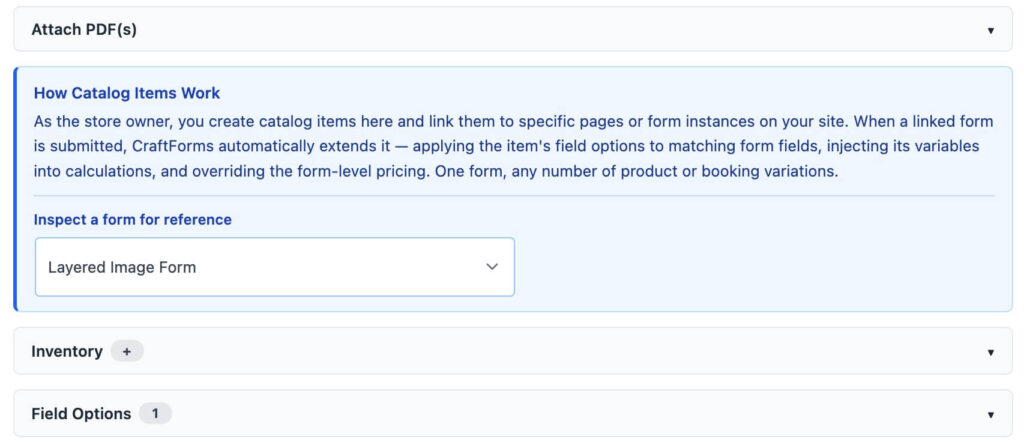
Open a catalog item and there’s a form dropdown near the top. It is labelled “Inspect a form for reference” — and that label is doing real work. Selecting a form there loads its schema so the editor can show you the field names, datepicker sub-variables and smart variables available for copy-paste while you write formulas and option groups.
It is not a saved link. A catalog item does not own a form, and nothing at render time reads that selection. If you pick a form there and expect the item to start applying itself, nothing will happen. The binding is always one of the three mechanisms above.
This is the right design for the one-to-many model — an item that owned a form couldn’t be reused across placements — but the dropdown’s position at the top of the panel makes it look like step one of a wizard. It isn’t.
Already built one of these? Add items, not forms
Every tutorial on this blog builds a single sellable thing, because one thing is the clearest way to teach a form. That’s a teaching choice, not a limit — and each of those builds scales the same way: keep the form exactly as it is, and add catalog items.
- Salon, spa or massage appointments — that walkthrough sets up one service on one schedule. A real salon has several. Add a catalog item per treatment room, per stylist, or per service, all pointing at the same “Book an appointment” form: each item carries its own slot interval, buffer, notice period, capacity and price, and two of them can never be booked into the same slot. One form for the whole salon, however many chairs you add.
- B&B and vacation rental bookings — builds one rental. Add one booking item per room, exactly as in Case 1 above: its own nightly rate, its own minimum stay, its own iCal feed.
- Seasonal boat rental — one boat becomes a fleet. Duplicate the item per hull and adjust capacity and the month-keyed price table; the seasonal datepicker is built once and shared.
- Online order form for a small business — one product becomes one catalog item per product line, each with its own Field Options and Item Pricing.
- Inventory by option and pricing without variations — both panels are per product, so an entire WooCommerce catalog can share one configurator form while keeping separate stock tables and price rules.
The rule of thumb: if the questions are the same, you need another catalog item, not another form.
When you should build a second form
Reuse isn’t free, and the honest boundary is about questions, not things:
- Different questions → different form. A room booking and a bike rental don’t share a question set. Forcing both through one form with conditional logic is worse than two forms. Second thought: maybe if it is a one question (form field) that differs and you need just 2-3 products based on this form – try one form and conditional logic. Yet, always better to avoid this scenario. Make forms scalable from day one!
- Different booking shape → different form. Per the note above, keep one datepicker shape per form.
- Different submit actions → probably a different form. Submit actions live on the form. If one product needs a PDF contract and a CRM webhook while the other needs a simple confirmation email, that’s a form-level difference. (PDFs are the exception — catalog items have their own Attach PDF(s) panel.)
- Same questions, different options/prices/availability → one form, many catalog items. This is the case the feature exists for, and it covers far more situations than people expect.
The shape of it
One form per question set, one catalog item per thing you sell, and the link made per placement.
A two-room B&B: one form, two items, two pages — or one page with two placements. Fifteen banner products: one configurator, fifteen items. Thirty WooCommerce products: one form selected thirty times, each with its own prices and stock. When you add a field, you add it once.