
TL;DR
- CraftForms → Catalog → open your booking item → “iCal Import / Export” → copy the Export feed URL.
- Google Calendar → Other calendars → + → From URL → paste → Add calendar.
- Bookings appear as “Booked” blocks (no customer data). Google refreshes on its own schedule — great for planning, not for the second-by-second.
- Bonus: paste your Google Calendar’s secret ICS address into CraftForms’ Import field to auto-block your days off.
Your bookings, in your calendar, on every screen you own — without lifting a finger after setup.
You take a booking on your website. A few seconds later it’s sitting in your Google Calendar — on your laptop, on your phone, on the shared calendar your whole team watches. No copy-pasting. No “did anyone write that down?” No Zapier subscription, no third-party connector, no spreadsheet in the middle.
That’s the whole promise of this post, and it’s built into CraftForms. Every booking taken through a CraftForms booking form can be published as a live calendar feed that Google Calendar — or Apple Calendar, or Outlook — subscribes to and keeps up to date on its own.
If you run a B&B, a salon chair, a tutoring slot, a photography studio, a rental, or anything where “is that day free?” is a question you answer ten times a week, this is the feature that lets you stop answering it from memory.
Here’s exactly how it works and how to set it up — plus the honest caveats nobody mentions until you’re already frustrated.
Why bother? (Or: the problem with bookings that live in a database)
CraftForms already does the hard part well. It stores every booking, prevents double-bookings, and shows availability in the date picker on your site. So why pull bookings out into Google Calendar at all?
Because your business doesn’t live inside the WordPress admin. You live in your calendar — the one that buzzes your phone in the morning, the one your assistant checks before saying “yes, we can fit you in,” the one you glance at to decide whether you can take Friday off.
When bookings sit in one place and your life sits in another, you get the two classic failures:
- You forget. A booking exists, but it’s not in front of you when you’re planning your week.
- You double-promise. You tell a friend you’re free Saturday because your personal calendar looked empty — but the website took a booking that morning.
Subscribing Google Calendar to your CraftForms bookings closes both gaps. One source of truth, mirrored everywhere you already look.
What the feed actually is (in plain terms)
CraftForms exposes your bookings as an ICS feed — sometimes called an iCal feed. Don’t let the “iCal” name fool you; it has nothing to do with Apple specifically. ICS (.ics) is the universal, decades-old calendar format that every major calendar app understands: Google Calendar, Apple Calendar, Outlook, Thunderbird, all of them.
A feed is just a special URL. When you give that URL to Google Calendar, Google quietly visits it every so often, reads the list of booked dates, and draws them onto your calendar as events. You never touch it again. New booking comes in? It appears at Google’s next check.
The URL looks like this:
https://yoursite.com/wp-json/craftforms/v1/catalog/12/ical/a1b2c3d4e5f6a7b8c9d0e1f2a3b4c5d6
That long random string at the end is a security token — more on that below. The important thing: it’s read-only. Google can look, but it can’t change anything, and nobody who doesn’t have the exact URL can find it.
Heads up — this is a CraftForms Pro feature. The booking catalog item and its ICS import/export feeds are part of CraftForms Pro. If you’re on the free version you’ll have forms, but not the booking calendar engine behind this article.
Before you start: you need a booking item set up
This post assumes you’ve already built a booking — a thing customers can reserve. If you haven’t, do that first; these walkthroughs cover it end to end:
- B&B / vacation rental (check-in to check-out date ranges)
- Salon / spa / appointments (fixed time slots on specific days)
- Booking + automated confirmation email
In CraftForms terms, a booking lives in the Catalog. Go to CraftForms → Catalog in your WordPress admin (it sits under the CraftForms Forms Management menu), and you’ll either see your booking item there or create a new one with Type: Booking.
Once you have a booking item that’s actually taking reservations, you’re ready to wire it to Google Calendar.
Part 1 — The main event: see your bookings in Google Calendar
This is the outbound direction: CraftForms → Google Calendar. Your bookings flow out to Google.
Step 1: Grab your export feed URL from CraftForms
- Go to CraftForms → Catalog and open your booking item.
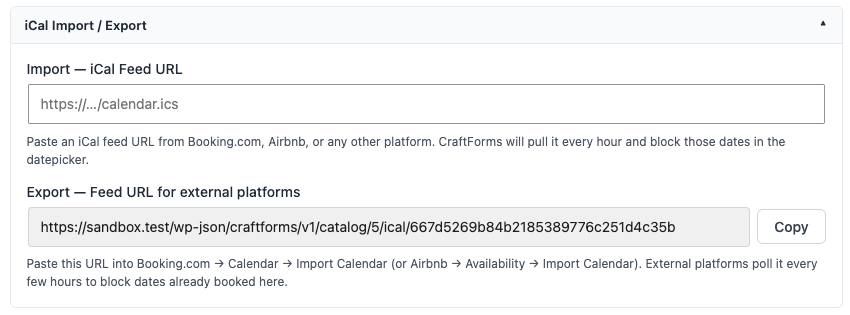
- Scroll to the section titled “iCal Import / Export.”
- Find the field labelled “Export — Feed URL for external platforms.” It shows a long read-only URL.
- Click Copy.
That URL is your booking calendar. Keep it on your clipboard for the next step.
If you see “Save this item first to generate the export URL” instead of a URL, just save the booking item once. The feed URL is generated the first time the item is saved, then it stays stable forever (so subscriptions never break).
Step 2: Add the feed to Google Calendar
Now hand that URL to Google:
- Open Google Calendar on a desktop browser (the subscribe option isn’t available in the mobile app — but once added, it syncs to mobile automatically).
- In the left sidebar, find “Other calendars” and click the + next to it.
- Choose “From URL.”
- Paste your CraftForms export feed URL into the box.
- Click “Add calendar.”
That’s it. Google fetches the feed and adds a new calendar to your list. Your CraftForms bookings now appear as events.
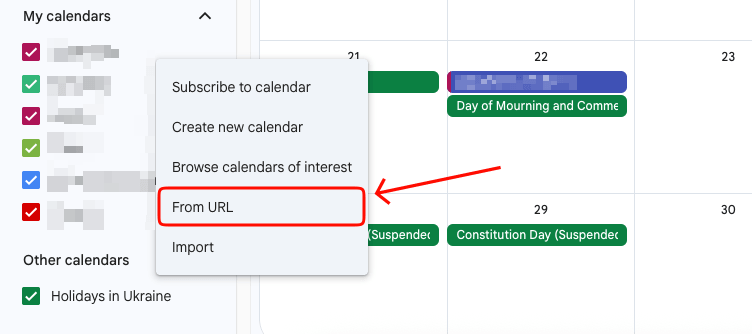
Google’s menu labels shift from time to time. If “From URL” isn’t where you expect, look under Settings → Add calendar → From URL — same feature, longer path.
Step 3: See it work
Within a short while, your booked dates show up on the calendar as all-day “Booked” events sitting alongside everything else you already track.
A few things to notice about how it looks:
- Day-based bookings (hotel / B&B style) show as a block spanning the booked nights.
- Single-date and time-slot bookings (appointments, drop-ins) show as the booked day.
- The event is simply titled “Booked.” It deliberately contains no customer name, email, or any personal detail — see the privacy note below.
A genuinely nice side effect: privacy
The feed only ever says “Booked.” It never publishes who booked, their email, their phone number, or what they ordered.
That’s by design, and it matters. Because the feed URL has to be publicly reachable for Google to fetch it (Google won’t log into your WordPress admin), you do not want it leaking customer data. CraftForms keeps the customer’s actual details safely in your WordPress database — where you can see them in the submissions and orders — and lets only the bare “this slot is taken” signal out to the calendar.
So if you ever share that Google calendar with a part-timer or a cleaner, you’re showing them your availability, not your client list.
The token is your lock. That random string at the end of the URL is the only thing protecting the feed. Treat it like a password: don’t post the full URL publicly. If it ever leaks, duplicating the booking item generates a fresh URL (the old one stops working).
The honest part: how fresh is it, really?
Here’s what most tutorials skip. Calendar subscriptions are not instant.
When Google subscribes to an external ICS feed, Google decides how often to check it — and Google is famously unhurried about this. In practice a subscribed feed refreshes anywhere from a few hours to around a day. You cannot force Google to check more often; that schedule is on their side, not yours.
What this means in practice:
- For planning and visibility — perfect. Seeing this week’s and next week’s bookings on your phone? Works beautifully.
- For minute-by-minute, real-time accuracy — not the tool. If you need a booking to appear in Google within seconds (say, to stop a same-hour double-booking across two systems), an ICS subscription is the wrong mechanism. That’s what a real-time channel manager is for, and it’s overkill for most small operators.
To nudge along the very first sync, remove and re-add the calendar in Google — a fresh subscription fetches immediately. After that, let Google do its thing.
Don’t mistake this for CraftForms being slow. Your site’s own booking calendar and date picker update the instant a booking is made — there’s no double-booking risk on your website. The delay is purely Google’s polling of the external feed.
Part 2 (bonus) — Block your days off automatically
The feed runs both directions, and the reverse is just as useful.
Say you keep your personal commitments — holidays, that dentist appointment, the long weekend — in a Google Calendar. You’d like the website to know you’re unavailable on those days and stop offering them to customers. CraftForms can subscribe to your Google Calendar and block those dates in the date picker.
This is the inbound direction: Google Calendar → CraftForms.
- In Google Calendar: open the settings for the calendar you want CraftForms to read. Under “Integrate calendar,” copy the “Secret address in iCal format.” (Use the secret address — it’s the private one only you should hold.)
- In CraftForms: open your booking item, go to the same “iCal Import / Export” section, and paste that address into the “Import — iCal Feed URL” field.
- Save.
From now on, CraftForms pulls that Google Calendar every hour and marks any busy dates as unavailable in your booking date picker. Block out next week in Google, and customers can no longer book you for next week — no manual blocking required.
Want to verify it immediately instead of waiting for the hourly sync? If you have command-line access, run
wp cron event run craftforms_ical_syncto force a pull right away.
You can point the Import field at any ICS feed — a partner’s calendar, a shared “shop closed” calendar, even another booking platform. CraftForms treats every busy date in that feed as a date to block.
Putting it together: one calendar, every device
With both directions wired up, you’ve built a tidy little loop:
- Customers book on your site → those bookings flow out to your Google Calendar, so you (and your team) see them everywhere.
- You block personal time in Google → those dates flow in to CraftForms, so customers can’t book over your life.
All of it through one open, universal format, with no monthly connector fee and no customer data leaving your server.
When an ICS feed isn’t the answer
To be fair about the limits:
- You need real-time, two-way sync across multiple sales channels. If you’re selling the same rooms on Airbnb, Booking.com, and your site simultaneously and a delay of even an hour risks a double-booking, you want a dedicated channel manager (Hostaway, Guesty, Lodgify) that uses each platform’s live API. ICS feeds, by their nature, poll on a schedule.
- You want to edit bookings from Google. The export feed is read-only. Dragging the “Booked” event in Google won’t move the actual reservation in CraftForms — manage bookings from the CraftForms admin.
For the overwhelming majority of small operators, though — the ones who just want their bookings to show up where they already look — the ICS feed is exactly enough, and it’s already in the box.
CraftForms is a WordPress form and booking builder. The booking catalog and iCal import/export feeds described here are part of CraftForms Pro.