TL;DR: CraftForms Pro can receive form submissions from any website or app — not just pages on the WordPress site where it’s installed. Configure the form once in WordPress, submit to it from anywhere. Your data stays in your WordPress admin, server-side validation is always enforced on every request.
Most WordPress form plugins do one thing well: they put a form on a WordPress page. That’s fine when your site is entirely built in WordPress. But what happens when it isn’t?
Static sites built with Next.js, Gatsby, or Astro don’t have a PHP backend. React and Vue apps run in the browser with no server of their own. WordPress plugins and themes sometimes need to collect feedback but have no dedicated website to host a form. In each of these cases, the standard “create a form, add it to a page” workflow simply doesn’t apply.
The usual answer is a third-party form service. Formspree, Netlify Forms, Basin, Getform — they all accept POST requests from any site and forward the submissions somewhere. They work, but they come with strings attached: per-submission limits on free plans, monthly fees once you grow, no control over validation rules, and — most importantly — your submissions living in someone else’s system, accessible from someone else’s dashboard.
There’s a better option if you already have a WordPress site: use CraftForms as your form backend.
Note: The feature described in this post — Allow External Submissions — is part of CraftForms Pro.
The Idea: Separate the Form from the Backend
A form is really two things:
- The interface — the HTML inputs, the layout, the labels, the button
- The backend — validation, sanitization and data storage, and optional email notifications
These two things don’t have to live on the same site or even in the same technology stack. CraftForms normally handles both. But with external submissions enabled, you can take the interface anywhere and leave the backend exactly where it is — running on WordPress, handling everything it always handled.
How It Works
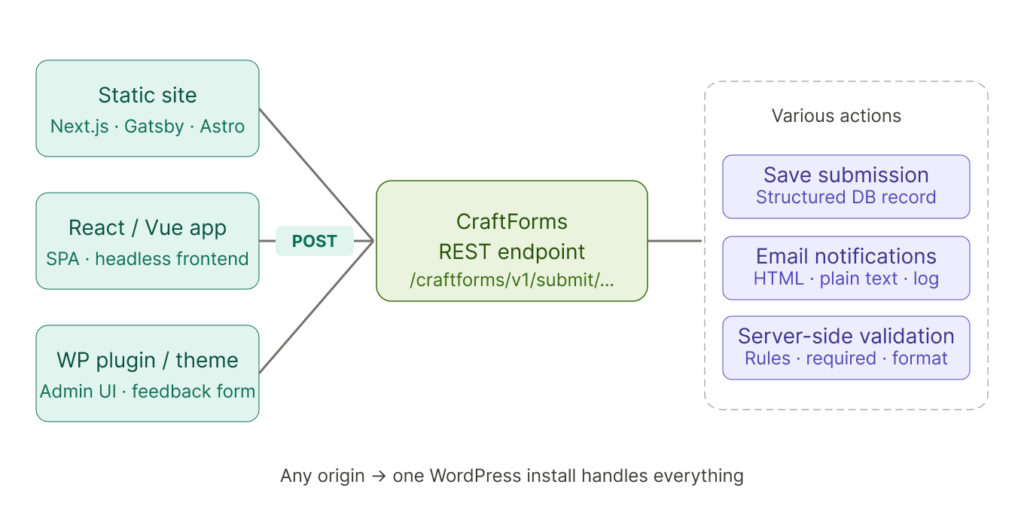
Every CraftForms form has its own submission endpoint — a REST API URL that the form posts to when a user clicks Submit. By default, CraftForms only accepts submissions from pages on the same WordPress site. Enable Allow External Submissions and that restriction is lifted: the endpoint accepts POST requests from any origin.
The endpoint format is:
https://yoursite.com/index.php?rest_route=/craftforms/v1/submit/your-form-name
The your-form-name part is what you set in the Form REST Name field. You can use anything descriptive — contact, support, quote-request — as long as it’s unique across your forms. If you don’t set a REST name, CraftForms uses an auto-generated unique ID instead.
Setting It Up
Step 1 — Build the form in CraftForms
Create and configure the form exactly as you would for any WordPress page: add fields, set required rules, configure submit actions (Save Submission, Send Email Template, whatever you need). This is where all the logic lives — the form interface on your external site is just the visible layer on top.
Step 2 — Open Advanced Settings
In the form editor, open the settings panel and navigate to the Advanced tab (or open the Form Settings modal). You’ll find two settings here:
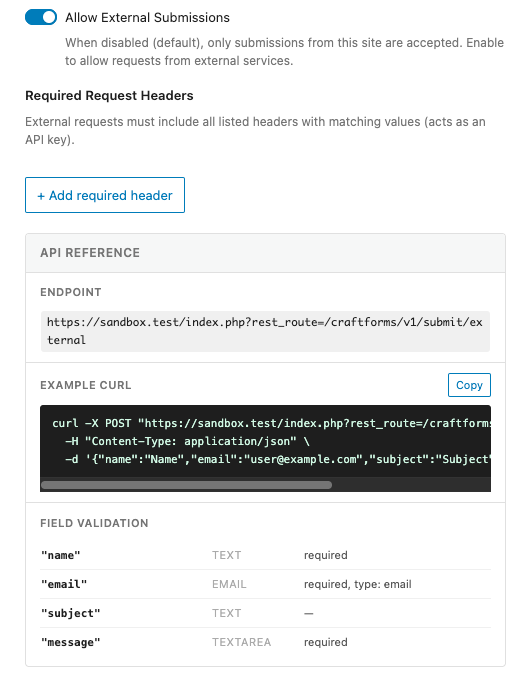
- Form REST Name — set a short, readable slug for your endpoint (e.g.,
contact) - Allow External Submissions — toggle this on
Step 3 — Use the generated curl example
Once you enable external submissions, a panel appears showing your exact endpoint URL and a ready-to-use curl command. It’s not a generic example — CraftForms builds it from your actual form: the correct field names, the right data types, any custom header requirements. You can copy it directly to test the endpoint before writing a single line of frontend code.
The panel also lists all form fields with their names, types, and validation rules — everything you need to know to replicate the form structure on your frontend.
What You Get — Without Rebuilding Anything
When a submission arrives from an external site, it goes through exactly the same processing as a submission from a WordPress page:
Server-side validation is always enforced. Required fields, min/max rules, email format, file type restrictions — all of it runs on the server regardless of what the browser does. It cannot be bypassed by inspecting the page or submitting manually crafted requests.
Submissions are saved to your WordPress database. Every entry lands in CraftForms → Submissions with all field values, timestamps, and metadata. Nothing gets lost in a forwarded email. Important: submit action “Save Submission” must be enabled for the form.
Email Templates. Any Send Email Template actions configured on the form run as normal — it is a possibility to render nice, branded template based emails.
The delivery log tracks every outgoing email. If a notification failed to arrive, you can check the log and know exactly what happened.
Real-World Use Cases
Static sites (Next.js, Gatsby, Astro, plain HTML)
Static sites have no backend. If you want to handle form submissions, you either need an external service or you need to reach a backend somewhere. With CraftForms, that backend is your WordPress site. Build your form UI in whatever framework or plain HTML — wire the submit action to your CraftForms endpoint — and that’s it. Validation, storage, and email are all handled without writing any server-side code.
React and Vue apps
Single-page apps often already have an API they talk to, but that API rarely includes a full form-processing stack. Rather than building validation rules, and setting up email notifications from scratch — or paying a third-party service per submission — you can point your form’s POST request at CraftForms and let it handle all of that.
WordPress plugin and theme developers
This use case is closer to home for many developers. If you ship a WordPress plugin or theme, you might want to include a support form, a feedback collector, or a feature request button — without hosting a separate form service.
The “Request a Feature” button in the CraftForms admin is exactly this pattern in practice. It opens a modal with a form built in plain HTML. When submitted, the request is sent to craftformswp.com — a standard CraftForms installation with a form configured to accept external submissions. The submission goes straight into the submissions inbox, triggers a notification email, and is stored in the WordPress database. No third-party service involved, no per-submission fees, full control over what gets stored and how notifications are worded.
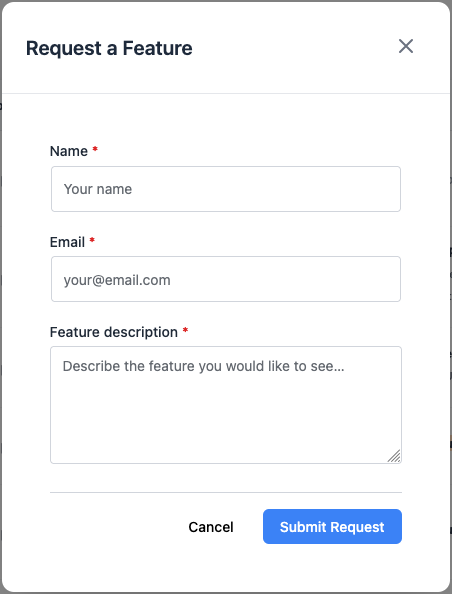
If you build and sell a WordPress plugin, this means you can include a polished feedback or support form in your own product and receive everything centralised on your own site.
Agencies managing multiple client sites
If you manage several WordPress installations for clients but want submissions from all of them flowing into one place, external submissions make that possible without installing CraftForms on every client site. One CraftForms Pro install on your agency site can serve as the collection point for forms across any number of external properties.
Why This Beats Third-Party Form Services
The pitch for services like Formspree is convenience — you get a form backend without setting anything up. But once you already have a WordPress site, that convenience trade-off looks different:
You own the data. Submissions are in your WordPress database. You export them whenever you want. If you stop paying for something, your data doesn’t disappear — because your data was never somewhere else to begin with.
No per-submission pricing. Third-party services charge by volume. CraftForms Pro is a flat annual fee. A contact form that receives 5,000 submissions a month costs the same as one that receives 50.
Validation rules are yours to configure. With a third-party service, you validate on the frontend (which can be bypassed) or accept whatever comes in. With CraftForms, you define the rules in the form editor and they’re enforced server-side on every request, automatically.
Email templates are fully branded. You design the confirmation email in Gutenberg, using your own logo and colours, and reference any submitted field value with {{email.fieldname}} — not a plain-text forward with no formatting control.
Submissions sit next to your other business data. Everything is in the same WordPress admin you already work in every day. No separate dashboard to check, no separate login to remember.
Getting Started
If you have a CraftForms Pro licence and a WordPress site, there’s nothing additional to install. Create your form, open its Advanced Settings, set a Form REST Name, toggle Allow External Submissions on, and copy the generated endpoint URL.
For full documentation on the settings and the request format, see the Advanced Settings reference in the CraftForms knowledge base.
Using CraftForms as a headless form backend? If you’ve built something interesting with external submissions — a plugin feedback form, a static site contact form, a multi-site collection setup — we’d be interested to hear about it. Join our FB community group!