
How to Use MCP to Build and Fill WordPress Forms (2026 Guide)
- Category
- Tutorial
- Published
- Updated
- Reading time
- 12 min
- Tags
Most “AI form builder” features shipping in 2026 work the same way: you paste an API key into a settings screen, type a sentence into a textbox, and the plugin’s own server round-trips your prompt to a model and hands back a form. It works, sometimes. But the AI is a feature inside the plugin. It can’t be swapped, it can’t be scripted, and it can only do what the vendor exposed in that one textbox.
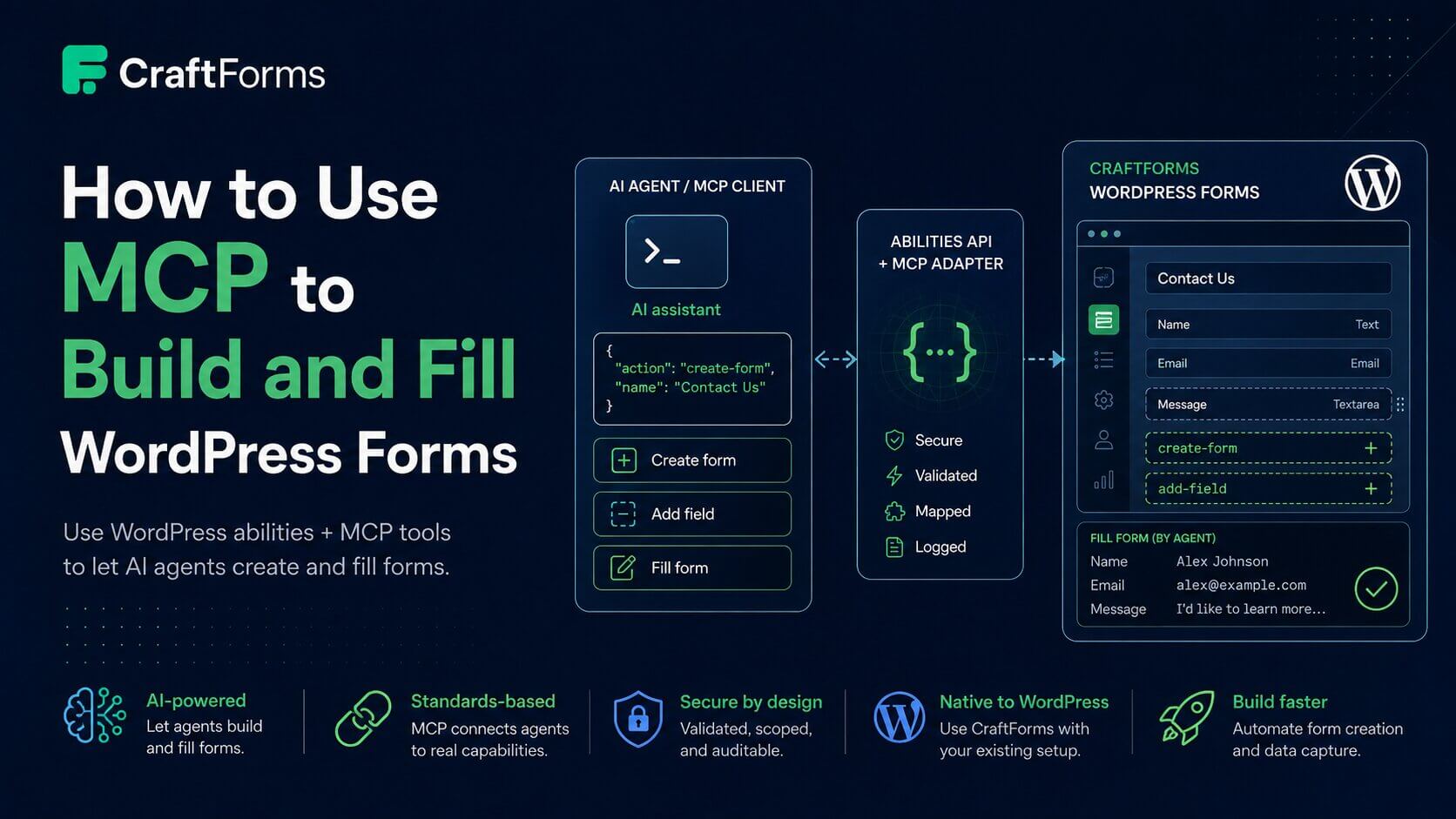
WordPress 6.9 opened a different path. It shipped the Abilities API — a core registry where any plugin can declare typed, permission-checked operations. And in February 2026 the WordPress AI team shipped the MCP Adapter, which takes those registered abilities and exposes them as Model Context Protocol tools that any MCP client can discover and call.
Put those two together and the picture inverts. Instead of an AI feature living inside your form plugin, your form plugin publishes capabilities that any agent — Claude, Cursor, a CI script, your own code — can pick up and use. No vendor key. No textbox.
This guide walks the whole thing end to end: install the adapter, register a server, connect a client, and have an agent build a working form. Then the other half nobody covers — having an agent fill one.
What each piece actually is
Three layers, and it’s worth being precise about which does what, because the names get used interchangeably and they shouldn’t be.
The Abilities API is WordPress core (6.9+). A plugin calls wp_register_ability() with a name, a JSON Schema for its input and output, a permission callback, and an execute callback. That’s it. It’s a registry — it knows nothing about AI.
The MCP Adapter is a separate plugin from the WordPress project. It reads the abilities registry and republishes abilities as MCP tools over a real MCP transport. It is the bridge, and it’s the piece people mean when they say “WordPress has MCP now.”
Your form plugin registers the abilities. CraftForms registers two:
| Ability | What it does |
|---|---|
craftforms/create-form | Creates a form post with optional price formula, transformations, and submit actions |
craftforms/add-field | Appends a field to an existing form as correctly structured Gutenberg blocks |
Both ship in CraftForms free. There’s no AI tier and no key to buy — the abilities register on any install running WordPress 6.9 or later, and are simply absent on older versions (the registration hooks never fire).
The distinction that matters: CraftForms doesn’t talk to a model. It declares what it can do, in a schema any model can read. Which model you point at it is entirely your business.
Step 1 — Install the MCP Adapter
The adapter isn’t on the plugin repository yet; it’s distributed from its GitHub releases.
wp plugin install https://github.com/WordPress/mcp-adapter/releases/latest/download/mcp-adapter.zip --activate
Requirements are WordPress 6.9+ and PHP 7.4+. Activating it gives you a default server and a WP-CLI command. Check what it found:
wp mcp-adapter list
ID                            Name                        Version  Tools  Resources  Prompts
mcp-adapter-default-server    MCP Adapter Default Server  v1.0.0   3      0          0
Three tools — those are core’s own abilities (site info, user info, environment info). CraftForms’ abilities are registered, but the default server doesn’t expose them. That’s deliberate: the adapter makes you opt in to what an agent can reach.
Step 2 — Register a server that exposes the form abilities
Drop this in an mu-plugin (wp-content/mu-plugins/craftforms-mcp-server.php):
<?php
/**
 * Plugin Name: CraftForms MCP Server
 * Description: Exposes the CraftForms abilities as MCP tools via the WordPress MCP Adapter.
 */

add_action( 'mcp_adapter_init', function ( $adapter ) {
    $adapter->create_server(
        'craftforms',                       // server id
        'craftforms-mcp',                   // REST namespace
        'mcp',                              // REST route
        'CraftForms MCP Server',            // name
        'Build and configure CraftForms forms from an AI agent.',
        '1.0.0',
        [ \WP\MCP\Transport\HttpTransport::class ],
        \WP\MCP\Infrastructure\ErrorHandling\ErrorLogMcpErrorHandler::class,
        null,
        [
            'craftforms/create-form',
            'craftforms/add-field',
        ]
    );
} );
The last argument is the allowlist. Only abilities named there become tools on this server — everything else on the site stays invisible to it. If you want an agent that can create forms but never add fields, remove a line.
The namespace and route arguments determine the endpoint: craftforms-mcp + mcp gives you https://yoursite.com/wp-json/craftforms-mcp/mcp.
Confirm it registered:
wp mcp-adapter list
ID           Name                    Version  Tools  Resources  Prompts
craftforms   CraftForms MCP Server   1.0.0    2      0          0
Two tools. That’s the pair.
Step 3 — Look at what the agent will see
Before wiring up a client, it’s worth seeing the tool definitions the way a model receives them. The adapter includes a STDIO transport you can drive from the command line:
echo '{"jsonrpc":"2.0","id":1,"method":"tools/list","params":{}}' \
  | wp mcp-adapter serve --user=admin --server=craftforms
The response includes both tools with their full input schemas. Trimmed to the essentials:
{
  "name": "craftforms-add-field",
  "title": "Add a Field to a Form",
  "description": "Appends a new input field block to an existing CraftForms form.",
  "inputSchema": {
    "type": "object",
    "properties": {
      "form_id":    { "type": "integer" },
      "field_type": { "type": "string",
                      "enum": ["text","email","number","textarea",
                               "select","radio","checkboxes"] },
      "name":       { "type": "string" },
      "label":      { "type": "string" },
      "required":   { "type": "boolean" },
      "options":    { "type": "array" }
    },
    "required": ["form_id","field_type","name","label"]
  }
}
Two details worth catching here, because both will bite you otherwise:
Tool names are slugified. The ability craftforms/create-form becomes the MCP tool craftforms-create-form. Slashes aren’t legal in MCP tool names, so the adapter converts them. When you call a tool, use the hyphenated form.
The enum is the contract. field_type accepts exactly seven values. A model that hallucinates "date" gets a validation error back rather than a broken form — which is the entire point of schema-typed abilities over prompt-and-hope generation.
Step 4 — Connect a client over HTTP
STDIO is good for testing. For a real client you want the HTTP transport, which is the endpoint the server registration created.
Authentication is standard WordPress — an application password is the practical choice. Create one under Users → Profile → Application Passwords, or:
wp user application-password create admin mcp-client --porcelain
MCP over HTTP is a session protocol, so the first call is a handshake:
curl -i -X POST "https://yoursite.com/wp-json/craftforms-mcp/mcp" \
  -u "admin:xxxx xxxx xxxx xxxx xxxx xxxx" \
  -H "Content-Type: application/json" \
  -H "Accept: application/json, text/event-stream" \
  -d '{"jsonrpc":"2.0","id":1,"method":"initialize",
       "params":{"protocolVersion":"2025-06-18","capabilities":{},
                 "clientInfo":{"name":"curl","version":"1.0"}}}'
The response headers carry the session:
HTTP/2 200
mcp-session-id: 3d75124b-3f55-49be-a28b-cadb7b0eb633
{"jsonrpc":"2.0","id":1,"result":{
  "protocolVersion":"2025-06-18",
  "serverInfo":{"name":"CraftForms MCP Server","version":"1.0.0"},
  "instructions":"Build and configure CraftForms forms from an AI agent."}}
Every subsequent request must carry Mcp-Session-Id. Miss it and you get -32600 Invalid Request: Missing Mcp-Session-Id header, which is the single most common first-run stumble.
A real MCP client handles all of this for you. In Claude Code, for example, you’d add the server once and never think about sessions again:
claude mcp add --transport http craftforms \
  https://yoursite.com/wp-json/craftforms-mcp/mcp \
  --header "Authorization: Basic $(printf 'admin:xxxx xxxx xxxx' | base64)"
Step 5 — Let the agent build the form
Now the payoff. With the server connected, you ask in plain language:
“Build me a quote request form with the customer’s name, email, a service dropdown for Basic / Pro / Enterprise, and a project details box. Name and email required.”
The agent calls craftforms-create-form first:
{"jsonrpc":"2.0","id":1,"method":"tools/call","params":{
  "name":"craftforms-create-form",
  "arguments":{"title":"Quote Request","description":"Service quote request"}}}
{"jsonrpc":"2.0","id":1,"result":{
  "structuredContent":{
    "form_id":932,
    "uuid":"form_6a953ab5dc2c6",
    "edit_url":"https://yoursite.com/wp-admin/post.php?post=932&action=edit"},
  "isError":false}}
Then one craftforms-add-field call per field, threading form_id: 932 through each. Four calls later the form exists, is published, and opens in the block editor at that edit_url.
Note the output schema is doing real work here. The agent gets back a structured form_id and edit_url, not prose it has to parse. That’s what lets it chain calls reliably instead of guessing.
Why this beats “paste a prompt into a textbox”
Here’s what the agent actually wrote into the post, for the email field:
<!-- wp:craftforms/text-input-field {"name":"email","label":"Email Address","required":true,"type":"email"} -->
<!-- wp:craftforms/label {"content":"Email Address"} /-->

<!-- wp:craftforms/text-input {"name":"email","required":true,"type":"email","fontSize":"medium","style":{"spacing":{"padding":{"top":"var:preset|spacing|20","bottom":"var:preset|spacing|20","left":"var:preset|spacing|20","right":"var:preset|spacing|20"}}}} /-->

<!-- wp:craftforms/form-error {"content":"{{error.email}}","style":{"typography":{"fontSize":"0.8em"}}} /-->
<!-- /wp:craftforms/text-input-field -->
That’s correct Gutenberg block markup, with matched attributes, the right nesting, a bound error block, and theme spacing presets. The model didn’t generate it — the ability did. The model supplied four values (name, label, required, field_type); PHP built the markup.
This is the structural difference, and it’s the whole argument:
- A prompt-to-HTML AI builder asks a language model to produce block markup. Sometimes it’s valid. Sometimes you get “This block contains unexpected or invalid content” in the editor, because a single mismatched attribute between the comment JSON and the saved HTML fails Gutenberg’s block validation.
- An ability takes typed arguments and generates the markup deterministically, in code that was tested. The model can only get the intent wrong, never the syntax.
The same holds for everything the ability handles on your behalf: required-field validation, aria-describedby wiring, role="group" on option sets, unique field names. You get accessibility and validation correct by default because a human wrote that part once, not because a model remembered to.
And because permission callbacks are part of the ability definition, the agent inherits WordPress’s own access rules. craftforms/create-form checks the CraftForms access capability; craftforms/add-field checks edit_post against the specific form. An agent authenticated as a Subscriber can enumerate the tools and accomplish nothing with them.
The other half: filling a form with an agent
“Build a form” is where every competitor article stops. But the more interesting automation is the reverse — an agent that submits to your form. Order intake from an email parser, a nightly job that pushes leads from another system, an internal assistant that files a request on someone’s behalf.
CraftForms exposes submission as a plain REST endpoint:
POST /wp-json/craftforms/v1/submit/{form_uuid}
The {form_uuid} is the value create-form handed back (form_6a953ab5dc2c6 above). Field values go at the top level of the JSON body — not nested under a data or formData key, which is the mistake everyone makes first:
curl -X POST "https://yoursite.com/wp-json/craftforms/v1/submit/form_6a953ab5dc2c6" \
  -H "Content-Type: application/json" \
  -d '{
        "full_name": "Ada Lovelace",
        "email":     "ada@example.com",
        "service":   "pro",
        "details":   "Need a quote for Q4"
      }'
{"success":true,"data":{"successMsg":"We have received your message. Thank you!"}}
A real submission: it runs server-side validation, recalculates any price formula rather than trusting the payload, saves the entry, and fires the form’s submit actions — emails, webhooks, PDF generation, whatever’s configured. It’s the same code path a browser submit takes.
The security model you need to understand first
That request only succeeded because the form was explicitly configured to allow it. The endpoint has a gate, and it’s worth walking through because it’s the difference between “agent-fillable” and “open spam relay.”
CraftForms classifies every submission by Origin/Referer:
Same-origin submissions (a browser on your own site) require a valid nonce. An agent driving a real browser gets this for free — the nonce is in the rendered page. An agent making a bare HTTP call from your own domain without one gets Invalid security token.
Off-site submissions — which is what an agent, a script, or a static site is making — are rejected by default. To allow them you must:
- Be on CraftForms Pro. Without a licence:
External submissions require a PRO licence. - Enable external submissions on that specific form. It’s per-form, not global. Without it:
External submissions are not enabled for this form. - Optionally, add required header rules — key/value pairs the caller must send. This is a shared secret, so an agent can submit and a random script that discovered the UUID cannot.
That third step is the one to actually use. A form UUID isn’t a secret — it’s in the page markup. If you’re going to let machines post to a form, put a header behind it:
curl -X POST "https://yoursite.com/wp-json/craftforms/v1/submit/form_6a953ab5dc2c6" \
  -H "Content-Type: application/json" \
  -H "X-Agent-Token: your-shared-secret" \
  -d '{"full_name":"Ada Lovelace","email":"ada@example.com","service":"pro"}'
Be honest with yourself about what this is: shared-secret authentication plus origin checks. It’s appropriate for an agent you control calling a form you control. It is not a substitute for a captcha on a public contact form, and CraftForms doesn’t pretend otherwise.
Where the ceiling is
Two abilities is a deliberate starting point, not a finished surface. Worth knowing what falls outside it before you plan around it:
- Seven field types.
text,email,number,textarea,select,radio,checkboxes. The agent can’t add a date picker, file upload, payment block, or booking calendar. Those exist in CraftForms — you add them in the editor. - No editing or deleting.
add-fieldappends. There’s no ability to reorder, modify, or remove a field. An agent can build up; it can’t refactor. - Pricing is create-time only.
create-formaccepts aformulaandtransformations, so an agent can scaffold a calculating form — but only in the initial call. There’s no ability to adjust pricing afterwards. - The adapter is young. MCP Adapter 0.6.1 at the time of writing, distributed from GitHub rather than the plugin repository. Treat it as a capable pre-1.0 tool, not a set-and-forget production dependency.
The honest framing: this gets an agent from nothing to a real, valid, publishable form in a handful of tool calls. Then you open the editor and finish it. For scaffolding — a dozen similar intake forms, a client’s ten department contact forms — that’s a genuinely large chunk of the work gone. For a complex booking or product configurator, it’s the first five minutes.
If you hit that ceiling, there’s a second path. CraftForms publishes its full authoring specification as the AI Form Builder Guide. Hand that to a coding agent with shell access to a local install and it can build anything the plugin does — date pickers, repeaters, conditional logic, WooCommerce — then export the result as a single file you import on production. Slower to set up, no ceiling, and the agent never touches your live site.
Running WordPress older than 6.9?
The abilities simply don’t register — the core hooks they attach to don’t exist, and CraftForms checks for wp_register_ability() before doing anything. No error, no MCP.
The fallback is WP-CLI. Forms are a custom post type with block content and a meta array, so an agent with shell access can scaffold one with wp post create and wp post meta update. It’s a lot more finicky — you’re hand-writing the block markup the ability would have generated, and getting a block-comment attribute out of step with the saved HTML is exactly the validation failure the ability exists to prevent. Upgrade to 6.9+ if you can.
Try it
Everything above runs on a stock install:
- WordPress 6.9+ with CraftForms (free) — the abilities register themselves.
wp plugin install https://github.com/WordPress/mcp-adapter/releases/latest/download/mcp-adapter.zip --activate- Drop in the mu-plugin from Step 2.
wp mcp-adapter listto confirm two tools.- Point your client at
https://yoursite.com/wp-json/craftforms-mcp/mcpwith an application password. - Ask for a form.
The interesting part isn’t that an AI made a form. It’s that nothing in that chain is proprietary to CraftForms — core registry, core-project adapter, open protocol. Any plugin can register abilities. Any client can call them. That’s a considerably better bet than an API key field in a settings screen.
Related: Answer-Engine Optimization for Form & Quote Pages · How to Use WordPress as a Form Backend for Static Sites and Web Apps · Use WordPress as a Locked-Down Form Backend