
How to Translate a WordPress Form into Several Languages (One Form, Emails and PDFs Included)
- Category
- Tutorial
- Published
- Updated
- Reading time
- 10 min
- Tags
To translate a WordPress form in CraftForms, open the form, click Translate form texts in the sidebar, add a language and type the wording next to each label, option and message. It stays one form: the same block shows English to one visitor and German to the next, and every submission lands in the same list with the same prices and formulas. The confirmation email and the PDF can follow the language the visitor used. All of it is in the free version.
This guide translates the order form of Bloom & Co., the florist from our flower delivery order form tutorial, into German. Then it covers the parts that usually go wrong with multilingual forms: shared texts, emails, PDFs and which language a visitor actually sees.
TL;DR
- One form serves every language. No copy per language, so submissions, prices, conditions and stock stay in one place.
- Translate texts in a list (Translate form texts) or by clicking them on the form itself (Translate on the page).
- Option values are never translated, only the labels. Formulas and conditions keep working in every language.
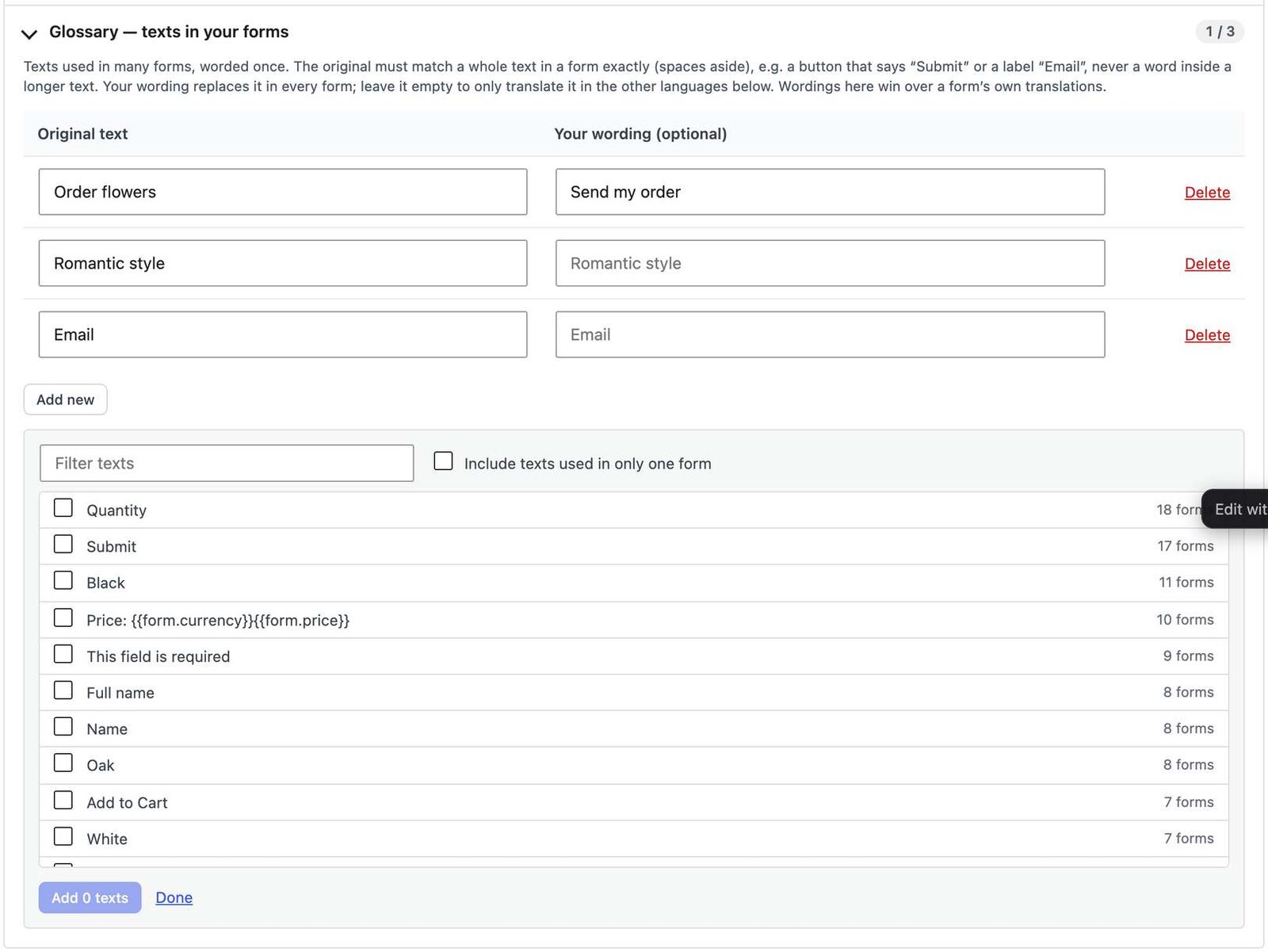
- The Glossary words shared texts (“Submit”, “Email”) once for every form on the site.
- Emails and PDFs can be sent in the submitter’s language, and a language can get its own template when it needs different legal text.
- Hand a translator a CSV or XLIFF file and import it back.
- WPML and Polylang are optional. When one of them is active, the form follows the page language and the texts show up in its string translation screen.
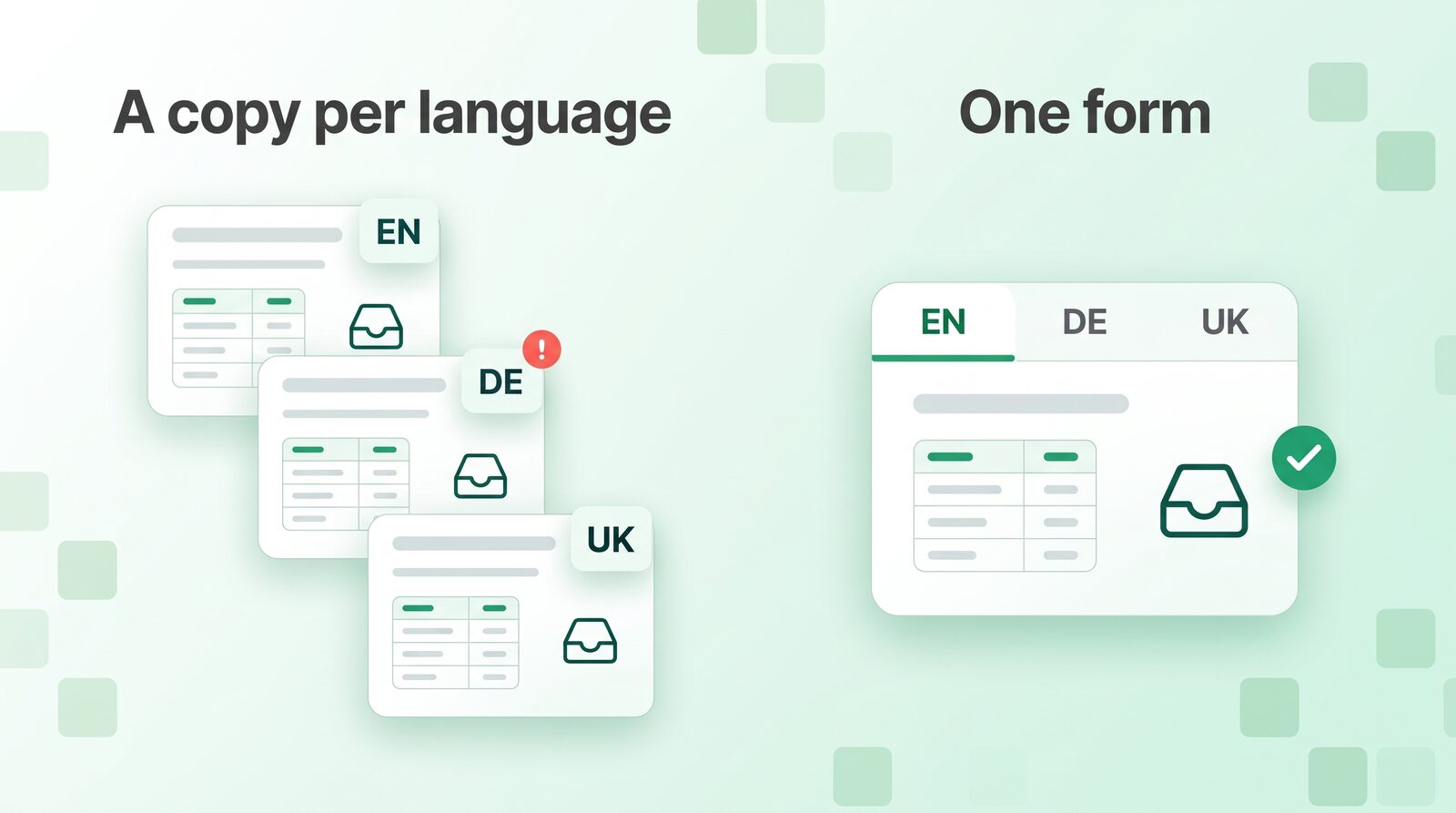
Why not just copy the form for each language?
Copying is the usual advice, and it works for a contact form with three fields. It falls apart on anything bigger:
- Submissions split up. Orders arrive in three lists, and each export needs merging.
- Every change happens three times. A new bouquet size, a price change, a new delivery zone: you edit each copy and hope you didn’t miss one.
- Logic drifts. A formula fixed in the English form keeps its bug in the German one.
- Reports lie. GA4 and your own stats count three forms instead of one.
Bloom & Co. charges by bouquet style and size, adds a delivery fee by zone and blocks dates it can’t deliver. Copying that form per language means keeping three price tables in step. A translated form keeps one.
What you need
- CraftForms, free: form translations, Translate on the page, the Glossary, CSV/XLIFF, emails and PDFs in the submitter’s language, WPML/Polylang support.
- A way for visitors to reach the other language. On your own site that’s WPML or Polylang: the form follows the language of the page. Without a multilingual plugin, a form on your site shows your site language.
- CraftForms PRO if the form runs outside your site’s pages: a form embedded on another website takes the embed’s language or the page’s
lang, and the full-screen link takes?lang=de.
Error messages that CraftForms writes itself (“This field is required” and so on) come translated in seven languages and can be reworded on Settings → Field Message Translations. This guide is about the texts *you* typed.
How to translate a WordPress form, step by step
- Go to CraftForms → Forms and open the form.
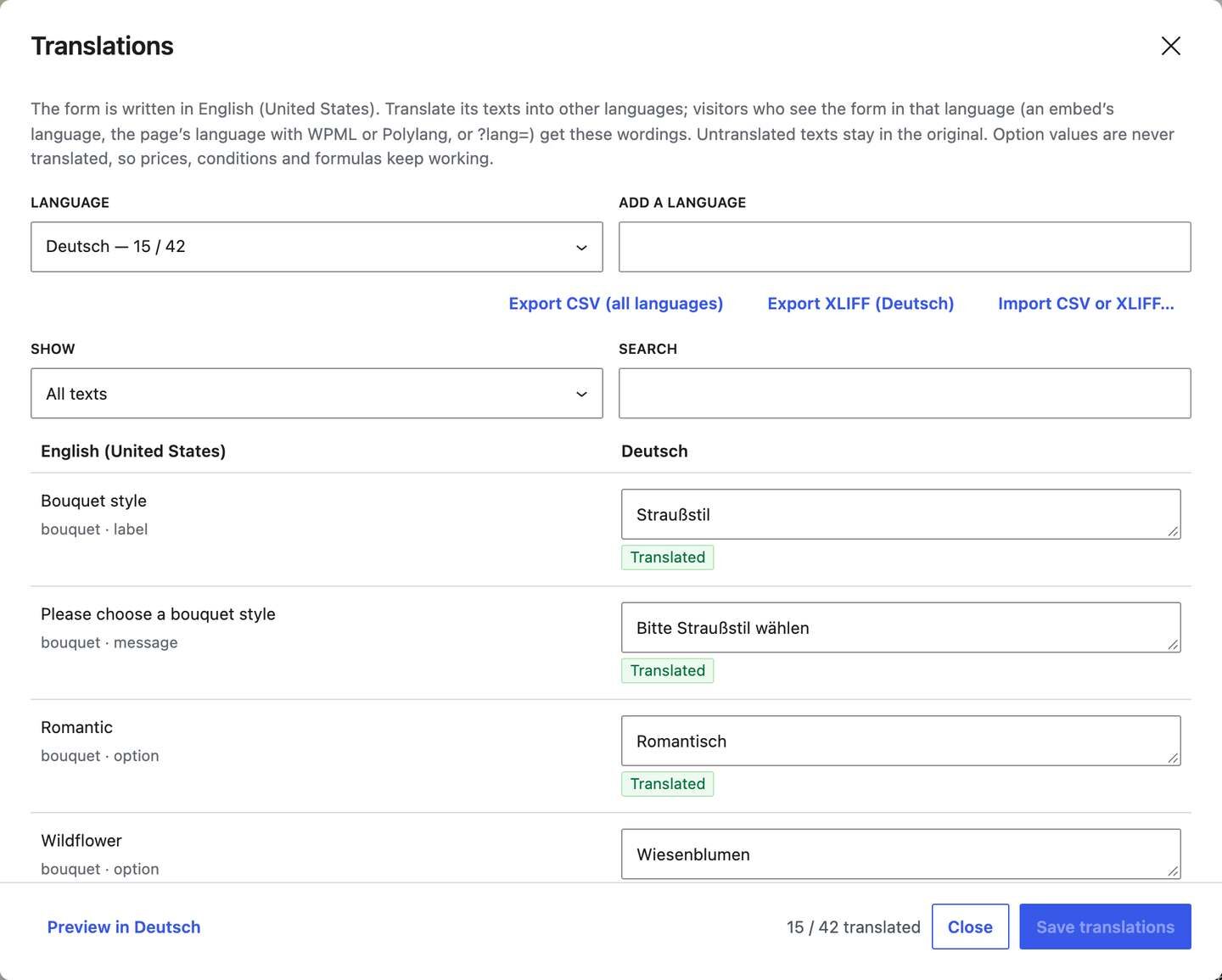
- In the sidebar, on the Form tab, open Translations and click Translate form texts.
- In Add a language, pick Deutsch. Every language WordPress knows is in the list.
- Type the German wording next to each original text. Leave a box empty to keep the original.
- Click Save translations.
The window lists everything a visitor can read: labels, help texts, placeholders, option labels and notes, the error messages you typed into fields, the submit button, success and error messages, InfoBlock text, step titles and Next/Back texts of a multi-step form, and the title and description of the form’s full-screen link.
A few things make a long list manageable:
- Language shows progress per language (“Deutsch — 15 / 42”).
- Show filters to Missing, Outdated or Translated, and Search finds one text.
- Under each original you see where it’s used, for example “bouquet · option”, so “Classic” the size and “Classic” the vase aren’t a guess.
- Preview in Deutsch opens the form in German. Save first.
What about {{tags}} inside a text?
Keep them exactly as they are. A help text like “Delivery to {{field.city}} costs extra” becomes “Lieferung nach {{field.city}} kostet extra”. If a tag goes missing from the translation, the window warns you.
Why prices and conditions keep working
Each option has a label (what the visitor reads) and a value (what formulas and conditions use). Only labels are translated. When a German visitor picks “Romantisch”, the form still receives the value romantic, so the price, the delivery rule and the stock count are the same as in English. That’s also why conditions in emails use values, not labels.
Translate by clicking the form itself
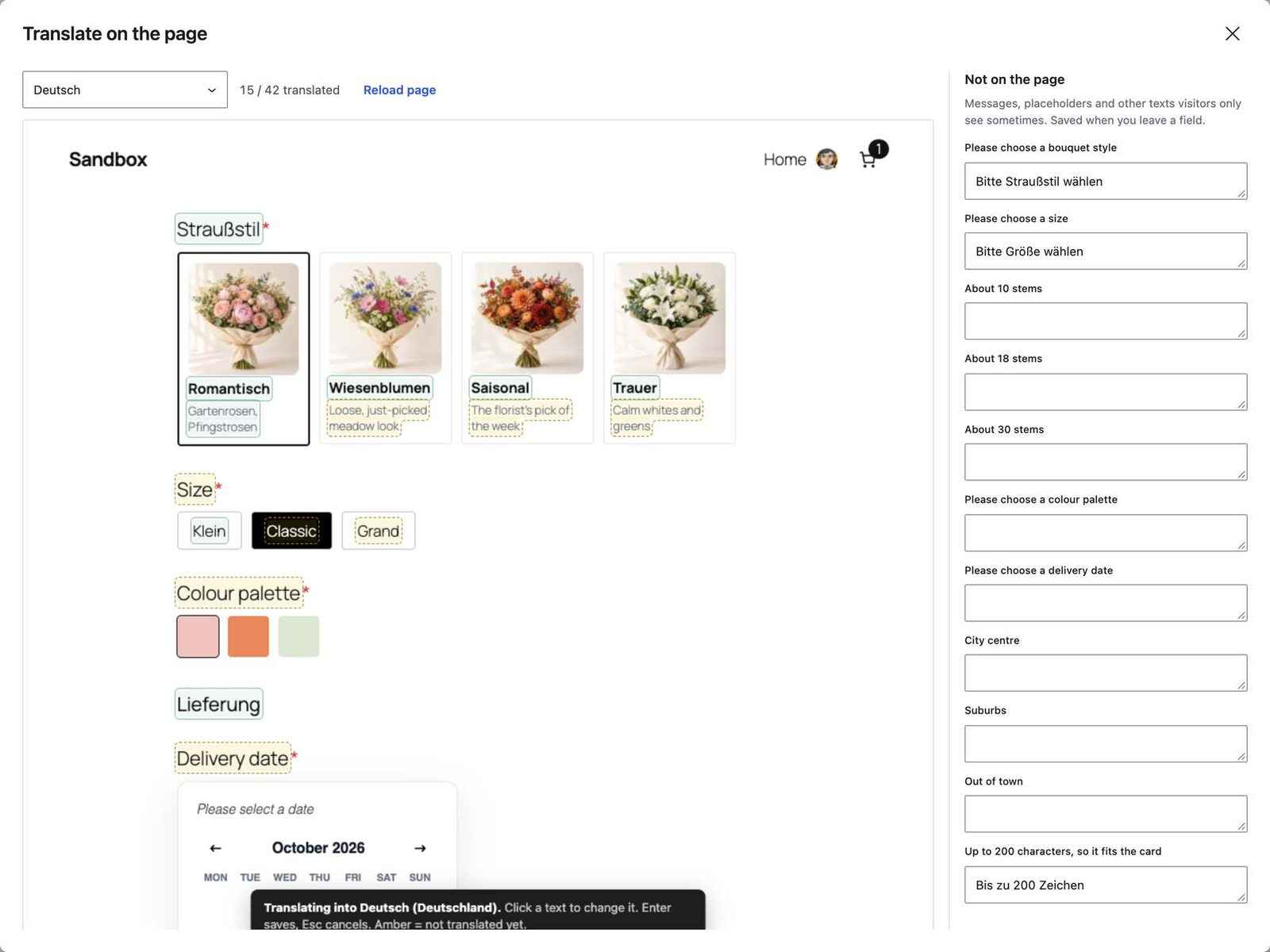
A list of 42 strings is fine for a translator. For checking the result in context, use Translate on the page (under Translate form texts).
The form opens as visitors see it, in the language you pick. Click any text, type the German, press Enter. Esc cancels. Translated texts get a green outline, missing ones an amber dashed outline, so the gaps jump out.
Texts visitors only see sometimes (error messages, placeholders, dropdown options) are listed on the right under Not on the page. Each one saves when you leave its box. Clicking around never submits the form or changes its answers.
Word shared texts once with the Glossary
“Submit”, “Email”, “Full name”, “Phone”: they’re in every form you have. The Glossary words them once for the whole site.
- Go to CraftForms → Settings → Field Message Translations.
- Under Your site’s language, open Glossary — texts in your forms.
- Click Find texts in your forms. CraftForms lists the texts your forms share, most used first, with the number of forms each one is in. Tick the ones you want and add them.
- Under Other languages, pick a language and type the translation for each row. Save Translations.
The Glossary can also change wording in your own language: fill in Your wording and every “Submit” on the site becomes “Send”.
Two rules to know. A glossary text matches a whole text only: “Email” changes a label that reads “Email”, never the word inside “Your email address”. And the Glossary wins over a form’s own translation. In the form’s window such a text shows “Set site-wide”, with a link to the glossary row.
How do you send form emails in the visitor’s language?
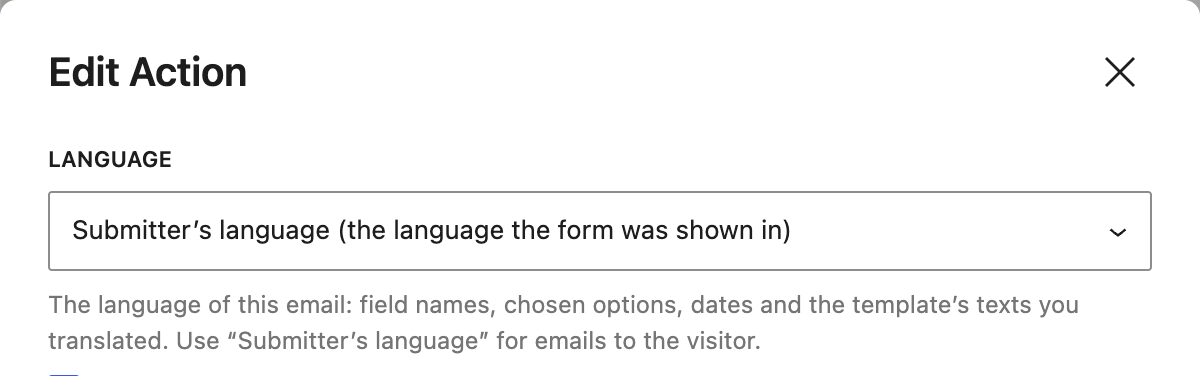
Each submission records the language its form was shown in. The Send Email and Send Email Template actions have a Language setting that uses it:
| Language setting | Use it for |
|---|---|
| Site language (default) | Emails to you or your team. Existing actions keep this, so nothing changes on update. |
| Submitter’s language (the language the form was shown in) | The confirmation to the customer. |
| Always … (for example Always Deutsch (Deutschland)) | An email that should always be in one language, say for a partner abroad. |
Bloom & Co. sets the customer confirmation to Submitter’s language and keeps the shop’s own notification on Site language. The German customer reads “Romantisch, Klein” and a German date; the florist reads “Romantic, Petite” in English. What the visitor typed (the card message, the address) is never changed.
To translate an email template’s own texts, including the subject, open it under CraftForms → Email Templates and use Translations → Translate template texts. It’s the same window as for forms. The template preview has a Language picker, and when you preview with a real submission it starts in that submission’s language. If you built your template with our branded email templates guide, nothing else changes.
You can also print the language itself: {{submission.language}} gives “Deutsch (Deutschland)”, and {{submission.locale}} gives de_DE, handy for routing in a webhook or a CRM.
When a language needs its own template
Sometimes a translation isn’t enough: different legal text for German customers, a different layout, a different return policy. Click Use another template for a language in the template’s Translations panel, choose the language and the template. German emails then use that template instead of a translation, and everyone else keeps the original.
PDFs in the submitter’s language
Generated PDFs follow the same rules:
- A PDF attached to an email is made in the email’s language.
- Documents saved with a submission, catalog orders and WooCommerce orders use the submitter’s language.
- PDF templates are translated in the same window as email templates.
Dates and month names follow the language when WordPress has that language installed. Numbers keep your site’s Number format. For Cyrillic or Greek text, CraftForms switches to a font that has those letters, so a Ukrainian invoice doesn’t come out as empty boxes.
Which language does a visitor see?
- On your site with WPML or Polylang: the language of the page the visitor is viewing. Put the same form on the English and the German page; nothing else to set.
- On your site without a multilingual plugin: your site language.
- Embedded on another website (PRO): the language picked for the embed, else the page’s
<html lang>, else the browser’s language, else your site language. - On the full-screen link (PRO): add
?lang=deto the link. Useful for a QR code on a German flyer.
Any text without a translation shows the original, so a half-translated form still works.
Using WPML or Polylang already?
Then your translators may prefer to stay in WPML String Translation or Polylang’s strings screen. CraftForms registers each form’s texts there whenever you save the form, in a group named after the form (“CraftForms craftforms_form #123”). If a text has a wording in more than one place, this order decides:
- the Glossary,
- WPML or Polylang,
- the form’s own translation,
- the original text.
Send the texts to a translator (CSV and XLIFF)
In the form’s Translations window, Export CSV (all languages) downloads every text with a column per language. Export XLIFF downloads one language in the format translation tools such as Trados, memoQ or Crowdin read. When the file comes back, Import CSV or XLIFF… matches texts by key or by original and saves only new or changed translations. Email and PDF templates have the same buttons.
What happens when you change the original text?
Its translation is marked Outdated, and visitors see the new original until you update it. The window shows the old original next to the old translation, and Use as a starting point copies the old translation into the box, so changing “Delivery date” to “Delivery day” is a one-word fix in German too.
FAQ
Can I translate a WordPress form without WPML?
Yes. Translations are stored with the form and work without any multilingual plugin. You only need WPML or Polylang to switch the *page* language on your own site. A form embedded elsewhere or shared as a full-screen link (both PRO) picks its language without one.
Is form translation free?
Yes. Form, email and PDF translations, the Glossary, Translate on the page, CSV/XLIFF and the WPML/Polylang registration are all in the free version, with no submission limits.
Do I need a separate form for each language?
No, and you shouldn’t make one. One form keeps one list of submissions, one set of prices and one place to edit.
Will translated options break my price formulas?
No. Formulas and conditions read option values, and values aren’t translated. Only the labels visitors see change.
Does the translation travel with an exported form?
Yes. Translations are exported and imported with the form.
Next step
Open a form that real customers fill in, click Translations → Translate form texts, add one language and use Translate on the page to fill the gaps in context. Then switch the customer email to Submitter’s language. The full reference is in the form translations documentation. Translations arrived in CraftForms 2.2.