
CraftForms 2.2 Is Here: Multi-Step and Conversational Forms, Translations and Calendar Sync
- Category
- Release
- Published
- Updated
- Reading time
- 11 min
- Tags
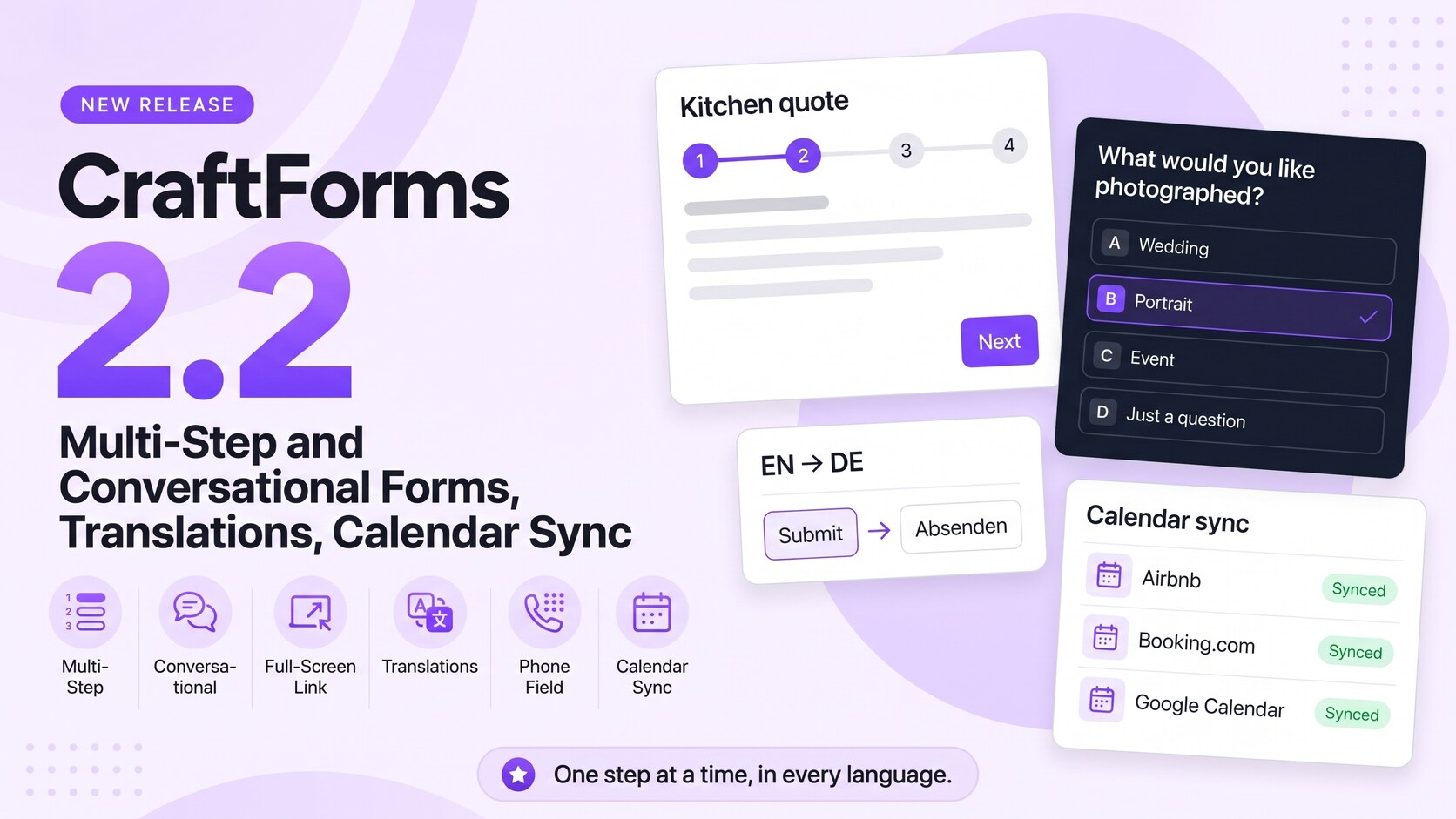
CraftForms 2.2 is out, and it’s the biggest release since 2.0.
Two requests came up more than any others this year: “can my long form have steps?” and “can the same form work in German, Polish and Ukrainian?” 2.2 answers both, and adds the things a finished form needs around them: a thank-you message with the visitor’s own answers, a proper phone field, and calendar sync for rentals listed on several sites.
In short:
- Multi-step forms (free, beta): a Steps block with Next and Back, per-step checks and a progress bar. With PRO, the answers decide which step comes next, and a step map shows every path.
- Conversational forms (PRO, beta): one question per screen, letter keys, auto-advance, and a full-screen link to share or print as a QR code.
- Form translations (free): one form for every language, including its emails and PDFs, with a site-wide glossary and CSV/XLIFF export for translators.
- Confirmation block and conditional text (free): a thank-you message in place of the form, with
{{#if}}text that changes with the answers in emails, PDFs and InfoBlocks too. - Phone field (free): country flag, dial code and a length check per country, with no extra libraries.
- Calendar sync with several sites (PRO): one rental in step with Airbnb, Booking.com and Google Calendar at once.
- Catalog listing, item picker and the catalog item panel (PRO): show your rooms, tours or products on one page, let visitors pick one inside the form, and make any post type bookable.
- A rebuilt Submissions screen: filter by form, choose columns, search, undo.
Here’s everything in 2.2.
Multi-step forms (free, beta)
Long forms lose people. A quote request, a job application or an intake form with fifteen questions on one page looks like work before anyone starts.
Add the new Steps block to a form and put your fields into steps. Visitors see one step at a time, with Next and Back:
- Next checks only the current step. Errors on later steps stay hidden until the visitor gets there.
- If the submit fails, the form opens the step with the first error.
- Anything outside the Steps block stays visible on every step, which is where a running price total belongs.
- Already have a long form? Select its fields and choose Transform → Steps.
The Step Progress block shows the way through the form in four styles: numbered steps, a bar (“Step 2 of 4”), labels, or text only. In the editor, every step stays open, one under the other, with a tab showing how many fields it holds and where it leads.
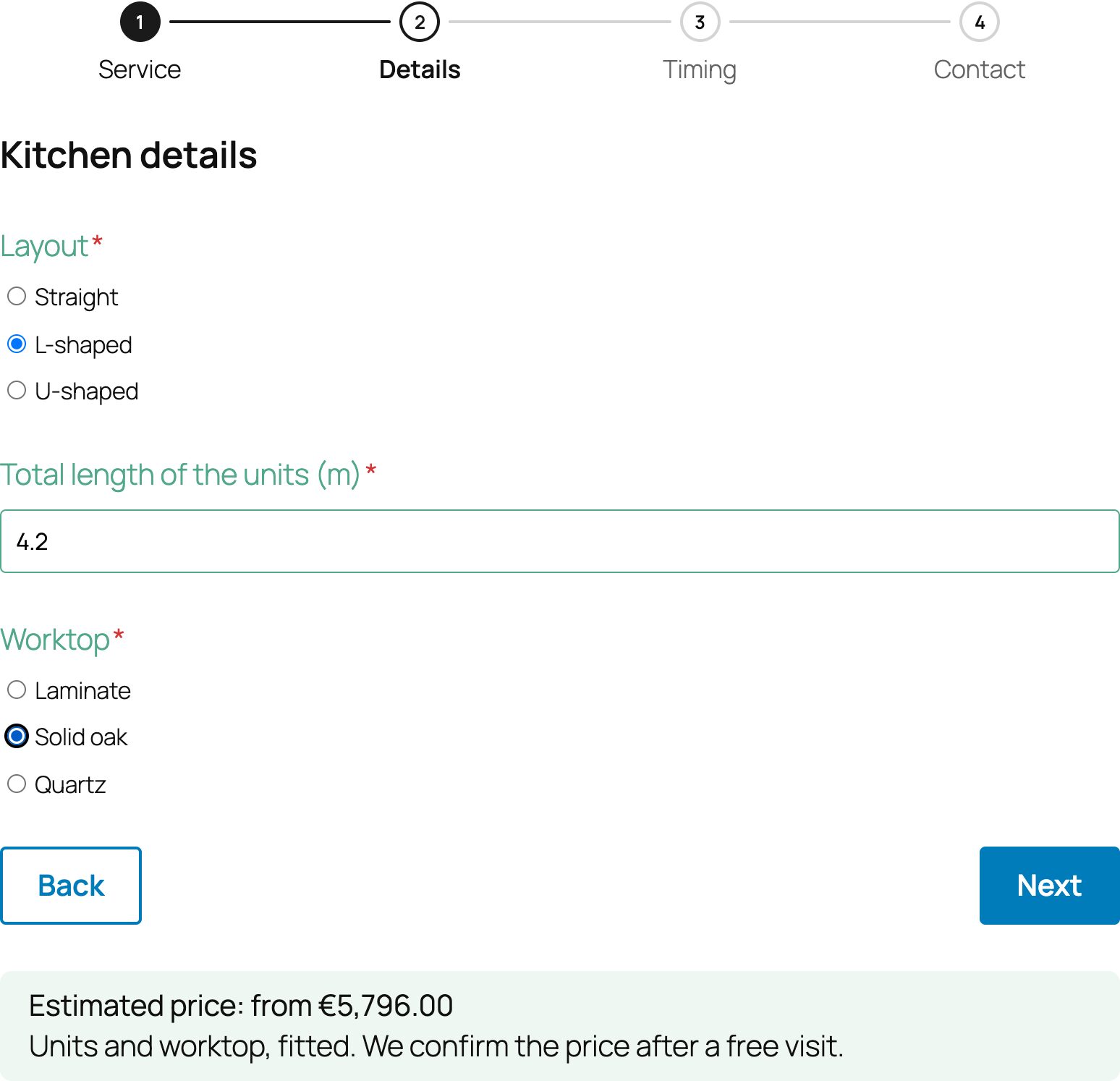
With PRO, the answers pick the path. Select a step, open After this step and add a rule: “if Service is ‘Just a question’, go to Contact”. The first rule that matches wins, and Otherwise go to covers the rest. Fields on skipped steps aren’t checked, used in formulas or sent, and the server works the path out again from the answers, so a required field on a skipped step never blocks the submit.
The step map draws every step and every jump. A small strip sits next to the steps in the editor; the full map opens from the Steps toolbar. With PRO, you can add a jump by dragging from one step to another.

Multi-step forms also know where people give up. Abandoned drafts record the step the visitor left on (“Left at step 2 of 4”). With GA4 tracking on, every step sends a craftforms_step_view event for a funnel report. In emails, All Form Data → Group by step lists the answers under each step’s title.
Multi-step forms are marked beta in 2.2. They work and they’re tested, but their design and settings may still change after more feedback.
👉 Tutorial: How to build a multi-step form in WordPress 📄 Multi-step forms in the docs
Conversational forms and full-screen links (PRO, beta)
Set the Steps block’s Layout to Conversational (one question per screen) and the same form asks one question at a time, in large type:
- Choices get letter keys: press B to pick the second answer.
- Clicking an answer moves on by itself on a single-choice step.
- Ctrl+Enter (⌘+Enter on a Mac) moves on from any field. Plain Enter never submits by accident.
- A thin progress bar runs along the bottom.
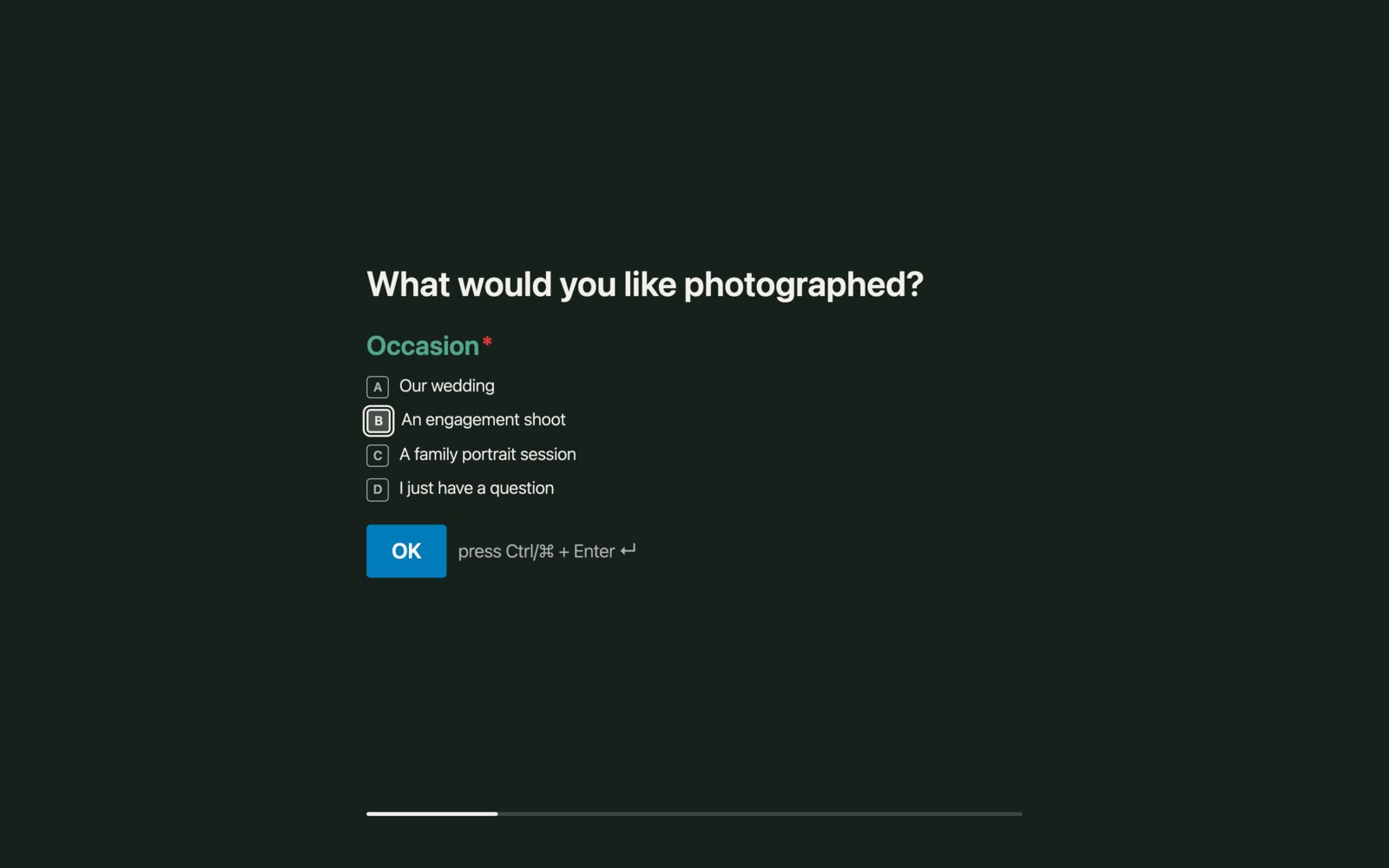
The Full-screen link gives any form its own page, without your theme: yoursite.com/f/<name>/. Set a page title and description for social previews, a background, text colour and width, and decide whether search engines may index it. Put the link in a newsletter or a bio, or print it as a QR code on a flyer. Booking and payment forms get their catalog item in the same panel.
👉 Tutorial: Build a conversational form in WordPress
One form, every language (free)
Until now, a form in three languages meant three copies of the form, three sets of emails and three places to fix a typo. In 2.2, one form serves every language.
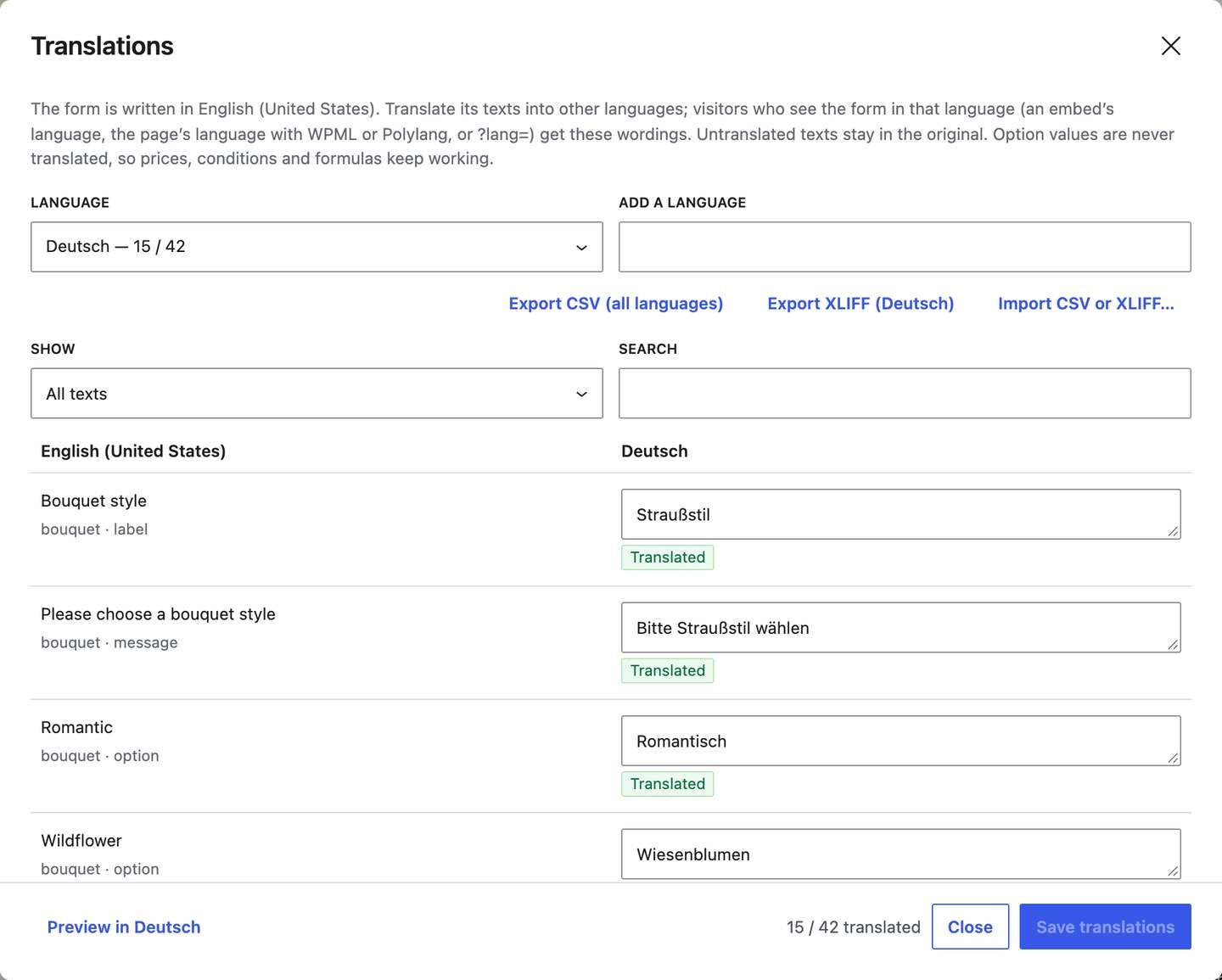
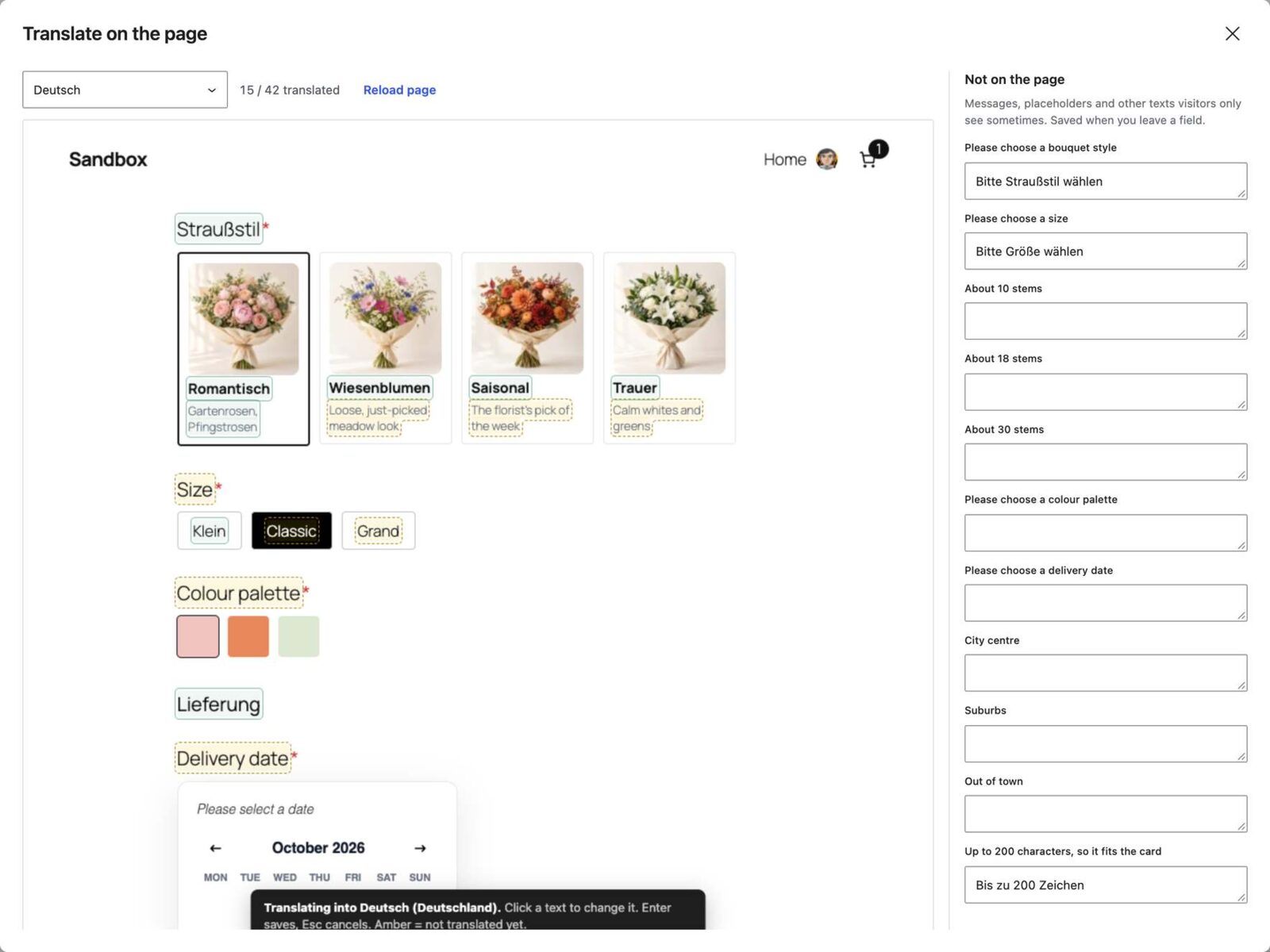
Open a form, then Translations → Translate form texts, pick a language and fill in the wording: labels, help texts, placeholders, options and their descriptions, error messages, the submit button, notification messages and InfoBlock text. Visitors see the translation when the form is shown in that language: an embed’s language, the page’s language with WPML or Polylang, or ?lang= on a preview or full-screen link. Anything not translated yet stays in the original.
Option values are never translated, so prices, conditions, formulas and stock keep working in every language.
There’s more around it:
- Translate on the page: the form as visitors see it in a language, every text editable in place. Untranslated texts are outlined.
- A site-wide Glossary (Settings → Field Message Translations): word a text once for every form (“Submit” → “Send”), or translate it once into each language.
- CSV or XLIFF export and import for a translator. Only new or changed texts are saved on import.
- Emails and PDFs in the submitter’s language. Send Email, Send Email Template and Generate PDF get a Language setting. Templates can be translated in their editors, or a language can use a different template altogether, for its own layout or legal text.
- WPML String Translation and Polylang see the texts of your forms and templates, and a translation entered there is used too.
- PDFs with Cyrillic or Greek text now use a font that has those letters, instead of printing empty boxes.
📄 Form translations in the docs
A thank-you message with their own answers (free)
The new Confirmation block shows a message in place of the form after a successful submit. It can use the visitor’s answers and the order details ({{field.name}}, {{all_fields}}, a reference number), and Submit another response brings the form back.
When a visitor pays on Stripe, PayPal, Mollie or Square, they come back to the form’s page and see the same message. A Redirect URL still takes priority, and the editor tells you which one applies.
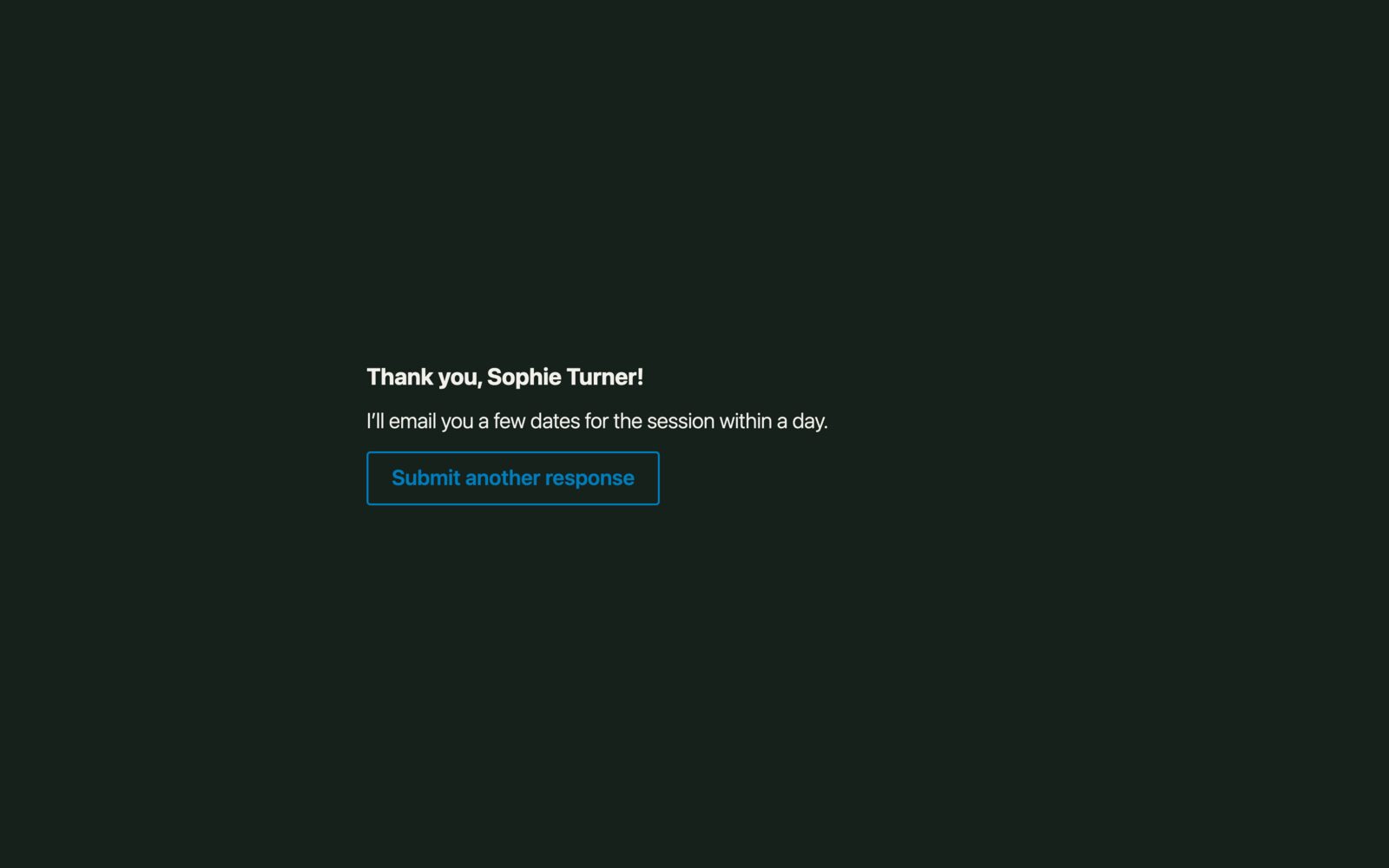
Conditional text makes it personal. Write {{#if service == "repair"}}…{{else if …}}…{{else}}…{{/if}} in a Confirmation, an email, a PDF, an InfoBlock, an option annotation or a preset badge, with the same conditions as Field Conditions. Select text and choose Show if… in the toolbar to wrap it in a condition without typing. Whole blocks in a Confirmation, InfoBlock, email or PDF template get a Show if setting in their sidebar.
Merge tags also get fallbacks: {{field.full_name|there}} reads “Thank you, there!” when the name is empty, and {{meta.price|10}} shows 10 when the value is missing.
📄 Confirmation · Conditional text
A phone field that knows the country (free)
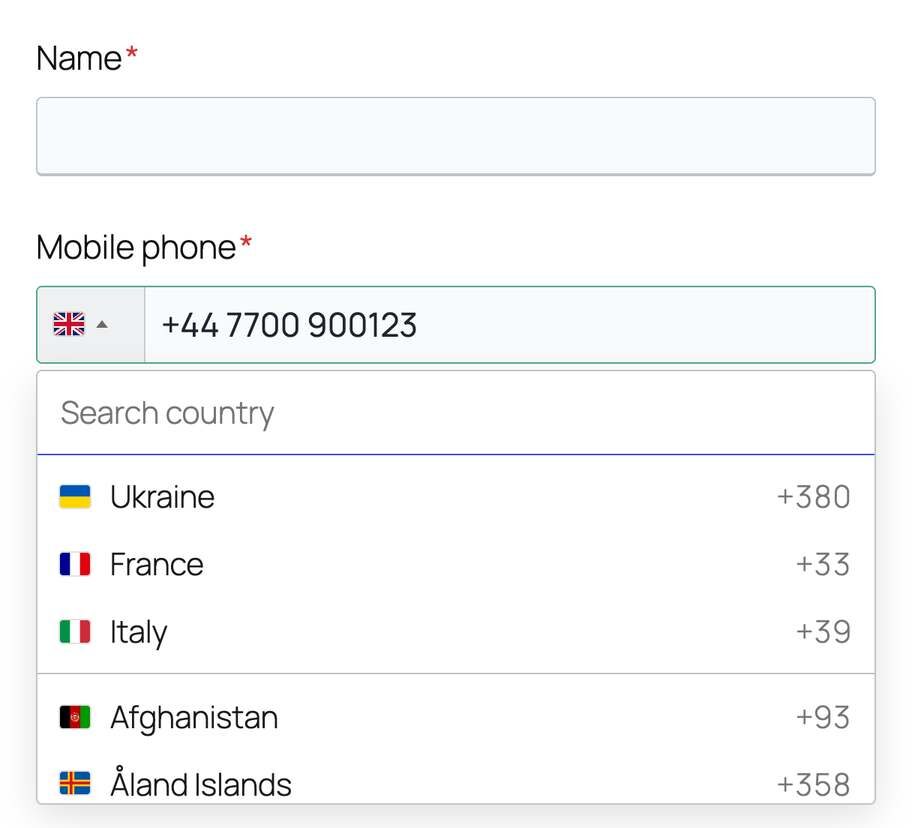
Turn a Text Input into a Phone field and it gets a country picker: the flag and dial code, a search box, and a length check for the chosen country. It starts with the visitor’s country, switches when someone types +44…, and stores the number in international format.
It’s light, with no extra libraries, and it’s styled by the form style you already use: Default, Modern, Builderius CSS or Unstyled.
Calendar sync with several sites at once (PRO)
A holiday flat listed on Airbnb, Booking.com and your own site has three calendars, and a booking on one has to block the dates on the other two. In 2.2, CraftForms keeps them all in step.
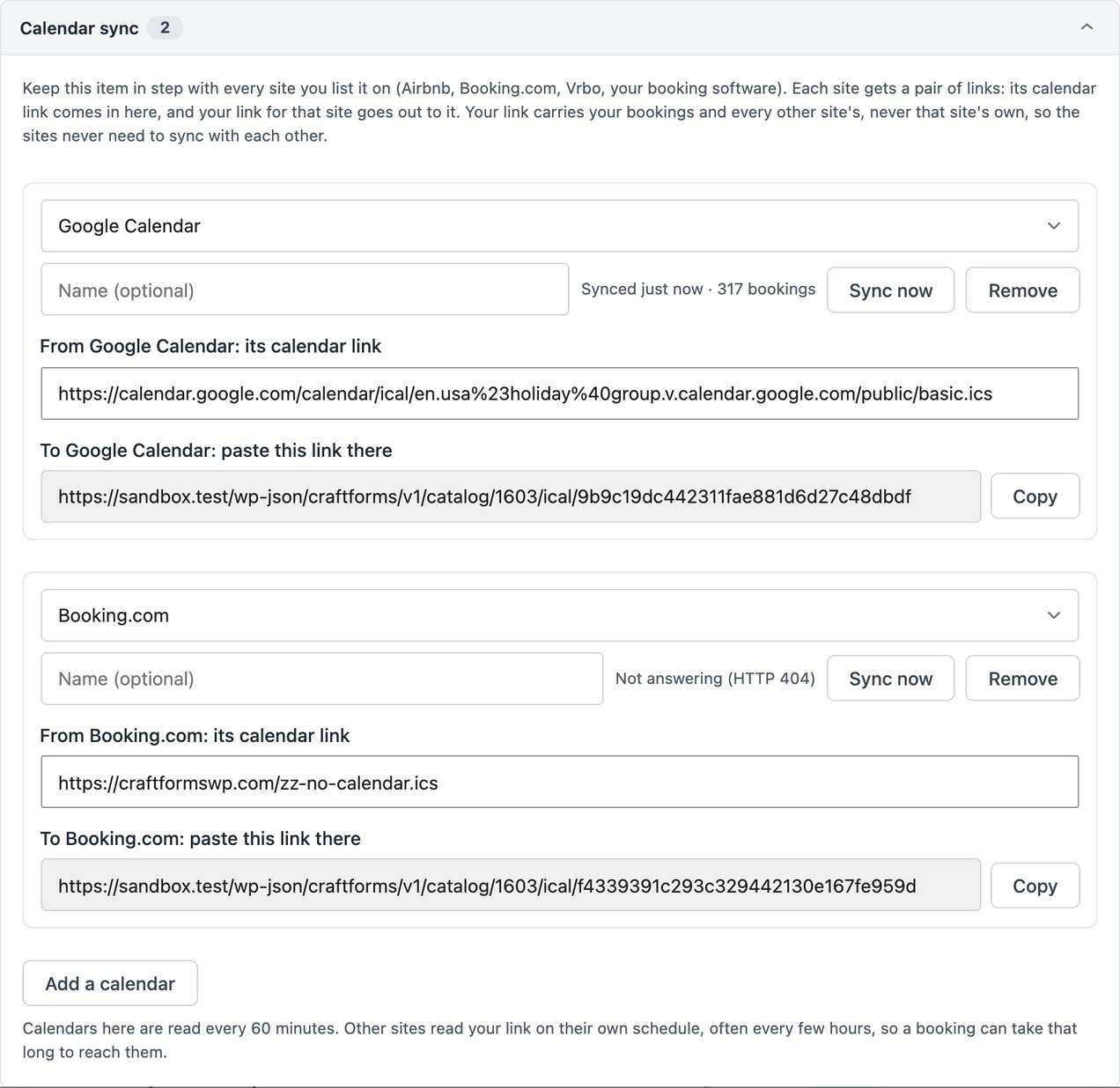
On a catalog item, add the calendar of each site where the item is also listed. Each site gets its own export link, carrying your direct bookings, your closed dates and every other site’s bookings. So Airbnb learns about the Booking.com guest, and the other way round.
The new Calendar sync section on the item shows each calendar’s status and when it last synced, has Sync now, flags double bookings found between calendars, and lets you add a whole-day booking by hand.
Show your rooms, tours and products, and book them from one form (PRO)
Three catalog additions for anyone selling more than one thing:
- Catalog Listing block. Show catalog items as cards (rooms, rentals, products), as a list of upcoming dates and times (tours, classes, events), or as a calendar of free dates. Visitors can switch views. Book opens the item’s page or one booking page with the item already chosen. A listing can also be embedded on another website from CraftForms → Embed.
- Catalog items as choices. A Radio or Select field can list catalog items, with a price line under each. Picking one loads the form for that item: its prices, capacity and dates, keeping what the visitor already filled in. Items that aren’t free on the chosen dates are marked, and a link with
?item=opens the form with an item picked. - Catalog item panel in the post editor. Link a post or a custom post type (an apartment, a tour) to a catalog item, or create one from the post, and edit its price, capacity and stay rules right there. A form on that post books the linked item. Turn it on for your post types in Settings → Ecommerce → Catalog items on posts.
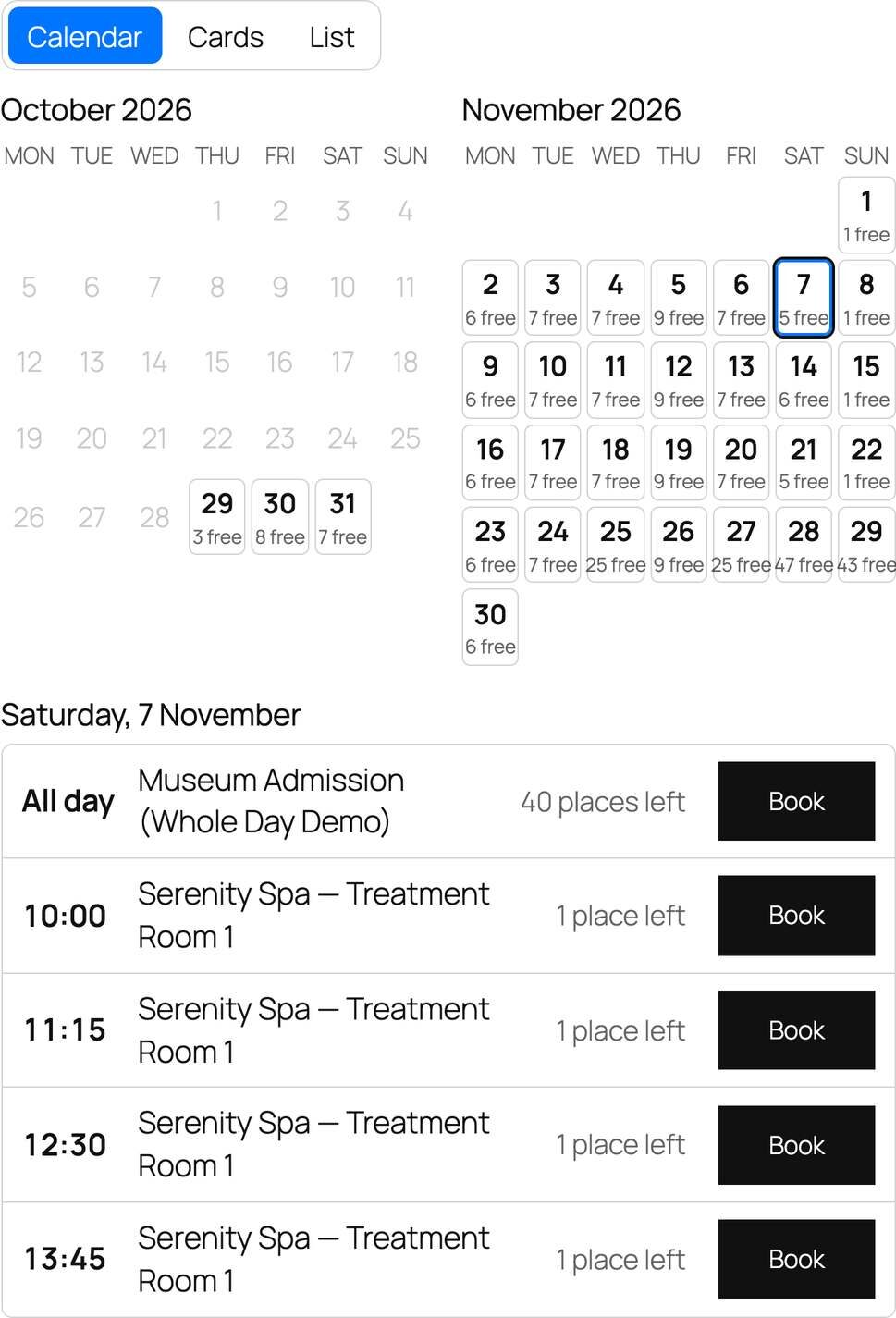
📄 Catalog listing · Catalog items as choices · Catalog item panel
A Submissions screen you can work in
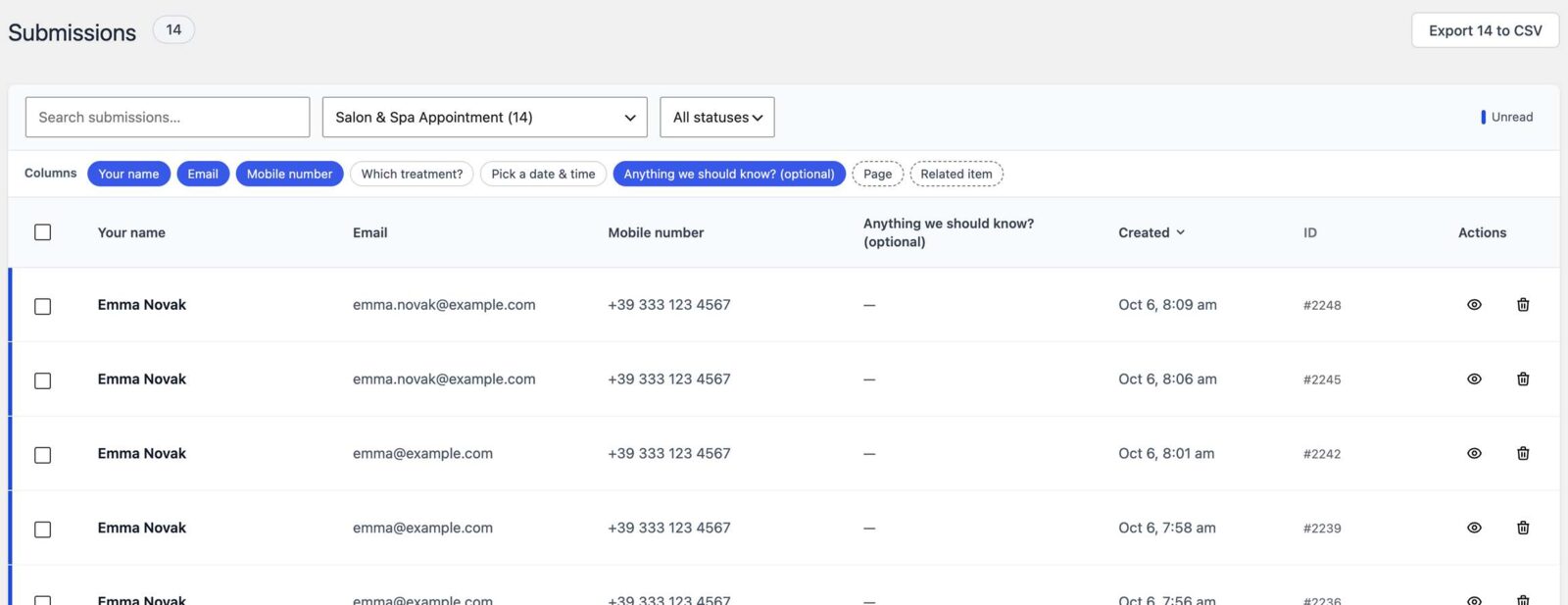
The Submissions screen is rebuilt:
- Filter by form, and that form’s fields become columns you choose. Email, name and phone are picked for you, and your choice is remembered per form.
- Search, including
#123for one submission, and sort by date. Export follows the filter and the search. - Moving a submission to the trash can be undone. The submission window has Reply, Delete and Mark as read/unread, and the status shows as a coloured stripe on the row.
Smaller improvements and fixes
- Settings → Field Message Translations groups its texts in collapsible sections with a count of reworded or translated texts. Languages you already use are listed first.
- Actions Used on the Forms screen shows how each email is sent (the SMTP server, or the site’s own mail) and its language.
- Submit, Next and Back buttons keep the same height on every theme.
- Fixed: the live price on WooCommerce product pages could be slightly off including tax when the catalogue price was low or had more than two decimals. The tax rate now comes from your WooCommerce tax settings. The cart and checkout weren’t affected.
- Fixed: the thank-you message didn’t show on forms with a field named “children” (booking forms asking for adults and children).
- Fixed: a duplicated form kept the original’s submit key and cached embed, so its submissions went to the original.
- Fixed: the Search embed dialog moved under the pointer while ticking items.
- Security: option annotations, preset badges, InfoBlock and Collection templates are cleaned before they’re shown, so a user who may edit forms (a shop manager, say) can’t add scripts that run for visitors. Basic text formatting stays.
The full list is in the changelog.
How to update
Update from Plugins in your WordPress admin, as usual. PRO features need an active PRO licence. On the free version, a form with jump rules or the conversational layout still works: its steps run in order, in the classic layout.
New to CraftForms? Download the free version, or see the PRO plans.
Tell us what you build with steps, and what’s missing, in the Facebook group. Multi-step forms are in beta precisely so your feedback can still shape them.