
CraftForms 2.1 Is Here — Catalog Search, Filterable Option Lists, and Field Links
- Category
- Release
- Published
- Updated
- Reading time
- 10 min
- Tags
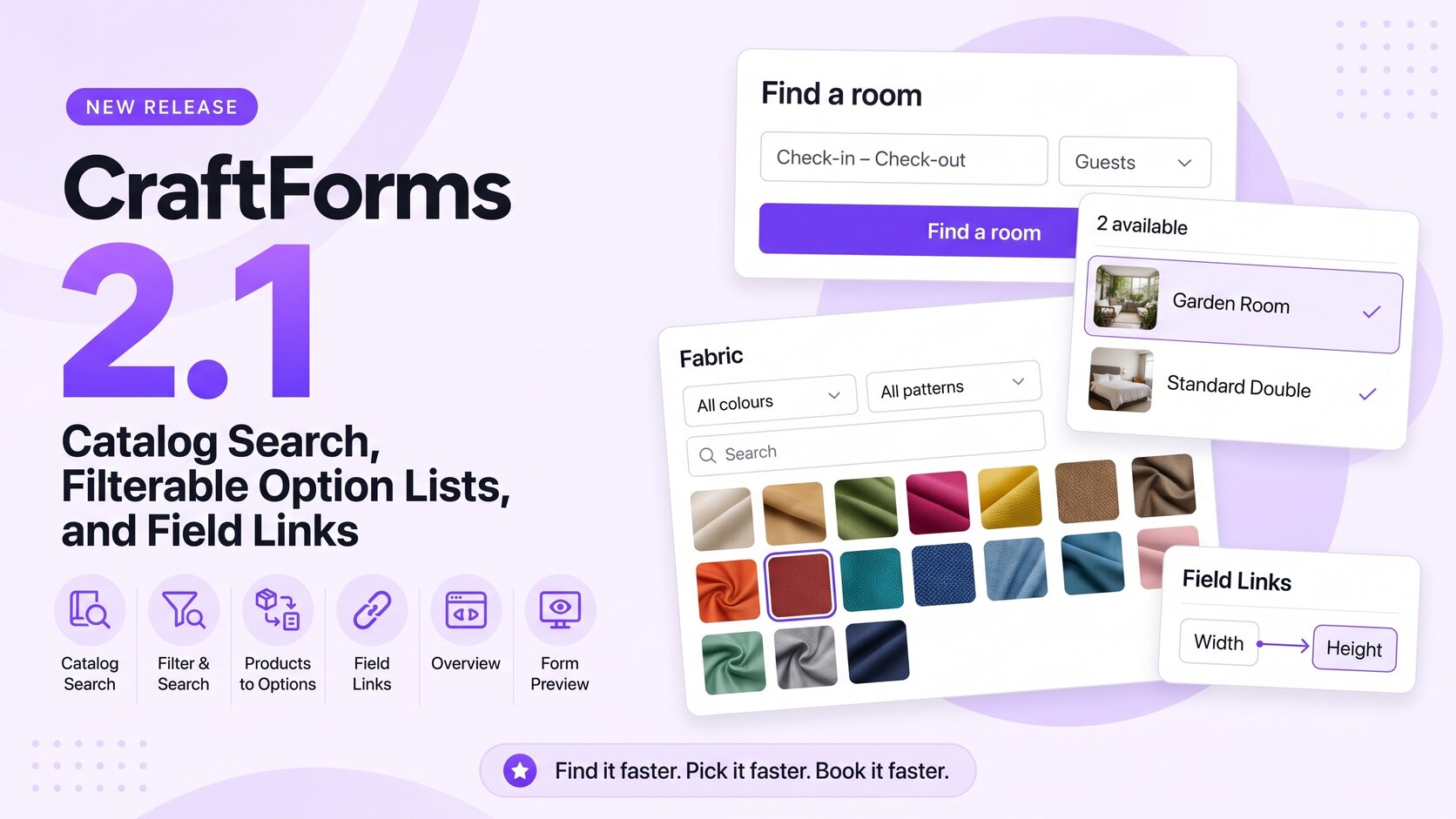
CraftForms 2.1 is out. It’s about long lists and finding things.
A guest-house owner with eight rooms had no way to let a visitor ask “what’s free on the 14th for two people?”. The visitor had to open every room’s calendar in turn. A curtain shop with 300 fabrics had to show all 300 swatches in one scroll. 2.1 fixes both, and adds a few tools that make forms easier to build and check.
In short:
- Catalog Search (PRO): visitors pick dates and guests and see which of your rooms, boats, treatments or tickets are free. Each result links straight to its booking form with the dates filled in.
- Filter & Search for option lists (free): a search box and filter dropdowns (colour, pattern) above long Radio and Checkboxes lists.
- Generate options from WooCommerce products (PRO): fill an option list from a product category, with images, prices and filter values.
- Field Links (PRO): change one field when the visitor changes another. Keep a slider and a number box in step, convert units, or lock an aspect ratio.
- An Overview page, form preview and a token picker to make building and checking forms quicker.
Here’s everything in 2.1.
Catalog Search: “what’s free on my dates?” (PRO)
Booking forms answer one question well: can I book this room? They don’t answer the question visitors ask first: which room can I book?
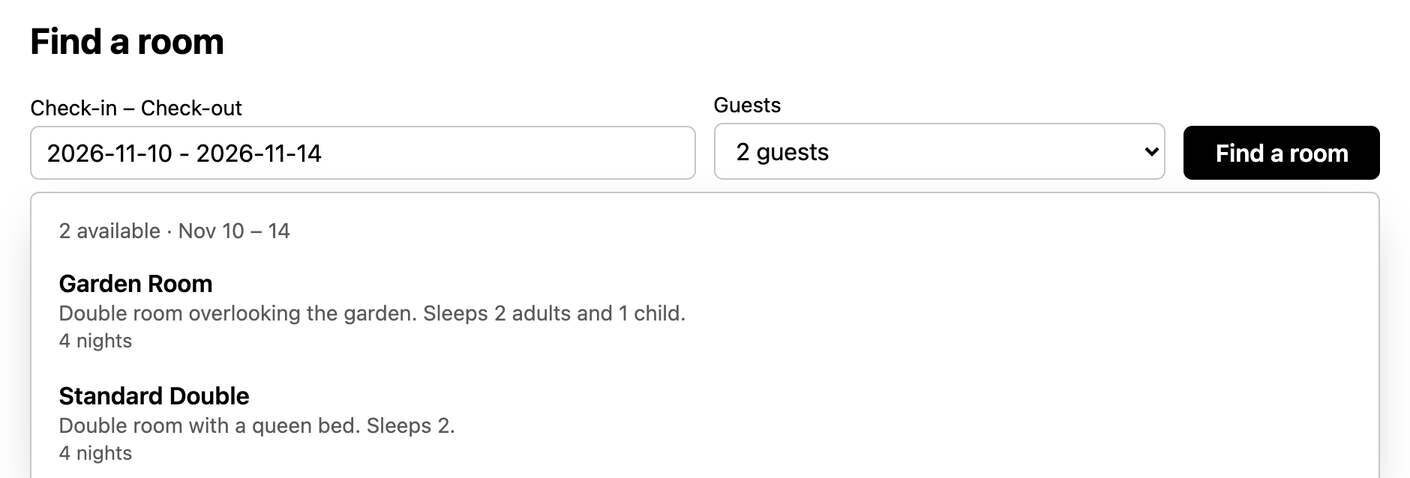
Catalog Search does. Add the Catalog Search block to a page, tick the items it covers, and visitors get one search box: check-in and check-out (or a single date), and the number of guests. They press the button and see only the items that are free:
- Rooms and rentals booked by the night show up if every night of the stay has room, the stay rules fit (minimum nights, arrival days), and no date is closed, blocked or taken by an imported Airbnb or Booking.com calendar.
- Items booked by time (a treatment, a boat trip, a meeting room) list that day’s free times. Each time opens the booking form with that time already picked.
- Party size counts. A shared item needs places for everyone in the party. A room booked as a whole needs the capacity for them.
Every result links to that item’s booking page with the dates filled in, so the visitor goes straight from “free” to “book”. You choose where a result points under the item’s new Search result link setting: the page the item is placed on (automatic), another page, or a web address, for static and hosted sites.
The search is fast because results are cached, and the cache updates at once when a booking comes in or you change an item. Visitors pick dates with the same calendar as your booking forms.
Put it anywhere:
- the Catalog Search block in the block editor
- the CraftForms Catalog Search element in Bricks
- the
[craftforms_search]shortcode for Builderius, Elementor and the classic editor - an embed code for websites that don’t run WordPress. It loads the current version by itself, so you never re-paste it after an update.
Pick the Default style to match your theme, Modern, or the new Builderius CSS style (more on that below). Labels, the button text and the “nothing free” message are all editable, and they’re translatable under Settings → Field Message Translations, plural forms included (“1 night” / “5 nights”).
Long option lists that visitors can actually use
Filter & Search (free)
Some forms have to offer a lot of choices: 300 upholstery fabrics, 120 paint colours, every spare part for a machine. A long scroll of swatches loses people.
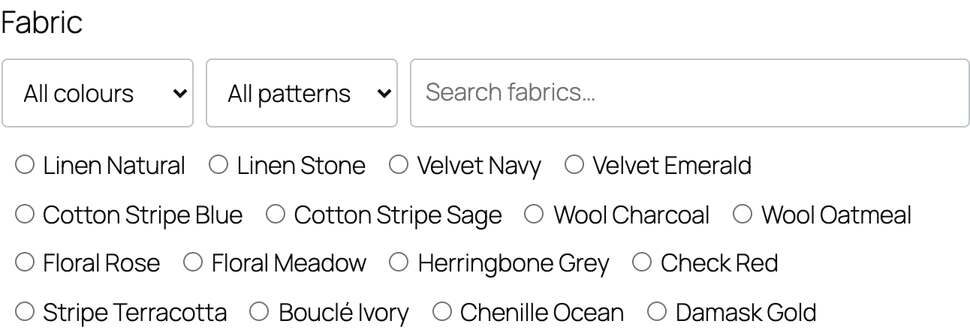
Radio and Checkboxes fields now have a Filter & Search panel. Turn it on and the field gets:
- a search box that matches an option’s label, value and filter values. It ignores case and accents, so “boucle” finds “Bouclé”.
- filter dropdowns you name yourself, like Colour and Pattern. Each option gets its filter values, and an option can have several (a fabric that is both Grey and White shows under either).
The option the visitor picked always stays visible, even when a filter would hide it, so nobody loses their choice by searching for another. Long lists scroll inside the field (after 315px by default), and the editor shows the filtering as you set it up.
With PRO, filter values can be overridden per WooCommerce product and per catalog item, so one form can serve several product ranges.
Option images also load lazily, at the smallest size that fits the box. A field with hundreds of image swatches no longer downloads hundreds of full-size images.
Generate options from WooCommerce products (PRO)
If you already keep those fabrics or colours as WooCommerce products, you don’t have to type them in again. Click Generate from products… under a field’s Options, pick a product category, and CraftForms creates one option per product:
- the label is the product name or SKU, and you choose what the form saves (SKU, name, slug or ID)
- the product’s featured image becomes the swatch or card image
- its price can become the option’s price
- its attributes, subcategories or tags become the filter values, and Filter & Search is switched on for you
Preview tells you how many products were found before anything changes. Then choose whether the new options replace the field’s options, merge with them (matching options are updated, new products are added), or are only appended.
The options are a copy, not a live link. When your range changes, run it again with Merge.
📄 Generate options from products
Field Links: fields that update each other (PRO)
Some fields belong together. A length slider and a length box should show the same number. Switching the unit from cm to inches should convert the width the customer already typed, not leave “120 in”. A print at 16:9 should keep its height in step with its width.
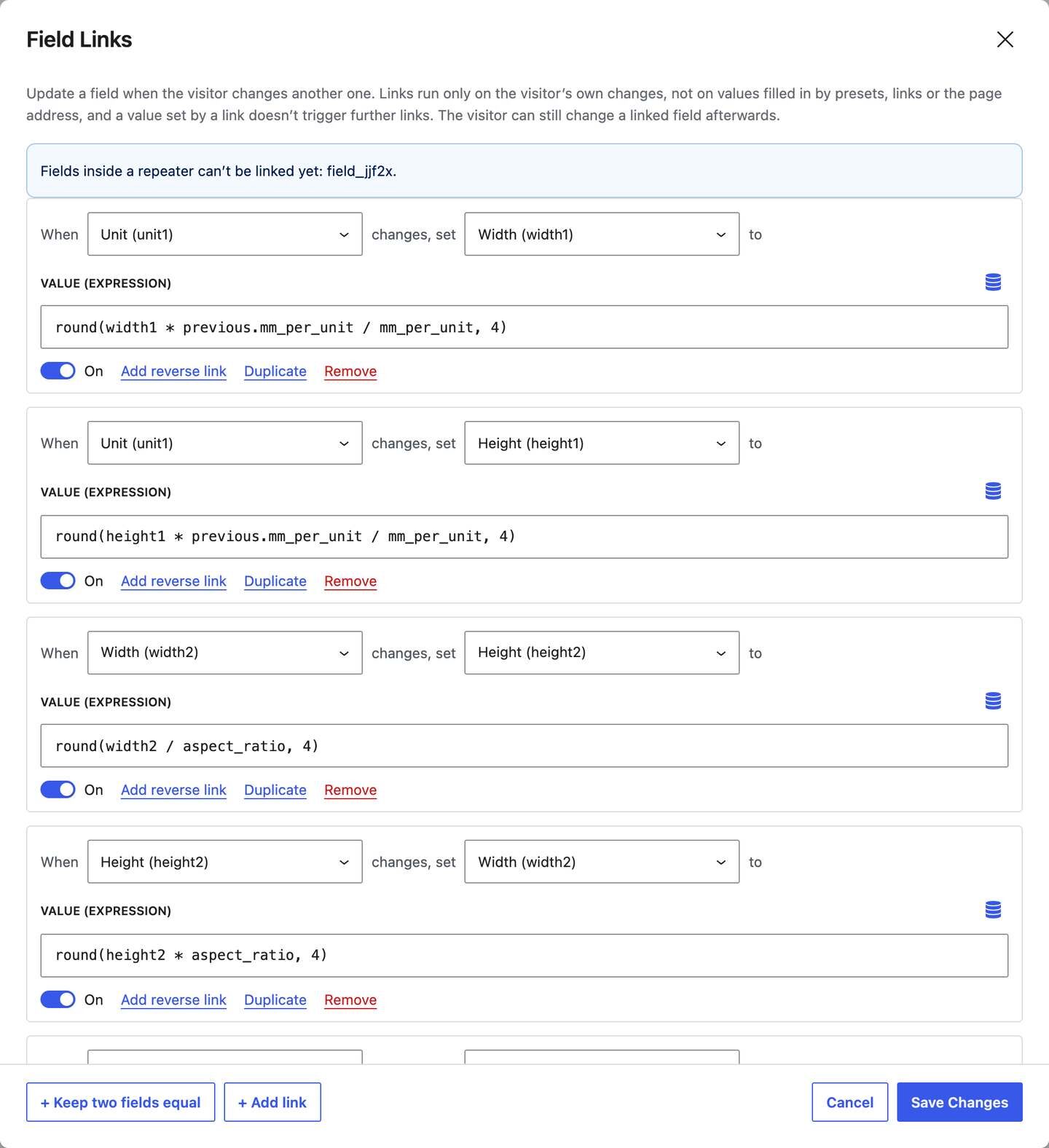
Field Links handle that. Open Field Links in the form sidebar and add either:
- Keep two fields equal: change either one and the other follows. They stay within the values both accept, so a slider at 5 next to a box with a minimum of 10 moves to 10.
- A link with a formula: when a field changes, set another field to an expression, using the same formula language as your price formula.
previous.gives the value from just before the change, which is what a unit conversion needs:round(width * previous.mm_per_unit / mm_per_unit, 4).
Each field’s own settings also list the links it’s part of, so you can see at a glance what will move it.
Quicker to build, easier to check
Preview a form without a page (free). Preview form in new tab in the editor’s View menu, or the eye icon on the Forms screen, shows the form on your site in your theme. Unsaved changes are autosaved and shown. A bar at the bottom says which version you’re seeing and reminds you that submissions are real. A form used by several catalog items lets you pick which one to preview with.
An Overview page. Once a form has a submission or an order, the CraftForms dashboard shows the numbers that matter: submissions, orders, revenue and bookings, what needs your attention, and upcoming bookings. The setup wizard stays one click away.
A token picker everywhere you type tokens. Email templates, PDF templates, the price formula and InfoBlocks get a picker instead of a list you had to remember. Templates can now be previewed with data from a real submission. Tokens are shorter, too: {{field.name}}, {{form.price}}, {{form.priceFormatted}}. The old {{email.*}} tokens keep working.
Build price from options (PRO). In the price formula editor, one button writes the formula from the prices you set on the form’s option fields. A good start that you can then edit.
The thank-you page does more (PRO). The Order Summary block now shows booking dates, the documents generated for the order, an Add to calendar (.ics) button and Print. A product order lists what was bought: the item, the quantity and the options picked. If the payment provider is a few seconds late confirming, the summary shows Pending and switches to Paid by itself. It also works on other websites through an embed code.
A Builderius CSS style. Sites built on the Builderius CSS framework (TemplateCraft templates) can pick Builderius CSS as the style of a form or a search. The framework styles the fields and buttons; option cards, the booking calendar, time slots, repeaters and messages take its colours and spacing.
Smaller things that add up
- Your page cache is cleared once after an update that changes form markup: WP Rocket, W3 Total Cache, WP Super Cache, LiteSpeed, SiteGround, WP Engine and more. If no cache plugin answers, an admin notice asks you to clear it.
- A clear state when a license lapses. A form that uses PRO blocks on the free version, or with an expired license, now shows “temporarily unavailable” to visitors instead of half working. Admins see why on the page, and PRO blocks are marked “(PRO)” in the editor.
- One look across the admin screens: dates and prices follow your site’s settings, wide tables scroll on small screens, and an order can be opened by link.
- Validation Feedback (formerly “Global Colors”) on the Form block, with a new switch to drop the green “valid” highlight.
- Hidden fields stay hidden everywhere. A field hidden by conditions no longer shows its value in InfoBlocks and dynamic labels, matching prices and submissions.
- WooCommerce products and catalog items can use “Dynamic” smart variables (the product’s own meta) and give exposed smart variables a submission label, so the value shows in the cart and the order.
{{submission.ip}}for emails, PDFs and webhooks.
Fixes worth calling out
- Stripe charged zero-decimal currencies 100 times over. Prices in JPY, KRW and other zero-decimal currencies went to Stripe multiplied by 100. Fixed. If you take payments in one of them, update now.
- Walked-away checkouts give back their places. A hosted checkout the buyer never finished kept its stock or booking places reserved for good. Unpaid Stripe sessions now expire after an hour, and other gateways after a day.
- Cancelling a booking gives back exactly what it took. Before, a cancellation from the Orders screen released a place on the checkout day too.
- WooCommerce order PDFs on HPOS stores left form-field tags such as
{{field.width}}empty. Fixed. - Dark-mode sites couldn’t read the booking calendar’s month names. Fixed.
Also new since 2.0
If you skipped 2.0.2, it added User role smart variables (PRO), so wholesale or trade customers see their own price, worked out on the server. It also added “contains” conditions for text fields, and search boxes on the Forms, Catalog and Email Logs screens. Since 2.0 we’ve also written about:
- Changing the WooCommerce product image based on the selected option
- An event calendar with registration and payments (Pie Calendar + CraftForms)
- The leads your forms throw away
Get CraftForms 2.1 today
2.1 is about helping visitors find their way through choices: which room is free, which fabric is grey and bouclé, what the width becomes in inches. Update from Plugins → Updates. Your existing forms work as before, and the page cache is cleared for you.
New to CraftForms? Filter & Search, form preview, the Overview page and the token picker are in the free version. Catalog Search, Generate from products, Field Links, Build price from options and the Order Summary upgrade come with Pro.
Don’t run WordPress? CraftForms is also available as craftforms.app, the hosted version: the same form editor, forms embedded on any website with two lines of HTML, and no plugin updates to install. 2.1 is live there too, including Catalog Search embeds for your own website.