
How to Accept Stripe Payments Through a WordPress Form (No WooCommerce Required)
- Category
- Tutorial
- Published
- Updated
- Reading time
- 7 min
- Tags
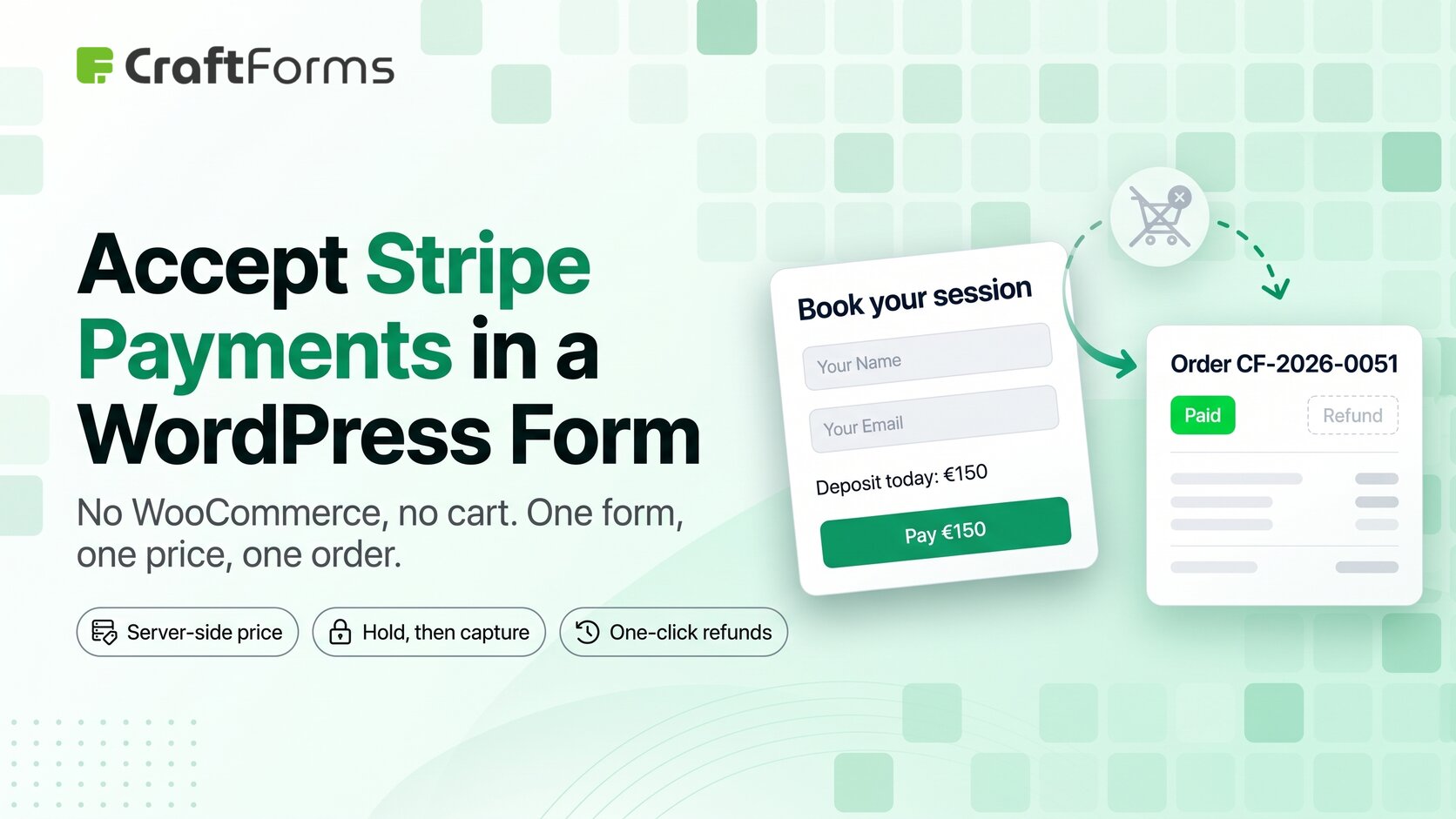
Not every payment on a WordPress site is a shopping-cart order. A consulting package, a booking deposit, a quote someone agreed to over email: none of those need product pages, a cart, checkout templates or shipping zones. They need one form, one price and a charge that works.
CraftForms has that built in. Its Payment block takes Stripe payments on the form itself, and every payment is recorded as an order you can look up and refund later.
In short:
- Add the Payment block to a form and pick a Stripe account. Choose Hosted Checkout (redirect to Stripe) or Embedded Payment (card fields on your page).
- The price is calculated on your server when the form is submitted. Whatever the browser shows or sends, the server’s number is what Stripe charges.
- With Embedded Payment, the card is only held at first. CraftForms captures the money after it has checked the amount and reserved any stock or booking slot. If something fails, the hold is released and nothing is charged.
- Every payment lands under CraftForms → Orders, where you can refund it with one click.
- Connect as many Stripe accounts as you like, test and live side by side.
CraftForms Pro. The Payment block, payment connections and the Orders screen are part of CraftForms Pro.
When WooCommerce is more shop than you need
WooCommerce is the right tool when you run a catalogue: many products, variations, a cart people fill over a session, shipping rules. For a single configurable sale it’s a lot of machinery: product pages you don’t need, a cart flow that doesn’t match how the sale happens, and another large plugin to keep updated.
With CraftForms you build the form, add the Payment block, connect Stripe, and you’re done. The one extra piece is a Catalog item: a small record (a name, optionally a price or stock) that CraftForms files each payment under. It isn’t a product page, and your customers never see it. It’s what gives every payment an order record, and it’s required for Hosted Checkout.
Two ways to take the payment
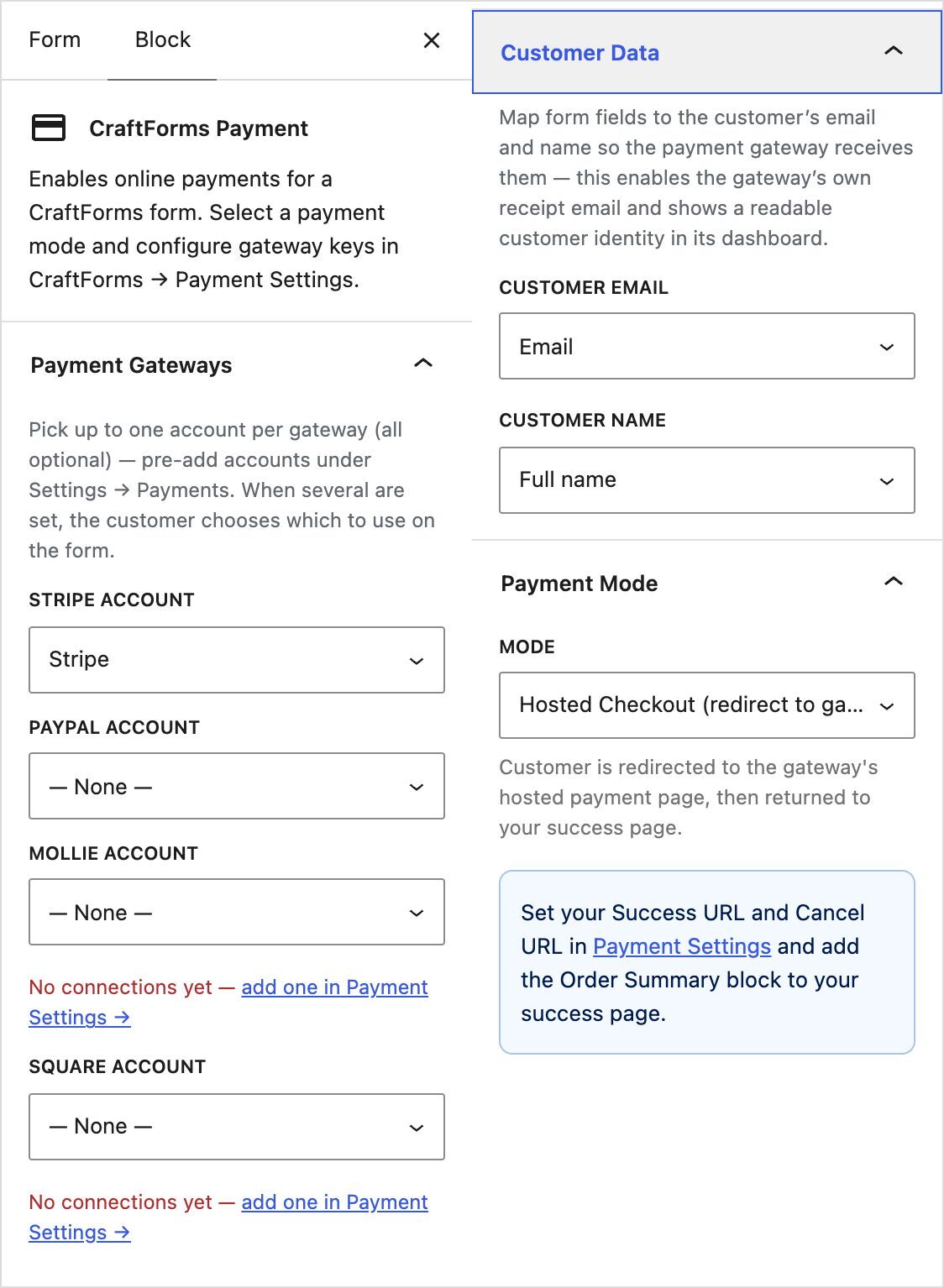
Add the Payment block to your form, usually just above the submit button. In its Payment Mode panel you pick how the customer pays:
- Hosted Checkout (redirect to gateway). The customer is sent to Stripe’s own checkout page, then back to your success page. Stripe handles the whole payment screen, including wallets and 3D Secure.
- Embedded Payment (inline on the form). Stripe’s card fields appear right inside your form, so the customer never leaves your page.
Use Hosted Checkout when you want the simplest setup and don’t mind the redirect. Use Embedded Payment when a redirect would break the flow, for example in the middle of a multi-step booking form.
Two other panels matter:
- Payment Gateways: choose which Stripe account this form uses. You can also add a PayPal account; if both are set, the customer picks one.
- Customer Data: map your email and name fields. Stripe then sends its own receipt and shows a real customer name in your dashboard instead of an anonymous payment.
Connecting Stripe
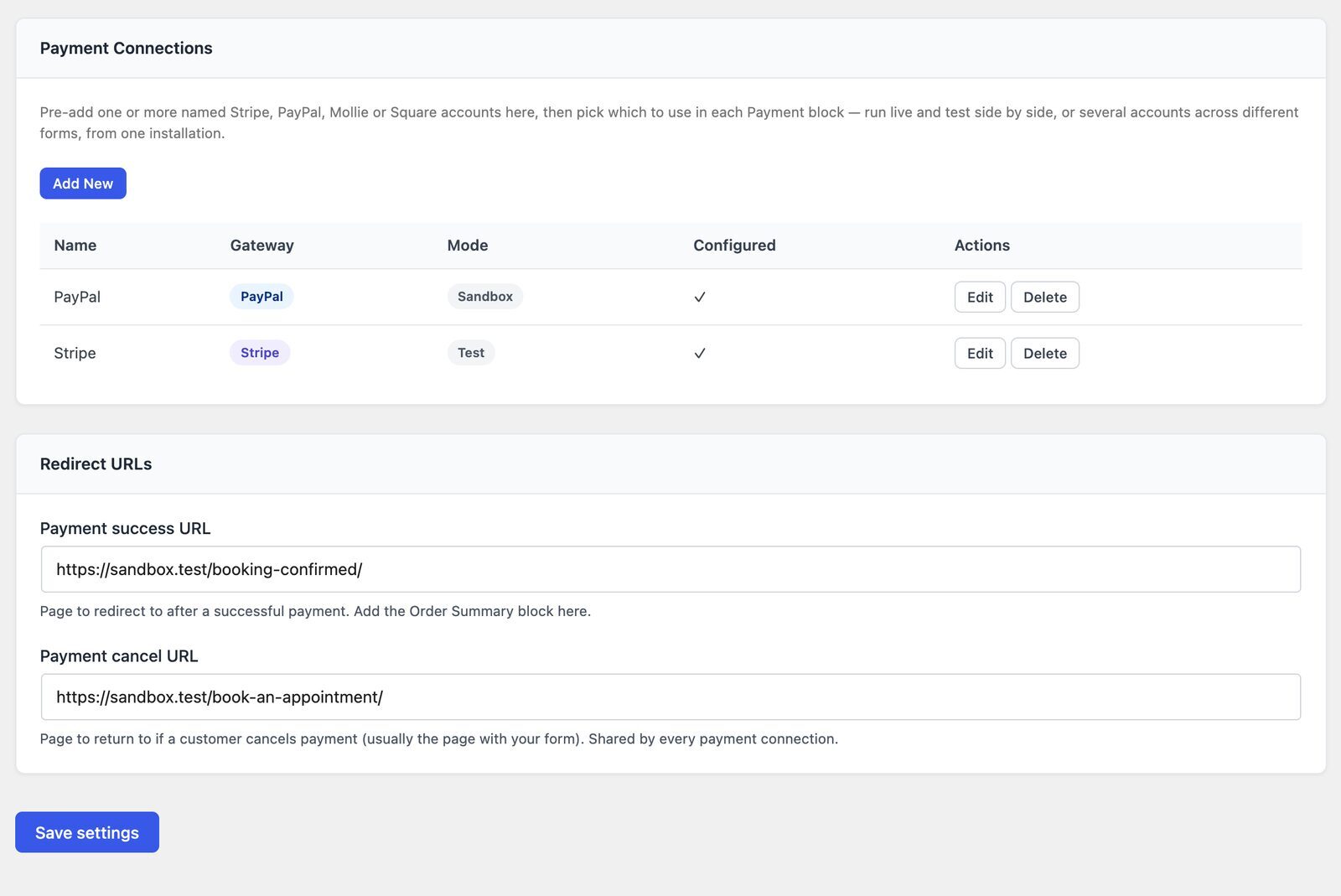
Stripe accounts live under CraftForms → Settings → Payments → Payment Connections. Each connection is one named set of keys:
- a Name you’ll recognise in the form editor, like “Stripe — Test”
- Mode: Test or Live
- your Publishable key and Secret key
- the Webhook signing secret from Stripe
Because each connection holds exactly one set of keys, test and live are simply two connections. You can keep a test connection for your staging site while the live one takes real payments, or run two businesses’ Stripe accounts from one WordPress install, each on its own forms. Going live means switching the form’s Stripe account dropdown from the test connection to the live one.
Each connection window also shows the Webhook URL to paste into Stripe, and the four events to subscribe it to: payment_intent.succeeded, payment_intent.payment_failed, checkout.session.completed and checkout.session.expired. Hosted Checkout depends on that webhook. Without it, CraftForms never learns the customer paid, and the order waits as pending. The last event matters if a customer opens Stripe’s checkout and walks away: the session expires after an hour, and CraftForms gives back the stock or booking places the order was holding.
The page also holds your Payment success URL and Payment cancel URL. Put the Order Summary block on the success page and it shows the customer’s order automatically. The store currency is set once, under Settings → Ecommerce.
The full step-by-step, with every field, test cards and troubleshooting, is in the documentation:
What happens when someone pays
The part that matters most is where the price comes from. You set it in the form’s Pricing panel: a fixed amount like 49, or a formula built from the customer’s choices (size × material + delivery, say). The customer sees the live total as they fill the form in. That total is for display only.
When the form is submitted, CraftForms works out the price again on the server, from the submitted choices, and compares it with what the browser showed. If they differ, the submission is refused with “Price verification failed”. We tested this by editing the price in the request before sending it: the form refused it. Then the two modes continue differently.
Hosted Checkout
- CraftForms creates the order as pending.
- It opens a Stripe checkout session for the server’s price. The amount is set by your server, so there’s nothing in the browser to tamper with.
- The customer pays on Stripe’s page and is sent back to your success page.
- Stripe notifies your site through the webhook, and the order becomes paid. CraftForms checks each webhook’s signature, so a forged “payment succeeded” message is thrown away. It also checks that the amount, currency and order in the message match the order it created, before marking anything paid.
Embedded Payment
- The customer enters their card on your page. Stripe authorises the amount: the money is held on the card, not taken.
- On submit, CraftForms asks Stripe directly what was authorised and checks the status, amount and currency against its own price. A payment for the wrong amount is refused, and nothing is captured.
- It creates the order and reserves what the order needs: stock for a product, the slot for a booking.
- Only then does it capture the payment. The order is paid straight away.
That order of steps means that if the last item sells out, or someone else books the same slot a second earlier, the customer isn’t charged and then refunded. The hold is simply released, so nobody pays a card fee for a sale that never happened.
About confirmation emails. Your form’s email actions run when the form is submitted. With Embedded Payment the payment is already captured at that point. With Hosted Checkout the customer hasn’t paid yet: they’re about to be sent to Stripe. Write that email as “we’ve received your order” rather than a payment receipt, and let Stripe send the actual receipt (that’s what the Customer Data mapping is for). Order details such as {{order.number}} are available in your email templates.
After the payment: orders and refunds
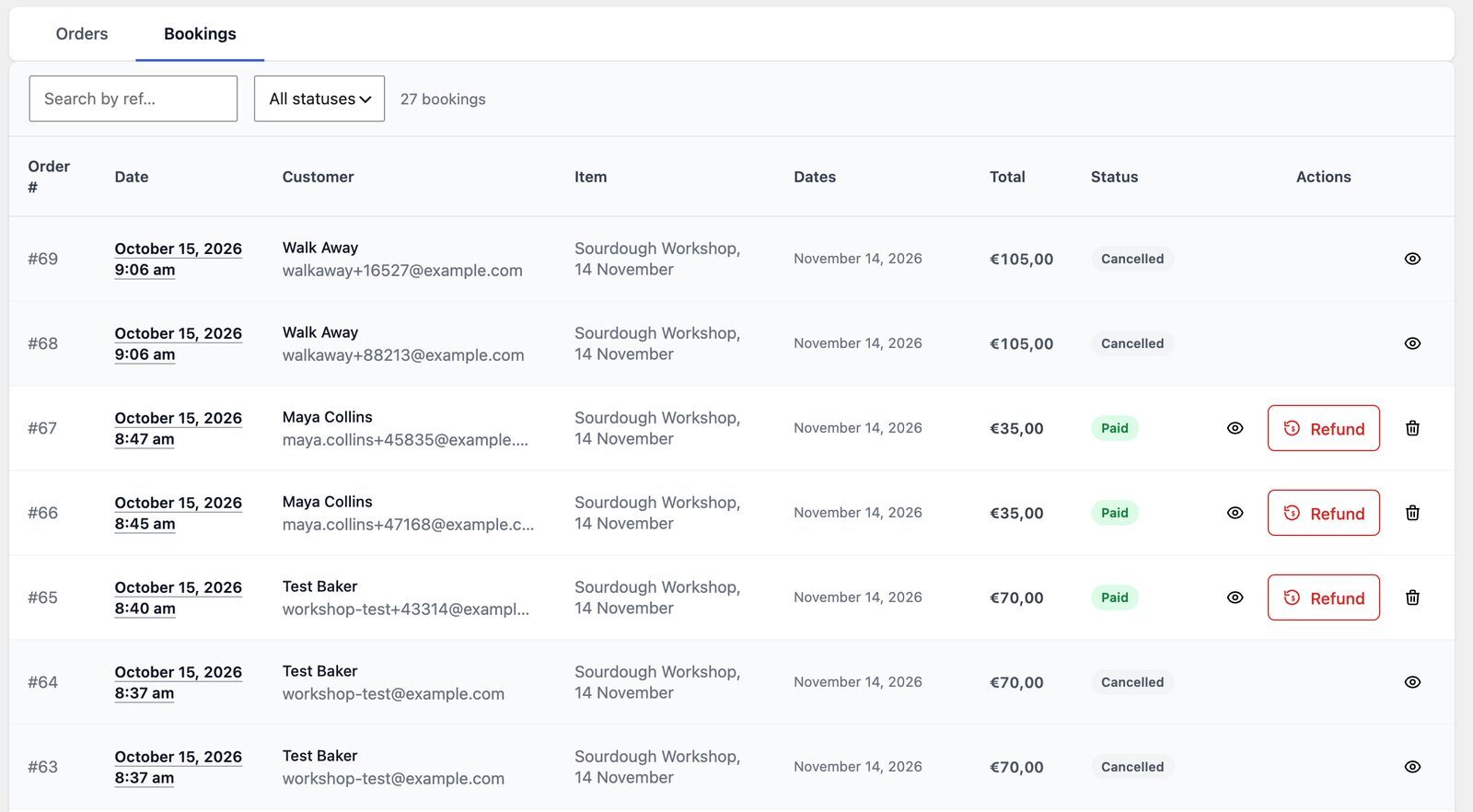
Every payment appears under CraftForms → Orders: pending while a Hosted Checkout is in progress, paid once Stripe confirms, then cancelled or refunded as things change. Open an order to see what the customer entered, plus the payment gateway, payment status and Stripe transaction ID. There’s no need to line up your Stripe dashboard with your form submissions.
To refund, click Refund on a paid order and confirm. CraftForms sends a full refund through the same Stripe account that took the payment and marks the order refunded. Any stock or booking slot it held is released too, but only once Stripe confirms the refund. If Stripe refuses, the order stays as it was, so your records never claim a refund that didn’t happen. For a partial refund, use the Stripe Dashboard.
Summary
- For a single thing (a service, a deposit, a made-to-order item), the Payment block takes Stripe payments directly on the form. No WooCommerce, just one Catalog item to file the orders under.
- Choose Hosted Checkout for Stripe’s own payment page, or Embedded Payment to keep the card fields on your site.
- Add your Stripe accounts under Settings → Payments → Payment Connections: test and live as separate connections, each with its webhook signing secret.
- The server recalculates the price and is the only source of the amount charged. Embedded payments are held first and captured only once the order is confirmed.
- Every payment is an order under CraftForms → Orders, refundable in one click.
- Full setup guide: kb.craftformswp.com — Stripe payments
I build CraftForms. If you set this up for a client and something in the payment flow surprises you, tell us.