
How to Build a Calculator With a Live Chart in WordPress (Loan, Savings, Solar and Pricing Examples)
- Category
- Tutorial
- Published
- Updated
- Reading time
- 10 min
- Tags
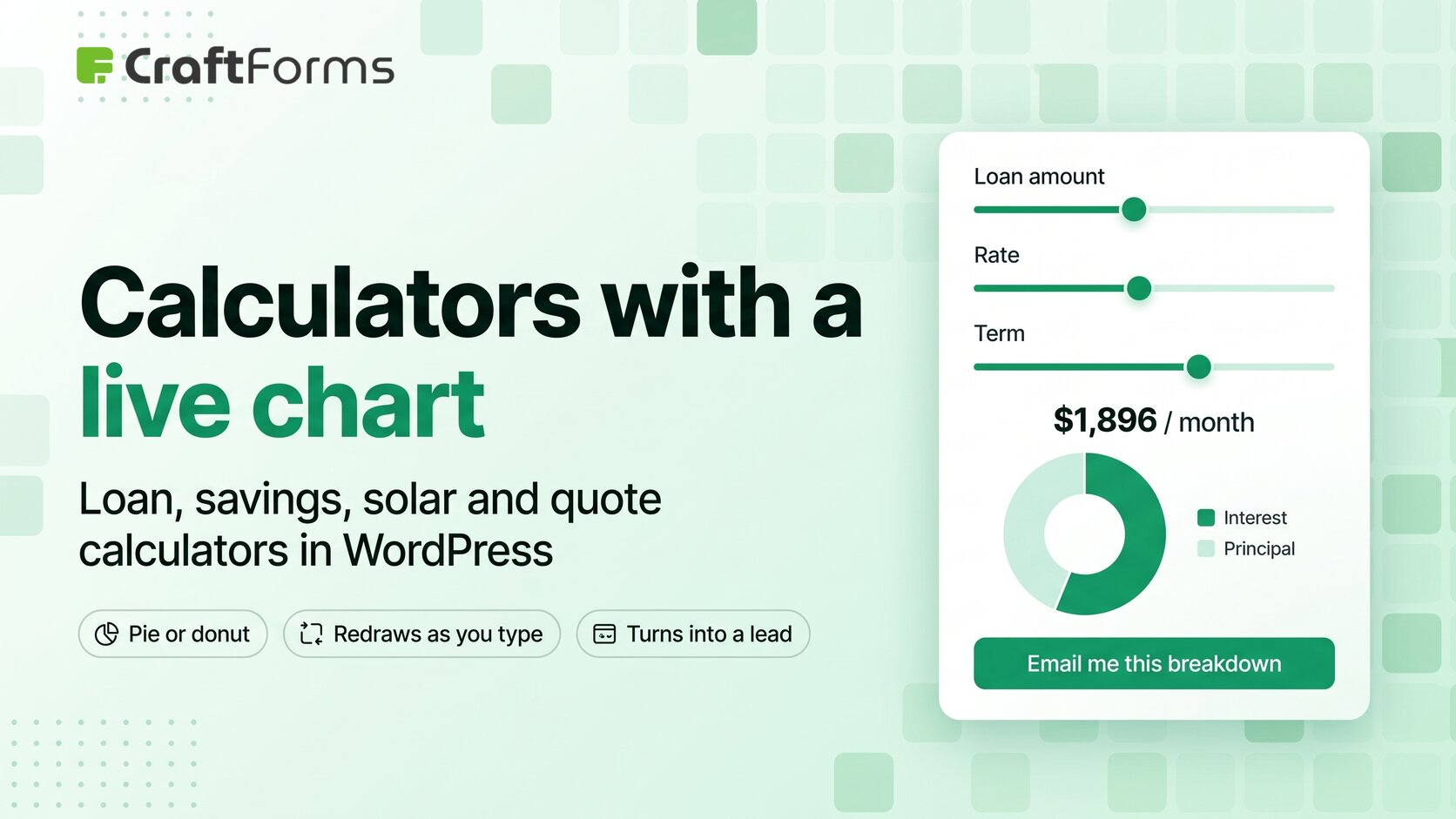
A number on its own doesn’t persuade anyone. "$1,896 a month" is abstract; a donut chart showing that $382,632 of a 30-year mortgage is interest, more than the house itself, makes people stop and change the term to 15 years. That’s why a calculator with a chart outperforms a plain one on WordPress sites for lenders, brokers, solar installers and SaaS companies: the chart does the explaining, and a visitor who has explored their own numbers is far more likely to leave their email. This guide shows how to build one with CraftForms’ Chart block, which redraws a pie or donut chart on every keystroke, with no chart code.
In short:
- The CraftForms Chart block draws a live pie or donut chart from your form’s fields and Smart Variables. It redraws as visitors type or drag a slider.
- It’s built for proportions: principal vs interest, contributions vs growth, what solar covers vs what you still pay, materials vs labour vs delivery. It does not draw line or bar charts over time.
- A slice can read any field or Smart Variable directly.
- Pair it with Value Presets, buttons like "Starter / Pro / Team" that fill several fields in one click, so visitors can compare scenarios quickly.
- Submissions go to your database, email, PDF or webhook, so every calculation can become a lead with the visitor’s numbers attached.
- Chart, Value Presets, Smart Variables and Range Slider fields are CraftForms Pro features.
What the Chart block does (and what it doesn’t)
The Chart block is a presentational element connected to a CraftForms form. You give it a list of data points. Each has a Value variable (a form field or Smart Variable), a Label and an optional Color. On the page, every change to the form (typing, a slider drag, a click on a radio option) redraws the chart within a fraction of a second.
What you can set:
- Chart Type: Type is Pie or Donut. For a donut, Donut ring width runs from 10 to 120. Plus an optional Chart title.
- Data: + Add data point as many times as you have slices.
- Labels & Legend: Show legend, Show slice labels, and Label content as Value or Percentage.
A few behaviours worth knowing before you design:
- It shows shares of a whole. Every calculator below is framed as "how does this total split up?". If you need a balance-over-time line chart, this isn’t that tool.
- While the slices add up to zero, the block shows a faint placeholder ring instead of an empty box, so a blank form doesn’t look broken.
- Multi-select values are summed. If a slice reads a checkbox field whose options carry numbers, the checked values are added together.
- Labels show the raw number. Wrap Smart Variables in
round()so a label says 1896.2, not 1896.20407048. Use Percentage mode when shares matter more than amounts. - It’s display only. Nothing from the chart is saved; the numbers behind it can be.
The block can sit inside the form (it connects automatically) or anywhere else on the page, such as a sidebar column, if you pick the form under Connected Form. It only draws pie and donut charts.
Step by step: a mortgage calculator with a principal-vs-interest chart
You’ll need CraftForms Pro. Build time is about 20 minutes.
1. Add the inputs
Create a new form and add:
amount: a Text Input Field set to a number, or a Range Slider Field (for example 50,000 to 1,000,000, step 5,000).rate: annual interest rate in %, step 0.05.years: a Range Slider Field from 5 to 35, or a radio with 10 / 15 / 20 / 25 / 30.
2. Do the maths in Smart Variables
Open Manage Smart Variables and add expression variables:
r         = rate / 100 / 12
n         = years * 12
payment   = round(amount * r * pow(1 + r, n) / (pow(1 + r, n) - 1), 2)
interest  = round(payment * n - amount)
Use pow() (or **) for powers. In CraftForms formulas, ^ is a bitwise XOR, not a power, which is the most common reason a pasted spreadsheet formula gives nonsense.
Every Smart Variable is available to the chart straight away. To also keep a value with the submission and use it in emails, turn on Expose as field variable and fill in Submission label ("Monthly payment", "Total interest") so the values show up in the saved submission and your notification email.
3. Show the headline number
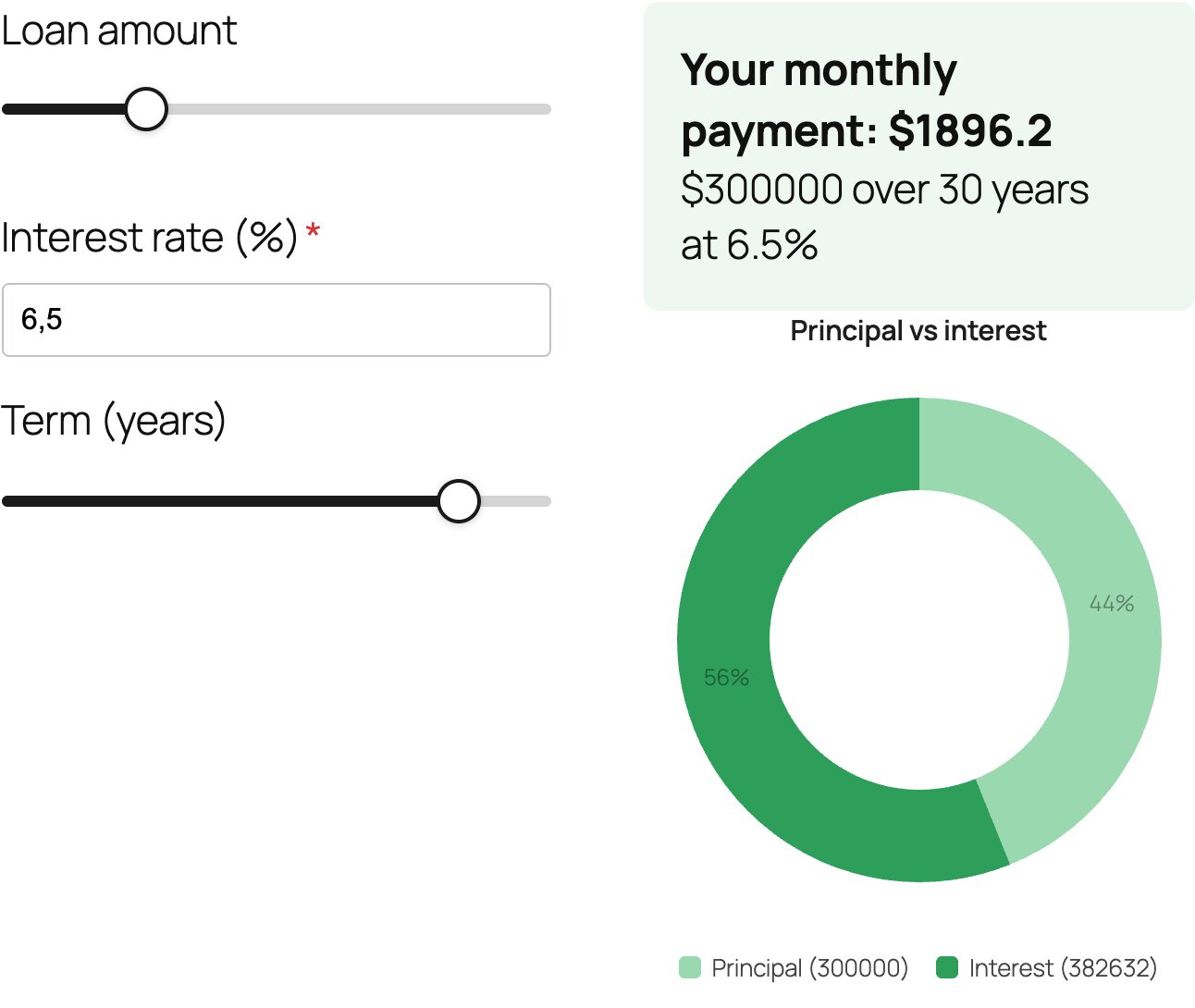
Add an InfoBlock above the chart with "Your monthly payment: {{field.payment}}" (type {{ and it autocompletes the names). Visitors read the number first, then the chart explains it.
4. Add the Chart block
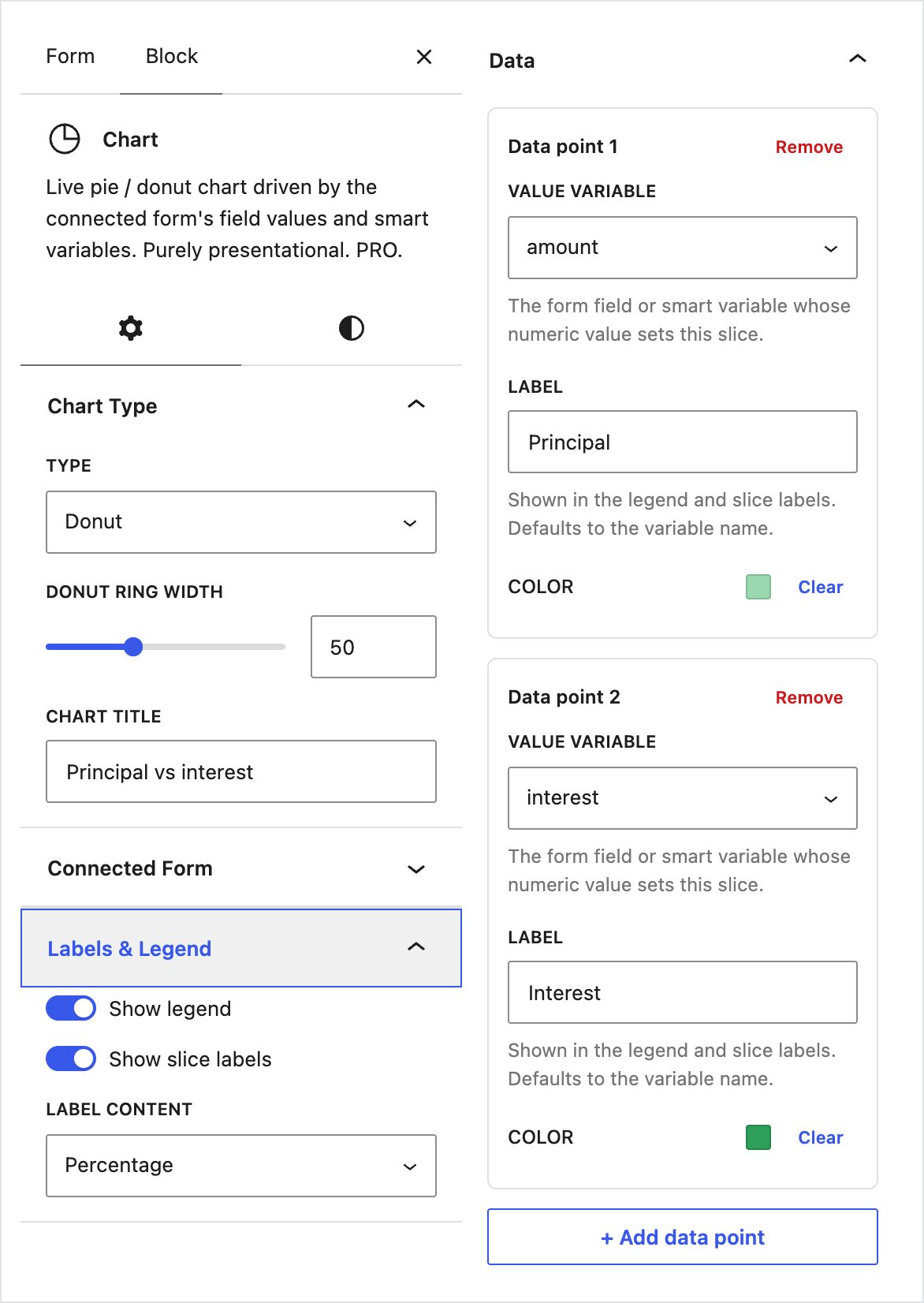
Insert a Chart block inside the form and set:
- Type: Donut, Donut ring width 50.
- Data point 1: Value variable
amount, Label "Principal", a neutral colour. - Data point 2: Value variable
interest, Label "Interest", a warmer colour. - Label content: Percentage.
5. Try the numbers
With $300,000 at 6.5% over 30 years, the payment is $1,896.20 and the interest slice is $382,632, 56% of the donut. Drag the term to 15 years and the payment rises to $2,613.32 while interest falls to $170,398. That swing, visible in the chart, is the conversation starter for a broker.
6. Capture the lead
Add email and name fields, a submit button labelled "Email me this breakdown", and in the form’s submit actions keep Save Submission and add Send Email (Template) to the visitor. Because payment and interest are exposed, they’re available in the email template as {{field.payment}} and {{field.interest}}. See branded email templates in WordPress for the design side, and PDF generation from a form if you’d rather send a one-page PDF summary. A Send Webhook action can pass the lead to your CRM.
Five calculators that suit a pie or donut chart
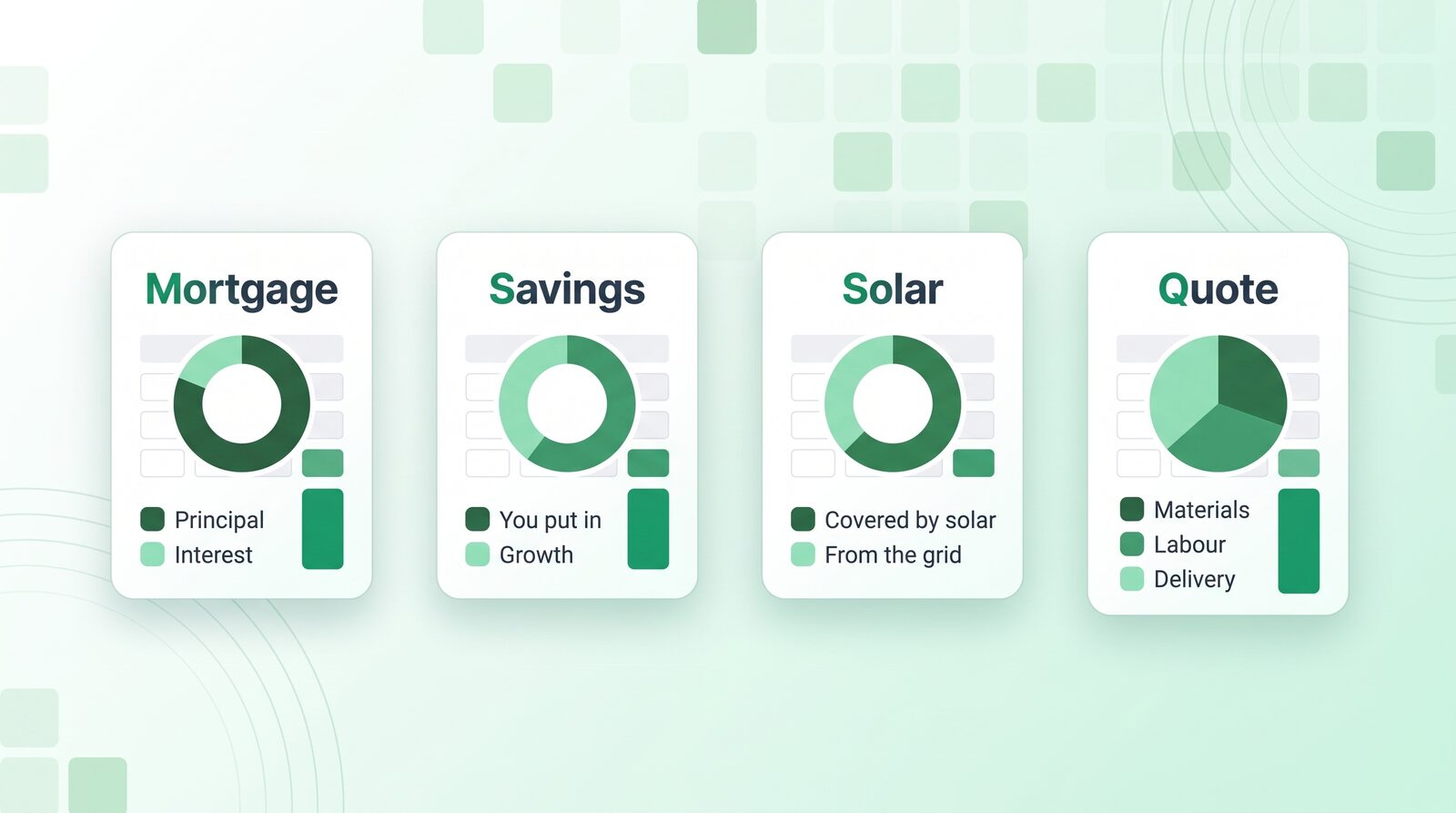
1. Loan and mortgage repayment (banks, brokers, car dealers). Principal vs total interest, as above. Add a third slice for fees or insurance if you quote them. For car finance, add a deposit slice so buyers see how a bigger deposit shrinks the interest share.
2. Savings and investment growth (advisers, credit unions). Inputs: monthly contribution, years, expected return. Smart Variables compute the future value, and the chart splits it into "You put in" vs "Growth". At $200 a month for 10 years at 5%, that’s $24,000 contributed and $7,056 of growth. Stretch it to 30 years and growth ($94,452) is bigger than everything you put in ($72,000), which is the point the adviser wants to make.
3. Solar and energy savings (installers, heat-pump companies). Inputs: annual electricity bill, roof size or system size, local incentive %. Show the bill as a pie: "Covered by solar" vs "Still from the grid". With a $1,800 bill and 70% coverage, that’s $1,260 vs $540. Put payback years in an InfoBlock (net system cost ÷ annual saving). Use your own production figures per kW for your region. The chart only shows what your formula returns.
4. Project and quote breakdown (contractors, agencies, consultants). A renovation or website quote as Materials / Labour / Delivery or Design / Build / Content / Hosting. Clients stop asking "why so much?" when they see where it goes. For quotes, see also getting your prices into AI answers.
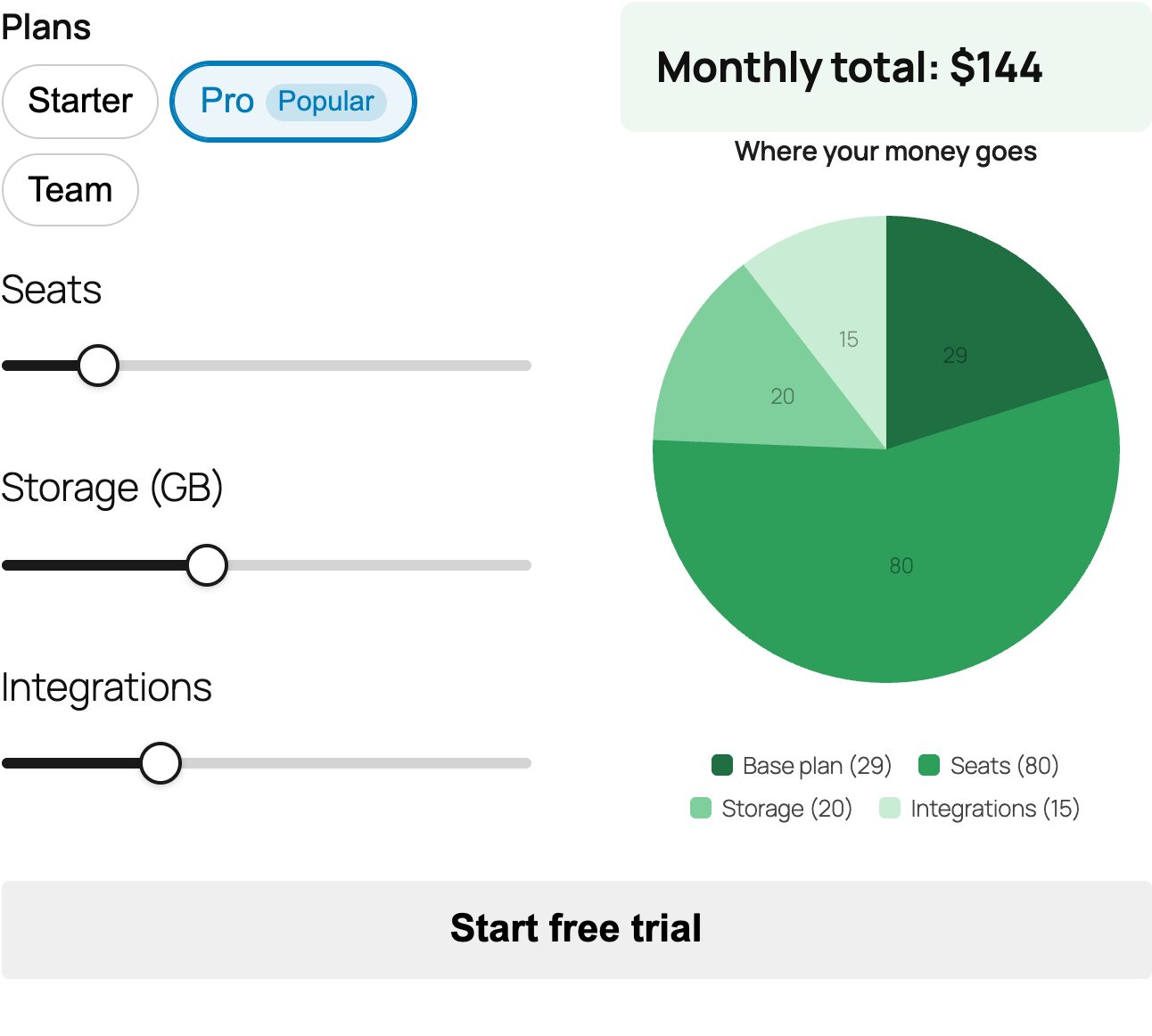
5. Pricing tier composition (SaaS and subscription pages). Base plan + seats + add-ons as slices of the monthly total. Combine it with Value Presets (below) so "Starter", "Pro" and "Team" fill the inputs and the chart shows what each plan’s money pays for.
Also useful: carbon footprint (travel / home energy / food, using your chosen emission factors), household budget splits for money-advice charities, and nutrition on food products. On WooCommerce, the Poke Bowl product starter swaps the product image for a live pie of proteins, carbs and fat as the customer builds a bowl.
Value Presets: one-click scenarios
Most visitors don’t want to type five numbers. They want to see "a typical family" or "a 10-person team". Value Presets is a Pro block you place inside the form. It shows a row of buttons, and each button sets several fields at once, exactly as if the visitor had filled them in. Validation, conditional logic, price and the chart all update in one go.
Setting it up:
- Insert Value Presets into the form. Under General, set a Label such as "Packages" or "Typical households".
- Under Presets, click + Add preset and give it a Preset label: "Starter".
- Under When clicked, click + Add field for each field the button fills in: set
seatsto 3,storageto 50,supportto email. - Optionally add a Badge (optional). It supports live
{{mustache}}templates, so a badge can read "Save {{savings}}%" and recalculate. - Repeat for "Pro" and "Team".
A preset button is highlighted while every field it controls still matches its values. Once the visitor tweaks a field, the highlight drops, so it’s clear they’re on a custom setup.
Scenario ideas: a solar calculator with "Flat / Semi-detached / Detached"; a savings calculator with "Cautious 3% / Balanced 5% / Growth 7%"; a SaaS page with "Starter / Pro / Team"; a mortgage calculator with "First home / Remortgage / Buy-to-let".
How this compares to other calculator plugins
Calculator plugins are a crowded space, and most can do the maths. The differences are in the chart and in what happens after the maths:
- Calculated Fields Form has a Chart.js module in its Developer edition (a one-time purchase), so it can draw line and bar charts too. You set them up in its own equation editor rather than from block settings. More chart types, more code.
- Formidable Forms has ready-made mortgage and loan calculator templates. Its graph features are aimed mainly at charting submitted entries rather than one visitor’s live inputs.
- CraftForms keeps it to pie and donut, set up from dropdowns in the block sidebar, redrawn live, with the same form handling pricing, payments, PDFs, emails and WooCommerce. On a WooCommerce product, the Chart can even replace the product image (Active Element → Chart).
If you need a balance-over-time line chart today, a code-first tool is the better fit. If the question is "where does the money go?", a donut is clearer anyway.
For a wider comparison of formulas, lookup tables, payments and the price of each plugin’s calculating tier, see the best WordPress calculator form plugins in 2026.
Tips for calculators that convert
- Lead with one number, explain with the chart. Headline in an InfoBlock, breakdown underneath.
- Use sensible defaults. Pre-fill a typical scenario so the chart is drawn on page load, not after five inputs.
- Keep slices to 2–5. A donut with nine slices explains nothing.
- Round everything shown.
round(x)for currency, or Percentage labels. - Ask for the email after the value. "Email me this breakdown" converts better than a form wall before the calculator. Our online order form guide covers layout basics that apply here too.
FAQ
How do I add a calculator with a chart to WordPress without coding?
Build the calculator as a CraftForms form, do the maths in Smart Variables, then add a Chart block and point each data point at a field or Smart Variable. The chart redraws on every input.
Can I make a mortgage calculator with a pie chart of principal and interest?
Yes. Compute the payment with pow() in a Smart Variable, calculate total interest as payment × months − loan amount, and chart amount and interest as two slices.
Why does my chart slice stay at zero?
Check that the field or Smart Variable produces a number, not text, and that the fields it depends on are filled in. Test the formula in the Smart Variables window.
Does the Chart block support line or bar charts?
No. It draws pie and donut charts, which suit breakdowns and proportions. For values over time you’d need a different tool.
Can visitors pick a preset package and see the chart update?
Yes. Add a Value Presets block inside the form. Each button sets several fields at once, and the price and chart recalculate immediately.
Is the Chart block free?
No. Chart, Value Presets, Smart Variables and Range Slider fields are part of CraftForms Pro.
Build your first one
Start with the mortgage example. Three inputs, four Smart Variables, one donut. Once it works, the savings, solar and pricing versions are the same pattern with different formulas.