
How to Change the Product Image Based on the Selected Option in WooCommerce (Without Variations)
- Category
- Tutorial
- Published
- Updated
- Reading time
- 11 min
- Tags
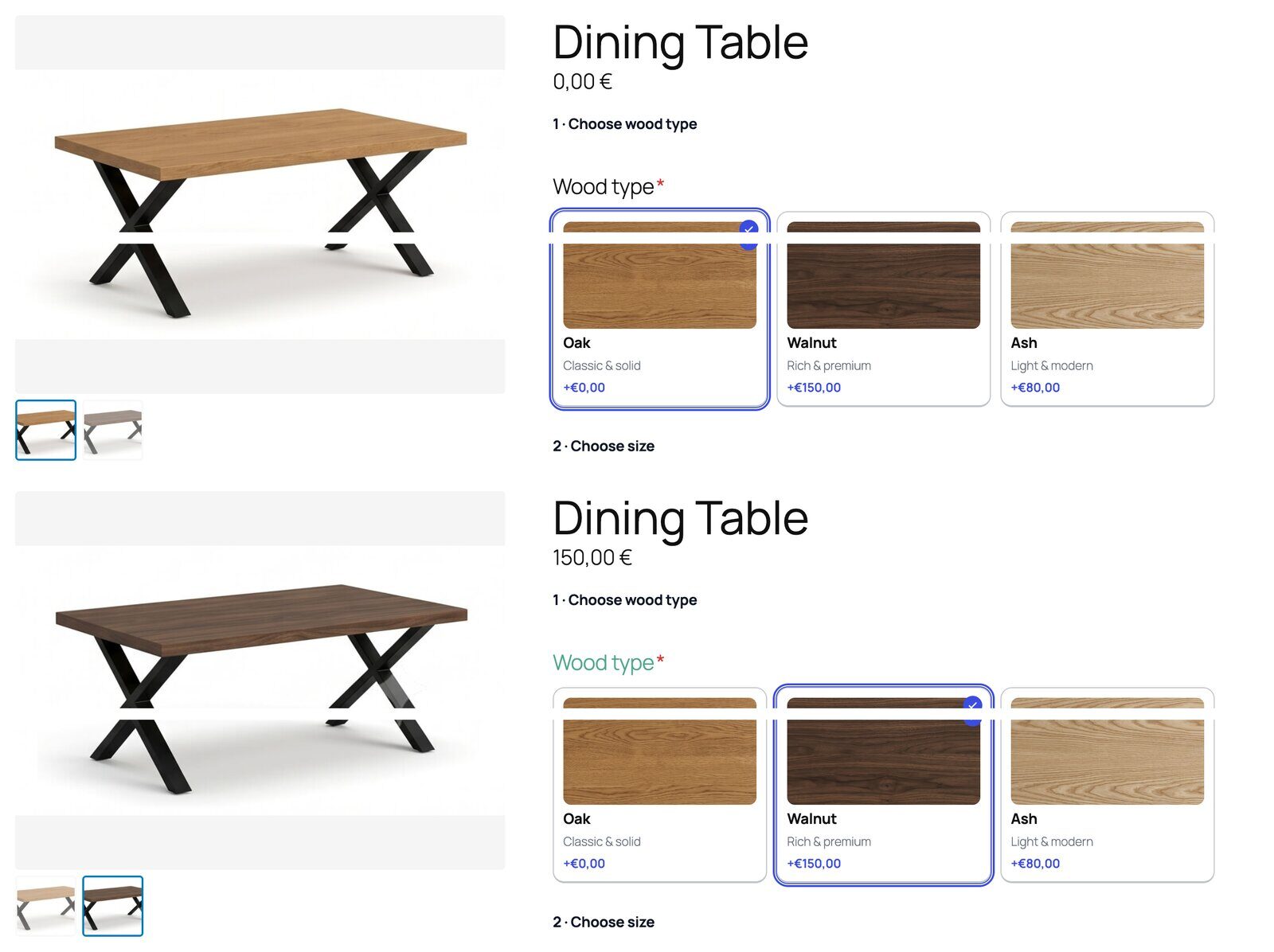
You sell a table in oak, walnut and ash. The customer clicks “Walnut” and the photo still shows oak. That one mismatch costs you sales, and the standard fix in WooCommerce is to rebuild the product as a variable product, one variation per wood, just so each one can carry its own image. To change the product image based on the option in WooCommerce without that detour, you need image rules tied to your product options: “when Wood is Walnut, show walnut-table.jpg”. This guide shows how to set that up with CraftForms, on a simple product, in about ten minutes.
TL;DR
- WooCommerce only swaps the main image when a variation is selected. Custom product options (add-on fields) don’t touch the gallery on their own.
- CraftForms replaces the WooCommerce gallery with a Product Image viewer that has Image Conditional Logic: rules like Wood is one of Walnut → show walnut-table.jpg. First matching rule wins; no match falls back to your normal gallery.
- Rules can combine conditions with ALL (AND) or ANY (OR), so colour × material combinations work too.
- It keeps thumbnails and lightbox zoom, and your images still come from the usual Set product image / Add product gallery images boxes.
- The Product Image block with image rules is in the free plugin (for CraftForms forms on any page). Replacing the gallery on a WooCommerce product page needs CraftForms Pro (WooCommerce integration).
- There’s a ready-made Wooden Table product starter that has exactly this setup.
Why WooCommerce won’t change the image for normal product options
WooCommerce has two ways to offer choices, and only one of them talks to the gallery.
Variations are real sub-products. Each has its own price, SKU, stock and, yes, its own image. When the customer picks a full combination, WooCommerce swaps the main image to that variation’s photo. This is why most “change image on selection” tutorials tell you to convert to a variable product.
Product options (add-on fields: extra dropdowns, swatches, checkboxes, text) are just inputs attached to the product. WooCommerce stores what the customer picked and passes it to the order, but the product gallery has no idea those fields exist. Pick “Walnut” in an add-on dropdown and nothing on the page moves.
Converting to variations for the sake of images has real costs:
- Combinations multiply. 3 woods × 2 finishes × 3 sizes is 18 variations to create and price, even if only the wood changes the photo.
- Variations only fire on a complete selection. Until every attribute is picked, the image usually stays on the default.
- You lose what options do well: formula pricing, custom sizes, engraving text, file uploads. We covered that trade-off in complex WooCommerce pricing without hundreds of variations.
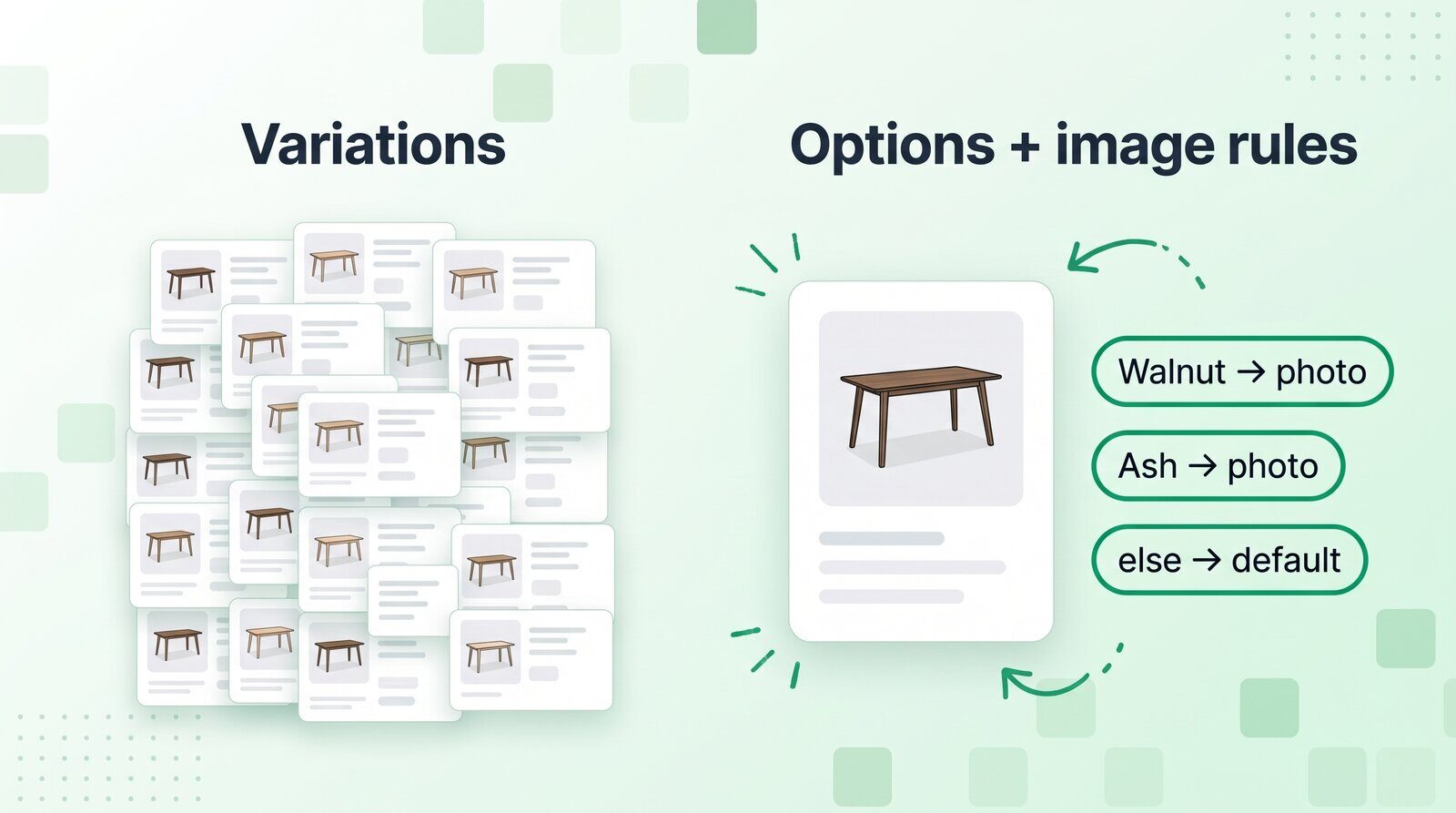
Several add-on plugins have added an “image change” rule for this reason. CraftForms does it as part of a full form: the same options that switch the photo also drive the price, the SKU and the stock.
How CraftForms swaps the product photo when an option is selected
When you connect a CraftForms form to a WooCommerce product, you can pick an Active Element that replaces the standard WooCommerce product image. Choose Product Image and you get an image viewer with:
- the product’s featured image and gallery images, with a thumbnail strip underneath,
- Enable zoom (click the main image to open a lightbox),
- an Aspect Ratio setting (1:1, 4:3, 16:9, 3:4, 2:3 or Auto, the image’s own ratio),
- a Thumbnail Size (px) setting,
- and Image Conditional Logic.
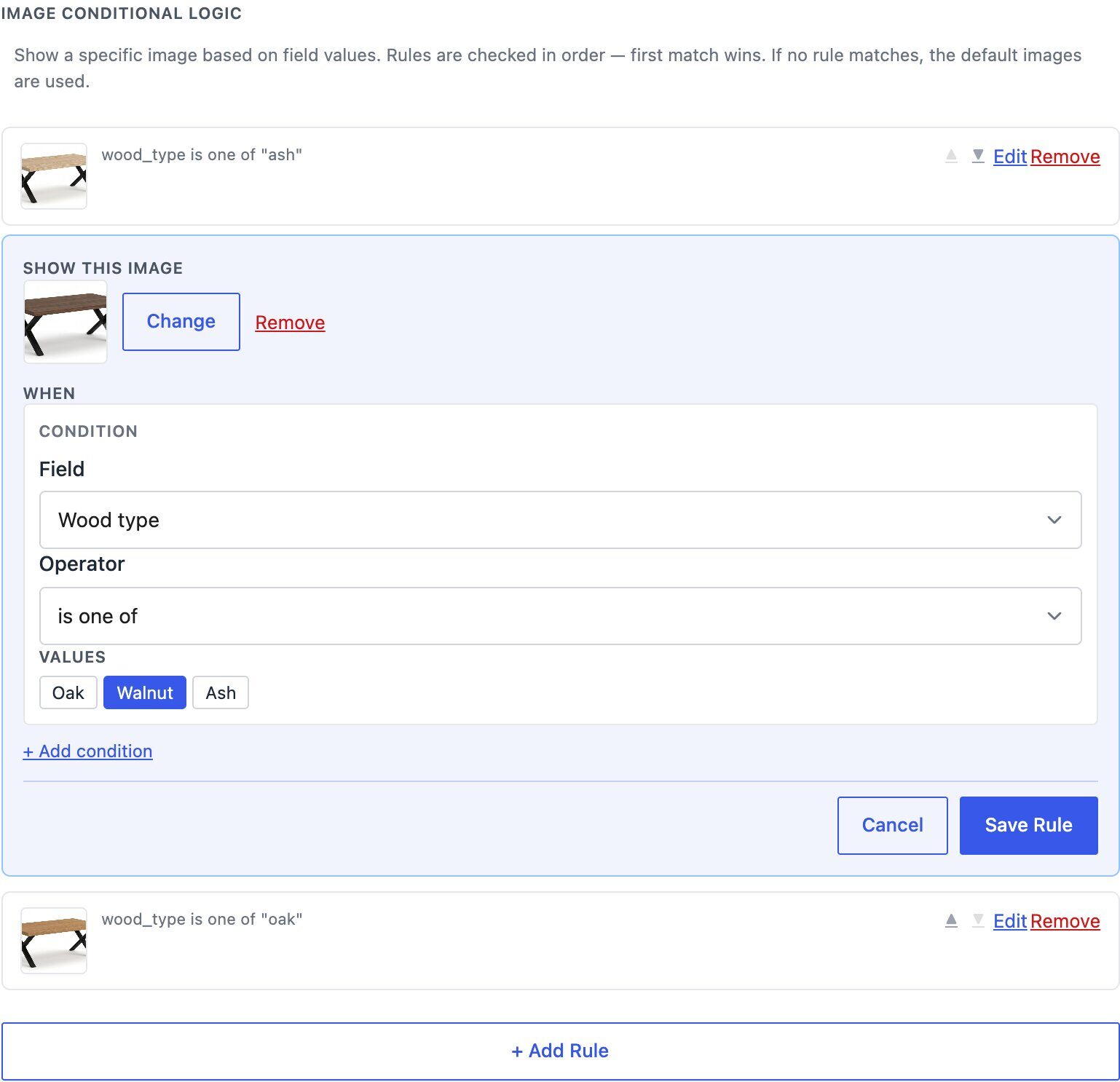
Each image rule has two parts. Show this image is the photo to display. When is one or more conditions on your form fields. Here’s how rules behave on the live page:
- Every time a field changes, the viewer checks the rules from top to bottom. The first rule whose conditions match wins.
- If the matched image is already in the product gallery, the viewer jumps to that thumbnail. If it isn’t (you picked another image from the Media Library), it’s shown in the main view.
- If no rule matches, the viewer goes back to the first gallery image.
The operators depend on the field. For fields with options (radio, select, checkboxes) you get is one of, includes any of, includes all of, none of, is empty and is not empty. For free-text fields you get equals, not equals, is empty and is not empty.
How to set it up, step by step
The WooCommerce part needs CraftForms Pro with WooCommerce active. The CraftForms tab shows on simple products, which is the point: no variations required.
1. Build the options form
Create a form under CraftForms with the fields your customers choose from. For the table: a Radio Field named wood_type with options Oak, Walnut and Ash. In the field’s Options panel, set Option Style to Image Swatches or Color Swatches if you’d like clickable swatches rather than plain radio buttons (Cards and Text Swatches are there too).
Write down the option values. The rules match on values, not on labels.
2. Connect the form to the product
Open the product in WooCommerce and go to the CraftForms tab in the Product data box.
- Turn on Connect a CraftForms form to this product.
- In CraftForms Form, pick the form you just built.
3. Upload your photos the normal way
Use WooCommerce’s own Set product image and Add product gallery images boxes in the sidebar. Add one photo per option: oak-table.jpg, walnut-table.jpg, ash-table.jpg. You don’t upload them anywhere else.
4. Turn on the Product Image element
In the Product Image / Interactive Preview section, set Active Element to Product Image. Only one visual element can replace the WooCommerce product image at a time, so this is also where you’d later switch to Layered Image, Chart, Image Cropper or Picture Frame.
Set Enable zoom and Aspect Ratio to taste. A 4:3 ratio suits furniture; 1:1 suits most apparel and accessories.
5. Add one rule per option
Under Image Conditional Logic, click + Add Rule:
- Under Show this image, click Select image and choose walnut-table.jpg.
- Under When, pick Field:
wood_type, Operator: is one of, Values: Walnut. - Click Save Rule.
Repeat for Ash. You don’t need a rule for Oak if oak is your featured image, because “no match” falls back to it. Adding one anyway keeps the list readable.
6. Save and test
Click Save CraftForms settings (or Update the product), open it on the front end and click through the options. The photo should change as soon as a swatch is clicked, with no page reload.
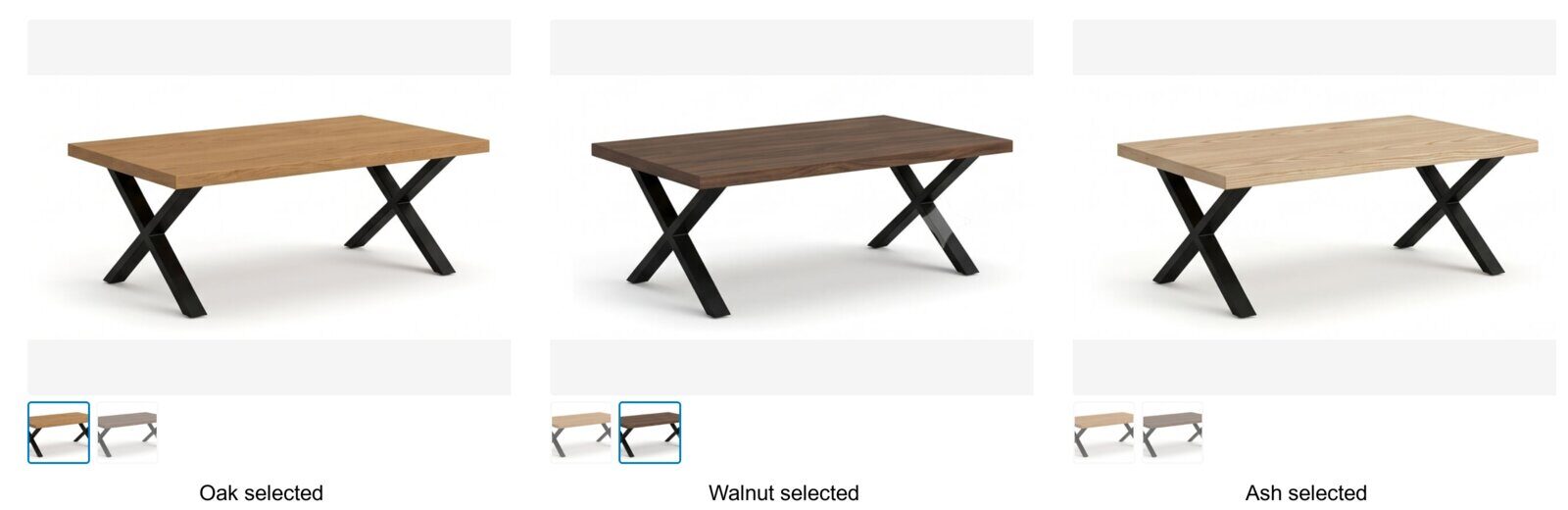
Shortcut: in the same tab, open Product Starters and pick Wooden Table. It sets up this exact form (or reuses it if you’ve applied it before), one image rule per wood and per-wood stock in one click. Apply it to a test product and look at the rules before you build your own.
When the image depends on two options (colour × material)
Plenty of products need a photo per combination: a backpack in 3 colours and 2 fabrics has 6 distinct photos. Build that with one rule per combination and set Conditions match to ALL (AND):
- Rule 1: Colour is one of Navy AND Fabric is one of Canvas → navy-canvas.jpg
- Rule 2: Colour is one of Navy AND Fabric is one of Leather → navy-leather.jpg
- …and so on for all six.
Use ANY (OR) when several choices share a photo, e.g. “Charcoal OR Graphite → dark-grey.jpg”. The is one of operator can also take several values in one condition.
Because the first match wins, put the most specific rules at the top. Use Move up / Move down to reorder.
Past two or three options, the photo count grows quickly: 4 colours × 3 fabrics × 2 hardware finishes is 24 photos. At that point it’s cheaper to build the image from transparent layers and let the customer’s choices stack them. That’s what the Layered Image element does: it builds the picture from transparent layers that stack as the customer chooses.
Real examples: what shops use image rules for
Furniture maker (the Wooden Table starter). One simple product, a wood_type radio with image swatches, three rules. The same form sets a dynamic SKU like W1-WALNUT and tracks stock per wood, so walnut can sell out while oak stays available. How that stock part works is in tracking WooCommerce stock by option.
Apparel and accessories. A cap in 8 colours: a Color Swatches radio and 8 rules. If the cap also takes an embroidered name, add a text field. It doesn’t need to affect the photo, it just travels to the order. Variations would give you 8 SKUs; here you get one product with one price formula.
Print and signage shops. A banner with a “Finish” select (matte, gloss, mesh) and a “Grommets” checkbox. Rules show a close-up of the chosen finish, and a rule with includes any of Grommets shows the corner detail shot. The price still comes from width × height × rate.
Jewellery. Metal (silver, gold, rose gold) × stone (none, sapphire, emerald) = 9 photos, 9 ALL (AND) rules. Engraving text and ring size ride along as normal fields.
Pet products. A collar in 5 colours × 3 sizes. Only colour changes the photo, so 5 rules on colour alone. Sizes don’t need images or variations.
Does this work with my theme or page builder?
The Product Image element is built to take the gallery’s place on:
- Block themes, by replacing the Product Image Gallery block,
- Classic themes, by swapping out WooCommerce’s gallery at the same position,
- themes and builders that print their own gallery markup, such as Astra’s gallery layouts and Elementor’s Product Images widget, through a fallback that makes sure only the CraftForms viewer is left.
If you aren’t using WooCommerce at all (say you take orders through a CraftForms order form and email or invoice customers), you can place the Product Image block on any page, connect it to your form in the Connected Form panel, and add rules in its Image Conditional Logic panel. That block and its rules are in the free plugin. See how to create an online order form for your small business for the form side.
Image rules vs variations vs other plugins
| WooCommerce variations | Add-on plugin with an “image change” rule | CraftForms Product Image | |
|---|---|---|---|
| Needs a variable product | Yes | No | No (simple product) |
| Changes on a partial selection | Usually not | Yes | Yes, on every field change |
| Combination photos (A × B) | One variation per combination | Varies by plugin | ALL (AND) rules |
| Same options drive formula price / SKU / stock | Price per variation only | Pricing varies; stock usually not | Yes |
| Uses the normal WooCommerce gallery images | Yes | Varies | Yes |
If you’re comparing tools more broadly, our WooCommerce product configurator roundup covers Product Add-Ons, Extra Product Options, Advanced Product Fields, YITH and CraftForms side by side.
A few practical tips
- Keep photos the same size and framing. Swapping a 4:3 walnut shot for a square oak shot makes the page jump. Pick one Aspect Ratio and crop everything to it.
- Match on values, not labels. If you rename “Walnut” to “American walnut” in the label but keep the value
walnut, your rules keep working. - Write alt text for every gallery image. The viewer uses the image’s alt text, so “Walnut dining table, 180 cm” helps both screen readers and image search.
- Don’t over-rule. Only options that change how the product looks need a rule. Sizes, quantities and text fields usually don’t.
FAQ
How do I change the product image when an option is selected in WooCommerce without variations? Use a product-options tool that can swap the gallery image based on field values. In CraftForms, connect a form to a simple product, set Active Element to Product Image, and add Image Conditional Logic rules like “Colour is one of Red → show red.jpg”.
Can the image change based on two options at once, like colour and size? Yes. Add a rule with two conditions and set Conditions match to ALL (AND). Create one rule per combination that needs its own photo, and put the most specific rules first, because the first match wins.
Does the image switch before the customer finishes selecting every option? Yes. Rules are checked on every field change, so a rule that only looks at colour fires as soon as the colour is picked, even if the size is still empty.
Will my product gallery thumbnails and zoom still work? Yes. The Product Image viewer shows your featured and gallery images as thumbnails, and Enable zoom opens the main image in a lightbox on click.
Is this free? The Product Image block with image conditional logic is in the free CraftForms plugin for forms on regular pages. Replacing the gallery on a WooCommerce product page is part of CraftForms Pro, because the WooCommerce integration is Pro.
What if I have too many combinations to photograph? Switch the Active Element to Layered Image and build the picture from transparent PNG layers (one per part) instead of one photo per combination.
Try it on one product
Pick your best-selling product that currently has a mismatched photo, apply the Wooden Table starter to a copy, and swap in your own images and option values. If the photo follows the swatch, you’ve fixed the most common “that’s not what I ordered” complaint without touching variations.