
CraftForms 2.0 — Mailchimp & Brevo Built In, Conditional Actions, and a Visual Flow Builder
- Category
- Release
- Published
- Updated
- Reading time
- 11 min
- Tags
- —
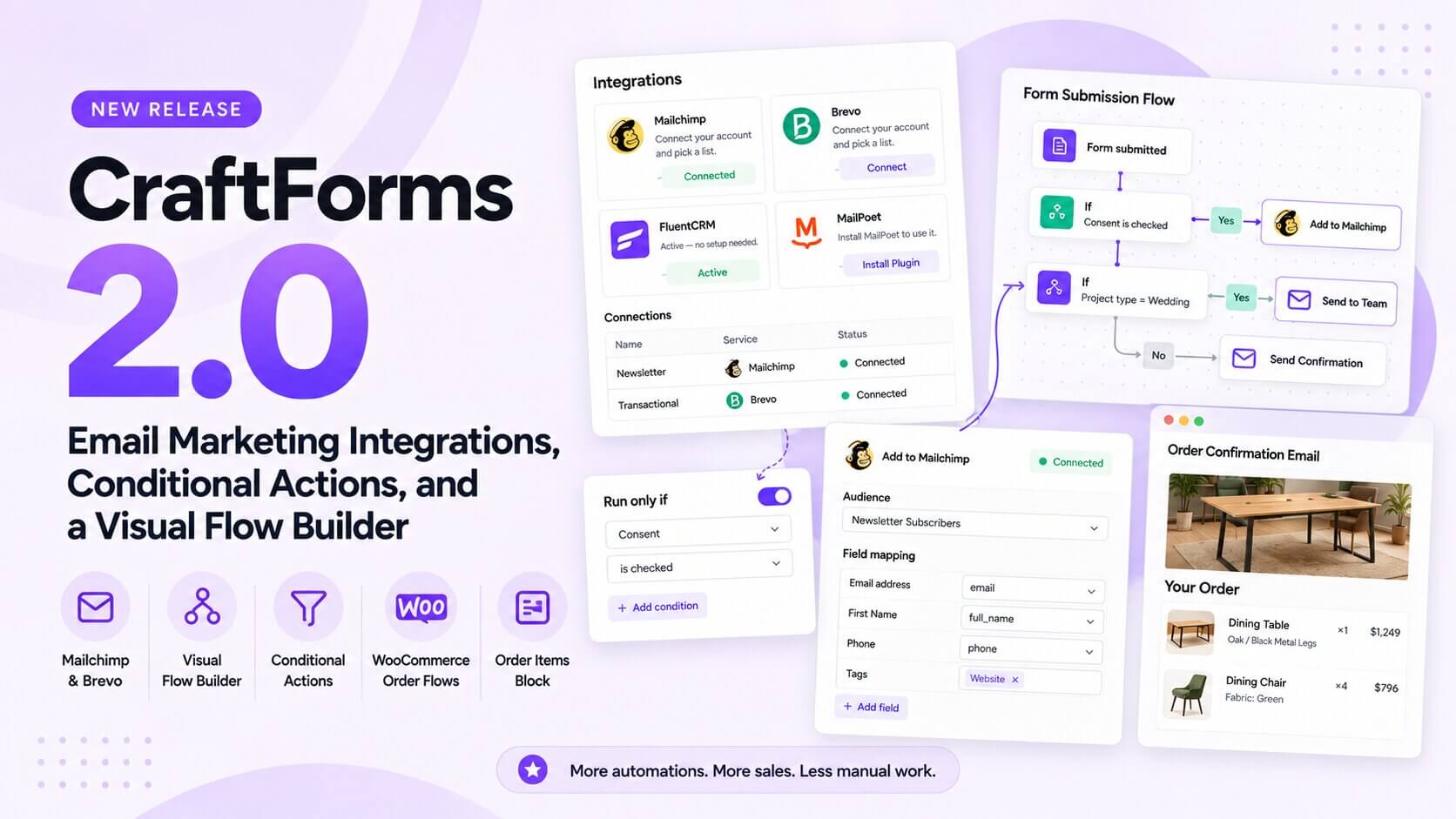
CraftForms 2.0 is out. Up to now, a form’s job ended when it sent you an email and saved the submission. Getting that person into your newsletter tool, sending the wedding enquiry to a different team, or replacing WooCommerce’s plain order emails all meant a webhook, a Zapier account or a code snippet. 2.0 handles all of that inside the plugin.
In short:
- Mailchimp, Brevo, FluentCRM and MailPoet, built in and free. Connect once, pick a list, and the field mapping fills itself in.
- “Run only if” on every submit action, so you only subscribe people who ticked the consent box. Also free.
- An Activity log with “Retry now”, so a failed sign-up is never lost silently. Automatic retries come with PRO.
- Flows (PRO): a visual builder for what happens after a submission, with condition branches, a backup branch when a step fails, and conditions on who submitted.
- WooCommerce order flows (PRO): send your own branded order emails and invoices when an order is placed or completed, and switch off the WooCommerce email they replace.
- An Order Items block (PRO) for email and PDF templates, listing every product with the options the customer chose.
Here’s everything in 2.0.
Email marketing, built in (free)
“Does it integrate with Mailchimp?” is the question we’ve heard most often, and until now the honest answer was “use the webhook action”. That works if you’re a developer, and it’s a dead end if you’re not.
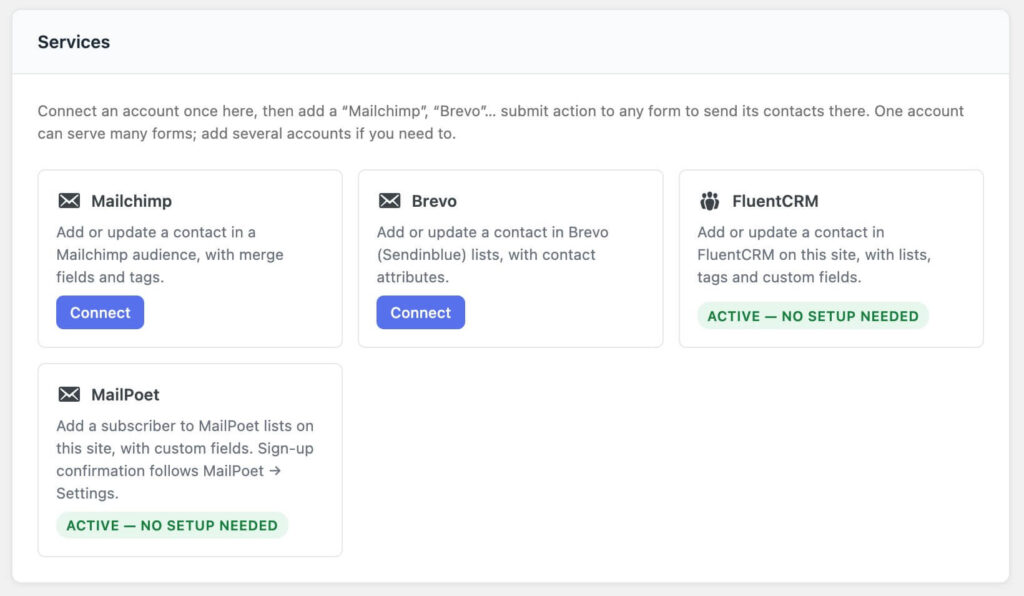
2.0 adds native actions for four email-marketing tools:
| Service | Where it lives | What you connect |
|---|---|---|
| Mailchimp | mailchimp.com | An API key |
| Brevo (formerly Sendinblue) | brevo.com | An API key |
| FluentCRM | A plugin on your site | Nothing, it just needs to be active |
| MailPoet | A plugin on your site | Nothing, it just needs to be active |
Connect once. Go to CraftForms → Settings → Integrations, click Connect on the Mailchimp or Brevo card, give the connection a name (“Newsletter account”) and paste your key. Save & test checks it straight away and shows the account it reached: “Connected to Acme Ltd.” You can add as many connections as you need, for example one Mailchimp account per brand, and each form picks the one it uses.
Keys are encrypted in your database and never shown in full again. People who edit forms can choose a connection, but can’t see its key.
Add it to a form. In the form’s Submit Actions, click Add Action, type mailchimp, and choose it. Your audiences, lists, tags and contact fields load live from your account, so there are no IDs to copy from the Mailchimp dashboard.
The field mapping fills itself in. The first time you open it, CraftForms matches your fields by name: the email field goes to Email address, “Your name” to First Name, “Mobile” to Phone, and so on. Check it, change anything that’s wrong, and add more fields if you need them. Each value can come from a form field, a fixed text (“Website”), or a merge tag such as {{post.title}}, which is handy for tagging contacts by the page they signed up on.
It’s also careful in the places where sign-ups usually go wrong:
- Double opt-in is one tick on Mailchimp. On Brevo it’s a tick plus your Brevo double opt-in template and the page people land on after confirming. FluentCRM has its own option, and MailPoet follows its sign-up confirmation setting.
- Someone who unsubscribed stays unsubscribed. Filling in a quote form updates their details. It doesn’t add them back to your newsletter.
- An empty answer never wipes existing data. If a returning contact leaves “Phone” blank, the phone number you already have stays.
- Visitors don’t wait. The action runs after the confirmation is shown, so a slow Mailchimp response never delays the “Thank you” message.
All four integrations, the field mapping, the Activity log and Retry now are part of the free version.
“Run only if”: actions that check first (free)
A newsletter sign-up should only happen when someone asked for it. Until now, every action in a form ran on every submission, so “only subscribe them if they ticked the box” meant building two forms or writing code.
Every submit action now has a Run only if setting at the bottom. Choose a choice field (dropdown, radio, checkboxes or colour picker) and the value it needs:
- Mailchimp runs only if Send me the newsletter is ticked.
- Email the wedding team runs only if Service is Wedding.
- Webhook to the CRM runs only if Customer type is Business.
The action’s card in the list says what it’s waiting for (Runs only if newsletter is yes), so you can see the logic at a glance. The check runs on the server against the validated submission, so a visitor can’t trigger an action by sending a value the field doesn’t offer.
It works on every action, not just the new integrations: emails, PDFs, webhooks, saved submissions and the rest.
An Activity log that tells you what happened
When a form fails to add someone to a mailing list, you usually find out weeks later, if at all. Settings → Integrations → Activity lists every contact sent: when, by which form, to which service, which fields were sent, and the result. If something failed, you see the reason in plain words (an expired key, a list that was deleted, an address the service rejected) and a Retry now button.
With PRO, failures caused by the service being down are retried automatically after 1, 5 and 30 minutes, so a short Mailchimp outage on a busy morning doesn’t cost you any leads.
The log keeps 30 days of history and is included in WordPress’s personal data export and erase tools, since it stores the contact’s email address.
Flows: a visual builder for what happens next (PRO)
A form’s Submit Actions list runs from top to bottom, the same way every time. That’s enough for most forms. It stops being enough when the answer to “what should happen?” is it depends:
- Wedding enquiries go to the events team and onto a Mailchimp list. Everything else goes to the general inbox.
- Members get one confirmation, guests get another.
- If Mailchimp is down, email the office the lead’s details so nobody is lost.
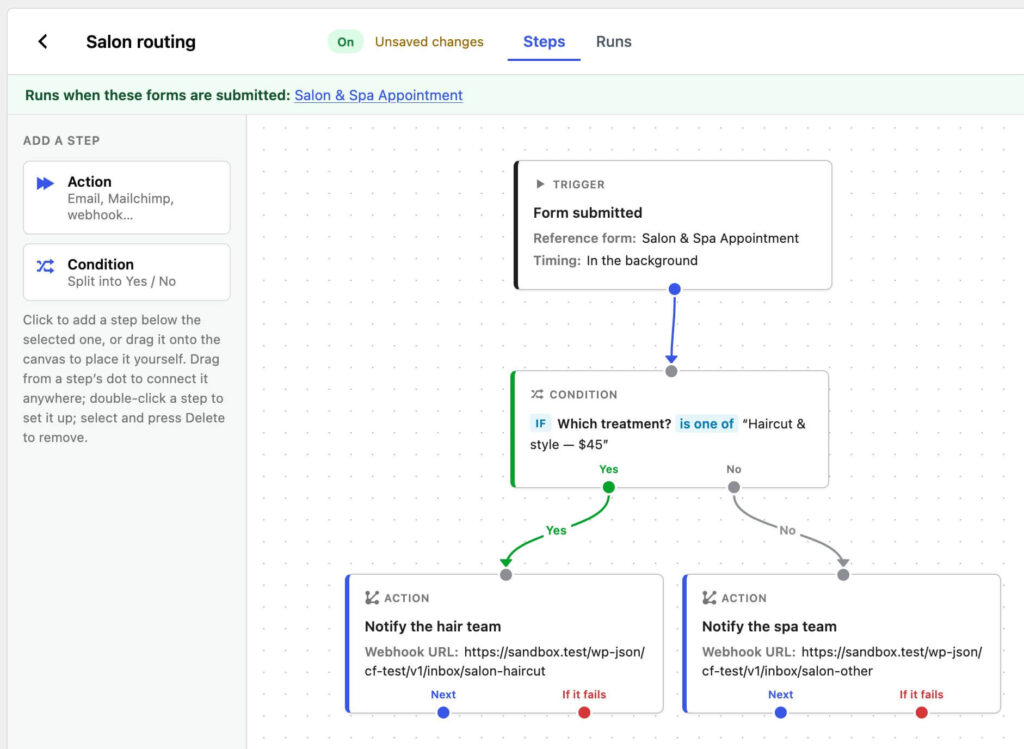
Flows is a new page under CraftForms → Flows where you build that on a canvas. A flow starts with a trigger and continues with two kinds of step:
- Action steps are the same actions you know from Submit Actions, with the same settings: Send Email, Send Email (Template), Generate PDF, Send Webhook, Mailchimp, Brevo and the rest.
- Condition steps split the flow into Yes and No, using the same rule editor as conditional logic in your forms. Besides the form’s fields, they can check who submitted: whether they’re logged in, their role, their user ID. WordPress works this out on the server, so adding a “role” field to the form won’t fool it.
Every action has two exits: Next when it worked, and If it fails, so you can attach a backup to any step. Click or drag steps from the left panel, connect the dots, and Publish. Before publishing, CraftForms checks the flow and points to any step that would never run, any condition that isn’t set up, or an action that can’t run from this trigger.
Point a form at it. In the form’s Submit Actions panel, choose the flow and decide how it works with the form’s own actions:
- Run after the actions below (default): the form’s actions run first, then the flow. The flow can use what they produced, such as the submission number.
- Replace the actions below: the flow does the whole job.
Automatic steps such as creating the catalog order or adding a product to the WooCommerce cart always run, whichever you choose. One flow can serve many forms, and forms that don’t use a flow work exactly as before.
See what happened. Each flow has a Runs tab showing every time it ran, the result, and the exact path it took (Condition: yes → Mailchimp: failed → Send Email: done) with the error for any failed step.
Move flows between sites. Export a flow to a .craftflow.json file and import it elsewhere. Email templates, PDF templates, SMTP servers and integration connections are matched by name on the new site, and an imported flow is always a draft, so nothing starts sending emails until you’ve looked at it. Export a form that uses a flow and the flow travels with it.
WooCommerce order flows: your own order emails, without doubles (PRO)
A flow doesn’t have to start from a form. Choose WooCommerce order as the trigger, and it runs when an order is placed or changes status, for example when it’s marked Completed.
You decide which orders it covers: all orders, only orders with CraftForms-configured items, or only orders without them. That’s decided per order, because one cart can mix a configured picture frame with a plain gift card. For finer targeting, add a condition on the order total, number of items, payment method, billing or shipping country, customer role, coupon codes or where the order came from.
The thing shop owners asked for most: replace WooCommerce’s emails with your own. Build a branded “Your order is complete” email in the email template editor, add it as a step, and the flow switches off WooCommerce’s matching email for the orders it covers, so customers get one email instead of two. CraftForms works out which WooCommerce email to switch off from the flow’s own steps. An email to the customer at Completed replaces “Completed order”, and an email to the shop when the order is placed replaces “New order”. Nothing is changed in WooCommerce’s settings: switch the flow off and WooCommerce’s email is back straight away.
For extra safety, add a Send WooCommerce email step on your email’s If it fails exit. If your email can’t be sent, the customer still gets WooCommerce’s standard one.
Order flows run in the background through WooCommerce’s scheduled actions, so changing an order’s status in the admin or receiving a payment never waits for emails or PDFs. A Generate PDF step attaches the document to the order, with sequential invoice numbers if you want them.
The Order Items block (PRO)
Order emails and invoices have always needed one thing the template editor couldn’t do: list however many items were ordered. The new Order Items block does it. Add it to an email or PDF template and it fills in every product with the options the customer chose under its name (frame, mount, size, engraving text), the quantity, line totals and the order totals.
Choose a table or a bulleted list, and which columns to show. It works in WooCommerce order flows, order PDFs and forms that create a catalog order. In a template that’s also used for plain submissions, it simply prints nothing.
Prefer tags? In WooCommerce order flows, {{order.items_table}}, {{order.items_list}} and {{order.totals_table}} do the same in one line (with fewer options), and the new {{order.*}} tags cover everything WooCommerce shows in its own emails: billing and shipping details, payment and shipping method, the customer’s note, every amount, and links to view or pay for the order.
To start quickly, use the WooCommerce starters: WC: Order Confirmation and WC: New Order (admin) for emails, WC: Invoice and WC: Packing Slip for PDFs.
Smaller things that add up
- A searchable actions library. Add Action now opens with a search box, and actions are grouped into sections, so Mailchimp is one word away instead of a scroll through a grid.
{{user.*}}in submit actions: the logged-in submitter’s name, email, login and role in emails, webhooks and integrations. It’s worked out on the server and is empty for guests.- PDFs by order status, now visible. Sites that generated order PDFs per WooCommerce status through the
craftforms_pdf_order_status_mapoption (code or WP-CLI only, no UI) get those settings moved into WooCommerce order flows automatically on update. Documents keep being generated exactly as before, and now you can see and edit them. - Stronger encryption for stored keys. Payment and integration keys now use AES-256-GCM. Existing keys keep working with no action needed.
- Translations updated in all seven admin languages, including Flows and Integrations.
- For developers: register your own email-marketing or CRM driver with
craftforms_register_integration_providers. It gets the connection store, field mapping, Run only if, the Activity log and Retry now for free, plus automatic retries with PRO.
Fixes worth calling out
- Imports with special characters. Importing a form whose content or settings contained “&” or accented text stored them as codes (e.g. u0026). Templates, SMTP servers and other references with “&” or an apostrophe in their name weren’t found on import. Both are fixed.
- Imported forms without block settings could fail to load their form block. Fixed.
Also new since 1.9
If you skipped 1.9.1, here’s what it added: Edit configuration from the WooCommerce cart, a Signature field, GA4 tracking per form, customers’ own photos in the Image Cropper and Picture Frame, uploaded and generated images in PDF and email templates, and new picture-frame, canvas, wallpaper and sofa starters. We’ve written about several of them:
- WooCommerce photo upload and crop to exact print size
- A picture frame configurator for framing shops
- “View in room” product previews
Get CraftForms 2.0 today
2.0 takes CraftForms past “send me an email”. A form can now add the visitor to your newsletter, but only if they asked, and tell you when that didn’t work. With PRO, it can make decisions about what happens next and send order emails that look like your shop.
Update from Plugins → Updates. Forms you already have work exactly as before: no flow, no change. New to CraftForms? The free version includes the Mailchimp, Brevo, FluentCRM and MailPoet integrations, Run only if on every action, and the Activity log with Retry now. Flows, WooCommerce order flows, the Order Items block and automatic retries come with Pro.
Don’t run WordPress? CraftForms is also available as craftforms.app, the hosted version. Build forms in the same editor, embed them on any website with two lines of HTML, and never install a plugin update. 2.0 is live there too: every plan can send contacts to Mailchimp and Brevo (one connected account on Free, as many as you need on Solo and Studio) and use Run only if. Flows and automatic retries come with Solo and Studio. FluentCRM and MailPoet are WordPress plugins, so they’re only available in the self-hosted plugin.