
How to Build a Multi-Step Form in WordPress (Progress Bar, Conditional Jumps)
- Category
- Tutorial
- Published
- Updated
- Reading time
- 12 min
- Tags
A multi-step form in WordPress shows a few fields per screen, with Next and Back buttons and a progress bar, instead of one long page of questions. In CraftForms you build it in the block editor: add a Steps block, drop your fields into the steps, and add a Step Progress block above them. That part is free. With PRO, the answers can also decide which step comes next, so someone who picks “Just a question” goes straight to the contact step.
This guide builds a quote request for a kitchen fitter, step by step, then covers the parts other tutorials skip: what happens to fields on skipped steps, how validation works per step, and how to see which step people give up on.
TL;DR
- Add the Steps block to a CraftForms form. It starts with two steps; put your fields inside and the Submit button in the last one.
- Add a Step Progress block above the steps. Pick one of four styles: numbered steps, a bar, labels or text only.
- Next checks only the current step’s fields. Errors on later steps stay hidden until the visitor gets there.
- Anything outside the Steps block, like a running price total, stays visible on every step.
- PRO: jump rules (“if Service is ‘Just a question’, go to Contact”) and a step map that draws every path. Fields on skipped steps aren’t checked or sent, and the server works this out too.
- Abandoned drafts record the step the visitor left on, so you can see where people quit.
When should you split a form into steps?
Split a form when it asks for more than one screen’s worth of things, and the questions fall into groups. A quote request is the classic case: what you need, the details, when, and how to reach you. So are job applications, booking requests, insurance and intake forms, and event registrations with several attendees.
Don’t split a short contact form. Three fields on one screen beat three screens of one field. And don’t split a product configurator with a live price: the buyer wants to compare a choice against the total, and steps hide one from the other.
A good test: if you can name each step in two words (“Your project”, “Contact details”), the form has natural steps. If you can’t, it probably doesn’t need them.

What you need
- CraftForms, free version: Steps, Next/Back buttons, per-step validation and the Step Progress block.
- CraftForms PRO for jump rules (go to a different step depending on the answers), the conversational layout and the full-screen link.
A form with jump rules still works on the free version: its steps simply run in order.
How to create a multi-step form in WordPress
The example is a kitchen fitter’s quote request with four steps:
- What can we help with? A new kitchen, a repair or a new worktop, or just a question.
- Kitchen details. Layout, total length of the units and the worktop.
- When should we start? As soon as possible, in 1–3 months, or later this year.
- How can we reach you? Name, email, phone, a message and the Get my quote button.
Here’s how to build it:
- In WordPress, go to CraftForms → Forms and open your form, or create a new one.
- Click the block inserter (+), search for steps and add the Steps block. It starts with two steps.
- Click into each step’s tab and type its title, for example “What can we help with?”.
- Add your fields inside each step. A step can hold any block: fields, columns, groups, an InfoBlock, even a chart.
- Click Add step under the last step (or + in a step’s header) for steps 3 and 4.
- Move the Submit button into the last step.
- Save the form and place it on a page.
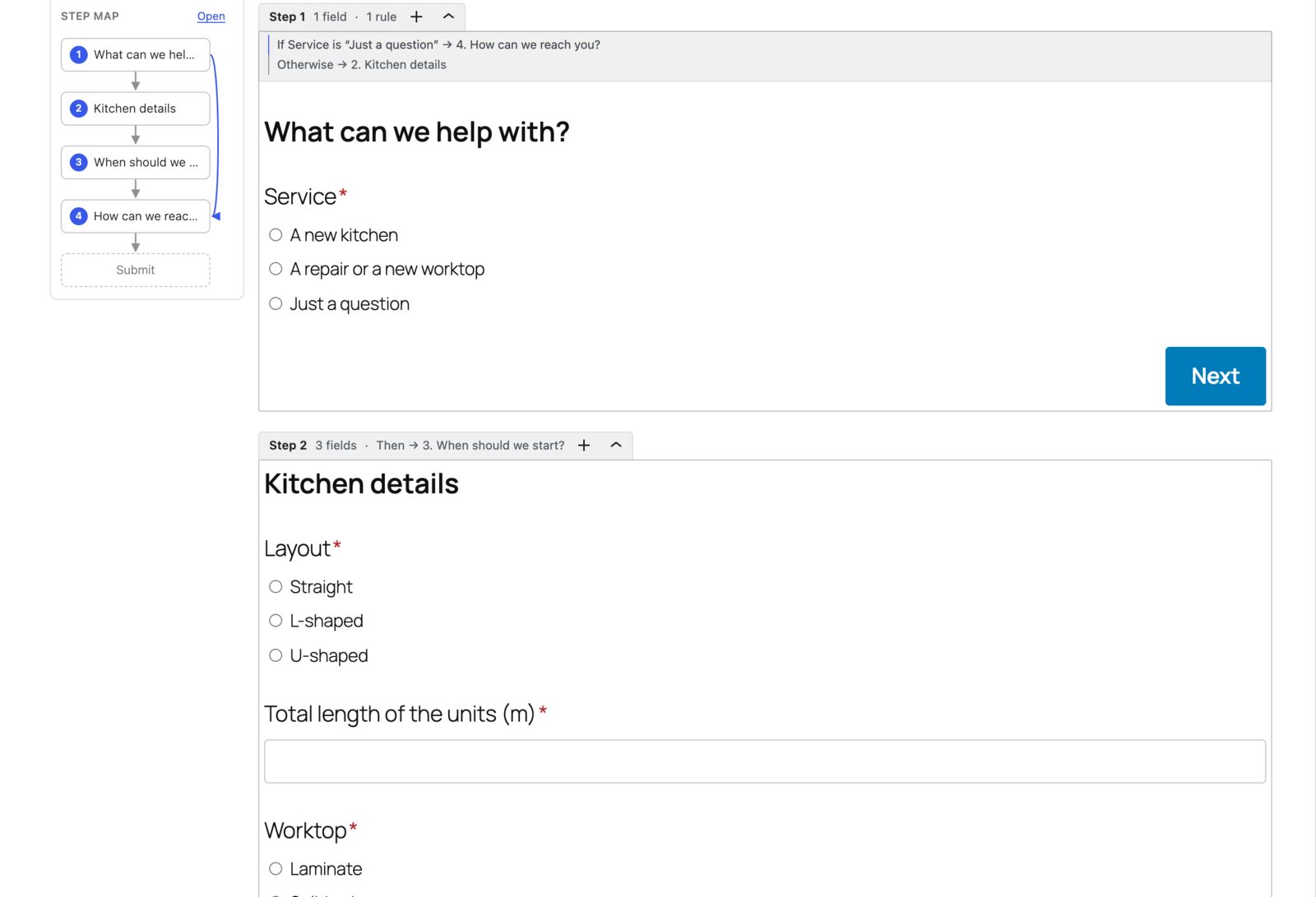
All steps stay open in the editor, one under the other, so you never hunt through tabs to find a field. Each step’s tab shows its number, its title, how many fields it holds and where it leads. On the last step it reads Ends with Submit. Fold a step with the arrow in its tab, or use Collapse all in the Steps toolbar.
Already have a long form?
You don’t need to rebuild it. Select its fields, open the block toolbar’s Transform menu and choose Steps. The fields become step 1. Add more steps and drag fields into them.
Step titles and button texts
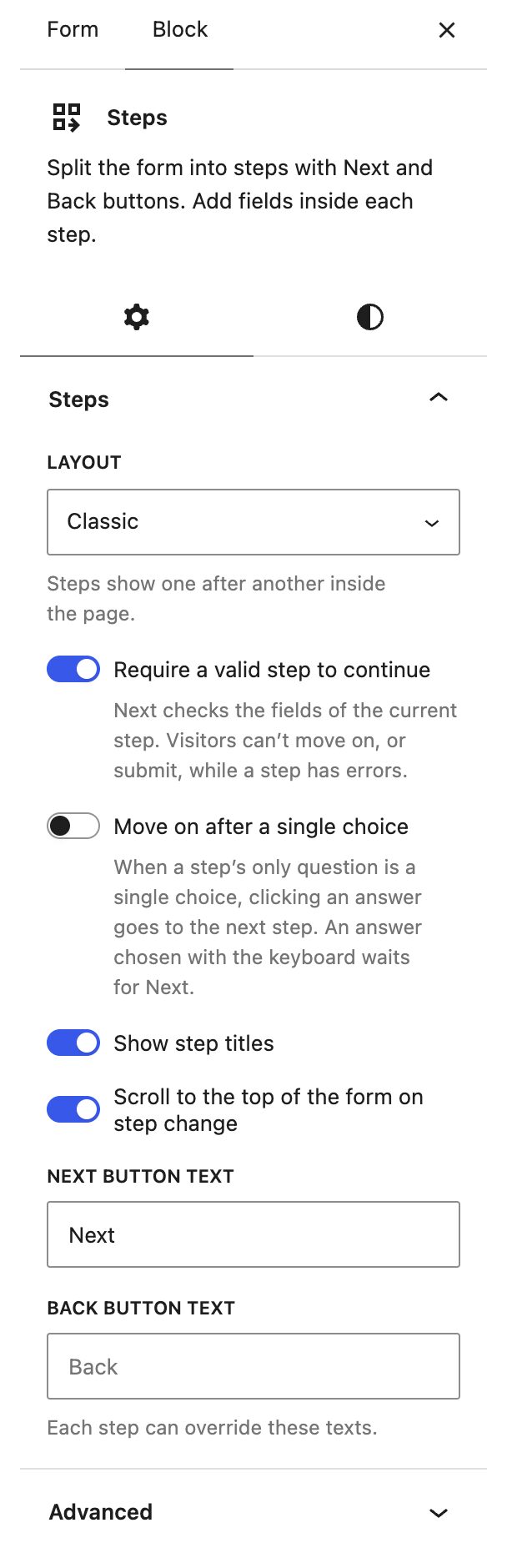
Select the Steps block to set the texts for all steps in the sidebar: Next button text, Back button text and Show step titles. Select a single step to override them for that step only. “See my quote” on the last Next button reads better than “Next”.
Each step also has a Progress label: a short name for the progress bar, so a long title like “What can we help with?” can show as “Service”.
How do you add a progress bar to a multi-step form?
Add the Step Progress block anywhere outside the Steps block, usually above it. Then pick a style in the block’s Styles panel:
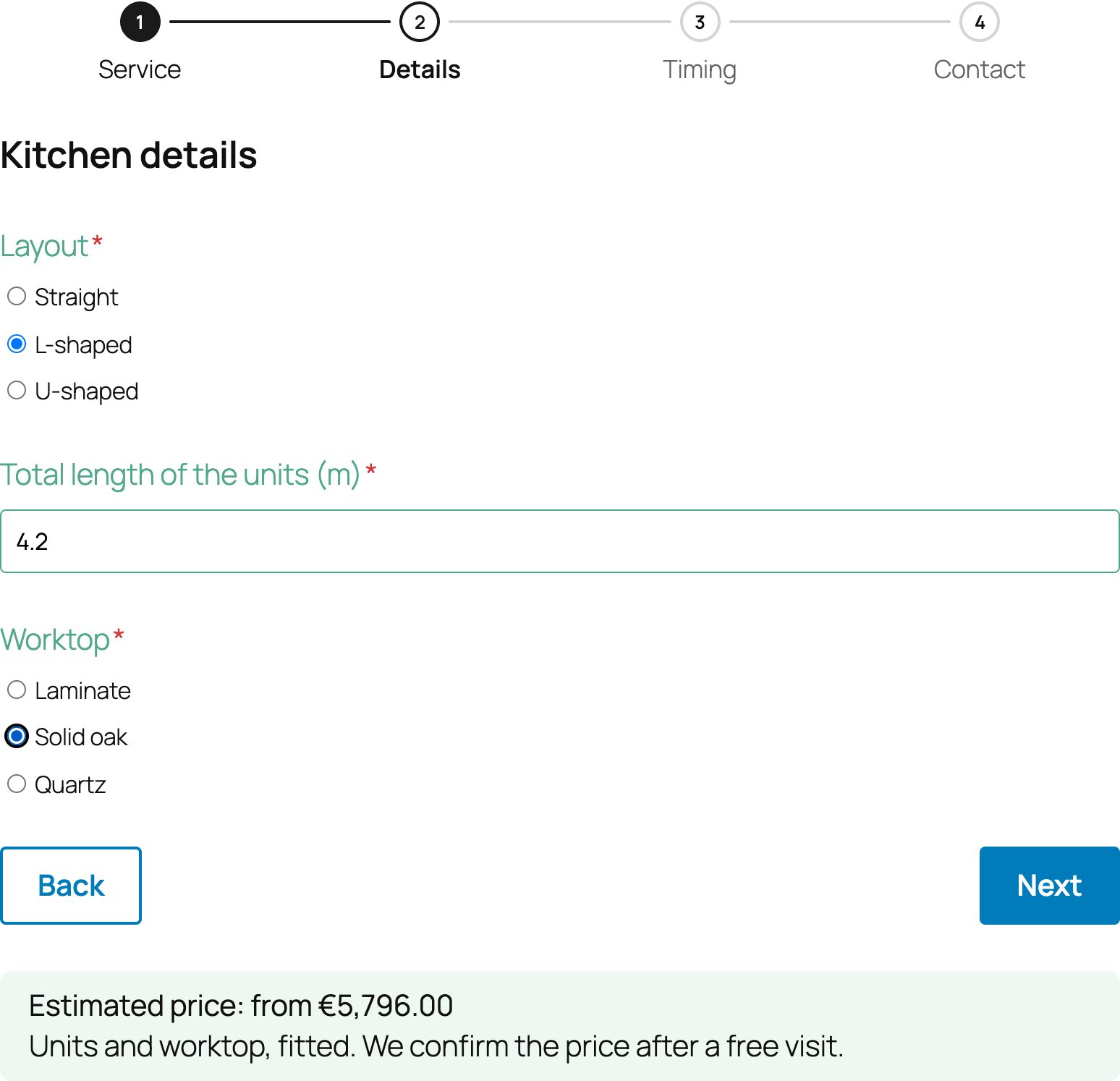
- Numbered steps: circles joined by a line, with the step labels. On phones only the current step keeps its label, so it fits.
- Bar: a filling bar with “Step 2 of 4” and, if you like, the step’s name.
- Labels: the step names in a row, the current one underlined.
- Text only: just “Step 2 of 4”.

The colour follows your form style. To set your own, open Styles → Color → Accent. It colours the done and current steps, the filled bar and the underline.
In the numbered and labels styles, visitors can click a step they’ve already seen to go back to it. Turn that off with Let visitors click a step to go to it. The count text is yours to change too: {current}, {total} and {label} are filled in.
One detail you’ll appreciate once you add jump rules: the count follows the visitor’s path. If an answer skips a step, “Step 2 of 4” becomes “Step 2 of 3”. Nobody wonders where step 3 went.
Keep the price visible on every step
Blocks outside the Steps block show on every step. That’s where a running total belongs.
In the kitchen form, an InfoBlock under the steps shows “Your estimate appears here as soon as you add the kitchen size.” Once the layout, length and worktop are picked, it changes to the estimate (“Estimated price: from €5,796.00” for 4.2 m of L-shaped units with an oak worktop) and stays on screen while the visitor answers the timing and contact questions. The switch between the two texts is a {{#if length > 0}}…{{else}}…{{/if}} condition, also new in 2.2. Most multi-step forms hide the reason to finish behind the last Next button. This one keeps it in view.
The same works for a live chart of the cost breakdown. Keep the Notification block outside the steps as well, so success and error messages show whichever step is open.
How validation works, step by step
Select the Steps block to find Require a valid step to continue. It’s on by default, and it does what you’d hope:
- Next checks only the current step. Errors on steps the visitor hasn’t reached stay hidden.
- Back never checks anything. It returns to the step the visitor came from, even after a jump.
- Enter in a field goes to the next step. On the last step it submits.
- Going back and breaking an answer blocks the way forward. The visitor can’t pass that step, or submit, until it’s fixed.
- If the submit fails (say a server-side check rejects a value), the form opens the step with the first error instead of leaving the visitor on the last screen wondering what went wrong.
- Hidden steps are skipped. If Field Conditions hide every field on a step, the visitor never sees it.
Turn the setting off and visitors can move freely, like tabs. Everything is then checked on submit.
Two more settings sit in the same panel. Move on after a single choice advances as soon as a visitor picks a radio button, when that’s the step’s only question. Scroll to the top of the form on step change helps on phones, where a tall step would otherwise leave the visitor at the bottom of the next one.
How do you skip a step based on an answer? (PRO)
Someone who picks “Just a question” doesn’t need to describe their kitchen. Send them straight to the contact step:
- Select the step the visitor leaves, here What can we help with?.
- In the sidebar, open After this step and click Add rule.
- Under Go to, pick 4. How can we reach you?. (You can also pick Submit the form to end the form right there.)
- Set the condition, the same way as in Field Conditions: Service is “Just a question”. Click Save rule.
- Leave Otherwise go to on The next step.
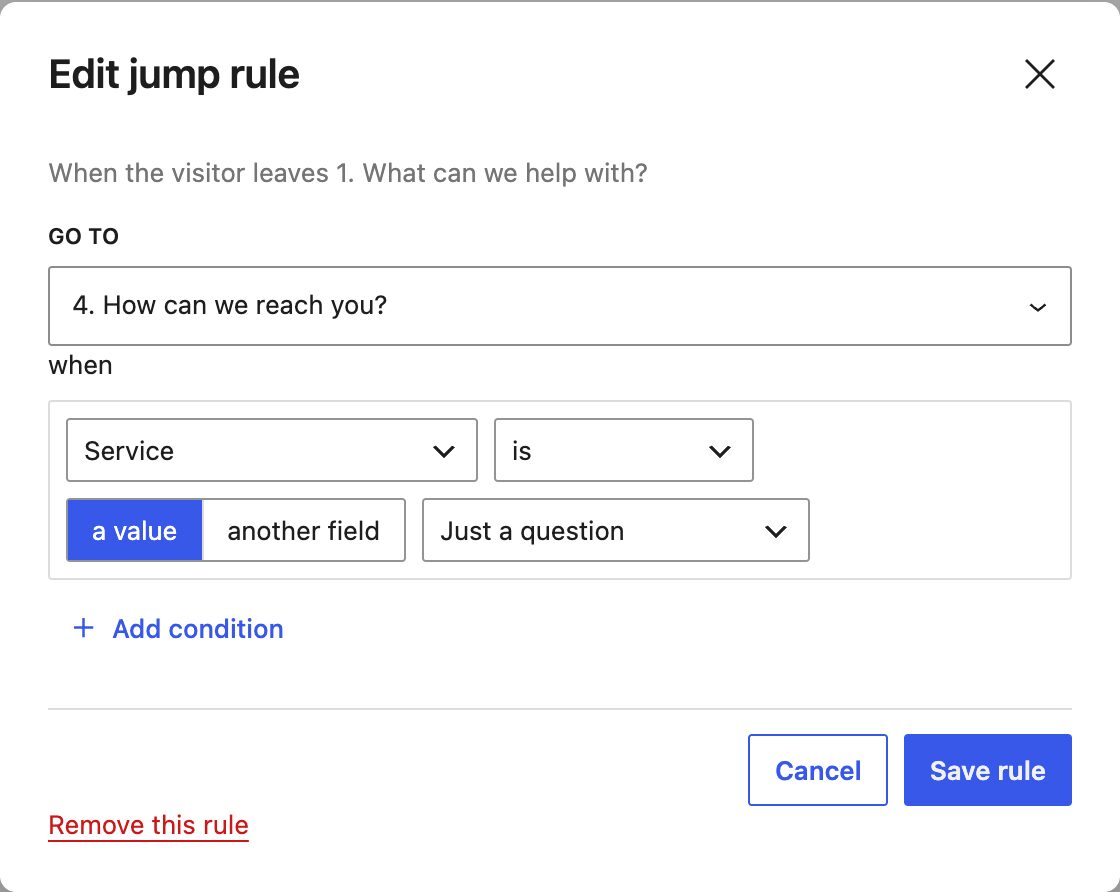
The step’s tab now reads “If Service is ‘Just a question’ → 4. How can we reach you?” and “Otherwise → 2. Kitchen details”. Add more rules if you need them. The first one that matches wins, and Move up changes the order.
What makes this safe to use:
- A rule can only use answers from this step or earlier ones. A rule that depends on a later answer is flagged in the sidebar.
- Skipped fields really are skipped. They aren’t checked, used in formulas or sent with the submission. The server works the path out again from the submitted answers, so the required “Total length” field on a skipped step never blocks a “Just a question” submit.
- Dead ends are flagged. A step that no rule or “next” leads to gets a dashed border and No step leads here.
Most form plugins branch by hiding things: you wrap a step in a condition, and the form skips it because it’s empty. That works for one branch. With three, you’re reading conditions on every step to work out where a visitor ends up. A rule on the step being left says it in one line. Of the free plugins we tested (JetFormBuilder, SureForms, Fluent Forms, WS Form Lite), none had “go to step” rules.
See the whole flow on the step map
The step map draws every step and every path between them.
- The strip beside the steps in the editor shows them top to bottom: grey arrows for the plain “next” flow, blue curves for jump rules, dashed curves for “otherwise” jumps. Click a step to select it. Toggle it with Map strip in the Steps toolbar.
- The full map opens with Step map in the Steps toolbar. Steps sit in one row in their order. Jumps forward curve above the row, jumps back curve below it, each on its own lane.
With PRO you can edit on the map too: click a jump’s label to change it, drag from a step’s edge to another step (or to Submit) to add a jump, or drag the end of an arrow to point it somewhere else.

Find the step where people give up
A multi-step form gives you something a single page can’t: the step where a visitor stopped. CraftForms records it in three places.
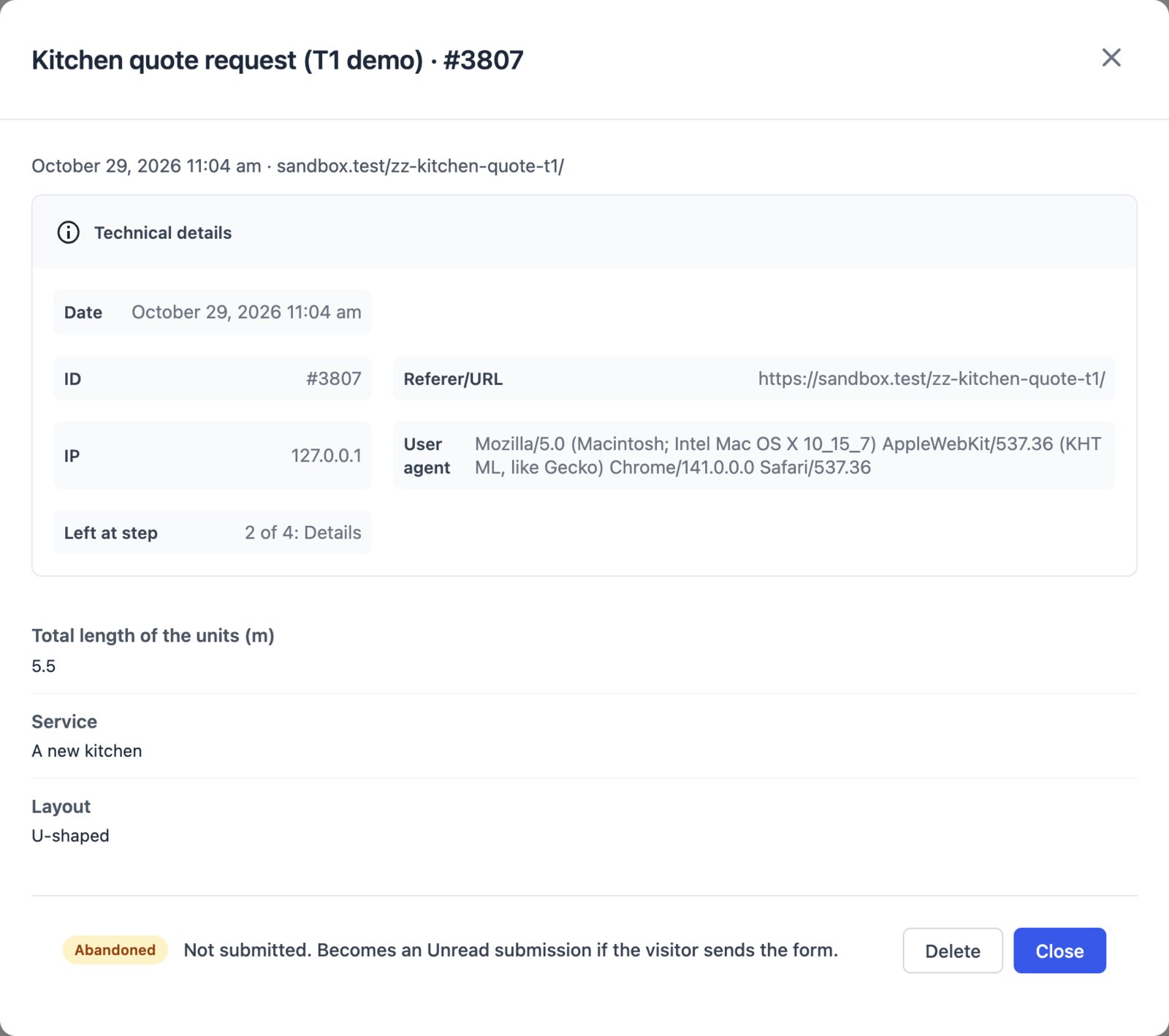
- Abandoned drafts. With abandoned form capture on for the form, each draft saves the last step. Open it in CraftForms → Submissions, expand Technical details and you’ll see, for example, Left at step: 2 of 4: Details (the step’s progress label). If most drafts stop at the same step, that step is the problem.
- GA4. When the form’s GA4 tracking is on, every step shown sends a
craftforms_step_viewevent with the step’s number, label and the total. Build a funnel exploration in GA4 from step 1 to the submit event and you’ll see the drop-off per step. - Emails and PDFs. Turn on Group by step in an All Form Data block and the notification email lists the answers under each step’s title. Skipped steps drop out.
Tips for multi-step forms people finish
- Start with the easy question. A single choice (“What can we help with?”) costs one click and commits the visitor. Ask for an email address on step 1 only if you plan to follow up on abandoned drafts.
- One topic per step. If a step needs a scroll bar on a phone, split it.
- Put contact details last, unless you need them for follow-up. By then the visitor has put in the effort and wants their quote.
- Name the last button after the result. “Get my quote” beats “Submit”.
- Keep the reason to finish in view. A running price, a date that’s still free, a short “Takes 1 minute” line under the progress bar.
- Check it on a phone. The numbered style drops the labels of other steps on small screens, so keep the labels short anyway.
Steps also work in forms on WooCommerce product pages, but think twice there: a buyer comparing fabrics against the price wants to see both at once.
Want one question per screen?
With PRO, set the Steps block’s Layout to Conversational (one question per screen). Each step fills the screen in large type, choices get letter keys (A, B, C), and the form can get its own full-screen link to share in a newsletter or as a QR code. It suits lead forms, quizzes and surveys. The conversational form tutorial builds one step by step.
A note on status: multi-step forms are new in CraftForms 2.2 and marked beta. They’re ready to use, but some design details and settings may still change once we hear how you use them. Tell us in the Facebook group.
FAQ
Do multi-step forms convert better?
Often, for long forms, but not always, and nobody can promise you a number. A step form feels shorter and asks for commitment one click at a time. A short form gains nothing from steps. Measure your own: the craftforms_step_view event and the “Left at step” note show where your visitors drop off.
Can a step be skipped based on an answer?
Yes, with CraftForms PRO. Add a jump rule under After this step on the step the visitor leaves. Fields on the skipped steps aren’t checked or sent. On the free version, steps whose fields are all hidden by Field Conditions are skipped too.
Are partial entries saved on multi-step forms?
Yes, if abandoned form capture is on for the form. It’s free, and each draft records the step where the visitor left.
Is the multi-step form free?
Yes. Steps, Next/Back buttons, per-step validation and the progress bar are in the free version, with no submission limits. Jump rules, the step map editing, the conversational layout and the full-screen link need PRO.
Can I add a progress bar to an existing form?
Yes. Turn the fields into steps with Transform → Steps, then add a Step Progress block above them.
Next step
Open your longest form, select its fields and choose Transform → Steps. Name the steps, add a Step Progress block, and you have a multi-step form in about five minutes. The full reference is in the multi-step forms documentation.