
One Question at a Time: How to Build a Conversational Form in WordPress
- Category
- Tutorial
- Published
- Updated
- Reading time
- 10 min
- Tags
A conversational form asks one question per screen, in large type, and moves on as soon as the visitor answers. It feels more like a short chat than a form, which is why people use it for lead forms, enquiries, quizzes and surveys. In CraftForms PRO you make one from any multi-step form: select the Steps block and set Layout to Conversational (one question per screen). Turn on the form’s Full-screen link and it also gets its own page, without your theme, to share in an email, a social bio or as a QR code.
This tutorial builds a wedding photographer’s enquiry form, five questions long, and shares it as a full-screen page with a dark design.
TL;DR
- Build the form with Steps, one question per step. Then set the Steps block’s Layout to Conversational.
- Choices get letter keys (A, B, C…). Clicking an answer moves on by itself. Ctrl+Enter (⌘+Enter on a Mac) moves on from any field.
- Plain Enter never submits by accident: in a text box it adds a line.
- Full-screen link gives the form its own page at
yoursite.com/f/<name>/, with your own background, text colour and width. - Jump rules, the Confirmation message and conditional text all work in this layout too.
- Needs CraftForms PRO. On the free version the same form runs as classic steps.
When is a conversational form the right choice?
Use it when every question is short and the visitor answers one thing at a time:
- Enquiries and lead forms: “What would you like?”, “When?”, “How can we reach you?”
- Quizzes and product finders: “Which plan fits you?”, “Which treatment suits your skin?”
- Surveys and feedback forms, especially on a phone.
- Booking requests shared from a flyer, a menu or a shop window.
Don’t use it for a configurator with a live price, an order form with ten products, or anything the visitor needs to compare side by side. One question per screen hides everything else. For those, classic steps or a single page work better.
What you need
- CraftForms PRO. The Steps block, Next/Back and the progress bar are free; the conversational layout and the full-screen link are PRO.
- A form split into steps. If you haven’t built one yet, the multi-step form tutorial covers the Steps block in detail.
Step 1: one question per step
The layout shows one step per screen, so build the form with one question in each step. Give each step a title that asks the question, then put one field under it.
The photographer’s form has five steps:
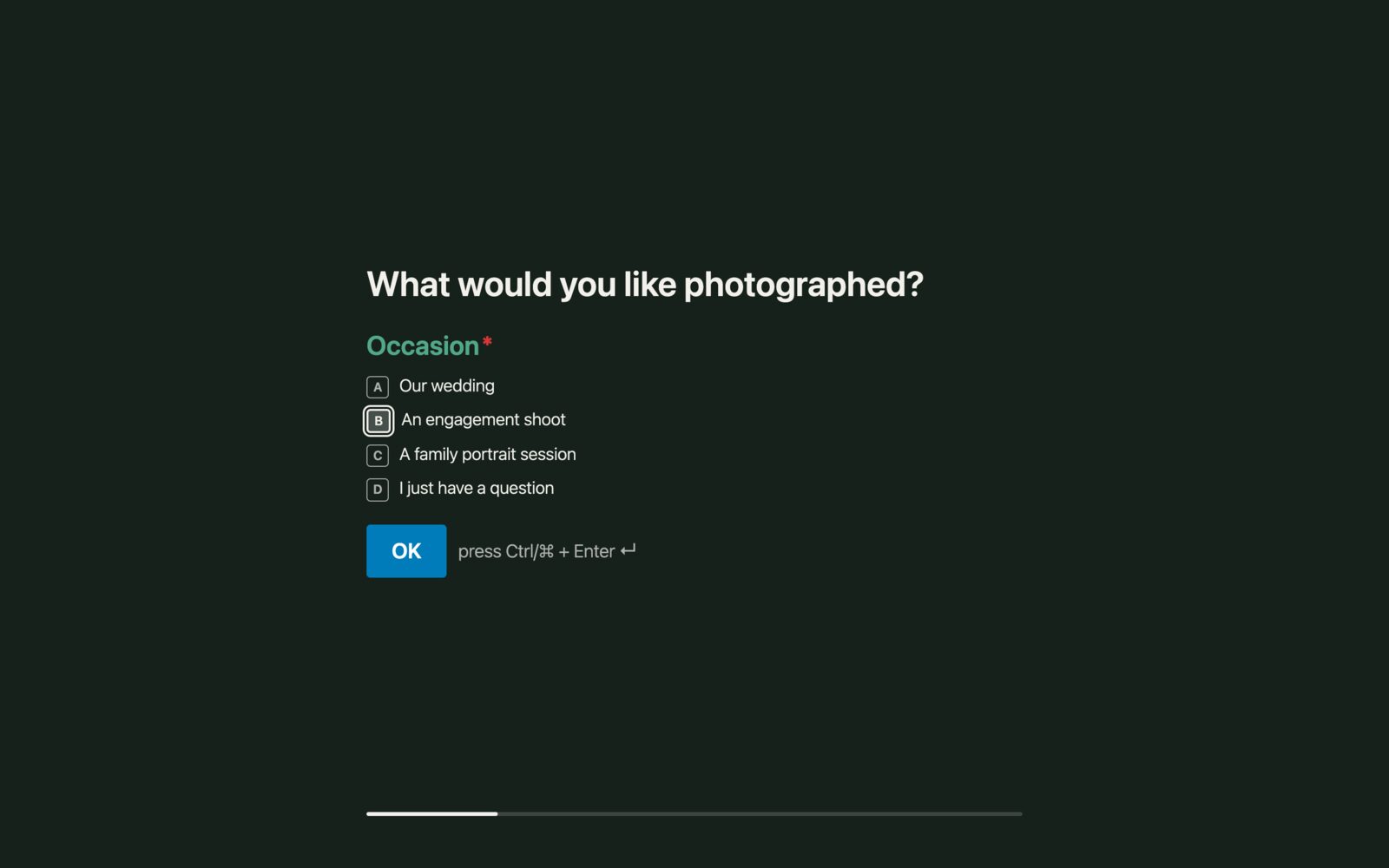
- What would you like photographed? Radio buttons: Our wedding, An engagement shoot, A family portrait session, I just have a question.
- When is it? One text field: “Date, or roughly when”.
- How much of the day should I cover? Radio buttons: Ceremony only, Ceremony and reception, The whole day.
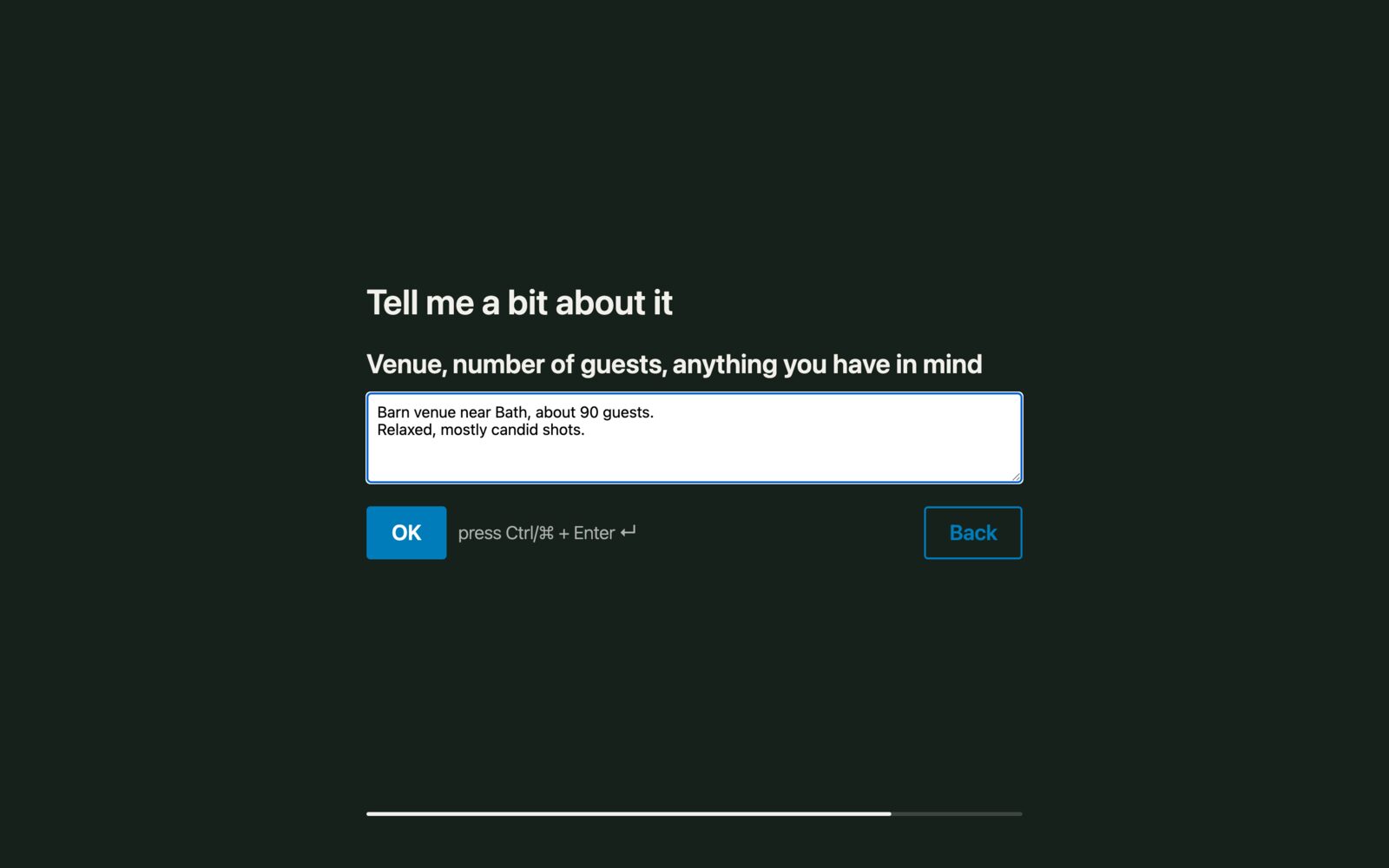
- Tell me a bit about it. A text box for the venue and the number of guests.
- Where should I send the details? Name, email and the Send enquiry button.
Use radio buttons for choices wherever you can. They get letter keys and move on with one click. Keep the contact details last: by then the visitor has invested a little and wants an answer.
Step 2: switch the layout to conversational
- Select the Steps block (click a step’s tab, then the parent block in the breadcrumb, or use the List View).
- In the sidebar, set Layout to Conversational (one question per screen).
- Save the form.
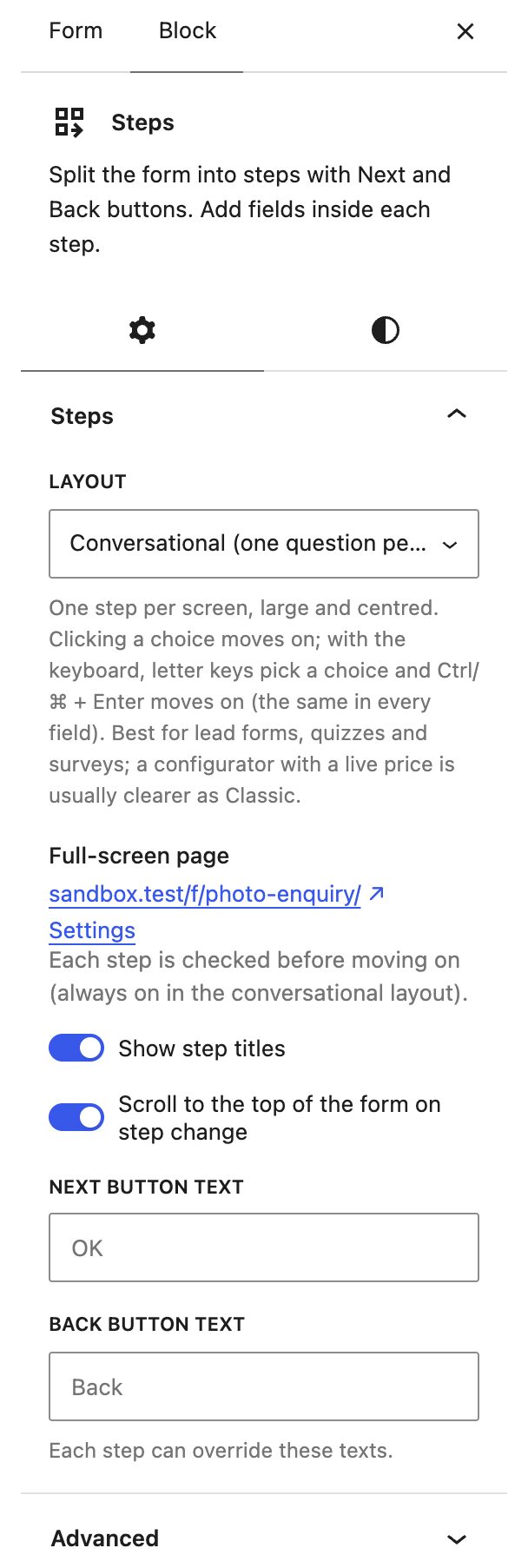
That’s the whole switch. The same steps, fields, jump rules and texts now run one screen at a time. Here’s what changes:
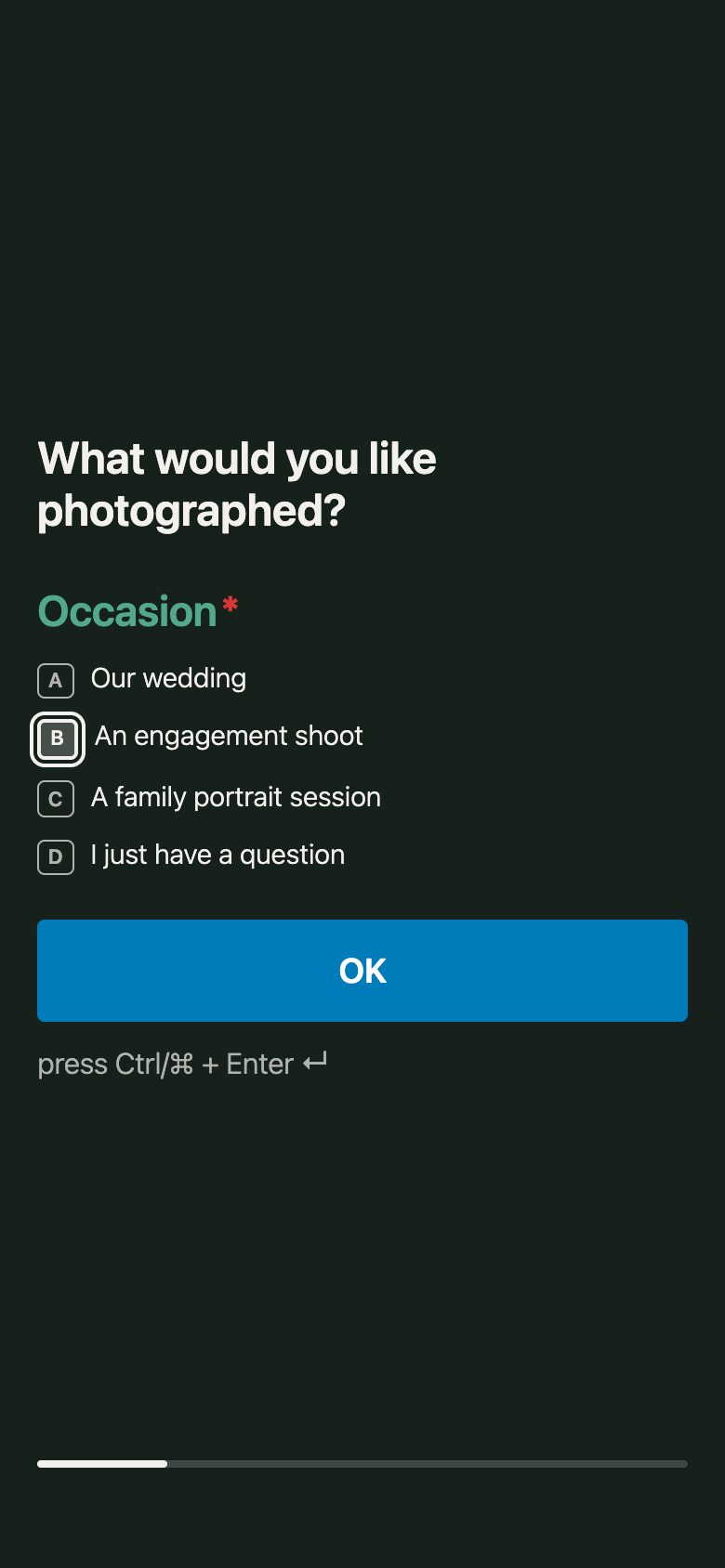
- Each step fills the screen: 60% of the screen height when the form sits in a page, the full height on its full-screen link. Titles and labels get larger.
- The Next button reads OK, with a “press Ctrl/⌘ + Enter” hint next to it. Change the text in the Steps block’s Next button text if you like.
- Every step is checked before moving on. In this layout that’s always on.
- A thin progress bar appears at the bottom of the form. If you’d rather have numbered steps or labels, add a Step Progress block and it takes over.
How do visitors answer with the keyboard?
This is where a conversational form beats a plain step form. Somebody on a laptop can fill it in without touching the mouse:
- Letter keys pick an answer. When a step has one choice field, each choice gets a letter, A, B, C…, in place of the radio button. Press B and “An engagement shoot” is chosen and highlighted.
- Ctrl+Enter (⌘+Enter on a Mac) moves on, the same in every field. Typed a date? Ctrl+Enter. Chosen an answer with B? Ctrl+Enter.
- Plain Enter never jumps ahead. In a text box it adds a new line, so nobody sends half a message by accident.
- A click moves on by itself. Clicking an answer on a single-choice step goes to the next step. An answer chosen with the arrow or letter keys waits for Ctrl+Enter, so keyboard users can look through the choices first.
On a phone, visitors just tap. The OK button gets full width, and each answer moves on after a tap.
Skip questions that don’t apply (PRO)
Jump rules work exactly as in classic steps. The photographer doesn’t need a date or a venue from someone who picked “I just have a question”, so step 1 has one rule:
- Select step 1, open After this step, click Add rule.
- Go to: “5. Where should I send the details?”
- When: Occasion is “I just have a question”.
That visitor sees two screens instead of five, and the progress bar shrinks to match. Fields on the skipped steps aren’t checked or sent. The multi-step tutorial explains rules and the step map in detail.
Step 3: give the form its own full-screen page
A conversational form looks best on its own, with no header, sidebar or footer around it. The full-screen link does that:
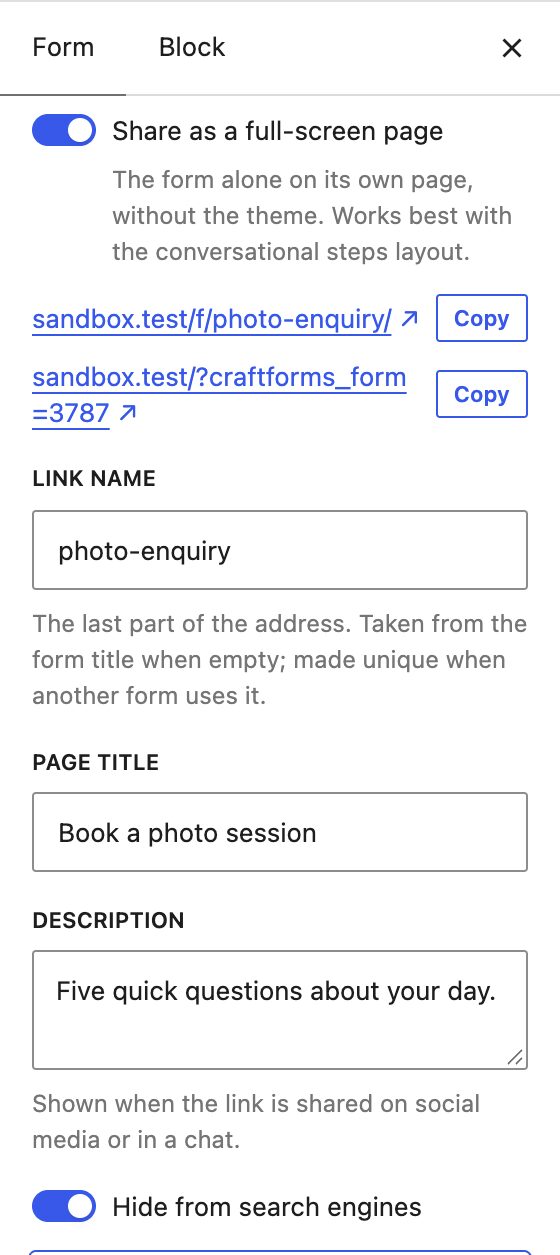
- Open the form and, in the sidebar’s Form tab, open Full-screen link.
- Turn on Share as a full-screen page.
- Set the Link name, the end of the address, here
photo-enquiry. Left empty, it’s taken from the form title. - Add a Page title and a Description. They show when the link is shared on social media or in a chat.
- Hide from search engines is on by default. Leave it on for a campaign link; turn it off if the page should be found in Google.
- Save the form. It must be published.
The panel then shows two addresses to copy: yoursite.com/f/photo-enquiry/ and yoursite.com/?craftforms_form=<form ID>. Both open the same page.
Match the page to your brand
Open Page design at the bottom of the panel:
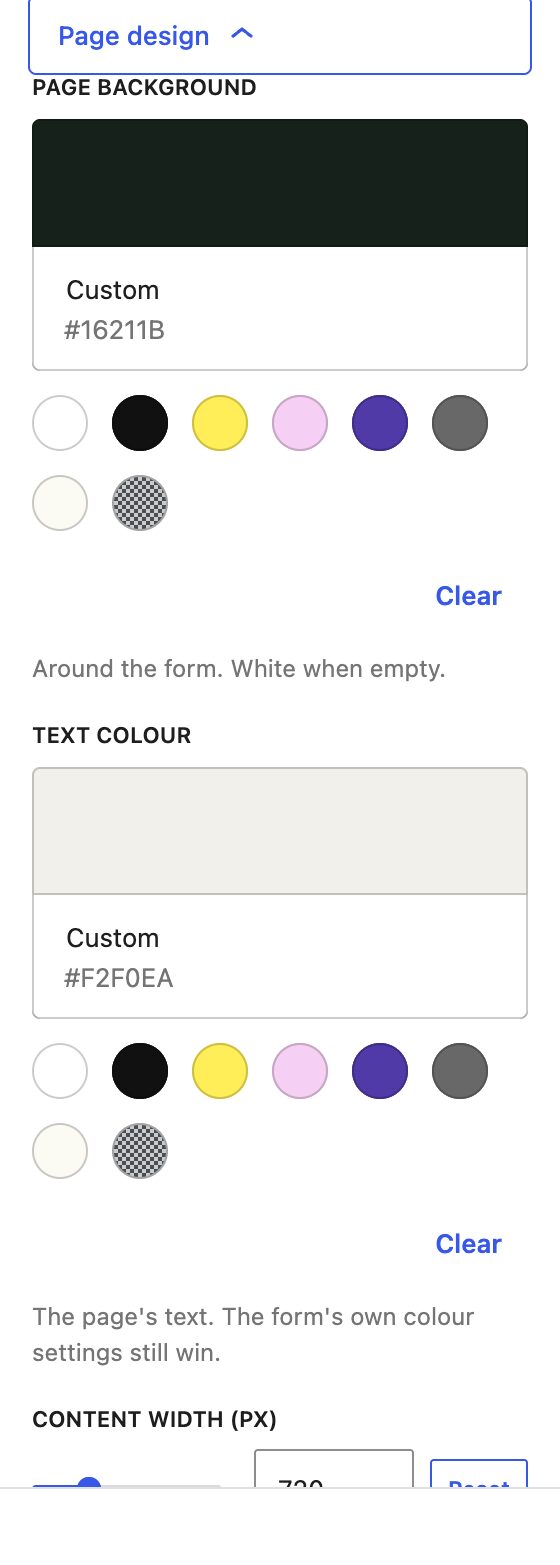
- Page background: the colour around the form. White when empty.
- Text colour: the page’s text. The form’s own colour settings still win.
- Content width: how wide the form column is, from 360 to 1600 px (760 px by default).
The photographer uses a dark green background (#16211B), warm off-white text (#F2F0EA) and a 720 px column. The chosen answer’s letter box and the progress bar take the text colour, so they stay visible on a dark page.
Share it as a link or a QR code
The full-screen page works anywhere you can put a link:
- the link in your Instagram or TikTok bio
- a “Book a session” button in a newsletter
- a QR code on a flyer, a business card or a wedding-fair stand. Any QR generator turns
yoursite.com/f/photo-enquiry/into one.
If your site is multilingual, add ?lang=de (or any language your site uses) to the link and the form shows its translation. Each language can get its own QR code.
Booking and payment forms usually get their catalog item from the page they’re on. A full-screen page has none, so choose one under Catalog item in the panel. WooCommerce product forms can’t add to the cart outside their product page; the panel warns you.
Step 4: say thank you with their own answers
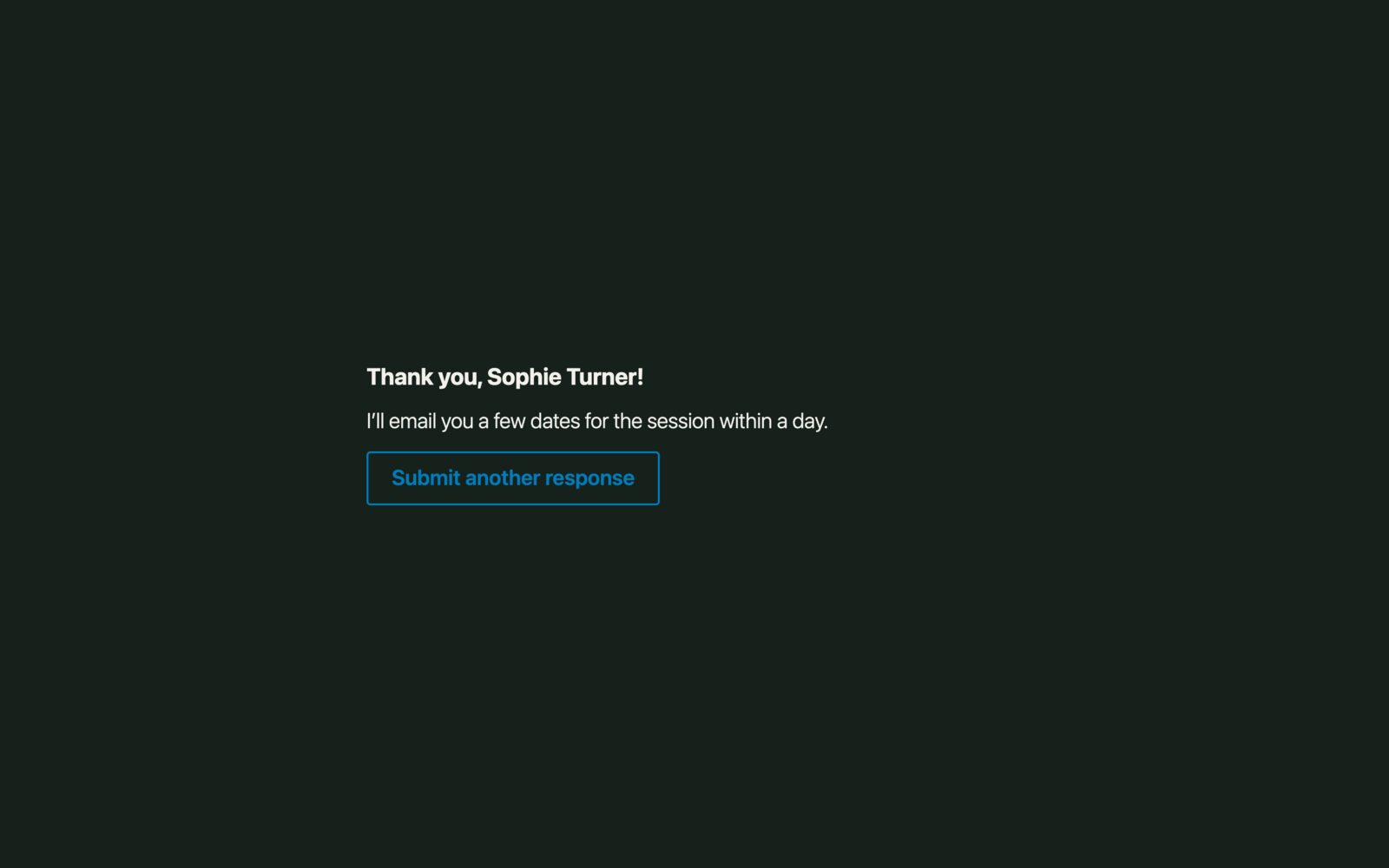
After the last step, a Confirmation block (free in 2.2) shows a thank-you message in place of the form. It can use the visitor’s answers and change with them:
Thank you, {{field.full_name|there}}!

{{#if occasion == 'wedding'}}I'll check my calendar for {{field.event_date|your date}} and send you my wedding guide within a day.
{{else if occasion == 'question'}}I'll answer your question by email, usually the same day.
{{else}}I'll email you a few dates for the session within a day.{{/if}}
|there is a fallback, used when the field is empty. The {{#if}} part picks one sentence by the answer to the first question. The Confirmation documentation has the full syntax.
Know where people stop
Every screen in a conversational form is a step, which makes drop-off easy to measure:
- With GA4 tracking on for the form, each screen sends a
craftforms_step_viewevent with the step number and label. A GA4 funnel exploration shows how many people reach each question. - With abandoned form capture on, each unfinished entry records the step where the visitor left, for example “2 of 5: Date”.
If half your visitors stop at “When is it?”, make that question optional or offer ranges (“This year”, “Next year”, “Not sure yet”).
CraftForms vs Typeform for conversational forms
| CraftForms PRO | Typeform | |
|---|---|---|
| Where it runs | Your WordPress site | Typeform’s servers, embedded or linked |
| Where answers are stored | Your WordPress database | Your Typeform account |
| One question per screen | Yes | Yes |
| Letter keys, auto-advance | Yes | Yes |
| Skip questions by answer | Jump rules + step map | Conditional logic, on every paid plan |
| Own full-screen page | yoursite.com/f/<name>/ | A form.typeform.com link; your own typeform.com subdomain from Plus; your own domain on Enterprise only |
| Responses | No limit | 100 a month on Basic, 1,000 on Plus, 10,000 on Business |
| Prices, bookings, payments, PDFs in the same form | Yes | Payments by Stripe; bookings and PDFs through integrations |
Typeform has a large gallery of ready-made templates and themes. CraftForms wins when the form should live on your own domain, keep the data on your own server, or do more than collect answers: show a price, book a date, take a payment or send a PDF.
FAQ
Can I have a Typeform-style form in WordPress without Typeform?
Yes. Build the form with the Steps block, one question per step, and set Layout to Conversational (CraftForms PRO). The answers are saved in your WordPress database.
Does the conversational layout work inside a normal page?
Yes. In a page, each step takes 60% of the screen height. On the full-screen link it takes the whole screen.
Can I use the full-screen link without the conversational layout?
Yes. Any form that doesn’t depend on the page it’s on works on a full-screen page. The conversational layout just suits it best.
What happens on the free version?
The form still works: its steps run as classic steps with Next and Back buttons, in the normal layout. The full-screen link isn’t available.
Is it accessible?
Every step is a normal HTML form with labels. Keyboard users get letter keys and Ctrl/⌘+Enter, the first field of each step gets the focus, and step changes are announced to screen readers.
Multi-step and conversational forms are new in CraftForms 2.2 and marked beta: they work and are tested, but some details may change as we hear how you use them.
Next step
Take your shortest lead form, give each question its own step, and switch the layout to conversational. Then turn on the full-screen link and print the QR code. The multi-step forms documentation has every setting.