
One WordPress Install, Unlimited Client Sites: Build Your Own Form-Submission Hub
- Category
- Use case
- Published
- Updated
- Reading time
- 12 min
- Tags
The short answer: you can run one WordPress install, locked so it serves no public pages, as the form backend for every website you build. Each client site loads its forms from that install with a small embed snippet and its own key. Submissions, uploaded files and emails all stay on hosting you control, and adding the next client costs you a new key, not a new subscription.
TL;DR
- One locked-down WordPress install can take form submissions from as many websites as you like, yours or your clients’.
- Each website gets its own embed key, tied to its domain. The form only loads on that domain, and you can revoke it in one click.
- Submissions and uploaded files live on your hosting, in private storage, not on a form service’s servers or under its storage cap.
- Email goes out through the SMTP provider you choose, in templates you design, with no “Powered by” footer.
- Embedding forms on other sites, Headless mode and file uploads are Pro. Headless mode closes the public side of the install in one switch; hiding the login URL is still a separate step.
- It’s the wrong setup if you can’t commit to backups and updates for one server, or if a client needs their data kept apart from everyone else’s.
If you build static sites for clients, you know how this goes. The design is done, the site is fast, and then someone needs a contact form. Or a booking form. Or a quote request with conditional fields and a live price.
The usual fix is a hosted form endpoint, one account per client or one shared account that keeps growing. It works until a client needs a field type the plan doesn’t have, or a sixth form, or asks a fair question you can’t answer well: “Where exactly does our customers’ data live?”
There’s a setup that answers all three. It isn’t complicated, and a reader put it better than we did in a comment on our locked-down backend guide: one WordPress install, locked and secured, taking submissions from many sites, “and in this setup you are owner and master.”
This post is about running that hub for client work: adding sites, keeping them apart, sending email under each client’s name, and knowing when not to do it.
What is a form-submission hub?
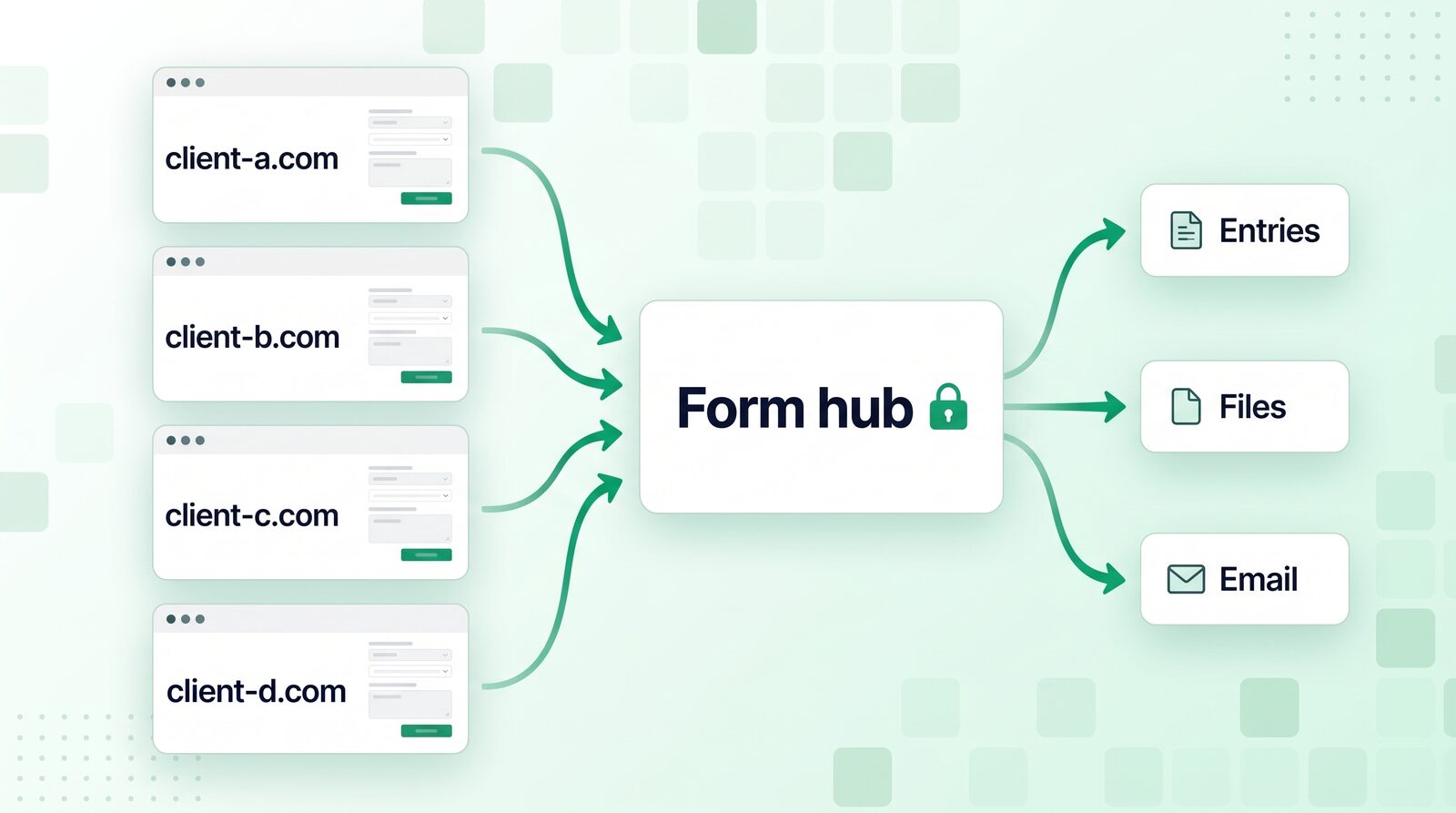
A form-submission hub is a single backend that receives, checks, stores and forwards form entries for several websites. The websites themselves stay static. They don’t run WordPress, PHP or a database. They load the form from the hub, and the hub does everything that happens after Submit.
With CraftForms the hub is an ordinary WordPress install with one job:
- The frontends are whatever is cheapest and fastest to host for each client: an Astro or Hugo build, a Builderius static export, plain HTML on Cloudflare Pages or Netlify.
- The backend is one WordPress install that renders the forms, validates the entries, stores them, sends the emails and, when a form needs it, takes a payment or checks a booking’s availability.
Why one hub instead of WordPress for every client?
Because every WordPress install is something to update, back up and keep an eye on. Twenty client sites on twenty installs means twenty sets of plugin updates and twenty login pages for bots to hammer. Twenty static sites on one hub means one.
The hub also has very little to attack. It has no theme doing anything, no page builder and no public pages. Its only plugin with a public job is the form engine. The locked-down backend guide walks through why that matters: most WordPress compromises come in through outdated plugins, and this install barely has any.
And the static sites stay static. A client’s site can be hosted for free on a CDN, can’t be hacked in the usual WordPress ways, and doesn’t need a rebuild when a form changes. You edit the form in the hub and every site that embeds it shows the new version.
How do you lock the hub down?
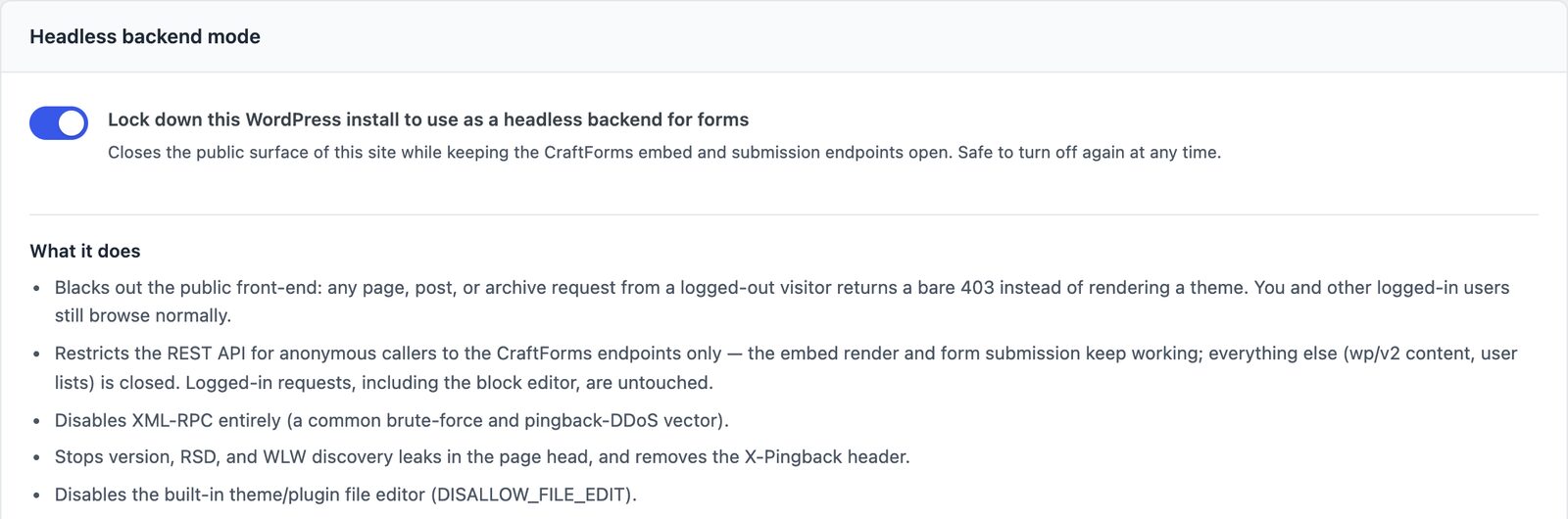
Open CraftForms → Settings → Headless mode and switch on Lock down this WordPress install to use as a headless backend for forms. It’s a Pro feature, and it does four things:
- No public pages. Logged-out visitors get a 403 for every page and post.
- A closed REST API. Anonymous requests only reach the
craftforms/v1routes the embeds need. Everything else, including thewp/v2/userslist bots use to collect usernames, is refused. - No XML-RPC. It’s switched off, along with the pingback header and the tags that announce the site runs WordPress.
- No file editor. The theme and plugin code editors in wp-admin are disabled.
You stay logged in to the admin as normal, and you can turn it off again at any time. If you ever lock yourself out, one line in wp-config.php (define( 'CRAFTFORMS_HEADLESS_DISABLE', true );) switches it all off.
One thing a plugin setting can’t do well is move the login page: /wp-login.php is where every brute-force script looks first. The locked-down backend guide has a short mu-plugin for a secret login URL. Do that too, and use strong passwords with two-factor login for anyone who has an account on the hub.
How do you add a new client site?
You add a form and a key. Nothing gets installed on the client’s side apart from a snippet.
- Build the form in the hub with the block editor, or duplicate one you already made for another client.
- In the form’s submission settings, turn on Allow External Submissions.
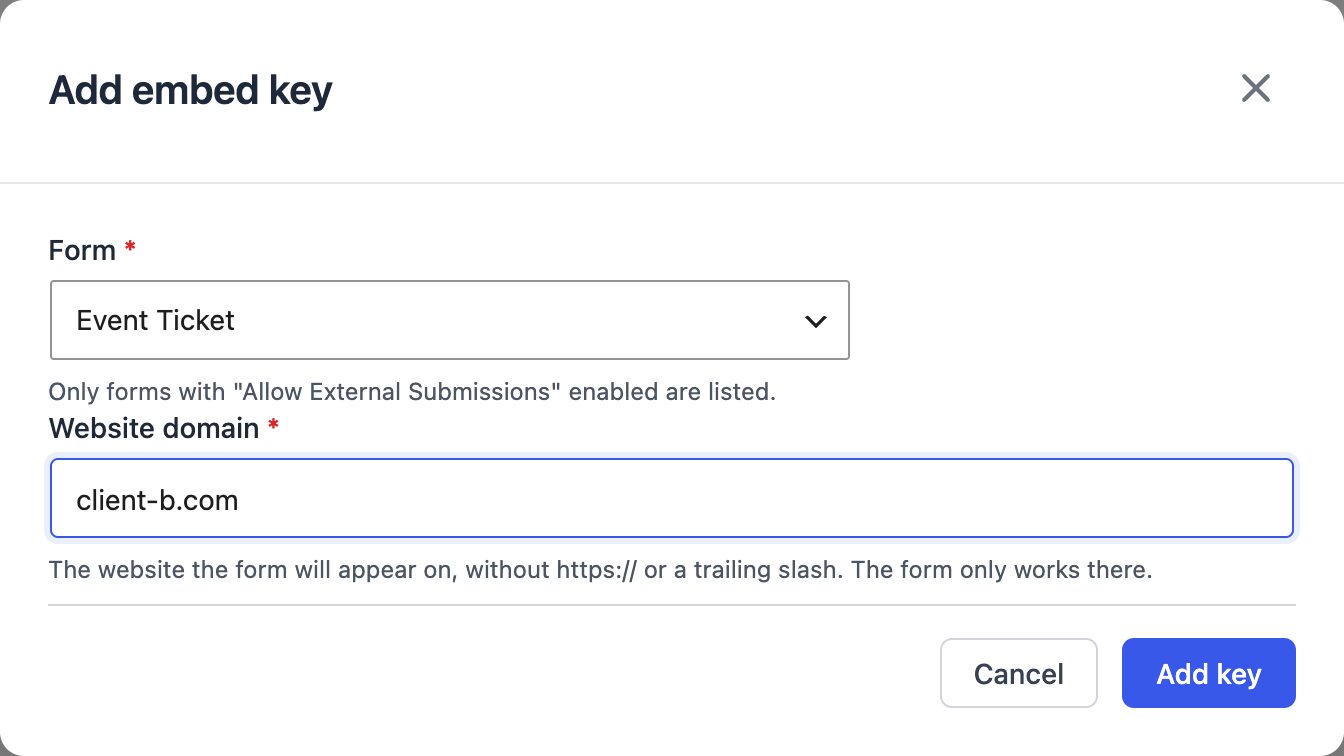
- Go to CraftForms → Embed, stay on the Forms tab and click Add New.
- Pick the form, type the client’s domain in Website domain (
client-b.com, withouthttps://) and click Add key. - Copy the Embed snippet and paste it into the client’s site where the form should go.
The snippet is a script tag and an empty div with the key on it:
<div data-craftforms-embed="YOUR_KEY"></div>
<script src="https://forms.your-agency.com/wp-content/plugins/craftforms/build/webcomponents/embed.js" defer></script>
That’s the whole integration. There’s no build step and no framework package. (If a client’s app would rather post JSON itself, each form also has a REST endpoint and an example cURL request in its External Submission API panel.) If a client’s site uses a generator like Astro or Hugo, the Get code window also gives you a static shortcode for it, and our Astro and Hugo tutorials show where it goes.
One key per website keeps clients apart
A key belongs to one form on one domain. The form loads on that domain only, and the hub refuses entries and payments sent with that key from anywhere else. To use the same form on two client sites, add two keys.
That gives you a clean way to run the hub as a business:
- A client leaves: click Revoke key. Their form stops loading on their site straight away, and nobody else’s form is touched.
- A form gets copied: someone lifts the snippet onto another domain. It doesn’t load there.
- Testing: add a key for
localhostand work on the client’s site on your own computer before it goes live.
Entries are kept per form, so each client’s submissions are easy to tell apart in CraftForms → Submissions.
Spam is handled per form too. Every form has CraftForms’ invisible spam check (no CAPTCHA for the visitor), and the hub rate-limits submissions per IP address and per email address, so one client’s spam wave can’t flood the others.
Where do submissions and uploaded files live?
On your hosting. That’s the point of owning the hub.
Hosted form services price by how much they store and process for you: submissions a month, megabytes of uploads, forms per account. Self-host the backend and the limit is your hosting plan. CraftForms itself has no submission limits, on the free edition or on Pro. If you need more disk, you upgrade a plan you already pay for.
File uploads (a Pro field) need a word, because client forms ask for them all the time: a CV, a signed contract, print artwork, a photo of a damaged part. CraftForms doesn’t put visitor uploads in the Media Library, where every file has a public URL. They go to a private folder the web server refuses to serve, checked for size, type and filename first, and you open them from the submission. Customers get a private download link. The file uploads guide explains the details.
Owning the data also makes privacy questions answerable. When a client asks where the data is, you can name the country and the host. When someone asks to see or delete their data, WordPress’s own personal data export and erase tools include their CraftForms uploads.
How do emails go out under each client’s name?
Through an SMTP provider you pick, using templates you design.
Add your mail servers under CraftForms → SMTP Servers. Brevo, Mailgun, Amazon SES and Gmail all work; our free SMTP comparison covers the free tiers and how to connect each one. If a client already pays for a mail service, add it as another server and pick it in the email action of that client’s forms.
Then make each client’s confirmation look like it came from them, because it did:
- Templates are built in the same block editor, with the client’s logo and colours and the visitor’s answers filled in. See branded email templates. Nothing in them says CraftForms.
- The From field takes a name as well as an address, so the email can arrive as “Garden Room B&B bookings@…”.
- The site it came from is available as
{{submission.domain}}. Put it in your own notification subject (“New enquiry from client-b.com”) and you can tell at a glance which client a message is for.
What does a hub cost compared with a form service?
Less, and the gap grows with every client. With a hosted form service you pay per account or per tier, and the bill grows with the number of forms, entries and files. A hub’s costs are flat:
| Hosted form service | Your own hub | |
|---|---|---|
| Hosting | included in the plan | one WordPress hosting plan |
| Forms, entries | capped per plan | no limits |
| File storage | capped, often paid-only | your hosting’s disk |
| A new client | another plan, or a bigger tier | a new embed key |
| Who holds the data | the service | you |
A hub needs Pro, because embedding forms on other domains is a Pro feature (so are Headless mode, uploads and payments). The SMTP manager, email templates, webhooks and the Mailchimp and Brevo integrations are in the free edition too. A licence counts the WordPress installs you activate it on, and a hub is one install, however many client sites it serves.
When is a hub the wrong choice?
When you can’t look after one server properly. Everything depends on it, so plan for that:
- It’s a single point of failure. If the hub is down, every client’s forms are down. Host it somewhere reliable and watch it with an uptime monitor.
- Back it up. Entries live in the database, and uploaded files and PDFs live in
wp-content/uploads. Back up both, daily. - Keep it updated. One install to update is easy. Skipping updates on one install that holds every client’s data is not.
- You’re now handling your clients’ data. In the EU and UK that usually makes you their processor, which means a data processing agreement and a privacy notice on each client’s site that names you. Ask whoever handles privacy for you if you’re unsure.
- Some clients need their own install. A client in a regulated field, or one who wants to take their data with them on their own terms, is better off with a separate WordPress install. You can run one hub for most clients and a few separate installs for those.
FAQ
Can one form be used on several websites?
Yes. Add one embed key for each website. The form is the same, and each key only works on its own domain.
Do the client sites need WordPress?
No. They can be static HTML, Astro, Hugo, Next.js, Webflow or anything else that lets you paste a script tag. Only the hub runs WordPress.
What happens to the forms if the hub goes down?
The client sites stay up, but their forms won’t load or submit until the hub is back. Good hosting and an uptime monitor are part of the setup, not an extra.
Can a client log in and see only their own entries?
Not today. Anyone with CraftForms access on the hub sees every form’s entries, so don’t give clients accounts on it. Send their entries to them instead: a notification email per form, a webhook to their own tools, or the built-in Mailchimp and Brevo integrations to put new contacts straight into their list.
Can I take payments for a client?
Yes, with Pro. Stripe, PayPal, Mollie and Square payments run through accounts you connect, and you can connect several accounts and pick one per form, so each client is paid into their own Stripe account. See Stripe payments without WooCommerce.
Build it once
A form hub is one server doing one job for as many websites as you point at it. You set it up and lock it down once. After that, each new client is a form and a key, on hosting you already pay for, with the data in a place you can name.
Set up a fresh WordPress install, add CraftForms Pro, lock it with Headless mode, and embed one form on one test site with a localhost key. When that works, the next client is a new key. You can try the form builder first with the free edition.