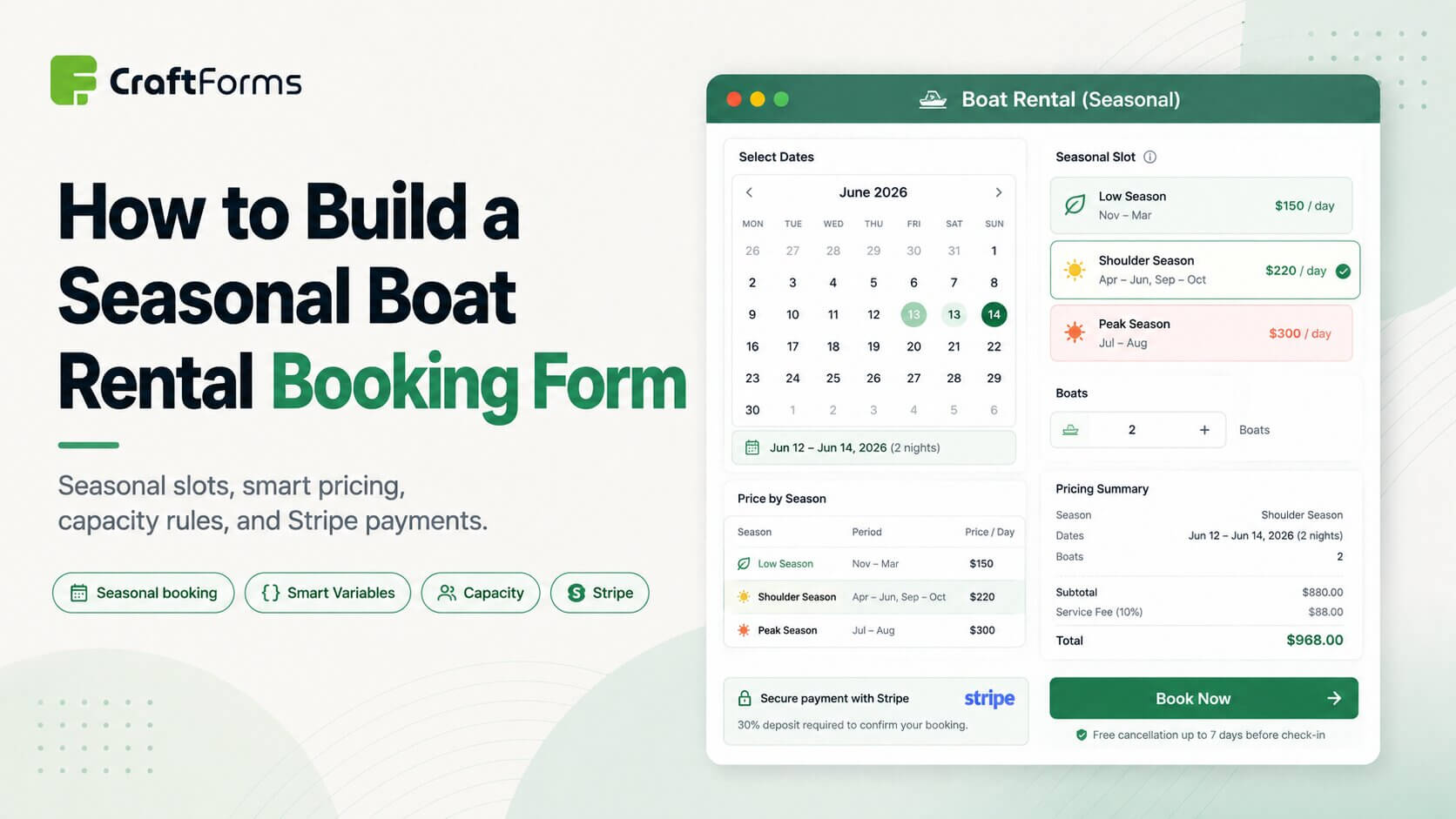
Tag: boat rental

  • How to Build a Seasonal Boat Rental Booking Form

    How to Build a Seasonal Boat Rental Booking Form


    TL;DR

    • Boat rental doesn’t fit a plain date-and-price form: the price shifts by season (July costs more than April) and the boat is only available in half-day time slots, not “all day.”
    • CraftForms’ booking datepicker has a seasonal mode built for exactly this — you define date ranges (“seasons”), and each season gets its own weekly schedule of time slots. Peak season can offer more, shorter slots; shoulder season fewer, longer ones.
    • An expression Smart Variable (mnth = month(booking.date)) reads the month straight out of whatever date the customer picks, and feeds a Table Smart Variable that returns that month’s price — no separate forms, no manual date-range pricing rules.
    • The Boat Rental (Seasonal) starter ships this pattern ready-built: per-boat pricing, capacity-capped quantity. It’s a Pro starter.
    • A Catalog resource attached to the form tracks per-date/per-slot availability automatically, so a confirmed booking blocks that slot — no manual availability spreadsheet. Getting the cap to actually enforce per-boat (not just per-booking) takes one extra setting, covered below.
    • This form’s companion — a shared, skippered trip priced per person instead of per boat — gets its own walkthrough in a separate post, since the pricing and capacity mechanics there are different enough to deserve their own space.

    Boat rental is a good stress test for a booking form, because it breaks two assumptions most generic date-picker plugins make. First, the price isn’t fixed — a half-day out on the water in July isn’t priced the same as one in April, because demand (and often fuel, staffing, and insurance costs) swings by season. Second, availability isn’t “free or booked for the day” — a boat goes out in half-day slots, and how many slots exist on a given day depends on the season too: peak summer might run three tighter slots, shoulder months just two longer ones.

    A contact form can’t calculate a month-aware price. A generic date picker can’t offer three time slots in August and two in April on the same calendar. CraftForms handles both with two features working together: seasonal booking mode and a month-keyed price table. Rather than explain that abstractly, this post walks through the actual starter form that ships with the plugin — Boat Rental (Seasonal) — field by field, formula by formula.

    Cf boat rent august
    Cf boat rent september

    Same field, same calendar widget — the number of bookable times per day changes depending on which season the selected date falls into. That’s the whole point of seasonal mode.


    Why This Doesn’t Fit a Plain Booking Form

    Before opening the starter, it’s worth being specific about what a “simple” booking form gets wrong here:

    • One price for the whole season. If you hardcode a single day-rate, you either underprice July or overprice April. Neither is sustainable for a seasonal business.
    • One time-slot schedule for the whole year. If your quietest month and your busiest month share the same slot times, you’re either wasting capacity in August or offering slots nobody wants in April.
    • No capacity ceiling. A rental fleet has a finite number of boats (or one boat, in this starter’s case) available per slot. Without a hard cap tied to that inventory, the form will happily accept a booking you can’t fulfil.

    The starter solves all three with two building blocks: the datepicker’s seasonal mode, and a Table Smart Variable keyed by month. Let’s open it.


    Walkthrough — Boat Rental (Seasonal)

    This is the self-drive starter: a customer rents one or more boats for a half-day slot and drives themselves. Here’s what’s actually in the form.

    The seasonal datepicker

    The Rental date & time slot field (booking) is a booking-datepicker-field set to Field Type: "seasonal". Instead of one weekly schedule for the whole year, it defines five seasons, each with its own date range and its own weekly time-slot schedule:

    SeasonDate rangeTime slots (every day)
    April–May04-01 to 05-3110:00, 14:00
    June06-01 to 06-3009:30, 14:00
    July–August07-01 to 08-3108:30, 12:00, 15:30
    September09-01 to 09-3009:30, 14:00
    October10-01 to 10-3110:00, 14:00

    Notice the shape: shoulder months (April–May, September, October) get two half-day slots a day, June gets its slots nudged half an hour earlier, and peak season (July–August) gets a third slot squeezed in at 08:30/12:00/15:30. That’s the whole point of seasonal mode — the schedule itself changes by date range, not just the price. Each season is defined once, with a start/end date and a per-day-of-week list of enabled times, and the picker only shows the times valid for whichever season the selected date falls in.

    If you need to restrict how last-minute someone can book, or how far out they’re allowed to book at all, the datepicker’s advance-notice and bookable-date-window settings apply on top of seasonal mode the same way they do on every other booking mode — they’re not something you rebuild per season.

    The field alone doesn’t check availability or capacity. The seasons you just defined on the datepicker field make it look right — the correct months, the correct times per season — but on their own they’re purely a schedule display. Without a connected Catalog resource, the picker never asks the backend whether a date/time is already booked, so every slot always shows as available, and the quantity cap in the next section has nothing real to bind to. This is a simplified/demo-friendly booking mode, not a capacity-enforcing one — CraftForms shows this same warning directly in the field’s Seasonal Time Slots panel. Real availability and capacity checking is a Catalog-resource feature, covered next.

    Setting it up on a Catalog resource

    The seasons table above lives on the form’s datepicker field by default, and the field works on its own for a purely cosmetic seasonal calendar. But for the quantity cap (next section) to mean anything, you need real inventory behind it — a Catalog resource, a separate “boat” or “fleet” entry that tracks how many units are actually available per slot. Under CraftForms → Catalog, create a booking-type item and set:

    Cf booking
    • Booking Type: Seasonal Time Slots (Rentals / Tours)
    • Availability Window: how far out customers can book (the starter’s default of 0–30 days is a sane starting point; widen it for a business that takes bookings further ahead)

    Then, under Seasons, define the same five date ranges and per-weekday time slots as the table above. Once this resource is connected to the form, its seasons are the ones that actually drive the calendar — the datepicker field’s own seasons data is ignored entirely in favor of the resource’s, so there’s no need to keep two copies in sync. Define seasons once, here, on the Catalog item:

    Cf booking

    Now, after we set availability days and times inside the catalog item – we can remove this data from datepicker form field itself. There is no need to keep duplicates. Besides, the data from the form field will not be used for the form connected to this catalog item. Attention: the datepicker form field must be referenced inside the catalog item too (for this data to be used). We will do it soon. Keep reading.

    The quantity field, capped by capacity

    Right under the datepicker sits a number field named qty — “How many boats do you want to rent?” It carries a Max Value (expression) of _booking_capacity, set in the field’s Dynamic Validation panel (the panel that lets a field’s validation react to live data instead of a fixed number).

    Cf dynamic validation

    That expression binds the field’s maximum to whatever capacity the connected Catalog resource reports for the selected slot. The customer physically cannot request more boats in a slot than the resource says are available — CraftForms enforces it as a live max on the field, not a manual note in the label.

    Getting that cap to actually count boats correctly takes one more setting on the Catalog resource, and it’s the part that’s easy to miss: by default a resource’s Occupancy Model is “Exclusive,” meaning the whole slot is marked taken by a single booking regardless of how many boats that booking asked for — so five separate customers could each book qty=5 in the same slot before anything blocks them. You want Shared occupancy instead, plus a Capacity Measure Variable that names the field holding the quantity to deduct:

    Cf booking
    Cf booking

    With Occupancy Model: Shared and Capacity Measure Variable: qty, a booking of qty=3 correctly deducts 3 boats from that slot’s capacity of 5 — leaving 2 for the next customer — instead of just marking the slot “used” after the first booking. This is also where the Catalog resource earns its keep beyond pricing: once a booking is confirmed, CraftForms marks that date/slot’s remaining capacity accordingly, so the next visitor sees accurate availability automatically. No separate spreadsheet, no manually blocking out dates after every phone booking.

    Pricing by month: the mnth variable and the price table

    Here’s the part that makes the whole thing tick. Open Smart Variables on this form and there are two entries doing the pricing work:

    Cf smart variables list

    mnth — an expression variable:

    Cf smart variable
    month(booking.date)
    

    booking is the name of the datepicker field, and .date pulls the date portion out of whatever the customer picked. The month() function returns just the numeric month (4 for April, 7 for July, and so on). This one line is what lets the rest of the form price “by season” without ever touching a season’s name — it just needs the month number.

    boat_price — a table variable keyed on mnth, using the exact match lookup strategy:

    Cf smart variable
    MonthPrice
    4€130
    5€130
    6€145
    7€160
    8€160
    9€145
    10€120

    The table’s row and column variable are both set to mnth, and the lookup strategy is exact match — the resolved month has to match a row precisely, which is correct here since every month in the operating season has its own explicit price. (Contrast this with a “closest” strategy, which you’d use for tiered pricing where in-between values should round to the nearest defined tier — not needed here since every month is already listed.)

    The form’s Price Formula ties it together in one line:

    Cf price formula
    boat_price * qty
    

    Pick a date in August, mnth resolves to 8, boat_price looks up €160, multiply by however many boats the customer requested, and that’s the total — recalculated the instant the date or quantity changes, and re-verified on the server at submission so nothing the customer could tamper with in the browser makes it to checkout.

    The total shows live in an Info block near the bottom of the form:

    Total: €{{form.price}}
    

    next to a plain-language note — “Half-day rental (4 hours) · price per boat varies by season” — so nobody is surprised the number changes when they pick a different month.


    Taking Payment and Sending a Confirmation

    This starter uses the same payment and confirmation pattern covered in our other booking and order-form guides:

    1. Connect Stripe. Go to CraftForms → Payment Settings, enter your Stripe publishable and secret keys (test keys first), set your currency, and add the webhook URL CraftForms gives you to your Stripe dashboard. The webhook is what moves an order from pending to paid once Stripe confirms the charge.
    2. Add the payment block. Drop the CraftForms Payment block into the form, typically just above the submit button. Without it, the form still calculates and displays a price, but it won’t actually charge anyone.
    3. Full payment or a deposit — it’s the same mechanism, just a different formula. CraftForms doesn’t have a separate “deposit” feature; if you want to collect a 30% deposit instead of the full charter price up front, write it into the Price Formula itself, e.g. round(boat_price * qty * 0.3, 2). The rest of the payment flow — Stripe keys, webhook, order status — doesn’t change.
    4. Confirmation email. In the form’s action settings, add an email action addressed to {{email}}, referencing any field with {{field_name}} tags ({{qty}}, {{booking}}, {{form.price}}, etc.). Pick a saved Email Template if you want a branded layout instead of plain text.
    5. Track it in Orders. Every submission shows up in CraftForms → Orders with the customer’s details, the calculated price, the Stripe reference, and its status — pending → confirmed → paid → refunded — so you’re not reconciling bookings against a separate spreadsheet.

    Making It Yours

    This starter is deliberately built around one boat so the pricing logic stays readable, but nothing about the mechanism is fixed to boats specifically:

    • Change the seasons. Add, remove, or resize the date ranges to match your actual operating calendar — a five-season year isn’t a requirement, it’s just what this boat happens to run. Once the datepicker field is connected to a Catalog resource, the resource’s seasons are the ones that actually count — the field’s own Seasonal Time Slots panel still shows a seasons editor, but its values are ignored at render time in favor of the connected resource’s. Edit seasons on the Catalog item, not the field.
    • Change the slot times and density per season. Nothing stops you from running four short slots in peak season and one long slot the rest of the year, or closing certain days of the week entirely (each day in a season’s schedule can be disabled independently).
    • Change the price table’s numbers, or add more rows if your season runs longer than April–October.
    • Change the capacity logic. The Shared occupancy model plus a Capacity Measure Variable is just a Smart Variable/Catalog pattern — point the Capacity Measure Variable at whatever field holds your quantity, and set the resource’s capacity to match your real fleet size.

    To load this starter yourself: when creating a new CraftForms form, the Choose form starter modal opens automatically the first time (it also lives permanently under Starter Templates in the block editor’s document sidebar, in case you dismiss it or come back later). Pick Boat Rental (Seasonal) from the list, and everything above — seasons, price table, and capacity fields — is already sitting there for you to inspect and adjust.


    Summary

    Here’s what this starter demonstrates:

    1. A seasonal booking datepicker mode where each date range gets its own weekly schedule of time slots — denser in peak season, sparser in shoulder months
    2. An expression Smart Variable (month(booking.date)) that reads the month straight out of the picked date
    3. A Table Smart Variable, keyed on that month, that resolves the correct season’s price automatically
    4. Capacity enforcement via a Dynamic Validation Max Value expression bound to _booking_capacity, backed by a Catalog resource set to Shared occupancy with a Capacity Measure Variable pointing at the quantity field — the setting that makes the cap count boats instead of just bookings
    5. The same Stripe payment and confirmation-email pattern used across every other CraftForms booking form, including writing a deposit as a fraction of the formula rather than a separate feature

    Install CraftForms Pro, load the Boat Rental (Seasonal) starter, and you’re looking at a complete seasonal rental booking form — pricing, availability, and capacity all included — ready to point at your own boats, seasons, and prices.

    Running a shared, skippered trip instead of a self-drive rental? The same seasonal mechanism, priced per person with a shared headcount cap, is covered in the companion post on the Boat with Skipper (Seasonal) starter.