
How to Run Your Booking Website From Claude or ChatGPT (With Your Own WordPress)
- Category
- Tutorial
- Published
- Updated
- Reading time
- 12 min
- Tags
The short answer: CraftForms PRO 2.4 turns your WordPress site into a connector for AI apps. Paste one address into Claude or ChatGPT, sign in to your own site, choose what the app may do, and you can ask in plain words: who arrives this week, which bookings are unpaid, what people asked about. The app can also act where you allowed it: mark a booking as paid, close dates, draft a reply for you to send. It can’t delete anything, take payments or give refunds.
TL;DR
- Your site gets its own address for AI apps (an MCP server). Nothing to install on the AI side: you add a custom connector and sign in.
- The app reads and changes your data only through CraftForms’ own tools: bookings, orders, enquiries, catalog items, people.
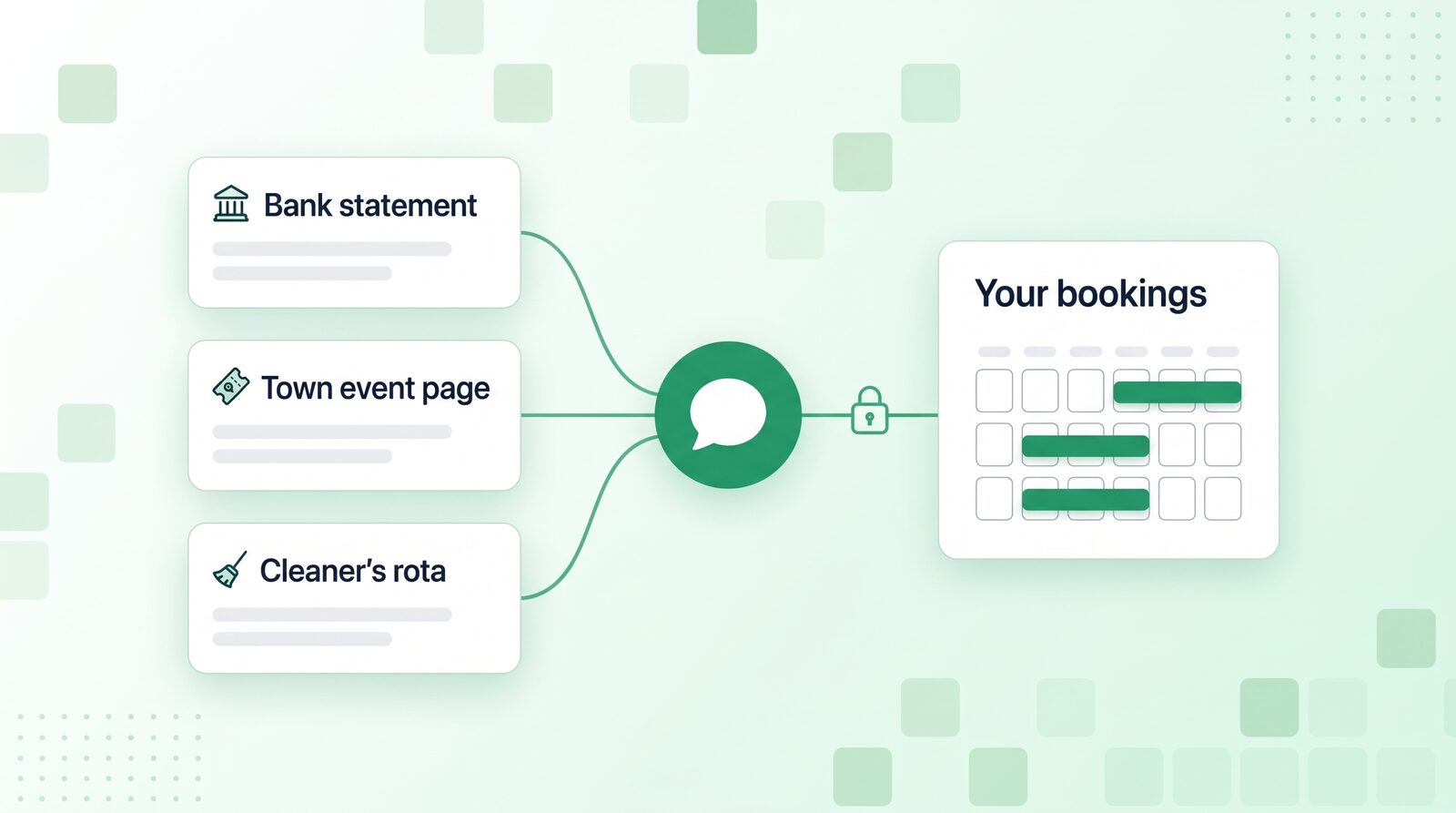
- The useful part is mixing your bookings with things the site doesn’t know: a bank statement, the town’s event page, a cleaner’s rota.
- You decide the access on your own site, area by area. Replies to customers arrive as drafts unless you allow sending.
- No deletes, no payments, no refunds through an AI app. Revoke cuts it off at once.
- It needs CraftForms PRO 2.4, https and pretty permalinks.
Most “AI for WordPress” writes blog posts. This is about the other half of a small business: the bookings table, the inbox, the question “did the Marshes pay yet?”.
Until now, asking an AI about your own bookings meant exporting a CSV and pasting it in. The answer was stale by lunchtime, and the AI couldn’t do anything with it. With a connector, the app asks your site directly each time, and the changes it makes go through the same rules as the buttons in your admin.
We’ll follow one morning at Casa Olivo, a small place with three apartments by the sea: Garden, Terrace and Sea View. The owner takes bookings on a WordPress site with a CraftForms booking form, and many guests pay by bank transfer. Everything below was done in a normal Claude chat connected to that site.
What does “connect WordPress to ChatGPT or Claude” mean here?
It means your site answers questions and takes instructions from an AI app you already use, under a sign-in you gave it.
The standard behind it is MCP (Model Context Protocol), the way AI apps connect to other software. CraftForms 2.4 ships an MCP server inside the plugin. It offers the app a fixed set of tools, for example list orders, mark paid, block dates, draft reply, get summary. The app picks tools to answer you. It has no other way in: no database access, no settings, no code.
Two things make this different from handing an AI your admin password:
- Each connection has its own access. You choose it on your site when you connect, and you can change or revoke it later.
- The tools follow your site’s rules. Dates that are booked can’t be closed. A paid order can’t be marked paid twice. A no-show can only be set from the arrival day on.
What you need
- CraftForms PRO 2.4 or later on your own WordPress site, with bookings or enquiries already coming in.
- https and pretty permalinks (Settings → Permalinks, anything but Plain).
- A WordPress account that can manage CraftForms settings. Team members without that can connect apps too, but read-only.
- An AI app that accepts custom connectors. We used Claude. ChatGPT and Claude Code work the same way (see Which AI apps work?).
How to connect your WordPress booking site to Claude or ChatGPT
1. Copy your site’s address for AI apps
It is your site’s address followed by /wp-json/craftforms/mcp:
https://example.com/wp-json/craftforms/mcp
2. Add it as a custom connector
In Claude, open Settings → Connectors and click Add custom connector. Give it a name (“Casa Olivo”), paste the address and click Add. Leave the sign-in choices as Claude detects them, then click Connect.
Other apps call the same thing an MCP server. The steps are the same: a name, the address, connect.
3. Sign in and choose the access
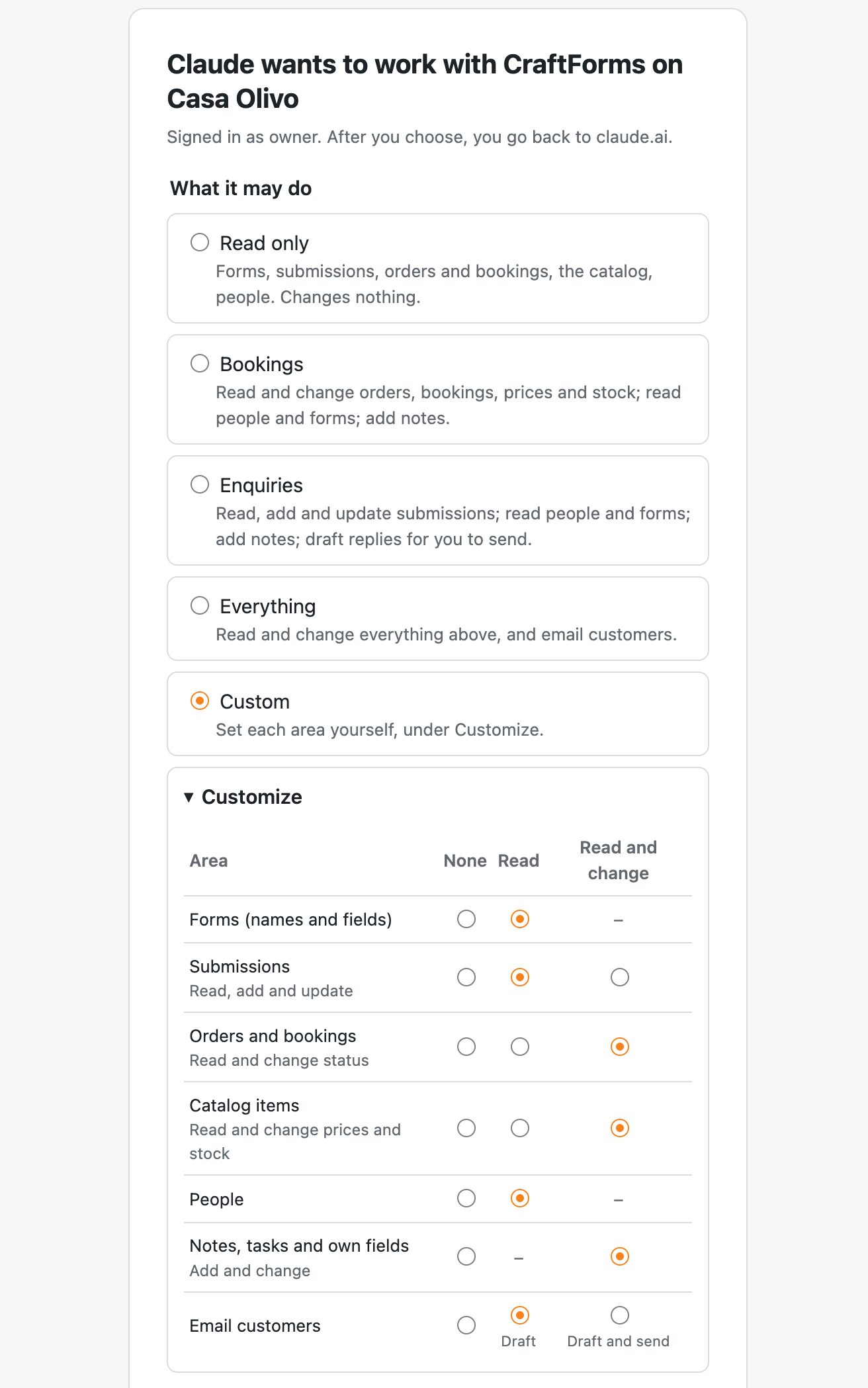
A window opens on your own site. Sign in to WordPress if you aren’t already. You then see what the app is asking for, with four ready-made choices:
| Choice | The app can |
|---|---|
| Read only (chosen at first) | Read forms, submissions, orders and bookings, catalog items and people |
| Bookings | Also change orders and bookings (status, no-show, paid, reschedule) and catalog items (prices, stock, closed dates), add notes and tasks |
| Enquiries | Read, add and update submissions, add notes and tasks, and draft replies for you to send |
| Everything | All of the above, and email customers |
For the morning below, Casa Olivo’s owner picked Bookings, opened Customize, set Submissions to Read and Email customers to Draft. That is enough to mark payments, close dates and prepare replies, and not enough to send anything to a guest.
Under Which catalog items you can choose Only these and tick a single apartment. The app then sees that apartment, its bookings and the people behind them, and nothing else.
Click Allow. You’re back in the chat, connected. There is no key to copy.
A morning’s work in six questions
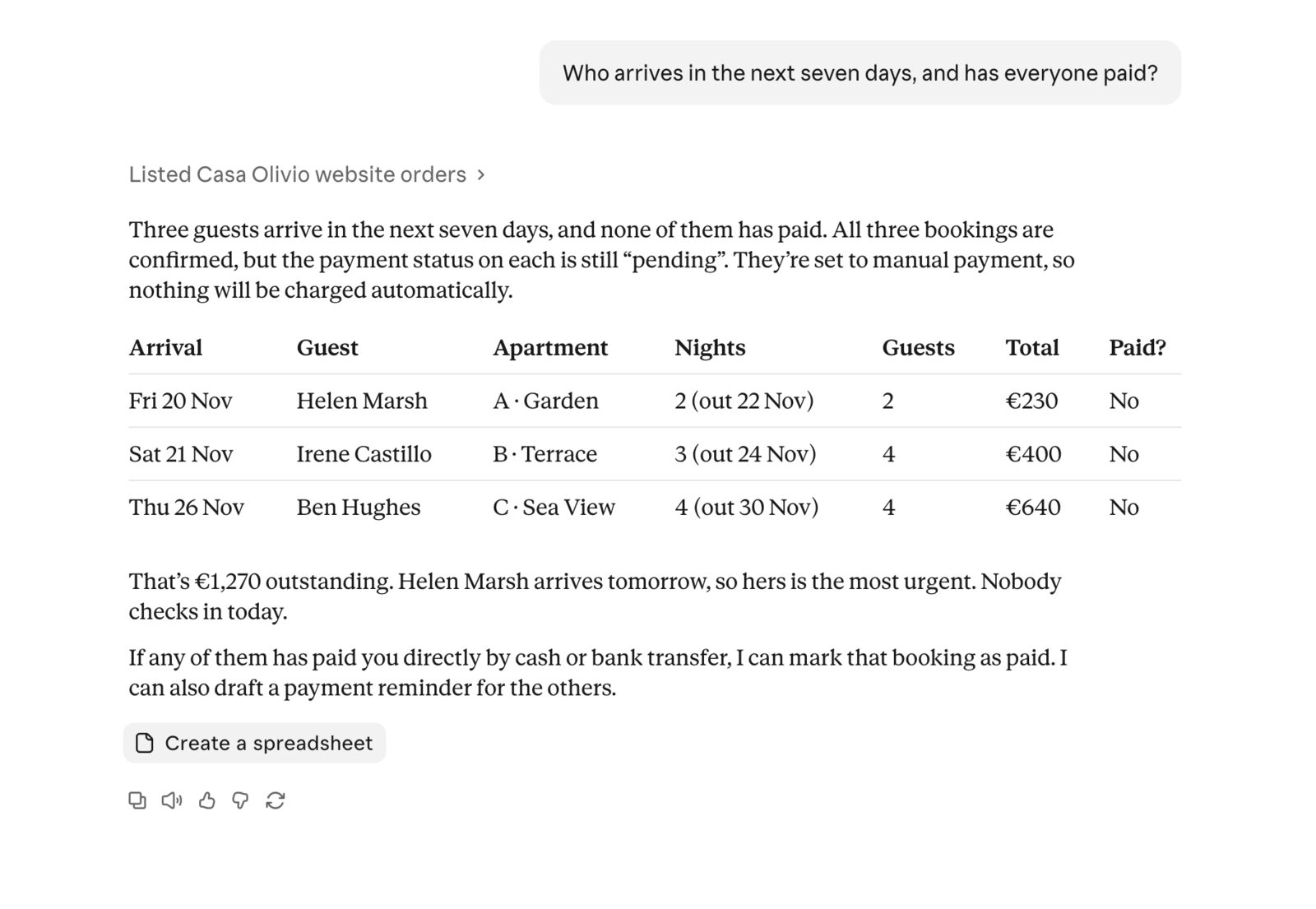
1. “Who arrives in the next seven days, and has everyone paid?”
Claude listed the bookings that start this week in a small table: arrival, guest, apartment, nights, total, paid or not. At Casa Olivo that was three arrivals and none of them paid, €1,270 outstanding. It added that the first guest arrives tomorrow, so hers is the most urgent.
A good first question, because the answer is easy to check against your own Bookings page.
2. “Here is last week’s bank statement. Match the transfers to unpaid bookings.”
This is the job that normally takes a coffee and two browser tabs. The owner attached the bank’s CSV export and wrote:
Match the incoming transfers to unpaid bookings. Show me the matches before you change anything.
The statement had seven lines, five of them incoming. Claude ignored the water bill and the laundry, and matched four transfers, each to the exact amount of a booking:
- two by the booking number in the reference;
- one from “MARSH R & H” with the reference “Apartment A 2026-11-20”, by the apartment, the arrival date and the amount. The booking is under Helen Marsh, and Claude noted that the money came from a joint account;
- one from “CASTILLO PEREZ IRENE” with the reference “apartamento terraza”, by name, apartment and amount.
The fifth, €100 marked “Deposit summer” from a name with no booking, it left alone. It also pointed out which of this week’s arrivals had nothing on the statement, and finished with a question: should it mark the four as paid?
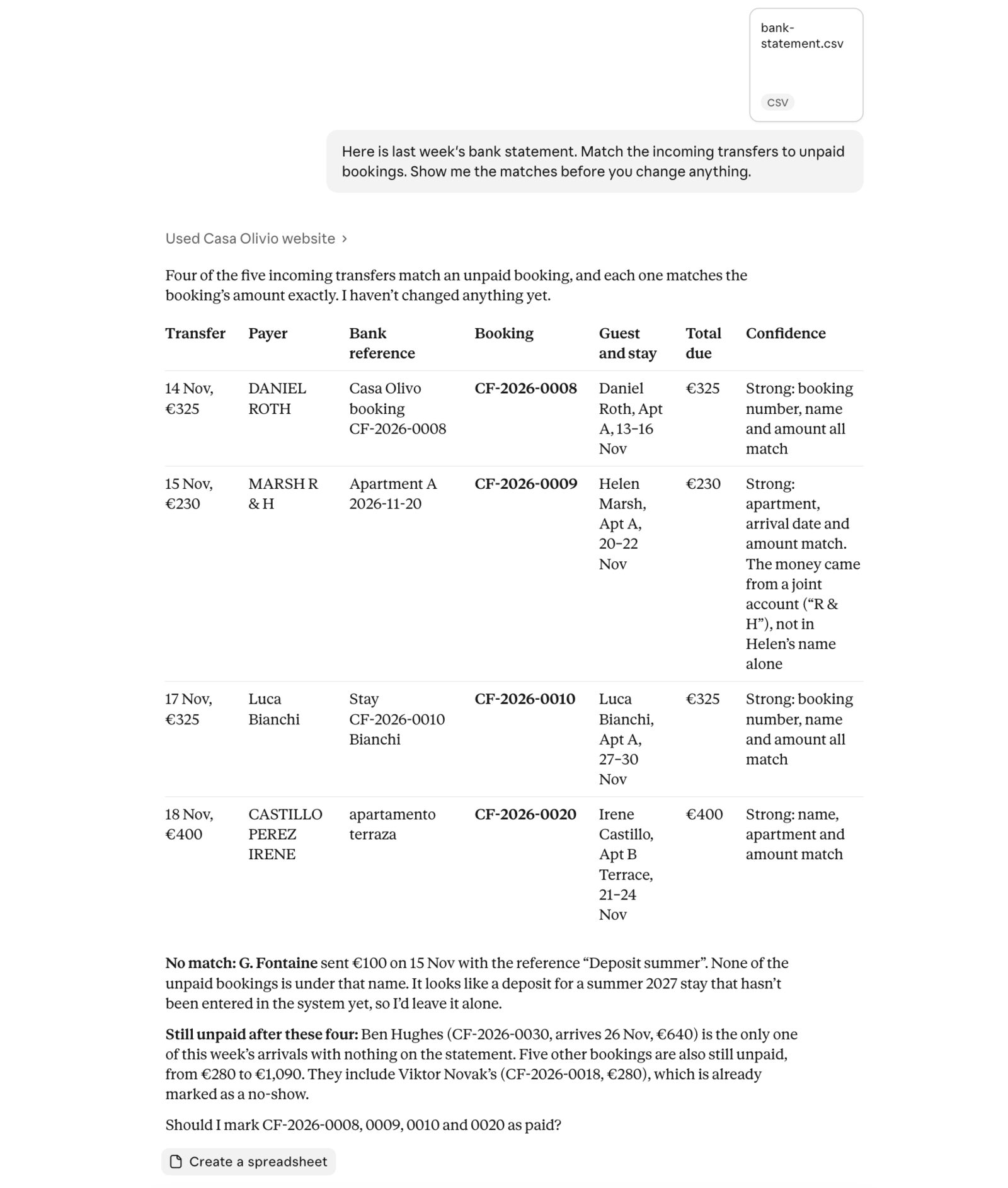
The owner answered “Yes, mark those four as paid and note the transfer date on each.” Claude asked for permission to use Mark paid, then four bookings turned Paid, each with an internal note: the transfer date, the amount, the payer and the bank reference. The note stays on the order, so next month you can still see how it was paid.
No money moved. Mark as paid records a payment made outside the site, exactly as the button on the work page does.
3. “There’s a half marathon on Saturday. Who needs to know?”
The site knows who is coming. It doesn’t know the town is closing the seafront. The owner pasted the link to the town’s notice and asked:
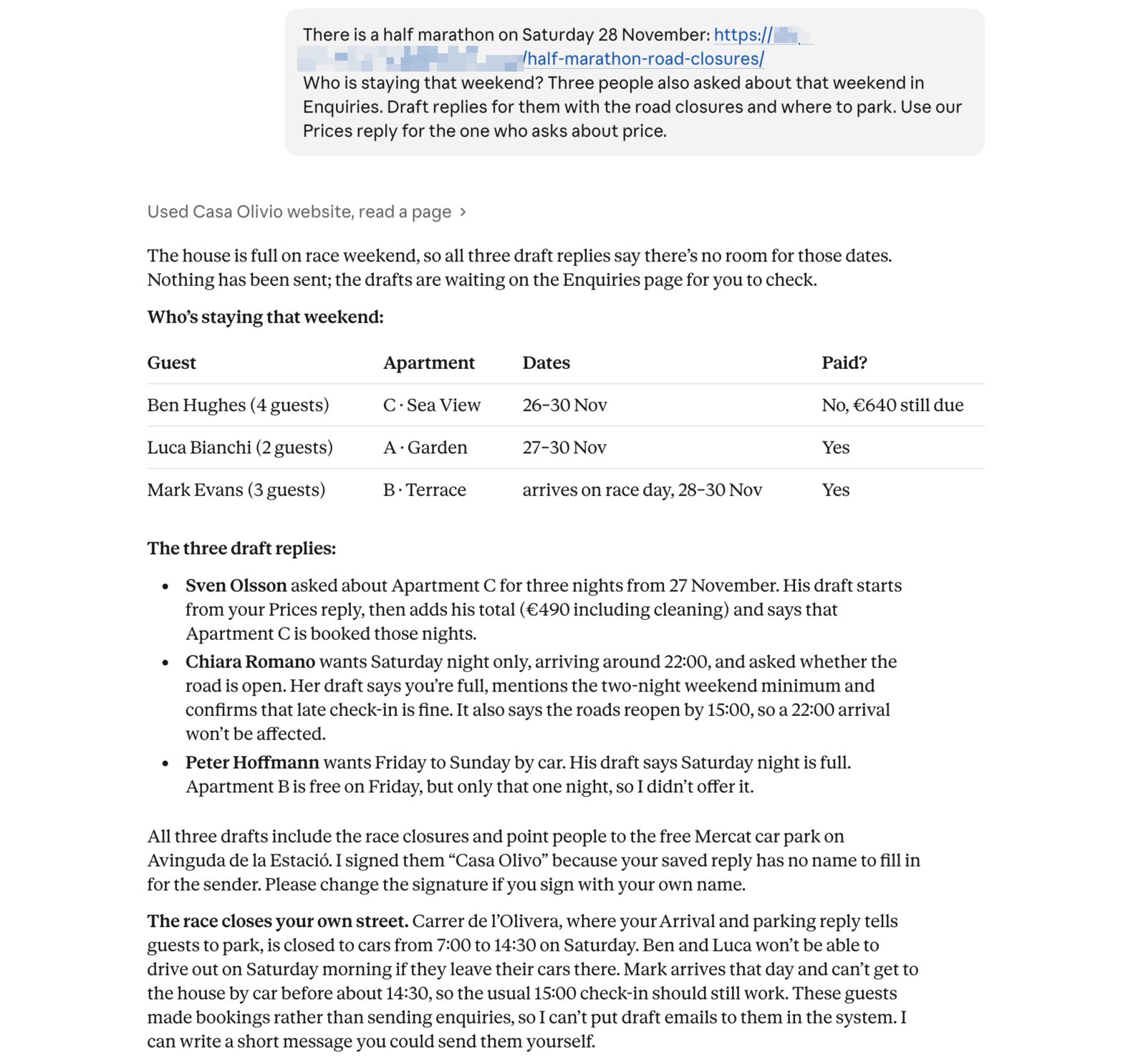
There is a half marathon on Saturday 28 November: [link]. Who is staying that weekend? Three people also asked about that weekend. Draft replies for them with the road closures and where to park. Use our Prices reply for the one who asks about price.
Claude read the notice and listed the three bookings that overlap the weekend, with who has paid. Then it found the three enquiries: one arriving by car, one asking about a late check-in on race day, one asking what the Sea View apartment costs for three nights.
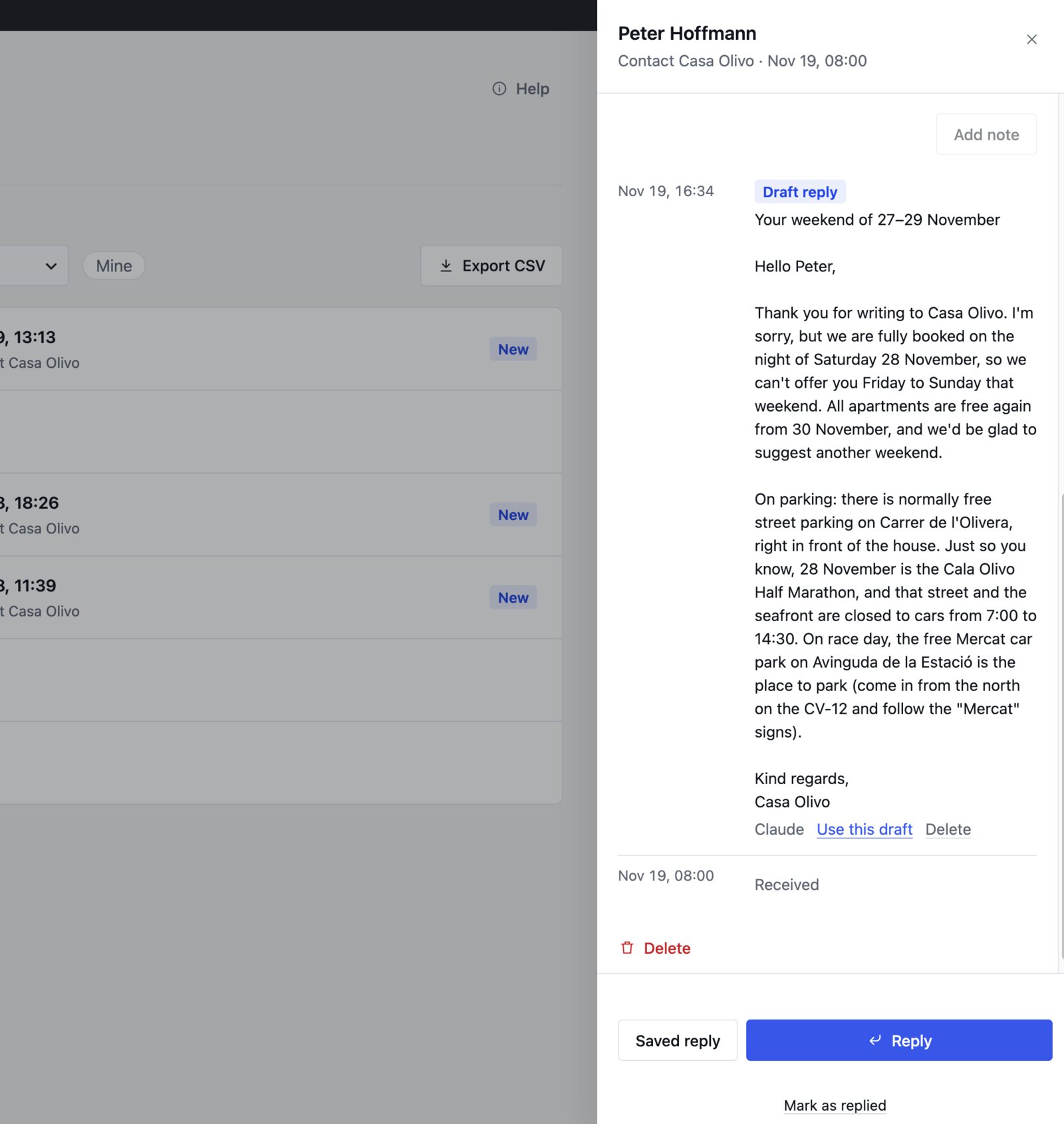
Here it did something nobody asked for. It checked the calendar first, saw that all three apartments are taken that weekend, and wrote the replies to say so, instead of promising rooms that don’t exist. Each reply still carries the road closures and the free car park the notice names. The price reply starts from the business’s own saved reply, so the rates are the ones the owner wrote, and adds the total for three nights (€490 with cleaning). All three were saved as drafts on the enquiries.
It also read the two sources against each other. The saved reply about arrival tells guests to park on the street in front of the house. The notice closes that street from 7:00 to 14:30 on race day. Claude said so, and named the two booked guests whose cars would be stuck there on Saturday morning.
Nothing has reached a guest yet. In Enquiries, each of the three shows the draft with Use this draft. The owner opens it, changes a word, and sends it from their own email.
One limit showed up here. The booked guests made bookings, not enquiries, so there is nothing to attach a draft to. Claude said that plainly and offered to write a short message the owner could send them by hand.
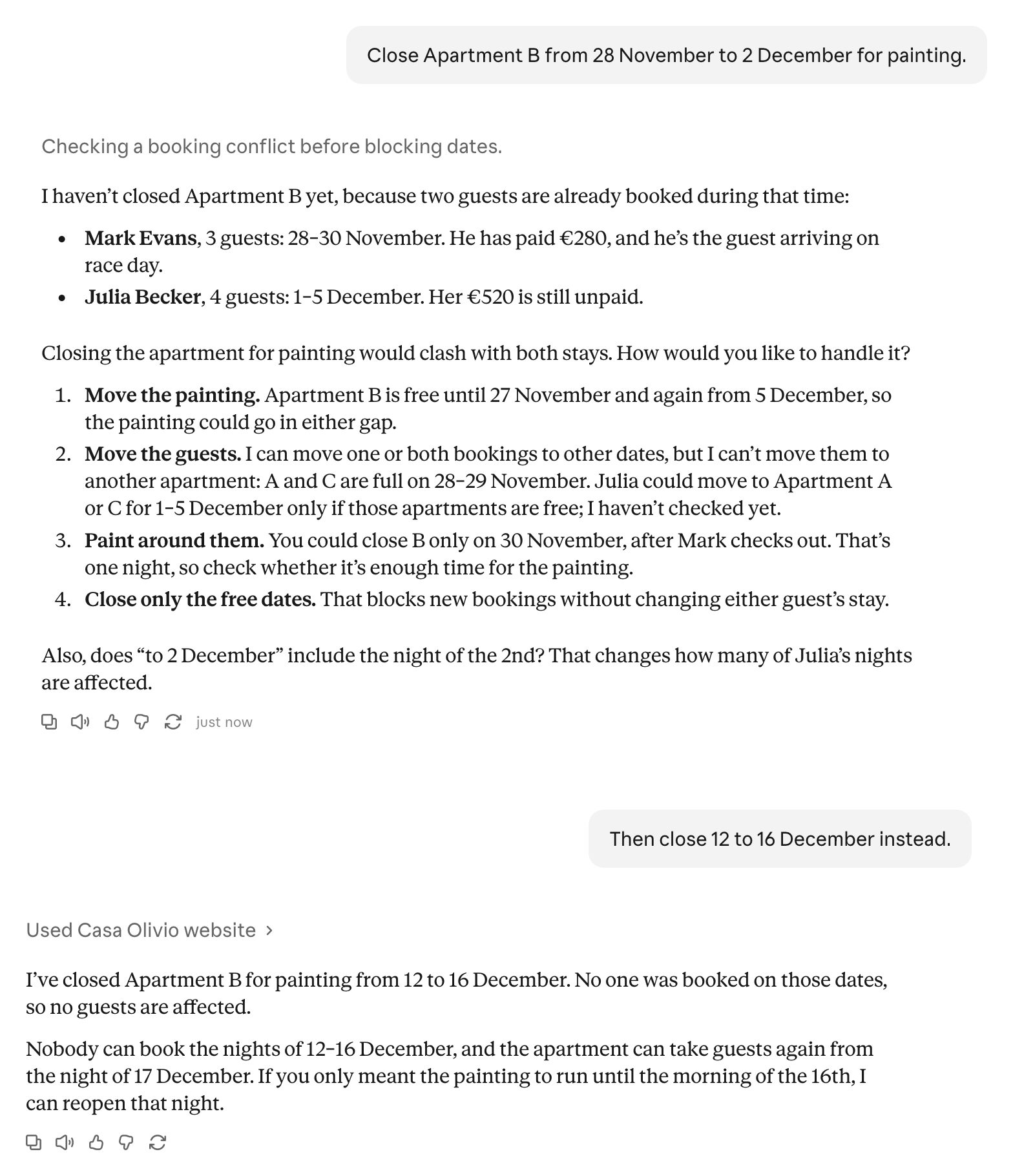
4. “Close Apartment B from 28 November to 2 December for painting.”
Nothing was closed, and Claude said why: two guests are booked in those dates, with their names, nights and what they have paid. That is the site’s rule, not the AI’s caution. Dates with bookings can’t be closed until the bookings are moved or cancelled. Claude then offered ways out: move the painting, move the guests, or close only the free nights.
“Then close 12 to 16 December instead” went through, because nobody was booked. Those nights are now closed on the booking form, in availability and in the calendar feeds.
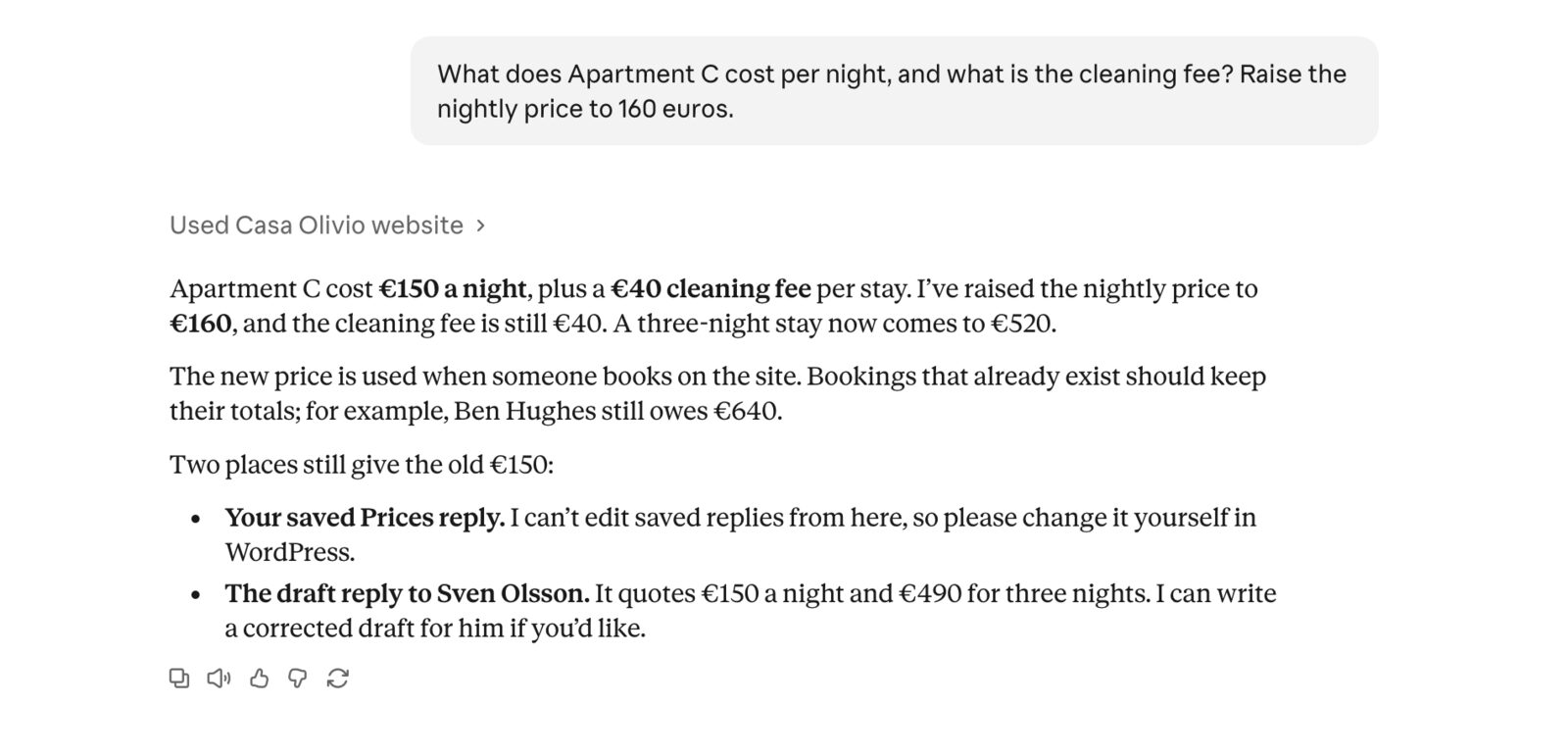
5. “What does Apartment C cost per night? Raise it to 160 euros.”
Claude read the price the way the site calculates it: €150 a night plus a €40 cleaning fee per stay. It raised the nightly rate to €160 and left the cleaning fee alone. A three-night stay now comes to €520.
The new rate applies to new bookings. Existing bookings keep their totals. Claude then listed two places that still said €150: the saved Prices reply, which an app can’t edit, and the draft it had written an hour earlier, which it offered to correct.
6. “How did the last 30 days go?”
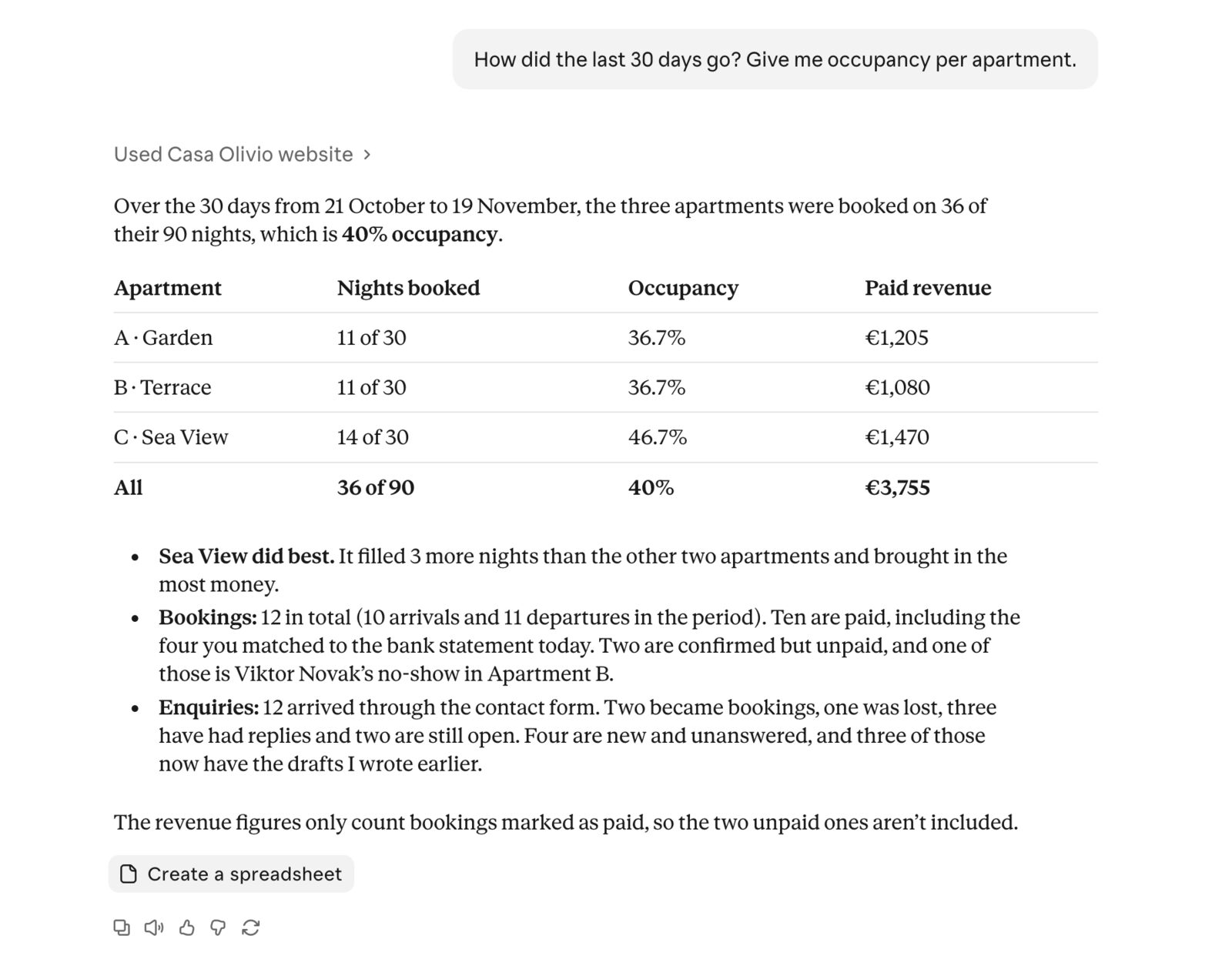
One tool returns the period in numbers: enquiries by outcome, orders by status, revenue from paid orders, arrivals and departures, and how full each apartment was (nights booked of nights open). Claude turned it into one table: 36 of 90 nights booked, 40% occupancy, €3,755 in paid revenue, with a row per apartment. The Sea View apartment did best, 14 nights of 30. Of 12 enquiries, two became bookings and four were still unanswered.
It also said what the revenue figure leaves out: bookings that aren’t marked as paid.
Because it’s a chat, the follow-up is free: “Compare with the 30 days before”, “Which enquiries are still waiting?”, “Write that up for my accountant”.
Is it safe to let ChatGPT or Claude into my WordPress?
It is as safe as the access you give it, so the design keeps that access narrow and visible.
- Nothing can be deleted through an AI app. There is no delete tool.
- Payments are never taken and refunds stay in WordPress.
- Replies are drafts unless you chose Draft and send. Even then the app is told to show you the text first, replies go only to the address on the enquiry, and they stop at 20 an hour.
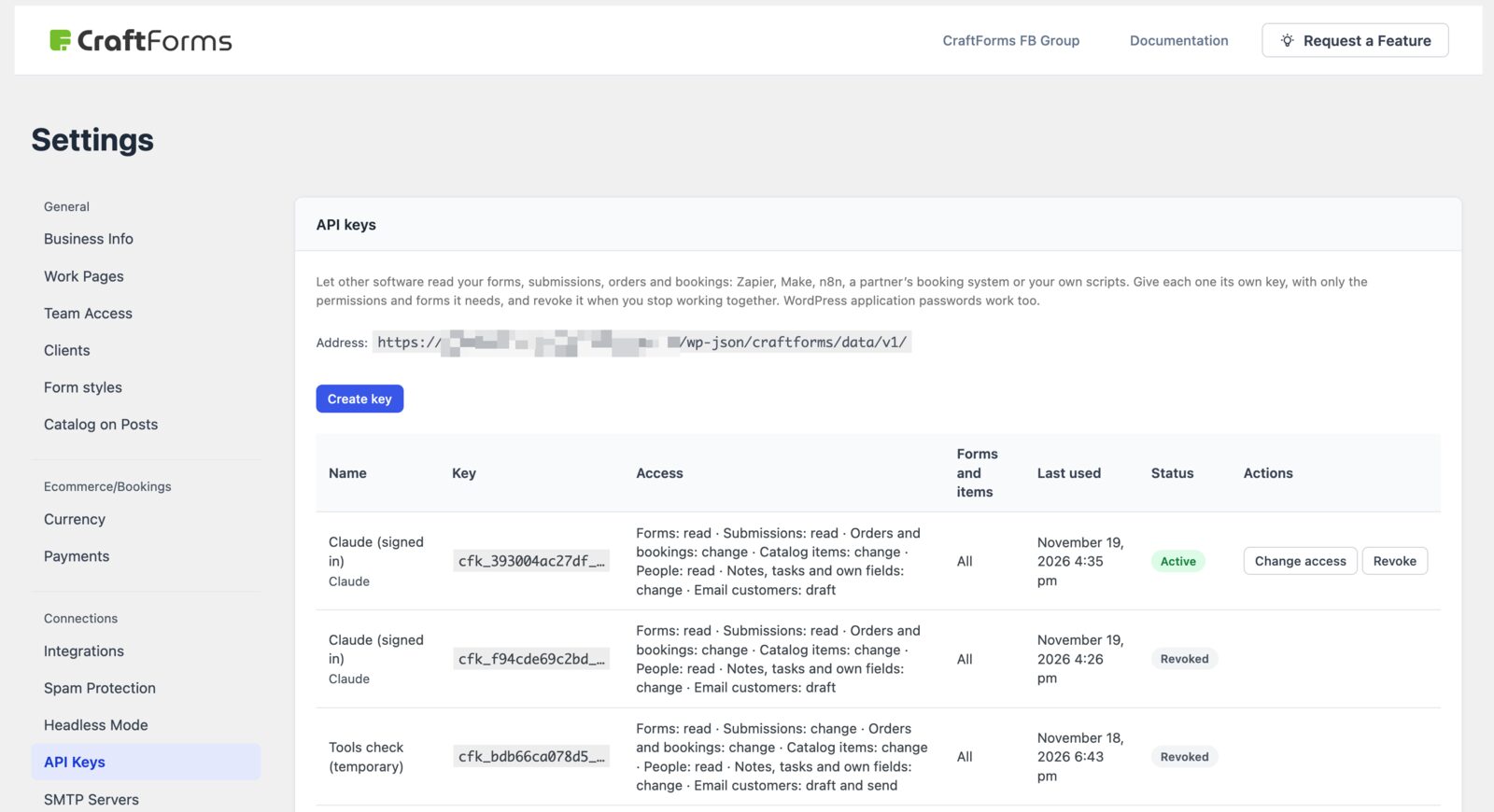
- One connection, one row. Every connected app is listed in CraftForms → Settings → API Keys, for example Claude (signed in), with what it may do and when it was last used. Change access narrows or widens it. Revoke ends it at once.
- Only people who manage CraftForms settings can let an app change things. Other team members can connect read-only apps.
- Limits per connection: some forms only, some catalog items only, or both.
One thing no plugin can decide for you: what you ask is processed by the AI company you chose, under your agreement with them. If guest details shouldn’t leave your site, connect with People set to None, or limit the connection to what the job needs.
Which AI apps work?
Any app that accepts a remote MCP server with sign-in.
- Claude (web, desktop, mobile): add a custom connector with the address above. This is what we used for Casa Olivo.
- ChatGPT: its custom connectors use the same standard, so the steps are the same: a name, the address, sign in. We ran everything in this post in Claude.
- Claude Code:
claude mcp add --transport http craftforms https://example.com/wp-json/craftforms/mcp, then/mcpto sign in. - Cursor, scripts and other tools that send a header instead of signing in can use a CraftForms API key as the bearer token.
Whether custom connectors are on your plan is up to the AI app. Check its settings.
Frequently asked questions
Does the AI see my customers’ data?
Only what the connection allows, and only when a question needs it. With Read only it can read bookings, enquiries and people. Limit it to some forms or items, or set an area to None, and the rest doesn’t exist for it.
Can it take payments or refund a guest?
No. It can mark a booking as paid when the money arrived another way (cash, bank transfer), and cancel a booking, which frees the dates. Taking money and giving it back stay in WordPress.
Do I need to code?
No. You paste one address and click Allow. The developer route (API keys, the REST data API) exists, but you don’t need it for this.
Does it work for things other than apartments?
Yes. The same tools cover time-slot bookings (tours, rentals, appointments), product orders and plain contact forms. “Move Tuesday’s 10:00 tour to 14:00” works the way “move the stay to the 14th” does.
What does it cost?
The connector is part of CraftForms PRO, with no charge per question or per connection. You pay your AI app’s own plan as usual.
How is this different from building forms with AI?
That is the other direction: an AI agent creating forms on your site. We covered it in How to use MCP to build and fill WordPress forms. This post is about running the business those forms feed.
Try it
Update to CraftForms PRO 2.4, copy your site’s address with /wp-json/craftforms/mcp on the end, and add it to Claude or ChatGPT as a custom connector. Start with Read only and one question you already know the answer to. Widen the access when you trust what you see.
Everything else that shipped with it is in the release post: CraftForms 2.4 Is Here.
The full reference, with every choice on the access screen, is in the knowledge base: Connect Claude, ChatGPT and other AI apps.