
Elementor Forms Without Elementor Pro: Payments, Bookings and Live Prices
- Category
- Tutorial
- Published
- Updated
- Reading time
- 8 min
- Tags
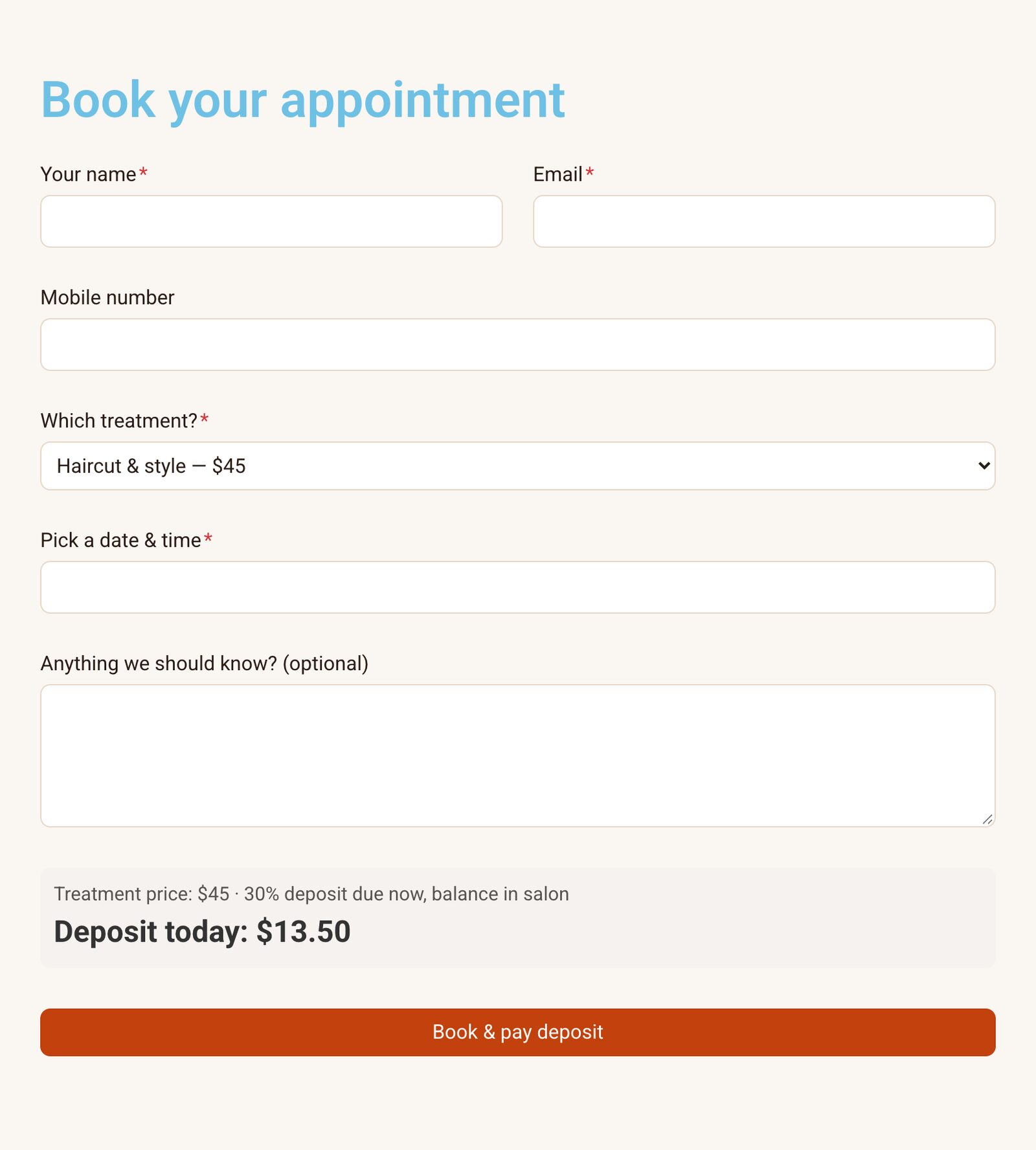
The short answer: Elementor’s own Form widget is part of Elementor Pro. To add forms on free Elementor, install a form plugin with its own widget. CraftForms adds a CraftForms Form widget that works on free Elementor and on Pro. The widget is free, its Style tab takes your global colours and fonts, and the form follows your Elementor Kit on every page. With CraftForms PRO the same form can also take payments, book dates and calculate prices.
TL;DR
- Widget: search “CraftForms” in the Elementor panel, drag CraftForms Form in, pick the form. It shows live in the editor.
- No Pro needed: the widget works on free Elementor. We built and tested it there.
- Looks: forms follow your Elementor Kit on their own: accent, text and secondary colours, body font and primary colour for the button. On every page, also pages not built with Elementor.
- Per form: the widget’s Style tab has Colours, Typography, Spacing, Fields and Submit button, with Elementor’s global colours, global fonts and per-device sizes.
- PRO: payments (Stripe, PayPal, Mollie, Square), bookings, price formulas, and WooCommerce product forms that work in Elementor Pro’s single-product templates.
Free Elementor gets you a long way: layouts, headings, images, buttons. Then you need a contact form and find the Form widget behind the Pro upgrade. Most people end up with one of two things: a form plugin whose form looks pasted in, or Elementor Pro for the one widget they needed.
There is a third option, and it’s a free one. Here’s how it works and what it does differently.
Do you need Elementor Pro for a form?
For Elementor’s own Form widget, yes: it comes with Elementor Pro. For a form on an Elementor page, no. Any form plugin with an Elementor widget, or a shortcode, puts a form on a free Elementor page.
What to look for is how well the form fits in. Three things decide that:
- A real widget, with the form picked from a list, not a shortcode you copy from another screen.
- Your Elementor colours and fonts, through Elementor’s own global pickers, so a change to the Kit reaches the form.
- A live preview in the editor, with the form’s real layout, not a grey placeholder.
CraftForms does all three on free Elementor. And it does more than Elementor Pro’s widget where a form has to go further:
| The form has to… | CraftForms free | CraftForms PRO |
|---|---|---|
| Collect enquiries, orders or registrations, save them, email you | ✓ | ✓ |
| Send a branded HTML email or a PDF, with QR codes | ✓ | ✓ |
| Run in steps with a progress bar | ✓ | ✓ plus jump rules and one question per screen |
| Stop spam without a puzzle (proof-of-work) | ✓ | ✓ |
| Translate the form, its emails and PDFs | ✓ | ✓ |
| Show a price that changes with the answers | — | ✓ formulas, price tables |
| Take a payment | — | ✓ Stripe, PayPal, Mollie, Square, your own accounts |
| Book dates or time slots with availability | — | ✓ |
| Replace Add to cart on a WooCommerce product | — | ✓ |
How do you add a form to a free Elementor page?
- Build the form in CraftForms → Forms. You build it with blocks in the WordPress editor, or start from a ready-made starter: appointment, order, quote, booking and more.
- Edit the page with Elementor. In the widget panel, type “CraftForms” or find the CraftForms group, and drag CraftForms Form onto the page.
- Pick the form under Form on the Content tab. It renders in the editor straight away, with its columns and fields.
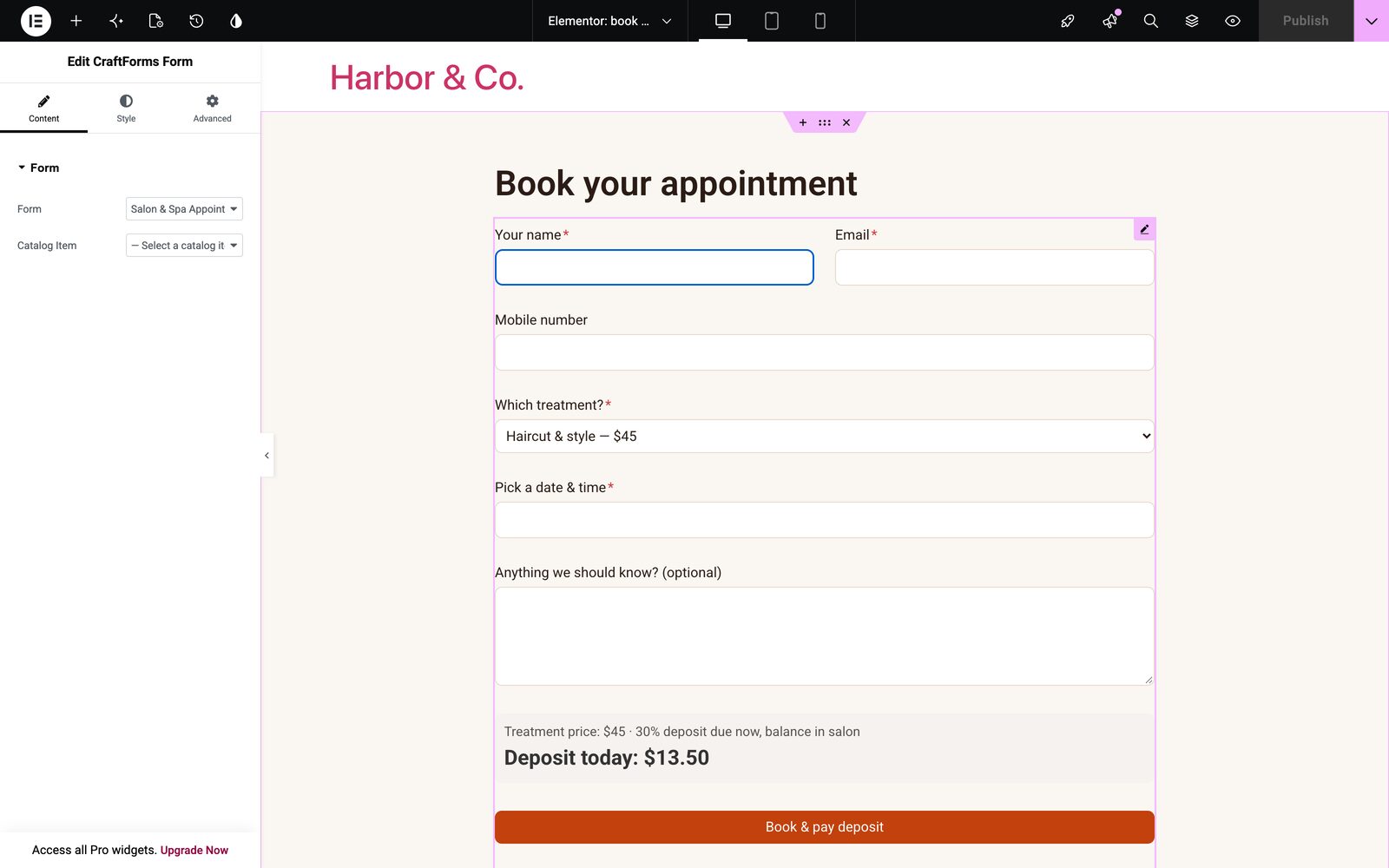
With CraftForms PRO, the Content tab also has Catalog Item: link the form to one room, service or product on this page, and reuse one booking form across all of them.
How do you style the form with your Elementor colours?
Two levels: the whole site, and one form.
The whole site: forms follow your Elementor Kit
CraftForms 2.4 added Form styles, which gives forms your site’s colours instead of their own. With Elementor active, it reads your Kit:
| Your Elementor Kit | Goes to the form’s |
|---|---|
| Global accent colour | accent (checked options, focus) |
| Global text colour | field text |
| Global secondary colour | labels |
| Global primary colour | submit button |
| Global text font | the form’s font |
This works on every page, also ones you didn’t build with Elementor. That matters more than it sounds: Elementor only prints its Kit variables on pages it builds, so a form on a plain WordPress page or a WooCommerce product page used to lose the Kit colours. CraftForms carries the Kit’s values along as a fallback.
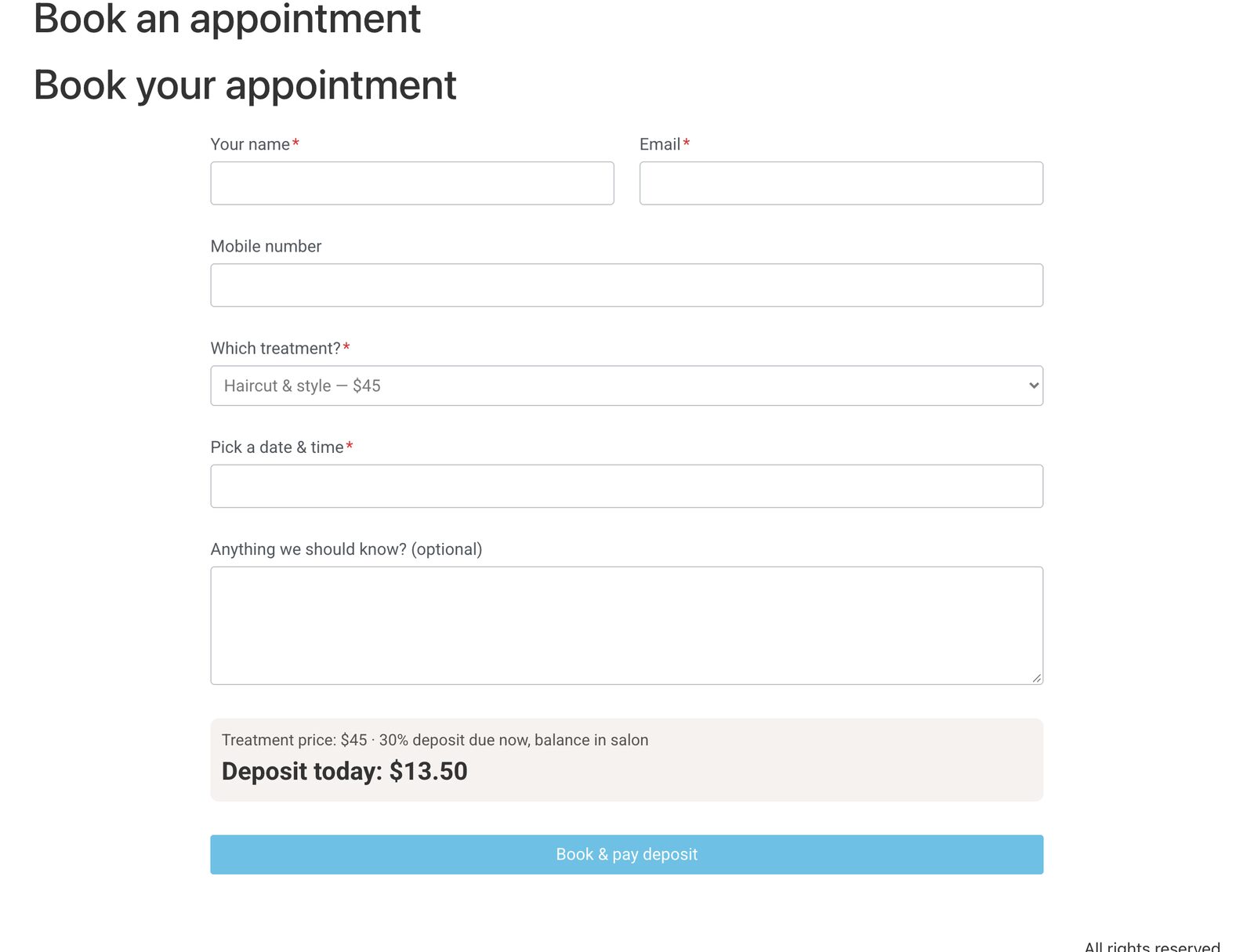
On a new site this is on from the start. A site that already had forms keeps its look until you choose: a notice offers to match Elementor, and CraftForms → Settings → Form styles lets you change any value or reset it to the Kit’s.
If you also run a CSS framework (Automatic.css or Core Framework) or a theme with its own system (Blocksy, Kadence), that wins over Elementor, because it’s the more specific one.
One form: the widget’s Style tab
New in 2.4. Select the widget and open Style. You get the sections you’d expect from any Elementor widget:
- Form style: keep the form’s style, or switch this one form to Default, Modern, Builderius CSS or Unstyled (Unstyled leaves fields and the button to your theme)
- Colours: accent, text on accent, field text, placeholder and hints, field background, field border, focus, error, valid, labels
- Typography: the whole form, labels and fields, with Elementor’s typography control, plus option and error text sizes
- Spacing: between fields, label to field, between options, inside fields
- Fields: field corners, card corners, border width, field text size
- Submit button: background, background on hover, text, corners, typography, padding
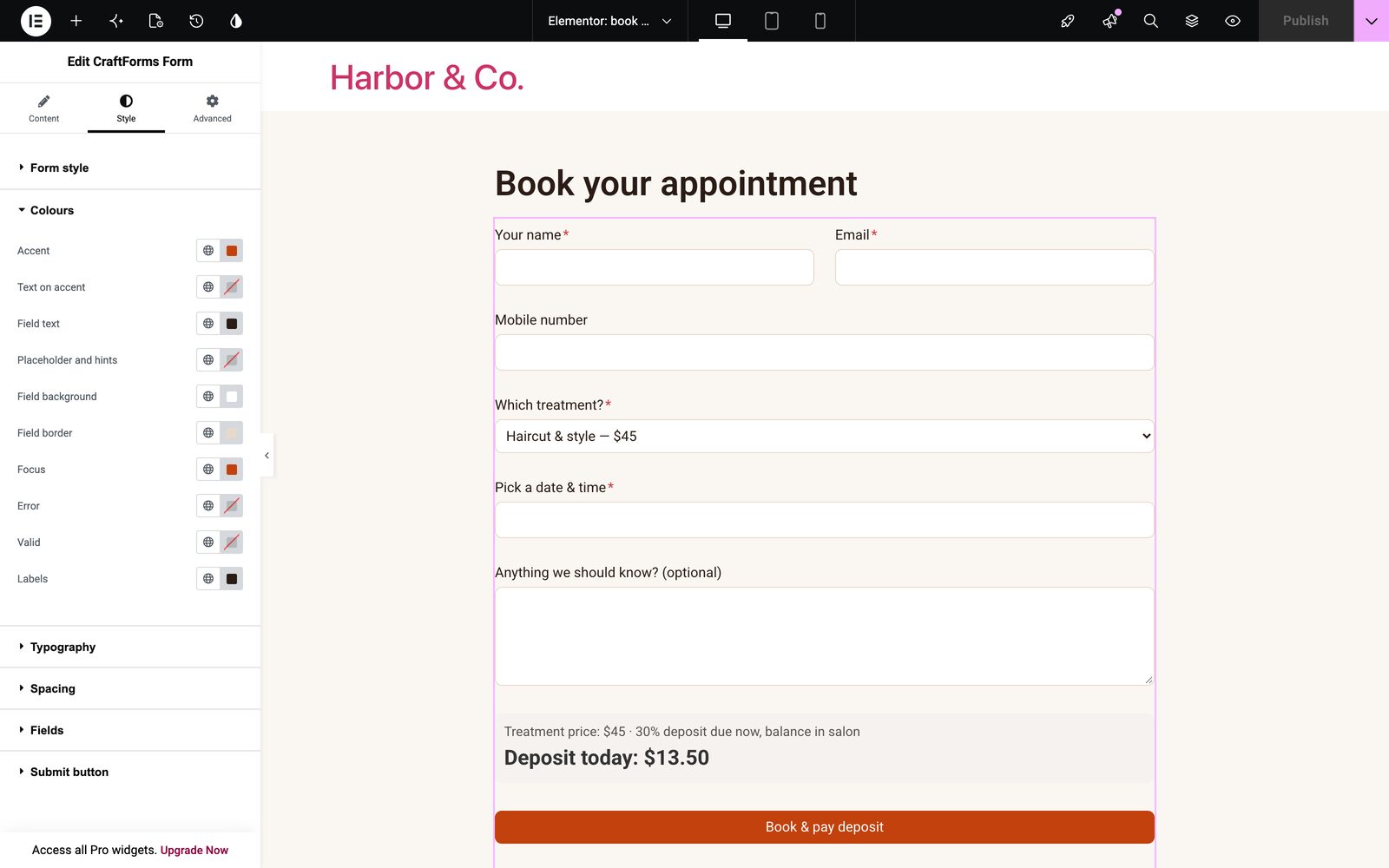
Every colour opens Elementor’s colour picker, global colours included, so the button can be “Primary” and change when the Kit does. Sizes are per device: set the gaps, padding and corners for desktop, tablet and mobile separately, the same as any Elementor widget. An empty setting means “use the site-wide value”.
Hello Elementor and other things we fixed
We rechecked the widget for 2.4 on a clean site with Hello Elementor and an Elementor-built page, in the editor and on the front end, desktop and phone. Three Elementor problems came out of it, all fixed in 2.4:
- A pink submit button. Hello Elementor colours every
[type=submit]text pink. When CraftForms sets a button background, it now always sets the text colour with it. - Kit colours missing outside Elementor pages. Covered above: the Kit’s values now travel with the form.
- Columns collapsing in the editor. Elementor’s editor renders widgets in a way that skipped WordPress’s block layout rules, so a name | email row fell to one column and labels centred, in the editor only. The widget now brings its layout rules along.
WooCommerce product pages built with Elementor (PRO)
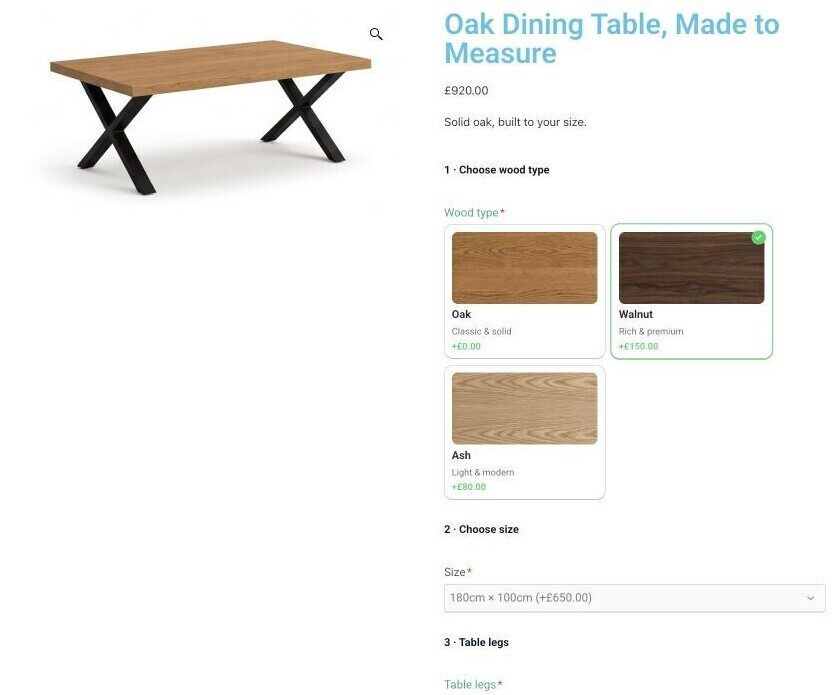
Many Elementor shops build the product page with Elementor Pro’s Theme Builder. Its single-product template uses its own widgets (Product Price, Add To Cart, Product Images), which skip the WooCommerce hooks most product-option plugins rely on. Then the options simply don’t show.
CraftForms PRO handles that template directly. When a product has a CraftForms form:
- the Add To Cart widget shows the form instead, with its options, upload fields and quantity
- the Product Price widget shows the form’s live price, and changes as the customer picks options
- Elementor’s Menu Cart gets an “Edit configuration” link back to the form
So a configurator (blinds, frames, printing, furniture) works the same in an Elementor product template as on a standard WooCommerce theme. Personalised WooCommerce products with CraftForms.
Questions Elementor users ask
Is the CraftForms widget free?
Yes, the widget, its Style tab and Form styles are in the free version, on free Elementor. Payments, bookings, price formulas, the Catalog Item picker and WooCommerce product forms need CraftForms PRO.
Can I build the form in Elementor?
No. You build it in CraftForms’ editor (WordPress blocks) and place it with Elementor. The upside: the same form, with its emails, PDFs, prices and submissions, works on any page and with any builder, and you can embed it on a site that isn’t WordPress.
Does it work in Elementor popups?
Yes. Put the CraftForms Form widget in an Elementor Pro popup like any other widget: the form loads with the popup, sends, and shows its thank-you message inside the popup. We tested it with a contact form on a page-load popup. One catch we found while writing this post: in 2.4.0, a form in a popup lost its column layout (labels centred, name and email stacked). 2.4.1 fixes that, so update first.
Can I add a booking search to an Elementor page?
Yes, with PRO: put [craftforms_search] in Elementor’s Shortcode widget. Bricks and the block editor have a dedicated Catalog Search element; Elementor uses the shortcode for now.
What if I switch away from Elementor later?
The forms keep working: the same form goes into Gutenberg, Bricks, Divi or a shortcode, and Form styles follows the new theme on the next page load.
Where do submissions go?
To CraftForms → Submissions, with the Enquiries and Bookings work pages for answering and managing them. You don’t need Elementor Pro’s Submissions screen.
Bottom line
You don’t need Elementor Pro to put a form on an Elementor page. Install CraftForms, drag in the widget, pick the form, and it follows your Kit’s colours and font from the start. When a form has to take a deposit, book a slot or price a product, the same widget carries it, with PRO.
Download CraftForms free and try it on a free Elementor page, or see the live demo first.