
Bricks Builder Form Plugin: Payments, Bookings and Live Prices, Styled Like Your Bricks Site
- Category
- Tutorial
- Published
- Updated
- Reading time
- 9 min
- Tags
The short answer: yes, CraftForms works with Bricks Builder. It adds its own CraftForms Form element to the Bricks panel (free), the form follows your Bricks colours and border radius without any CSS, and the element’s Style tab takes Bricks’ global colours and Style Manager variables for one form. Use it when a form has to do more than the Bricks Form element: calculate a price, take a payment, book dates, or send a designed PDF.
TL;DR
- Element: Add element → CraftForms → CraftForms Form, then pick the form. It renders live in the Bricks canvas.
- Looks: on a new site, forms follow the Bricks theme on their own (primary colour, text colours, border colour and radius, error and success colours, button). An existing site gets one “Match Bricks” notice.
- Per form: the element’s Style tab has Colours, Typography, Spacing, Fields and Submit button, with Bricks’ own colour pickers and typography control.
- Buttons: one click puts Bricks’ own
bricks-buttonclasses on every submit button. - PRO: payments (Stripe, PayPal, Mollie, Square), bookings, price formulas, and two more elements: Catalog Search and Catalog Listing.
- Not inside Bricks: you build the form itself in CraftForms’ block editor, and place it with Bricks. The same form then works in Gutenberg, Elementor, Divi or a shortcode.
“Does it work with Bricks?” is one of the first questions we get from agencies. The worry is fair. Bricks sites are built with care: global colours, a variable system, often Automatic.css or Core Framework on top. A form plugin that drops its own grey borders and a browser-default button into that page looks like a different website.
So this post answers it properly: what the integration does, what it doesn’t, and what we tested.
When is the Bricks Form element enough?
Often. The Bricks Form element covers contact forms, login and registration, password reset, creating or updating posts, Mailchimp and SendGrid, and webhooks. Since Bricks 1.9.2 it can save submissions in your database, and it has honeypot, reCAPTCHA, hCaptcha and Turnstile. If that’s your form, keep it: one plugin fewer.
You need a form plugin when the form has to go further than collecting fields:
| The form has to… | Bricks Form element | CraftForms |
|---|---|---|
| Show a price that changes with the answers | not in its docs | formulas, price tables, 50+ functions (PRO) |
| Take a payment | not in its docs | Stripe, PayPal, Mollie, Square, with your own accounts (PRO) |
| Book dates or time slots, with availability | not in its docs | booking datepicker, availability, iCal sync (PRO) |
| Send a branded HTML email or a PDF | email and PDF designers, QR codes (free) | |
| Run in steps, or one question at a time | not in its docs | multi-step forms (free), conversational layout (PRO) |
| Speak more than one language | not in its docs | form, emails and PDFs translated (free) |
| Stop spam without a puzzle | reCAPTCHA, hCaptcha, Turnstile, honeypot | proof-of-work, nothing for the visitor to solve (free) |
The Bricks column comes from the Bricks Academy page on the Form element. “Not in its docs” means exactly that: we didn’t find it there.
Bricks users also look at Bricksforge Pro Forms, which builds forms inside Bricks itself. We compared the two feature by feature in CraftForms vs Bricksforge.
How do you add a CraftForms form to a Bricks page?
Three steps.
- Build the form in CraftForms → Forms. Forms are made of blocks in the WordPress editor, or start from a ready-made starter (appointment, order, quote, booking…).
- Open the page in Bricks, click Add element and look for the CraftForms group, or type “form” in the search. Drag CraftForms Form where you want it.
- Pick the form under Form on the Content tab. It appears in the canvas straight away, with its real fields and layout.
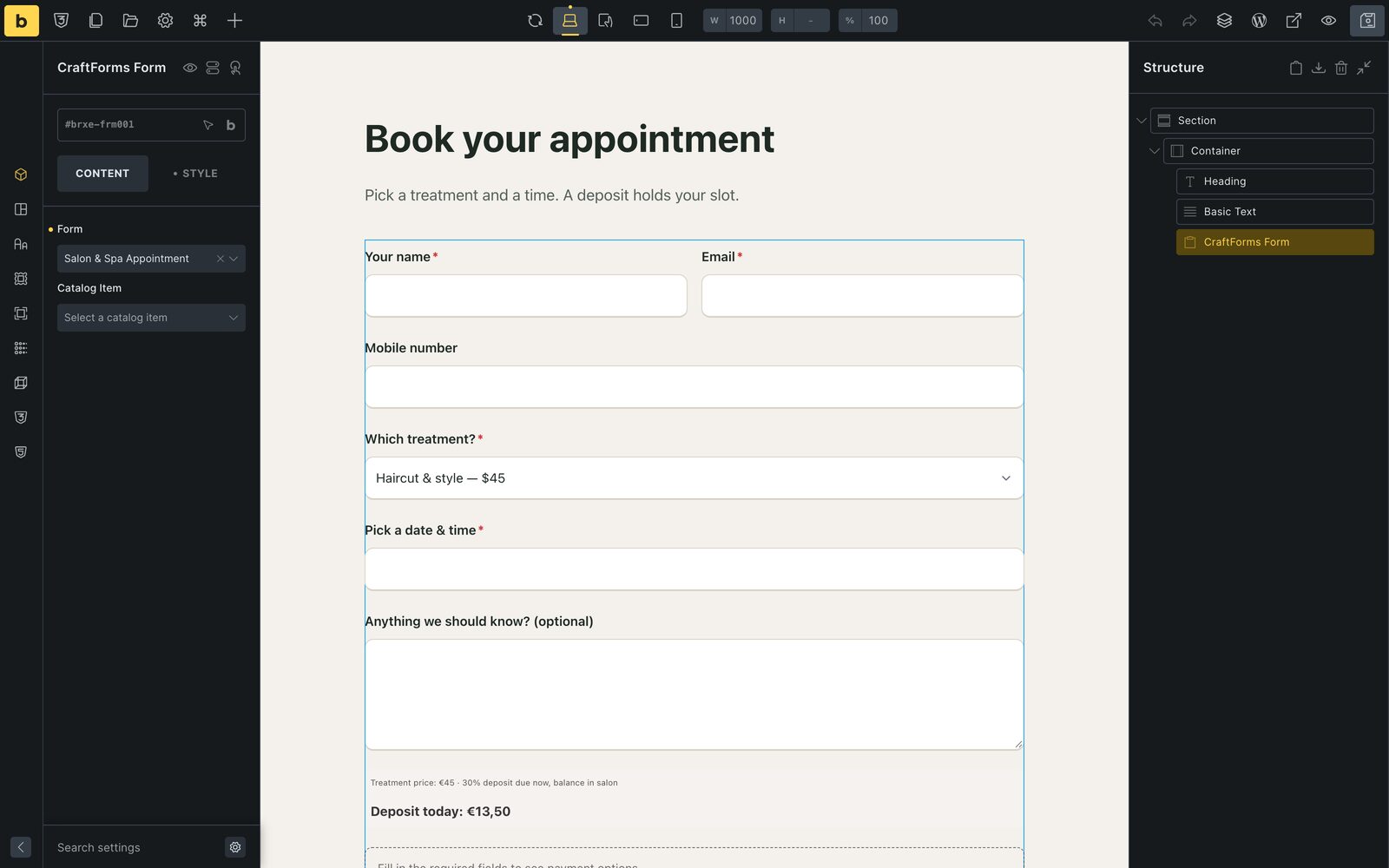
With PRO, the same Content tab has a Catalog Item picker. It links the form to one room, tour or product on this page, so one booking form serves every room: put the element in your room template, pick the room, done. How one form serves many items.
Prefer shortcodes? [craftforms form="42"] works in Bricks’ Shortcode element too, with the form’s id from the Forms list.
Will the form match my Bricks design?
Yes, and mostly without you doing anything. This is the part that took the most work, so here is what happens in order.
Site-wide: forms follow the Bricks theme
CraftForms 2.4 added Form styles: the form takes its colours, corners and button from your site instead of its own defaults. On a Bricks site it reads Bricks’ own variables: the primary colour, the text colours, the border colour and radius, the success and error colours. Change them in Bricks’ Theme Styles, and every form follows on the next page load.
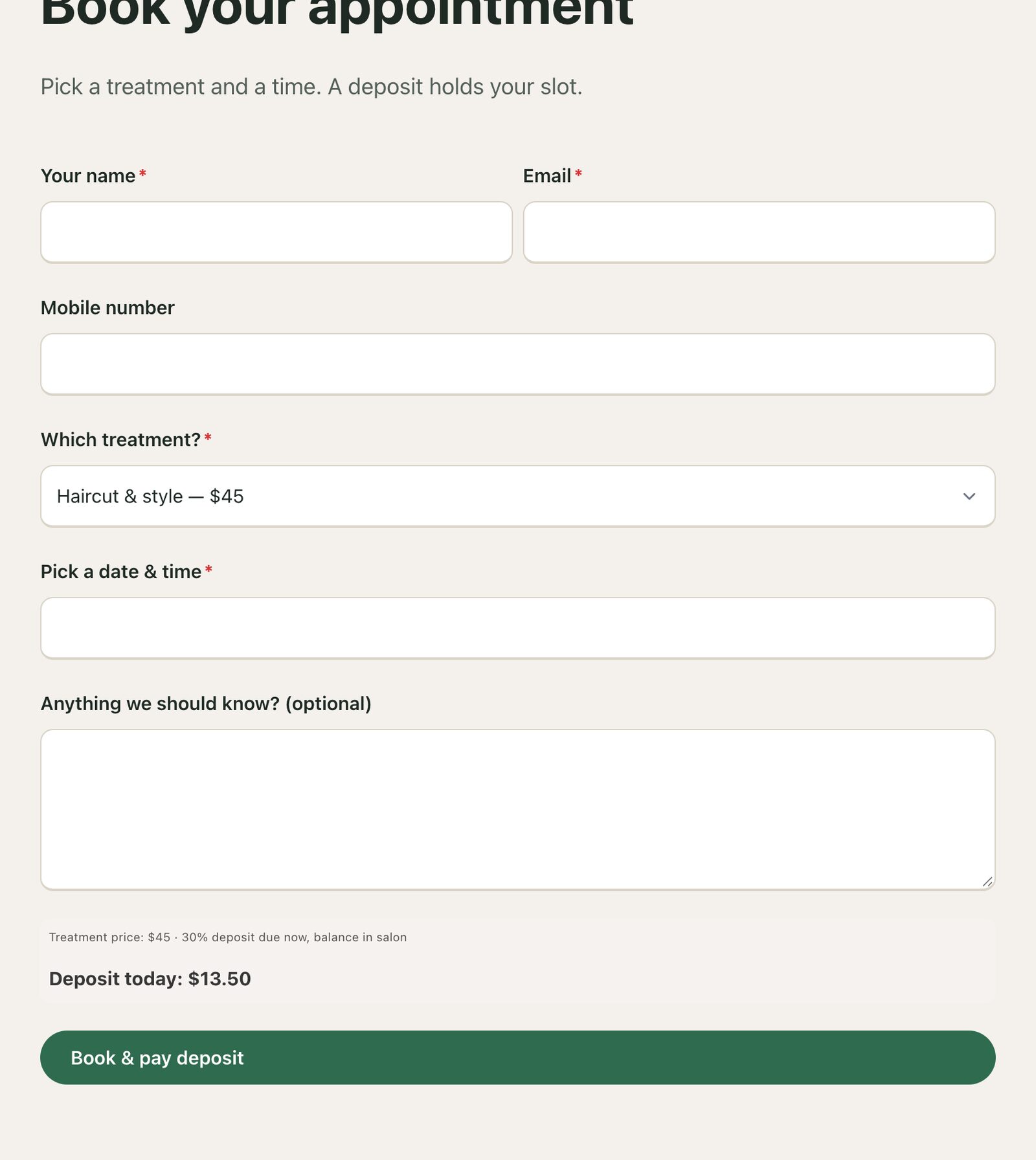
The same contact form on a Bricks site, before and after:
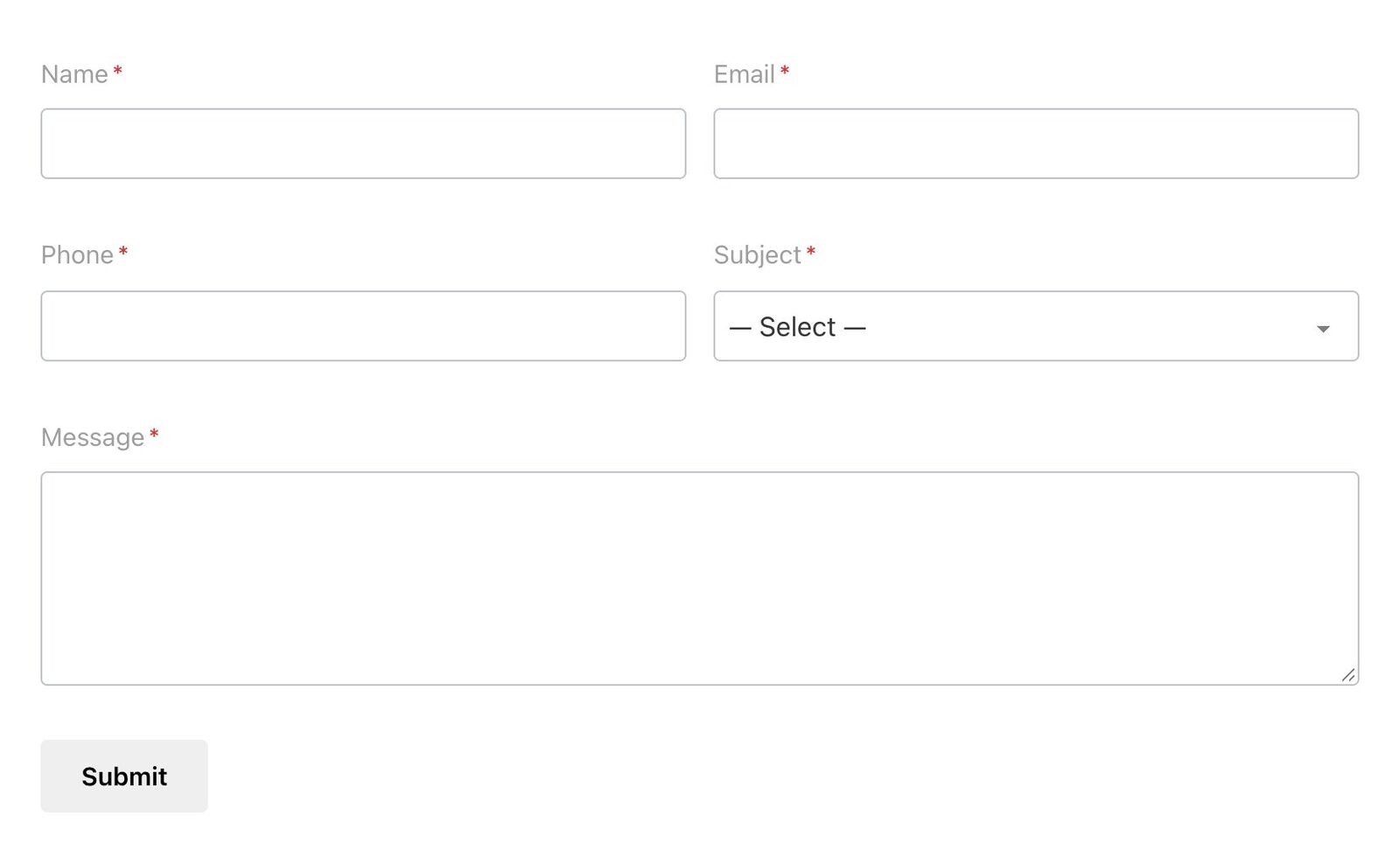
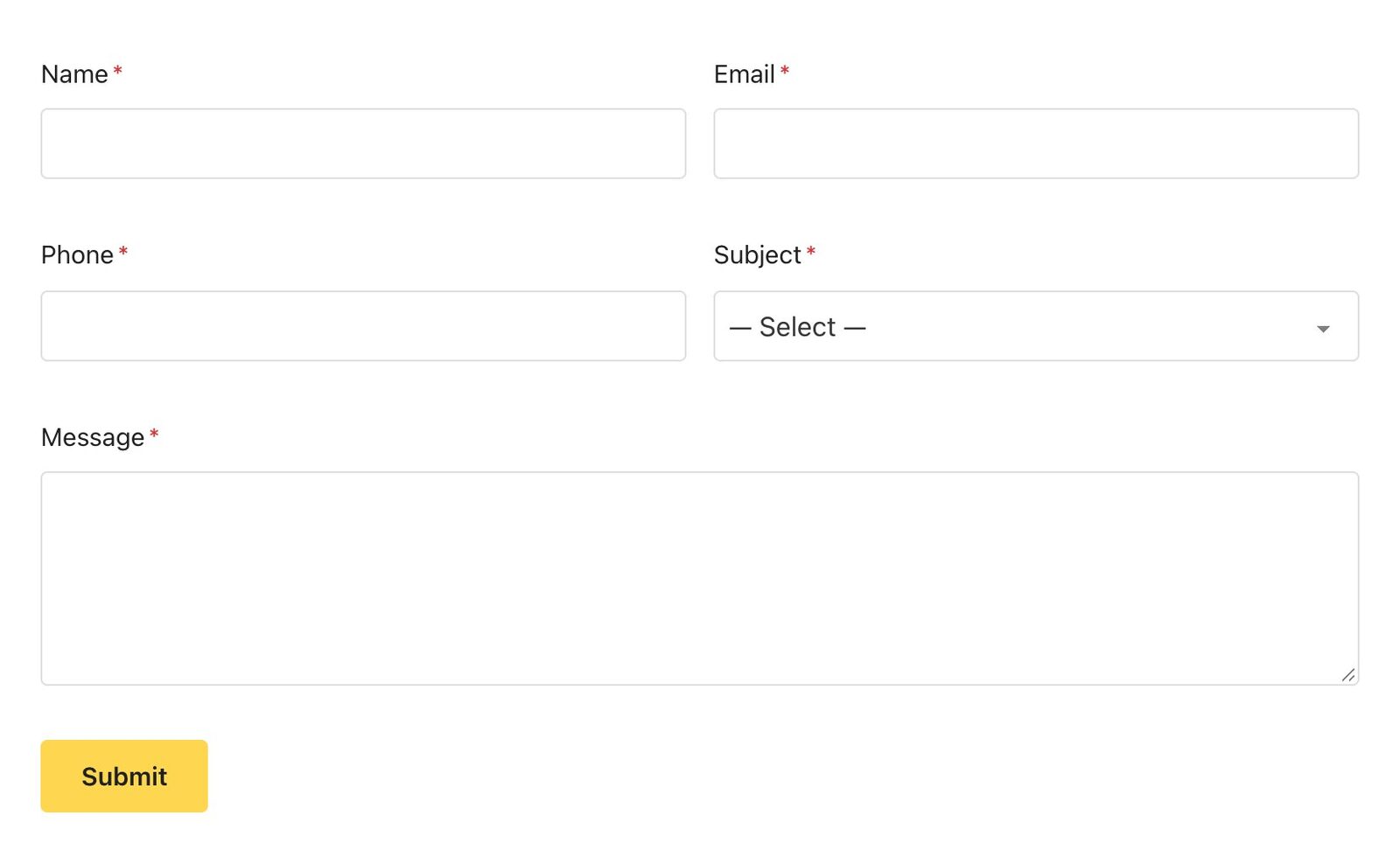
On a new site this is on from the start. A site that already had forms keeps its look until you choose: CraftForms shows one notice with Match Bricks, See Form styles and No thanks.
Two more things for Bricks people:
- Your own variables. CraftForms doesn’t guess Style Manager variables you made yourself. In CraftForms → Settings → Form styles, every field suggests them, so
var(--brand-accent)is a pick, not a typo waiting to happen. - Real Bricks buttons. Under Classes, Use Bricks button classes puts
bricks-button bricks-background-primaryon every submit button. The button then is a Bricks button, hover and all.
Running Automatic.css or Core Framework on top of Bricks? The framework wins, because it’s the more specific system: the form follows its variables instead. More in the Form styles guide.
One form: the element’s Style tab
New in 2.4. For a single form on one page, open the element’s Style tab. Under the usual Bricks groups you get five of ours:
- Colours: accent, text on accent, field text, placeholder and hints, field background, field border, focus, error, valid, labels
- Typography: the whole form, labels and fields, with Bricks’ own typography control (fonts, sizes, your typography presets), plus option and error text sizes
- Spacing: between fields, label to field, between options, inside fields
- Fields: field corners, card corners, border width, field text size
- Submit button: background, background on hover, text, corners, typography, padding
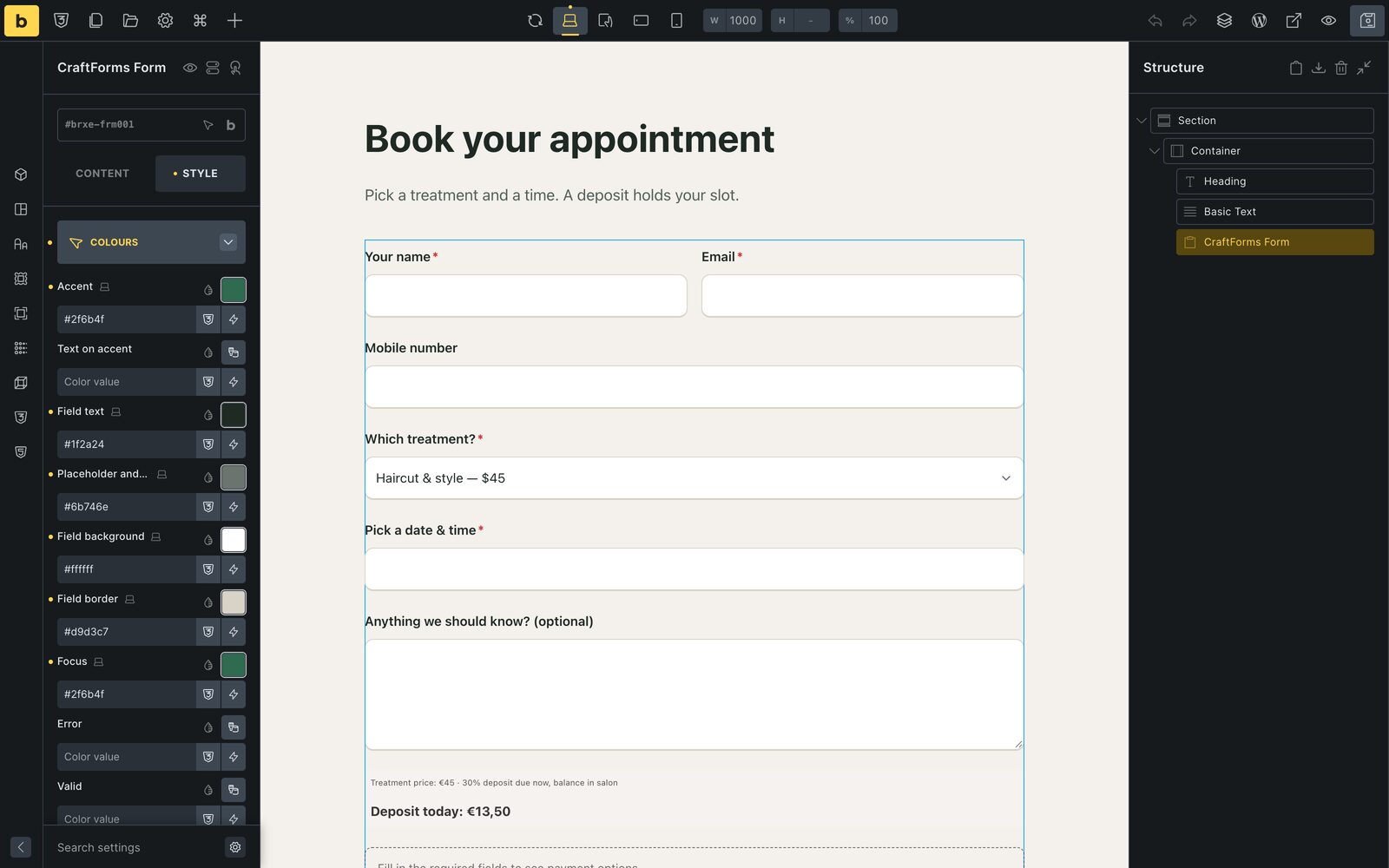
The colour pickers are Bricks’ own, so your global colours and Style Manager variables are right there. Each setting writes one CSS variable on the element, which the form inherits; leave a setting empty and the form uses the site-wide value. Form style at the top can switch this one form to another style (Default, Modern, Builderius CSS, Unstyled). Unstyled hands fields and button over to your theme or framework completely.
Bookings and catalogs in Bricks (PRO)
Two more elements turn up in the CraftForms group with PRO:
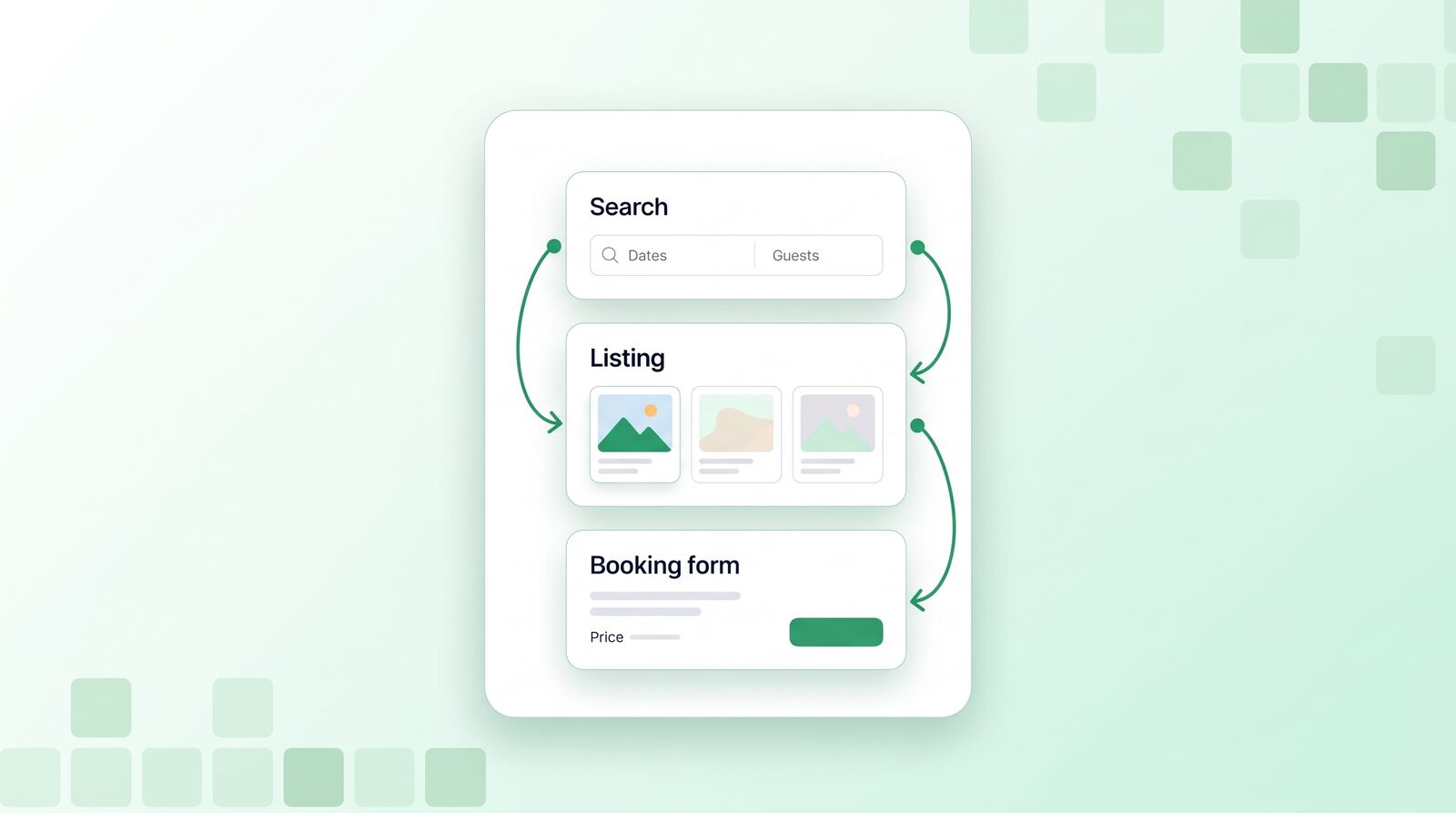
- CraftForms Catalog Search: dates and guests fields that find free rooms, boats or tour dates across your catalog.
- CraftForms Catalog Listing: your catalog items as cards, a list of upcoming dates, or a calendar of free dates, each linking to its booking form.
They render the same output as the blocks of the same name, so the search on a Bricks page and on a Gutenberg page can’t drift apart. A B&B in Bricks is then a search in the header template, a listing on the rooms page, and one booking form in the room template with the Catalog Item picked. The B&B booking tutorial builds the form itself.
What did we test?
For 2.4 we rebuilt the Bricks element’s settings and tested four real forms on a clean Bricks site: a survey, a salon appointment with a deposit, a product configurator with option cards and a photo upload, and a conversational enquiry. Each one in the builder canvas and on the front end, on desktop and on a phone. That turned up five Bricks-specific problems, all fixed in 2.4:
- Grey labels. Bricks paints every
labellight grey, and that beat the form’s own colours on options and labels. Labels and options now take the form’s text colour (Unstyled still leaves them to Bricks). - A name | email row fell to one column. A Bricks container lines its children up at the start, so the element shrank to its content. The element now fills its column; a width you set in Bricks still wins.
- Tiny fields. Bricks sets the root font size to 62.5%, which made fields 35px tall with 5px padding. Padding and gaps now have a floor of 8px.
- 7px between fields side by side. They now get the theme’s block gap, or 16px.
- The hover colour recoloured the whole button. Bricks reads any setting name containing
_hoveras a hover state, so ours was renamed.
If something in your setup still looks off, tell us in the Facebook group with your Bricks version and a screenshot.
Questions Bricks users ask
Is the Bricks element free?
Yes. The CraftForms Form element, its Style tab and Form styles are in the free version. Payments, bookings, price formulas, the Catalog Item picker and the Catalog Search and Listing elements are PRO.
Can I build the form inside Bricks?
No. You build it in CraftForms’ editor (WordPress blocks) and place it with Bricks. That’s a trade-off: you don’t get Bricks elements inside the form, but the same form, with its emails, PDFs, prices and submissions, works on any page, with any builder, and in an embed on a non-WordPress site.
What if I move away from Bricks?
Your forms keep working: the same form goes into Gutenberg, Elementor, Divi or a shortcode, and Form styles follows the new theme on the next page load (Blocksy, Kadence, Divi, a block theme…).
Where do submissions go?
Into CraftForms, not Bricks’ Form submissions screen: CraftForms → Submissions, plus the Enquiries and Bookings work pages for answering and managing them.
Does it slow the page down?
The form’s scripts load only on pages that show a form, and in the builder while you edit.
Bottom line
Use the Bricks Form element for the forms it was built for. When a form has to price, take money, book dates or send a PDF, CraftForms gives you an element that sits in the Bricks panel, follows your Bricks colours out of the box, and takes your global colours and variables for anything you want to change.
Download CraftForms free and drop the element on a page, or try the live demo first.