
CraftForms 2.3 Is Here: Work Pages, Client Access, Form Import and Telegram
- Category
- Release
- Published
- Updated
- Reading time
- 9 min
- Tags
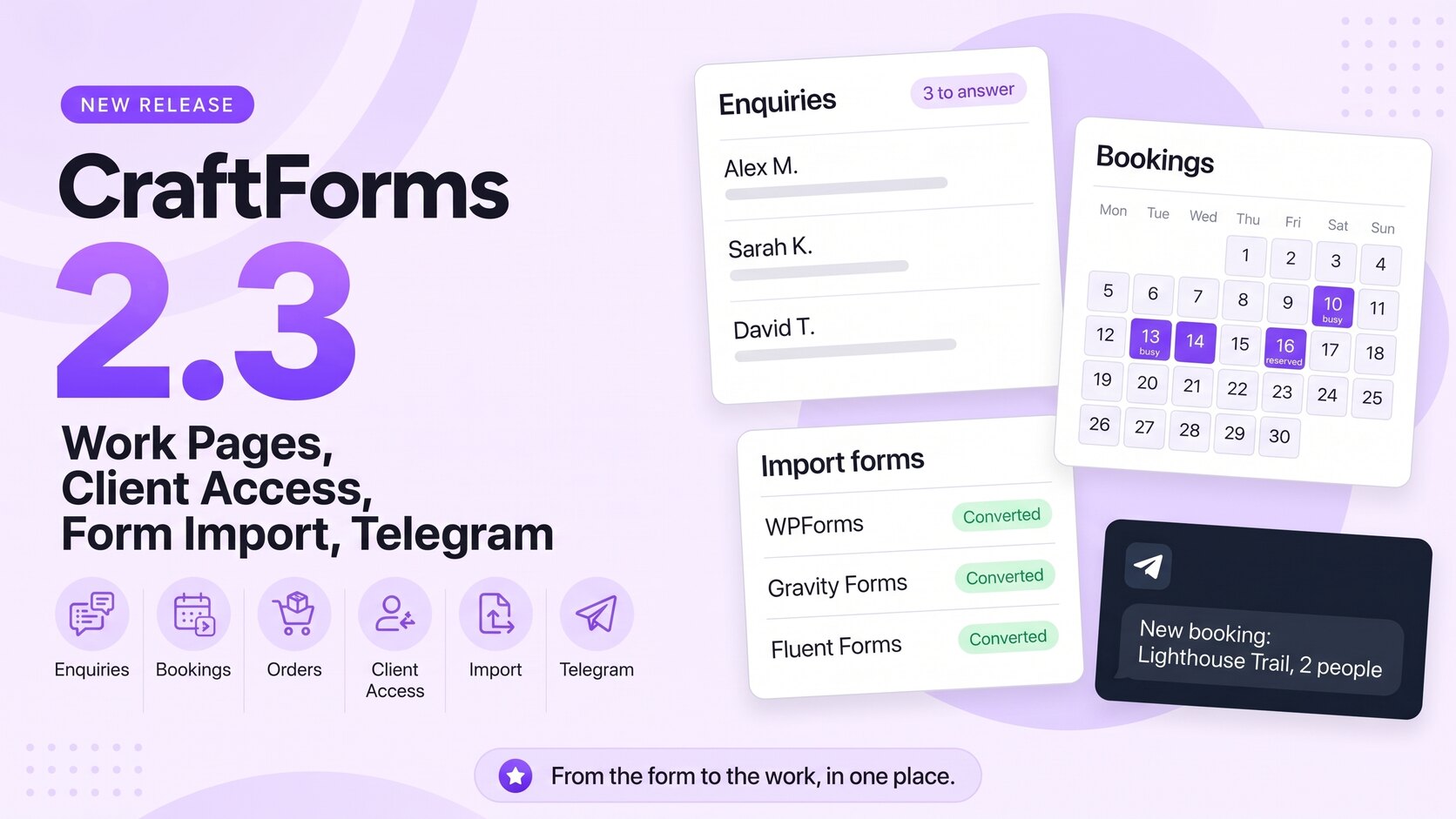
CraftForms 2.3 is out. It’s about what happens after the form is sent.
Until now, CraftForms was very good at getting the request in: the quote, the booking, the order, the application. What to do with it next was up to you, usually in a Submissions table. 2.3 gives that part its own pages. A guest house sees who arrives today, a salon sees today’s appointments, a shop sees what to pack, and anyone with a contact form sees which messages still need an answer.
The second theme is moving in. If your forms live in WPForms, Gravity Forms or Fluent Forms, 2.3 converts them, with their entries, and swaps them on your pages.
In short:
- Work pages: Enquiries (free), Bookings, Rentals, Appointments, Orders and Products (PRO), with a card per person and Team Access for your staff.
- Client Access (PRO): each client of an agency reads their own forms’ submissions, and nothing else.
- Import Forms (free): WPForms, Gravity Forms and Fluent Forms, from the plugin on your site or its export file, entries and embeds included.
- Telegram (free) and Notion (PRO): a message for every new request, a page in a Notion database for every application.
- Flows: the Wait step (PRO): a reminder the day before a booking, a follow-up a week later.
- New fields (free): Date, Time, Date and time, Consent, and numbers the form generates (MEM-2026-0001).
- Account forms (PRO): Log In, Lost Password and New Password, and a User Registration that checks for an existing account first.
- Shared calendars (PRO): one guide, chair or boat for several booking items, so nobody gets double-booked.
- Also: Cloudflare Turnstile (free), a Catalog Listing element for Bricks, “Closest down” table lookups for quantity breaks.
Here’s everything in 2.3.
Work pages: your daily work, not the form builder
Switch them on in CraftForms → Settings → Work Pages, or answer one question on Overview (“What will you manage here day to day?”). Each page you pick goes to the top of the WordPress menu, under Dashboard:
| Page | For | What you do there |
|---|---|---|
| Enquiries (free) | Anyone with a contact, quote or application form | See what still needs an answer, reply, keep notes per person |
| Bookings | B&Bs, guest houses, holiday homes | Arrivals and departures today, a calendar of stays, guests |
| Rentals | Bike, boat, kayak and gear hire | What goes out today, what is out, what came back |
| Appointments | Salons, therapists, guides, workshops | Today’s appointments, a week of free times, add one by hand |
| Orders | Shops that take orders through a form | To do, In progress, Done, with Analytics for product sales |
| Products | The same shops | Prices, stock and status, without opening the form |
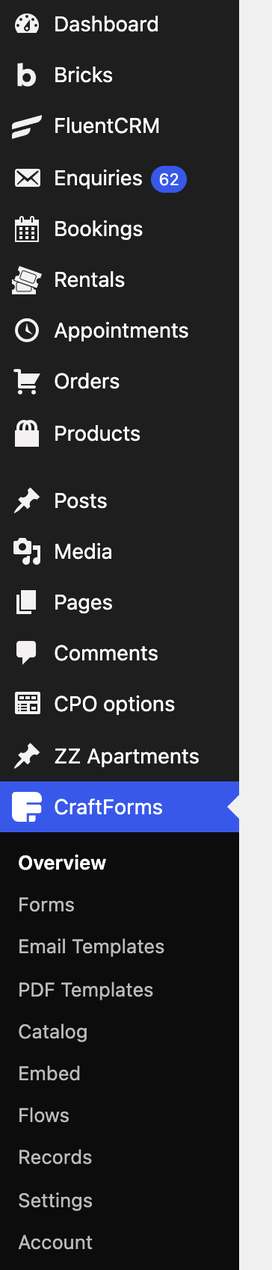
Every page matches people by email, so a guest who booked twice and asked a question once has one card, with all three and your notes. People who also have a WordPress account get a Site user badge.
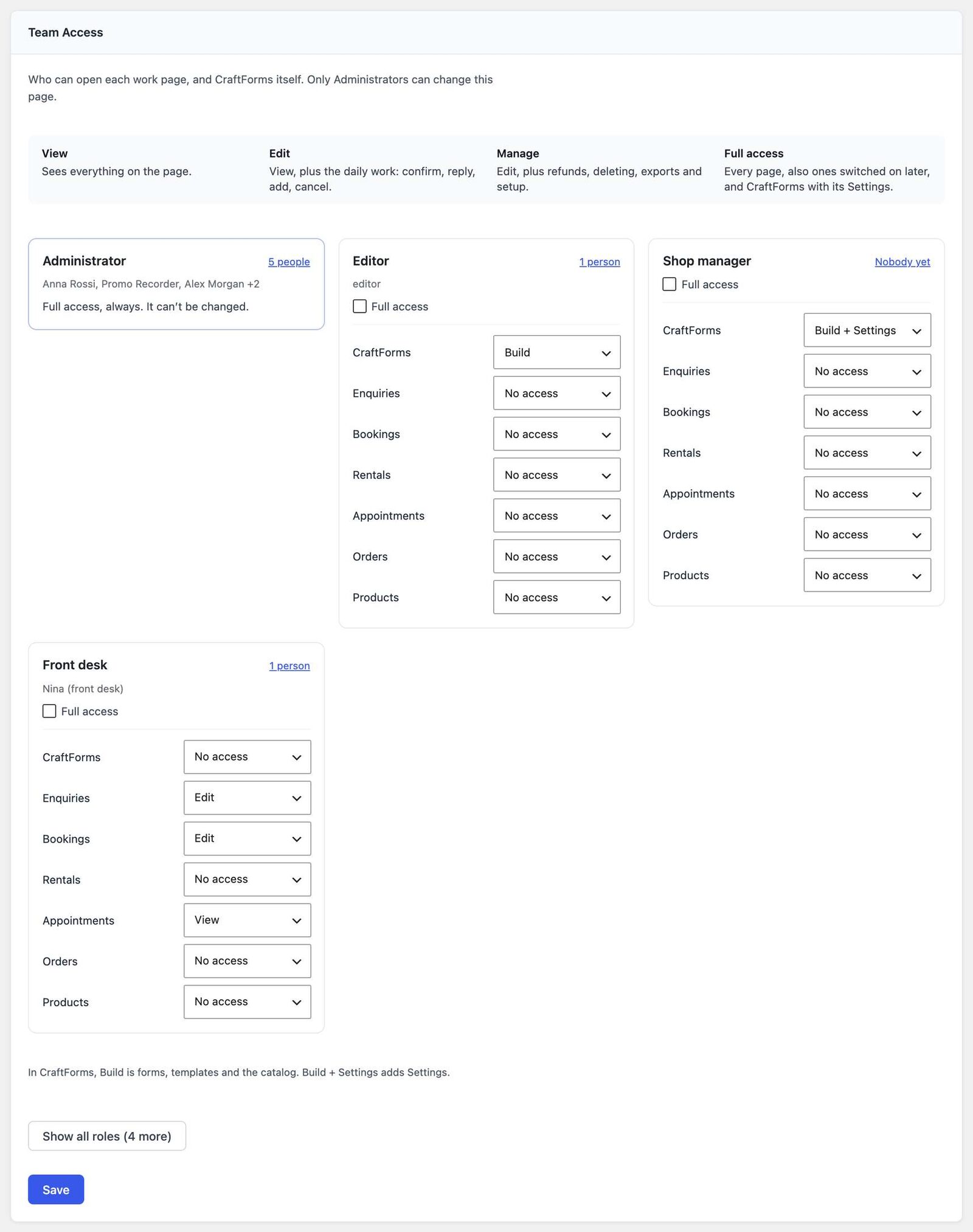
Team Access decides who sees what: for each role and page, No access, View, Edit or Manage. A new Front desk role starts with Edit on every page that’s on: your receptionist can confirm a booking or mark a message as replied without seeing the form builder, the settings or your revenue. Refunds and exports need Manage: Manage on Orders exports orders, not your guests. Every change to Team Access is logged.
With work pages on, the old screens move under CraftForms → Records (Submissions, Orders, Files, Email Logs), and Analytics moves to Overview → Analytics. Updating from 2.2 tidies your history too: messages older than 30 days count as replied, product orders older than 30 days as done, so the pages don’t open with hundreds of “to do” items.
Client Access: your clients read their own submissions (PRO)
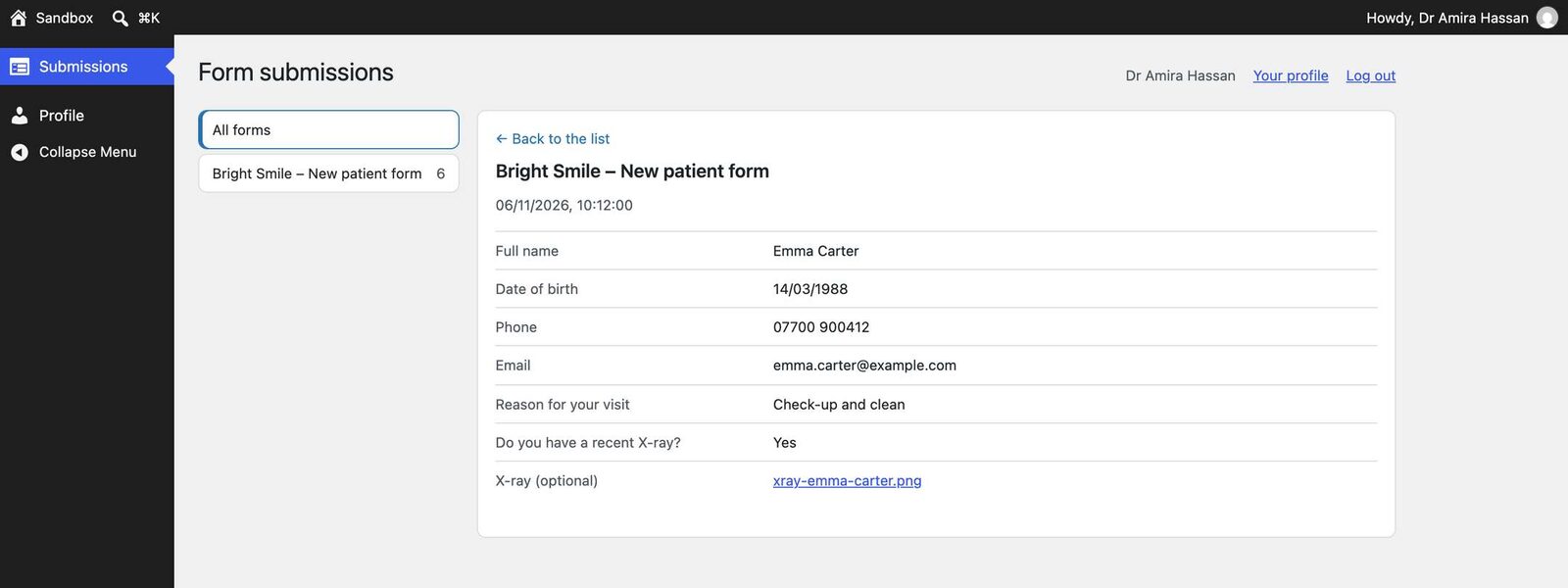
For agencies and freelancers who run forms for several businesses on one WordPress. In Settings → Clients, create a client, attach its forms and invite its people by email. They sign in at the usual login page and land on one screen: their own forms’ submissions, newest first, with the files sent with them. Read-only, and nothing else in wp-admin: no other forms, no settings, no other plugins’ screens.
A form belongs to one client at most, Remove access works on the next click, and clients don’t need a licence or count against anything. We tested it against the bugs that have hit other form plugins over the years: other clients’ entries, guessed file addresses, the REST API.
👉 Tutorial: How to let clients see their form submissions in WordPress 📄 Client Access in the docs
Import your forms from WPForms, Gravity Forms and Fluent Forms (free)
Go to CraftForms → Settings → Import Forms. CraftForms lists the forms of every supported plugin on the site. Pick one, click Check to see what will move and what needs a hand, then Convert.
What comes across:
- Fields and their settings, including name and address fields (as separate parts) and date and time fields.
- Pages become steps, and conditional pages become step jump rules.
- Show/hide rules on fields, sections and HTML blocks.
- Notifications become Send Email actions, with routing and “Run if”; confirmations become the form’s thank-you message or redirect.
- Entries, with their original date, read/unread state, IP and files. Each entry is copied once, so running it again adds only new ones.
- Embeds: Replace on your pages swaps the old shortcodes and blocks in pages, posts, patterns and templates for the new form, with an Undo.
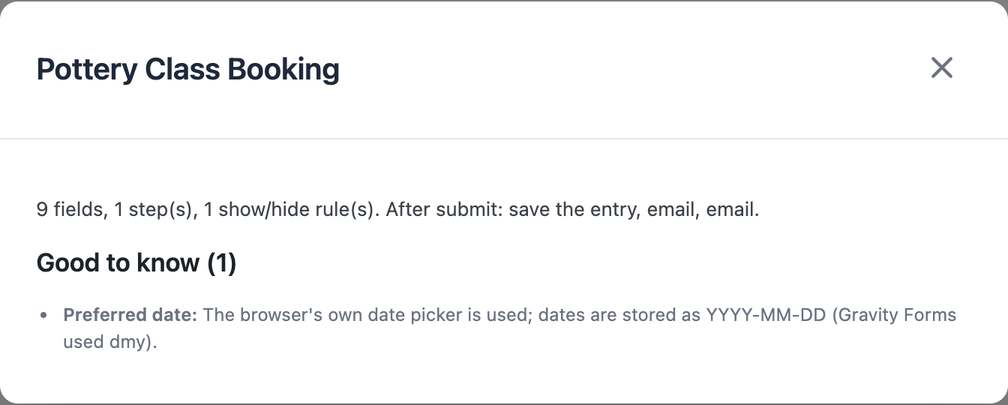
Moving from another site? Export the forms there and choose the file (Fluent Forms entries can come along as a second file). Developers get the same steps in WP-CLI: wp craftforms import <fluentform|gravityforms|wpforms> list|analyze|convert|entries|embeds.
We tested it on 163 forms that the three plugins make from their own templates, plus real client exports: all converted, and the block editor found no broken block in any of them.
Telegram (free) and Notion (PRO)
Telegram: create a bot with @BotFather, paste its token in Settings → Integrations, add the bot to your group or channel, and CraftForms finds the chat by itself. Add a Send to Telegram action to a form and every new request arrives on your phone. The message takes merge tags like an email, and up to six buttons (Call | {{field.phone}}, WhatsApp | …) open a link with one tap. It’s your own bot: nothing goes through our servers.
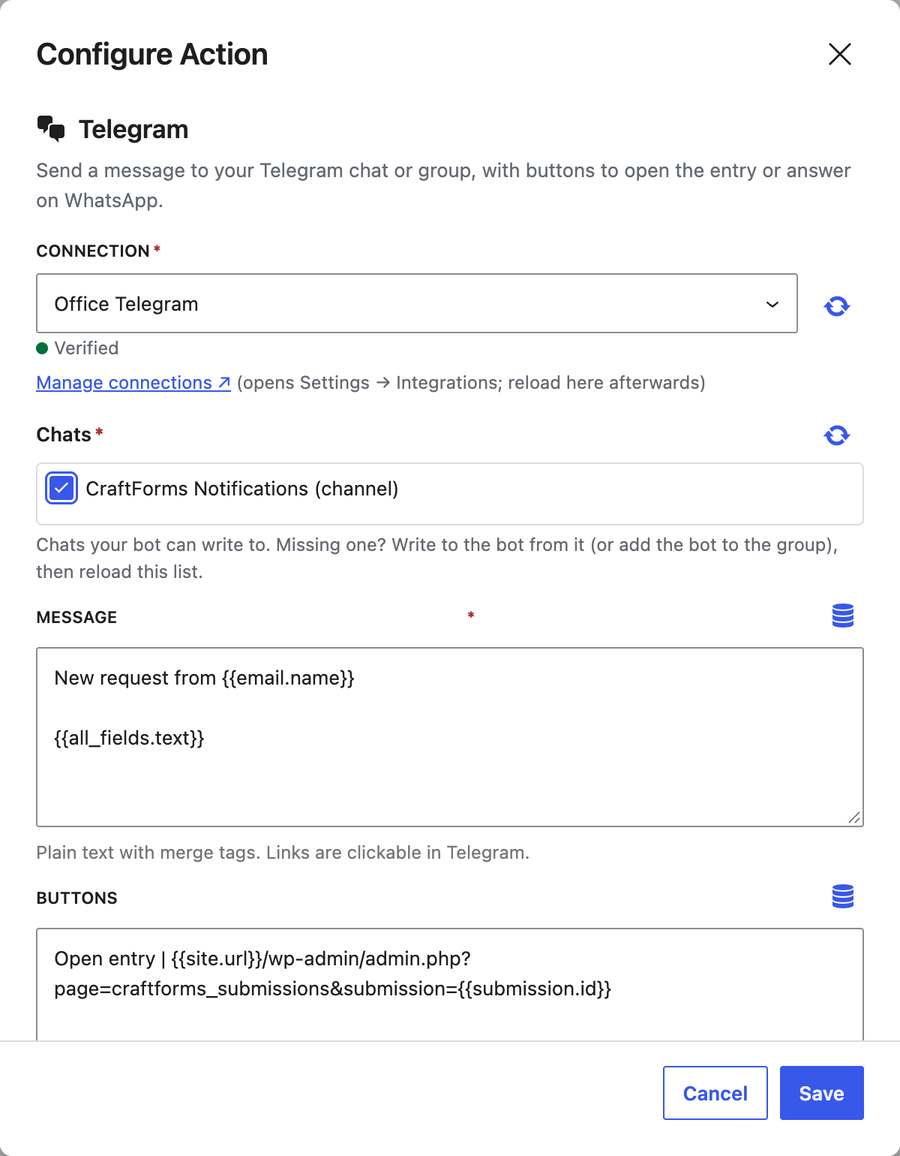
Notion: paste your integration’s secret, pick a database, and match form fields to its properties. Each submission becomes a page: dates as dates, choices as Select options (created if missing), files uploaded into the page. A job application lands on your hiring board with the CV attached.
Flows: wait, then continue (PRO)
The new Wait step pauses a flow: for a time (5 minutes to a year), or until a point around the booking (“1 day before the start, at 10:00”) or a date field. When it’s time, CraftForms checks again that the booking still exists and the flow is still on, then carries on. Use it for a reminder the day before, a review request after a stay, a follow-up a week after a quote.
Runs shows a waiting run as one row, “Waiting · Continues 12 Nov 10:00”, and the Flows list says Waiting too. Waits run with WordPress’s scheduler; for exact timing on a quiet site, run wp craftforms flows drain from a server cron job.
New fields: dates, times, consent and generated numbers (free)
- Date, Time and Date and time inputs, with Earliest and Latest that understand
today,today+7or another field (“check-out after check-in”). The server checks them again, and saves dates in one format whatever the visitor’s browser shows. - Consent: a checkbox that stores exactly what the visitor agreed to: the wording as shown, its version, the language and the time. The wording can include page details such as
{{post.title}}, so one consent field works on every product page. - Generated numbers: a hidden field can give each submission a number when it’s sent, counting (
MEM-2026-0001) or random (K7QM-3XRW), never repeated in the form. Use it in the thank-you message, emails and PDFs.
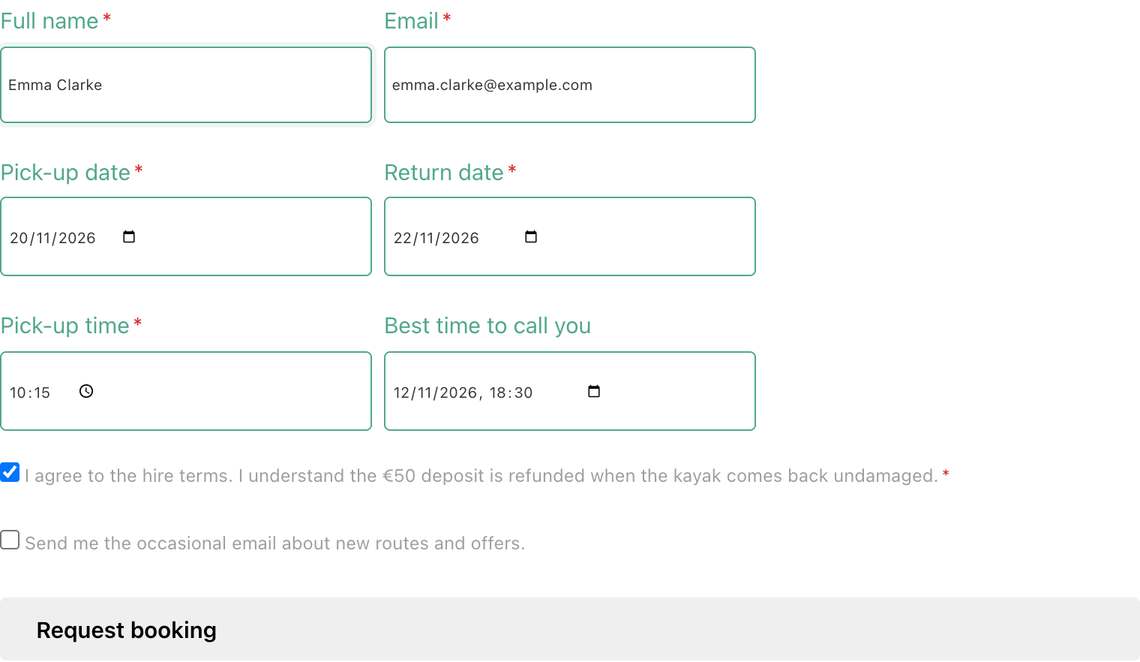
📄 Date and time fields · Consent field · Generated numbers
Account forms: sign up, log in, reset (PRO)
Three new actions, with a starter each: Log In, Lost Password and New Password. They use WordPress’s own sign-in and reset, so security and lockout plugins work as they do on the login page. Accounts with two-factor sign-in are sent to the login page. Lost Password gives the same answer whether or not an account exists.
User Registration now checks for an existing account before anything runs: the form is refused with a message on the email field, and nothing is saved or sent. A new setting decides what happens instead: refuse, update the visitor’s own account, or accept the form without an account.
And a security change for every form: what a visitor types into a password field is never stored with the submission, or shown in emails, webhooks or flows. Only User Registration receives it.
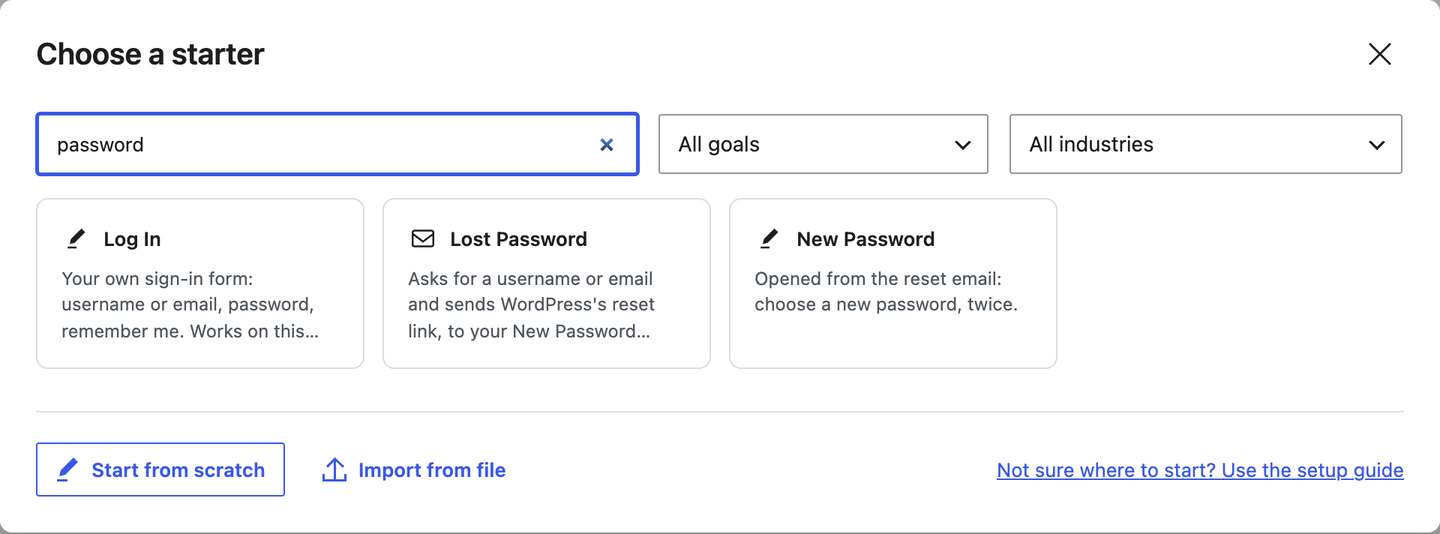
Shared calendars: one guide, many tours (PRO)
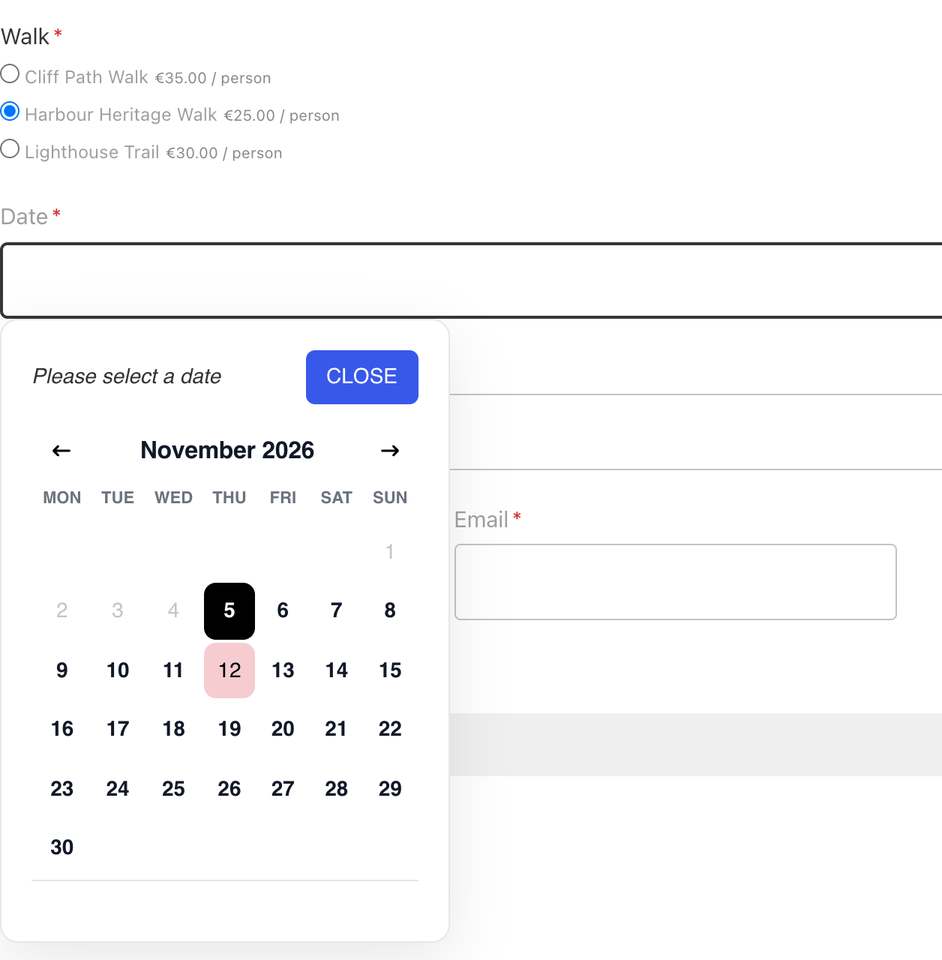
A tour company with one guide and three walks has a problem the moment two people book different walks on the same morning. A Shared calendar is the guide (or the chair, the boat, the van): add it under Catalog, put the three walks on it, and a booked day closes the other two in the date picker, in listings and in search. Set a limit (two guides, two boats), count by item (several people joining the same tour is fine) or by booking, close days for everyone at once, and sync it with the guide’s own calendar. On Appointments and Rentals, the switch is called Who runs these?
📄 Shared calendars in the docs
Also in 2.3
- Cloudflare Turnstile (free, opt-in): add your Turnstile keys in Settings → Spam Protection and switch it on per form. Most visitors don’t click anything. CraftForms’ own checks also refuse random-text spam silently now.
- Catalog Listing element for Bricks (PRO): cards, upcoming dates and times, or a calendar of free dates, with the same settings as the block.
- “Closest down” table lookups (PRO): for quantity breaks. With rows 1, 5, 10 and 25, a quantity of 12 uses the 10 row.
- One-room booking forms book their item wherever you place them, with a shortcode or an embed.
- The booking date picker’s texts are on Settings → Field Message Translations, so they can be worded for any language.
- Multilingual forms: texts in a Custom HTML block can be translated, and with Polylang visitors no longer see default field messages in the site’s language.
- PRO starters come from our server, so new ones arrive without a plugin update.
- Fixed: email subjects showed the site name escaped (“Marta's Studio”); work pages showed times on the device’s clock instead of the site’s; a Table smart variable looked up with a decimal comma (24,5) could price differently on submit.
The full list is in the changelog.
How to update
Update from Plugins in your WordPress admin, as usual. Nothing changes on your site until you switch work pages on: until then, Submissions and Orders stay where they are. PRO features need an active PRO licence.
New to CraftForms? Download the free version, or see the PRO plans.
Moving from another form plugin and stuck on something the converter flags “to do by hand”? Tell us in the Facebook group: the converters improve fastest from real forms.