
How to Let Clients See Their Form Submissions in WordPress (Without Giving Them Admin Access)
- Category
- Tutorial
- Published
- Updated
- Reading time
- 9 min
- Tags
The short answer: create a client, attach that client’s forms to it, and invite the people who work there by email. Each person signs in at the usual WordPress login and lands on one page: their own forms’ submissions, newest first, with the uploaded files. They can read and download. They can’t edit, they can’t see other clients’ forms, and the rest of wp-admin is closed to them. In CraftForms this is Settings → Clients, a PRO feature on self-hosted WordPress.
TL;DR
- Forwarding emails, sending CSVs and handing out Editor accounts all break down once you look after more than two or three clients.
- A client in CraftForms is a business name plus the forms that belong to it. A form belongs to one client at most.
- Invite people by email. New addresses get a “set your password” link. Nobody needs a licence or a seat of their own.
- Clients see submissions and their files, read-only. No orders, payments, settings, or other plugins’ screens.
- Remove access works at once. Deleting a client keeps its forms, unshared.
- Your notification emails don’t change: whoever got them before still gets them.
Sooner or later every client asks the same thing: “Can I see the entries myself?”
Fair question. You built the contact form, the booking request, the job application. The submissions sit in your WordPress, because that’s where the forms run. If you host forms for many clients on one install, as in our form-submission hub guide, it gets awkward fast. The data is theirs, the keys are yours, and every “can you send me last month’s requests?” lands in your inbox.
This tutorial sets up client access for a small studio that looks after three businesses: Surf Coast (a surf school with a lesson booking form and a group quote form), Hotel Rossi (a room enquiry form) and Bright Smile (a dental clinic with a new-patient form and an X-ray upload).
What are your options for sharing form entries with a client?
| Option | What the client gets | The catch |
|---|---|---|
| Forward the notification emails | Every entry, in their inbox | No history, no search. A new person at the client starts with nothing. Files bounce once they pass the mail limit. |
| Export a CSV now and then | A spreadsheet | Out of date the day after. Files aren’t in it. You’re the one doing it. |
| Give them an Editor account | wp-admin | They see pages, posts and media of every client on the install. Most form plugins treat “can read entries” as one switch for all forms. |
| Push entries to Sheets, Notion or a CRM | Their own tool | Good for clients who live in a CRM. More setup, one more place the data sits, and uploads need care. See our webhooks guide. |
| One WordPress per client | Full separation | One more install to update, back up and pay for, every time you sign a client. |
| A client login scoped to their forms | Their entries and files, read-only, in one place | The client signs in to your install, so it has to be locked down. That’s what the rest of this post covers. |
The last row is the one that scales. It’s also the one that’s easy to get wrong if you build it yourself from a role editor and a few capability tweaks. We’ll come back to why.
What you need
- CraftForms PRO on a WordPress site you host yourself. Client access isn’t on the hosted CraftForms service.
- An Administrator account. Only Administrators see Settings → Clients.
- The client forms already built and receiving entries. A Save Submission submit action must be on each form, or there’s nothing to show.
- Email that actually leaves your site (an SMTP plugin or CraftForms’ own SMTP settings), because invitations go out by email.
Clients don’t count against anything. They don’t need a licence, and there is no per-seat price.
How to give a client access to their form submissions
1. Add the client
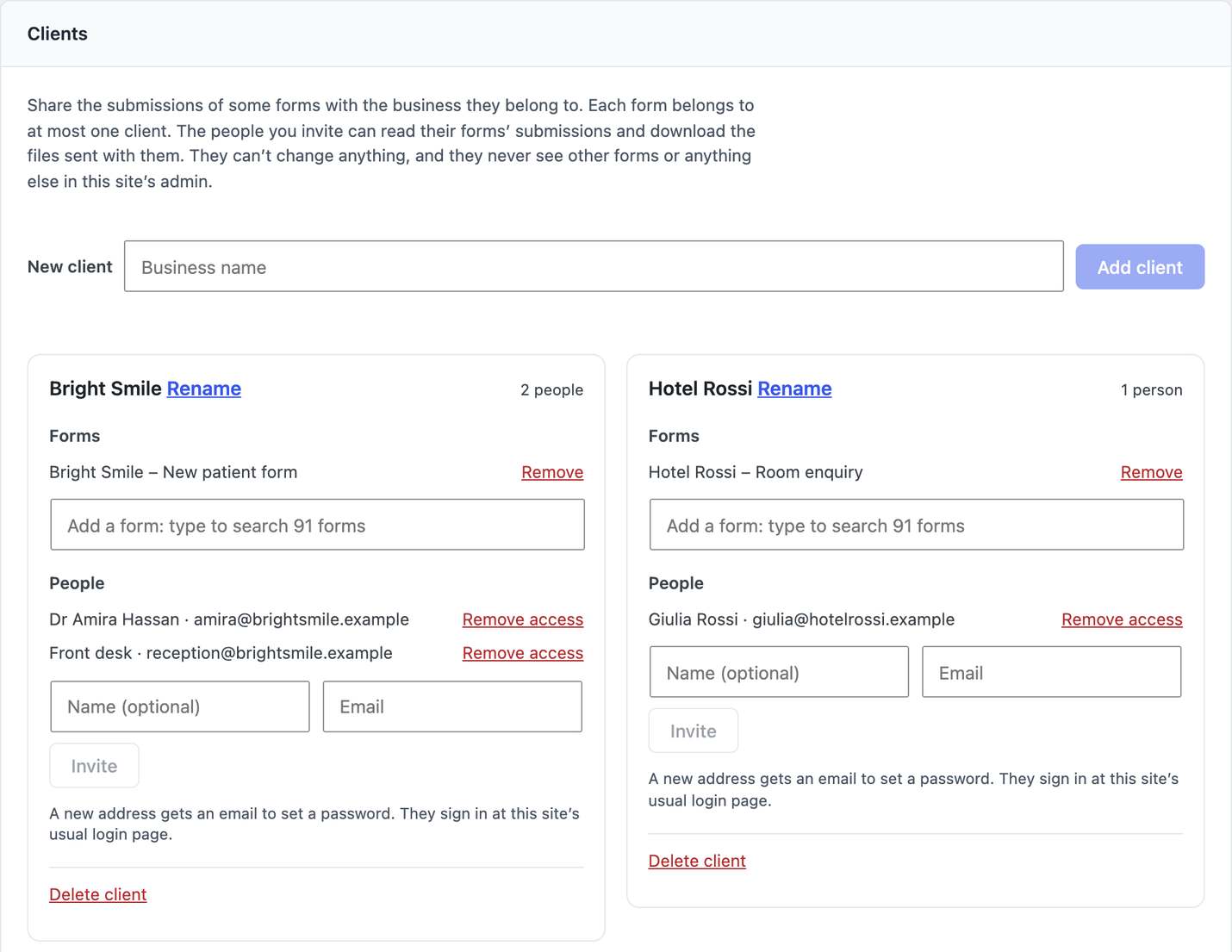
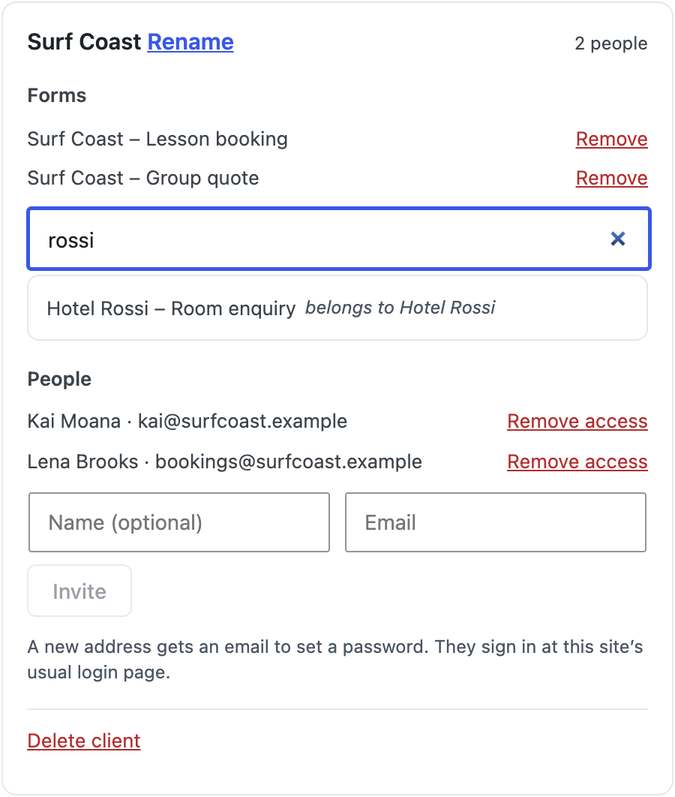
Go to CraftForms → Settings → Clients. Type the business name, for example Surf Coast, and click Add client. You get a card for it with three parts: Forms, People and Delete client.
2. Attach the client’s forms
In the card, start typing in Add a form to Surf Coast. The search matches the start of words in any order, so surf q finds Surf Coast group quote. Pick the form, add the next one, then click Save forms.
A form belongs to one client at most. If a form already belongs to someone else, the picker says belongs to Hotel Rossi. Saving moves it, past submissions included, and Hotel Rossi’s people stop seeing it. That’s deliberate: there is never a question of who can read a form. If two businesses really share a form, duplicate it and give each its own copy.
On a site with hundreds of forms each card lists only its own, so the page stays short. With more than six clients a Find a client box appears; it matches names and people’s email addresses.
3. Invite the people who work there
Under People, enter a name (optional) and an email address, then Invite. Do it once per person: the owner, the front desk, the person who answers quote requests.
- A new address gets an email titled “[Your site] Your form submissions are ready to view”. It names the client, has a link to set a password, and tells them their username and where to sign in.
- An address that already has a client account (someone who works for two of your clients) gets “More form submissions shared with you” and sees both clients’ forms under one login.
- An address that belongs to an editor, a shop customer or an administrator is refused. Use another address. One account doesn’t get to be staff and client at the same time.
4. What the client sees
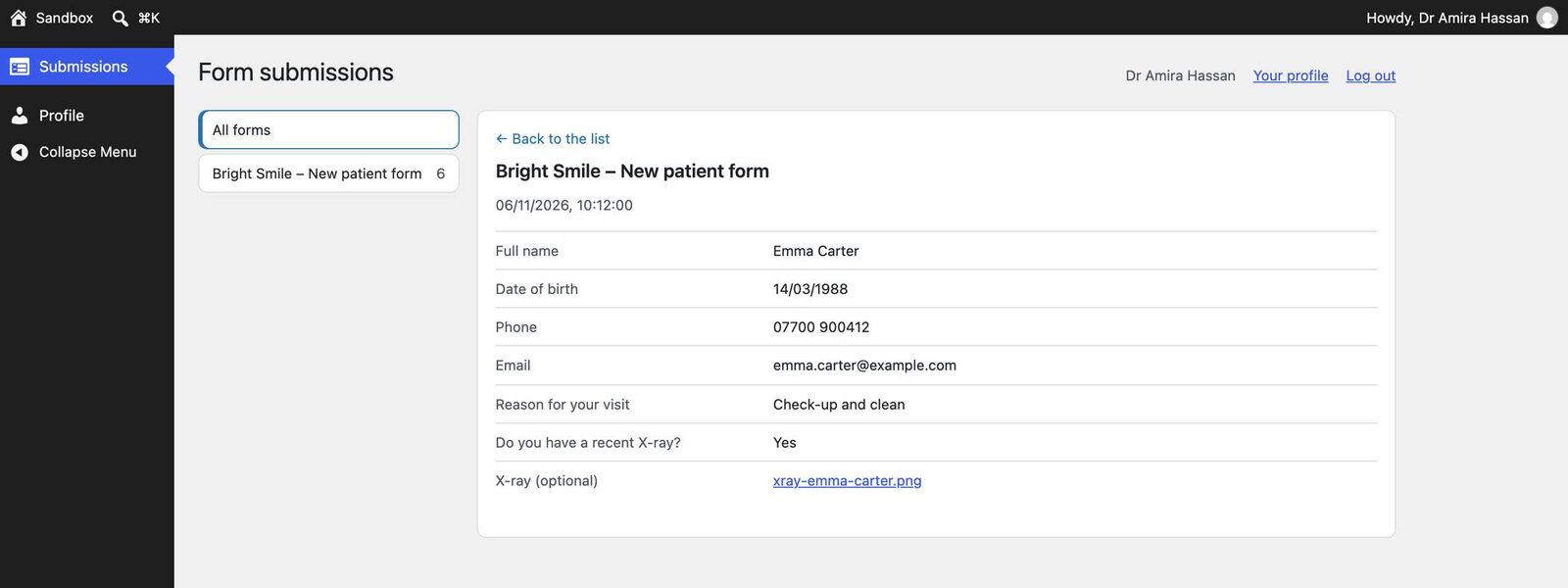
The client signs in at the site’s normal login page and lands on Form submissions:
- their forms on the left, each with a count, and All forms at the top
- the newest submissions first, with Newer / Older to page through
- click one to read it: each answer with its field label, and the files sent with it, ready to download
- Find a form when they have more than eight
Their profile (name and password) is the only other screen. There is no dashboard, no menu of things they can’t open, and no “you are not allowed” pages: every other wp-admin address sends them back to their submissions.
5. Take access away
- Remove access next to a person ends it on their next click. Use it the day someone leaves the client’s business.
- Delete client leaves the forms where they are, now unshared, and its people see an empty page.
- Recent changes at the bottom lists who shared, moved or removed what, and when. Useful when a client asks “who gave Tom access?”
What can a client see, and what can’t they?
| Clients can | Clients can’t |
|---|---|
| Read the submissions of their own forms | See any other form, including your own |
| Download the files sent with those submissions | Download a file from another submission, even by guessing its address |
| Search and page through their forms | Edit, delete or export entries |
| Change their own name and password | Mark entries as read (that stays yours) |
| See abandoned drafts, trashed entries, payment details, IP addresses or browser data | |
| Open orders, payments, bookings, PDFs or any CraftForms setting | |
| Open other plugins’ screens, or WordPress’s own (posts, pages, media, users) |
Read-only is a choice for this first version. Clients ask to see entries far more often than to manage them, and read-only keeps one person’s mistake from becoming everyone’s problem.
Why not build this with a role editor?
You can make a “client” role with a role-editor plugin and tick a “view entries” capability. Three things go wrong:
- The capability is usually global. “Can view entries” means all entries on the install. Per-form access needs code that checks every single request.
- wp-admin leaks. A logged-in user who can reach wp-admin sees menus, notices and data that other plugins print into the page: settings, plugin lists, sometimes security tokens.
- Form plugins keep shipping the same bugs. Over the last few years, published vulnerabilities in well-known form plugins have let low-privilege users read entries, export across forms and download other people’s uploads. A home-made client role inherits whatever the plugin gets wrong.
CraftForms takes the opposite approach. The client role holds no CraftForms capability at all, whatever a role editor, a theme or Team Access says, so every existing screen and route is closed to clients by default. They get one small, read-only page built for them alone. On top of that:
- A form or submission outside their scope answers exactly like one that doesn’t exist, so a client can’t probe for ids.
- A file downloads only if the submission names it, the file’s own record belongs to that submission, and the form matches.
- On a client’s screens, only WordPress core and the client page load. Other plugins’ scripts and settings data don’t reach them.
- Clients can’t create application passwords, and WordPress’s own REST API is closed to them apart from their own profile.
We tested it the way an attacker would, using the kinds of bugs that have turned up in other form plugins over the years.
Using it with a form hub for client sites
Client access fits best with the setup from our form-submission hub guide: one locked-down WordPress install runs the forms, and each client’s website, WordPress or static, embeds its forms from there. Until now that guide said the hub was the wrong choice when a client needs to keep their data apart. Client access closes most of that gap: the data still lives on your install, but each client reads only their own, under their own login.
With Headless mode on, the hub shows no public pages. Client logins still work, because they use the normal login page.
FAQ
Do clients still get notification emails? Nothing changes there. Whoever a form emails today keeps getting the email. Client access is the history; email is the alert.
Can one form be shared with two clients? No. A form belongs to one client at most. Duplicate the form if two businesses need it.
Can someone work for two clients? Yes. Invite the same address from both clients’ cards. They see both sets of forms under one login.
What if my licence lapses? Clients keep reading, and you can still remove access. Adding clients, forms and people needs an active licence.
Does it work on multisite? Yes. Access is stored per site, so a client on one site never sees forms on another.
Can clients mark entries as handled or add notes? Not yet. This version is read-only.
Next steps
- Pick the client who asks for entries most often and set them up first. It takes about two minutes.
- Tell them where to sign in, and that their notification emails stay as they are.
- While you’re in Settings, look at Team Access too: it decides what your own staff can open.