
How to Build a Visual Product Configurator With Layered Images (Watches, Sofas, Bikes, Sneakers)
- Category
- Tutorial
- Published
- Updated
- Reading time
- 12 min
- Tags
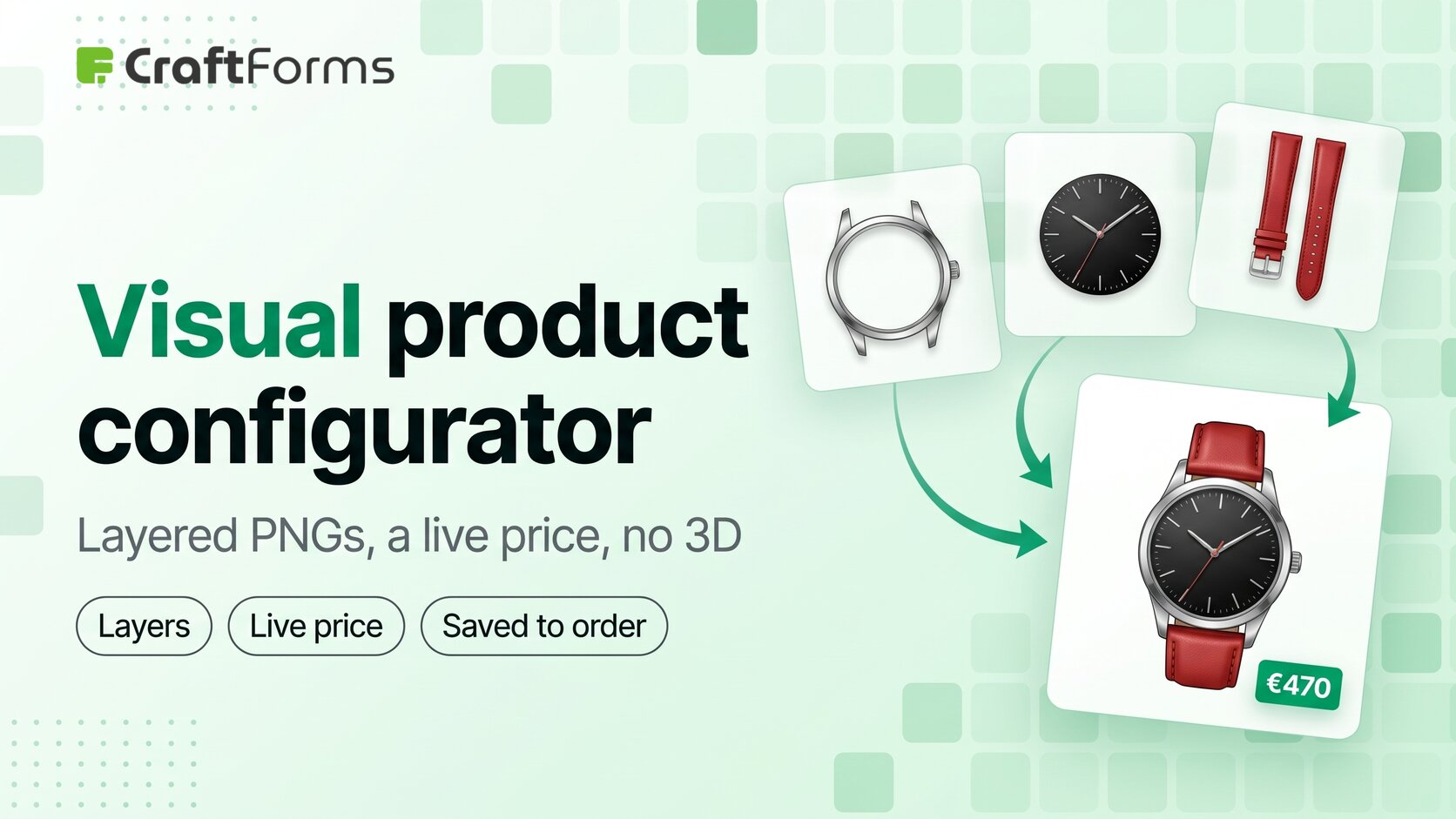
A visual product configurator shows the customer the exact thing they’re building. They pick a steel case, a black dial and a red strap, and the picture on screen is that watch, with the price beside it. The cheapest reliable way to build one isn’t 3D. It’s a stack of transparent PNG images, one per part, that swap as the options change. Three cases, four dials and six straps make 72 combinations, but you only need 13 images.
This guide shows how to build one in WordPress with the CraftForms Layered Image element, on a WooCommerce product or in a standalone order form. It also covers when a 3D configurator is worth paying for instead.
TL;DR
- A layered-image configurator stacks one transparent PNG per part. The number of images you need is the sum of the options, not the product: 3 + 4 + 6 = 13 images for 72 combinations.
- In CraftForms, each layer of the Layered Image element is bound to a radio, select or checkbox field. A layer either swaps a PNG per choice (Image mode) or tints one mask PNG per choice (Color mode). One mask covers every colour you’ll ever offer.
- The preview is stacked images in the browser, so it updates the moment an option changes.
- With Save composited preview on submit, the finished picture replaces the product thumbnail in the cart, at checkout, in order emails and on the admin order screen, so your workshop sees exactly what was ordered.
- The price comes from the same form: per-option prices, formulas or lookup tables, recalculated on the server at checkout.
- Two starters do the setup for you: Smart Watch (WooCommerce product starter) and Smart Watch Configurator (form starter, no WooCommerce needed).
- Layered Image is a CraftForms Pro feature.
Why do layers beat photographing every combination?
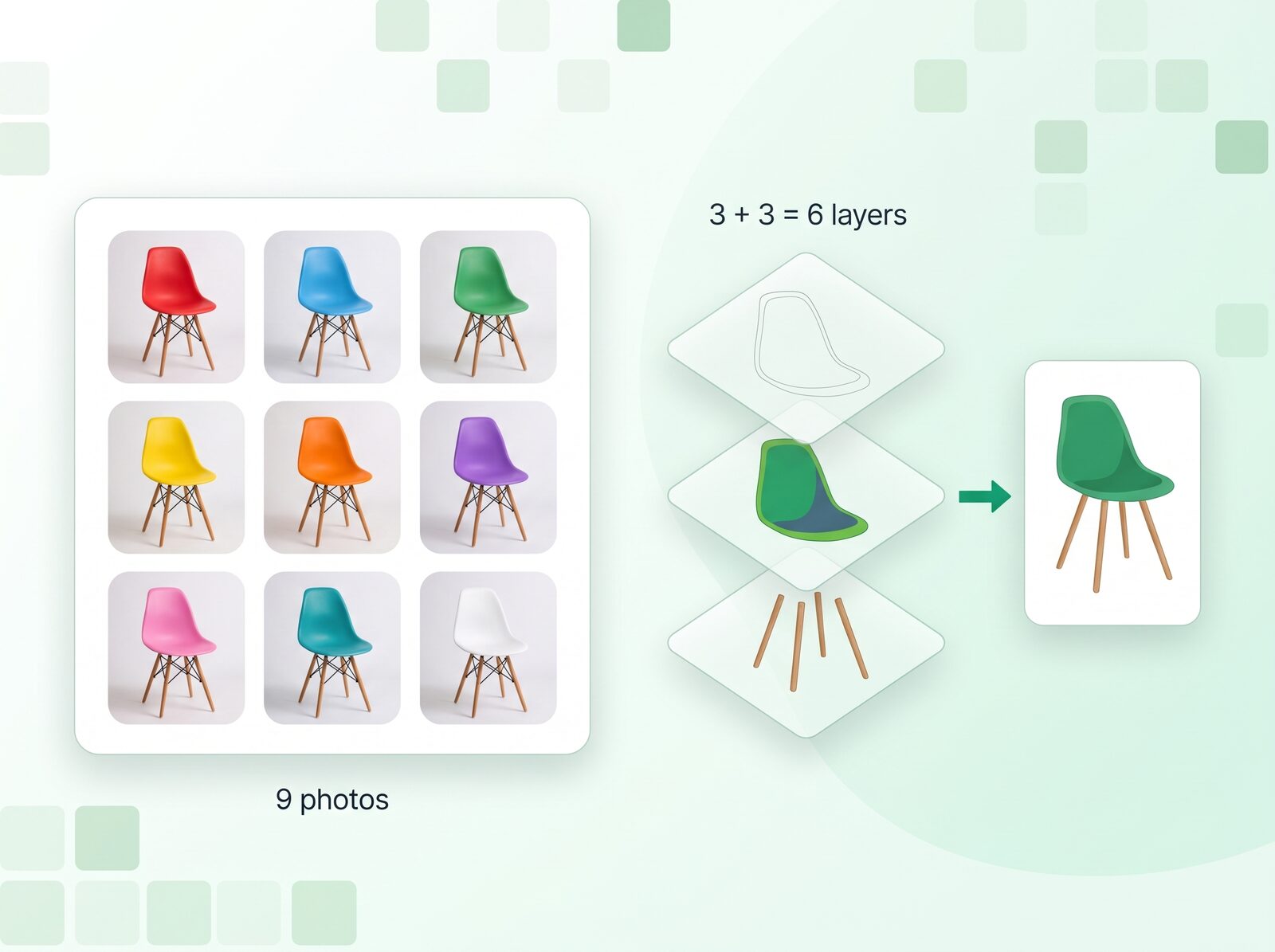
If you’ve ever tried to photograph every version of a product, you know how that goes. A sofa in 4 fabrics × 3 leg finishes × 2 cushion styles is 24 photos. Offer 12 fabrics instead of 4 and it’s 72. Every new fabric means another shoot.
Layers turn multiplication into addition:
| Product | Options | Combinations | Photos needed | Layer images needed |
|---|---|---|---|---|
| Watch | 3 cases × 4 dials × 6 straps | 72 | 72 | 3 + 4 + 6 = 13 |
| Sofa (colour mode) | 12 fabrics × 3 legs × 2 cushions | 72 | 72 | 1 base + 1 fabric mask + 3 + 2 = 7 |
| Bike | 5 frame colours × 3 wheelsets × 2 saddles | 30 | 30 | 1 mask + 3 + 2 = 6 |
| Sneaker | 8 upper × 4 sole × 5 lace colours | 160 | 160 | 3 masks + 1 shading layer = 4 |
Colour mode is what shrinks the sofa, bike and sneaker rows. Adding a fabric colour is a colour value, not a photo shoot.
How does the Layered Image element work?
The Layered Image viewer looks like a normal product gallery: a main image, thumbnails and an optional lightbox zoom. It adds one extra thumbnail, labelled Preview. The Preview is the composite: a background with your PNG layers stacked on top.
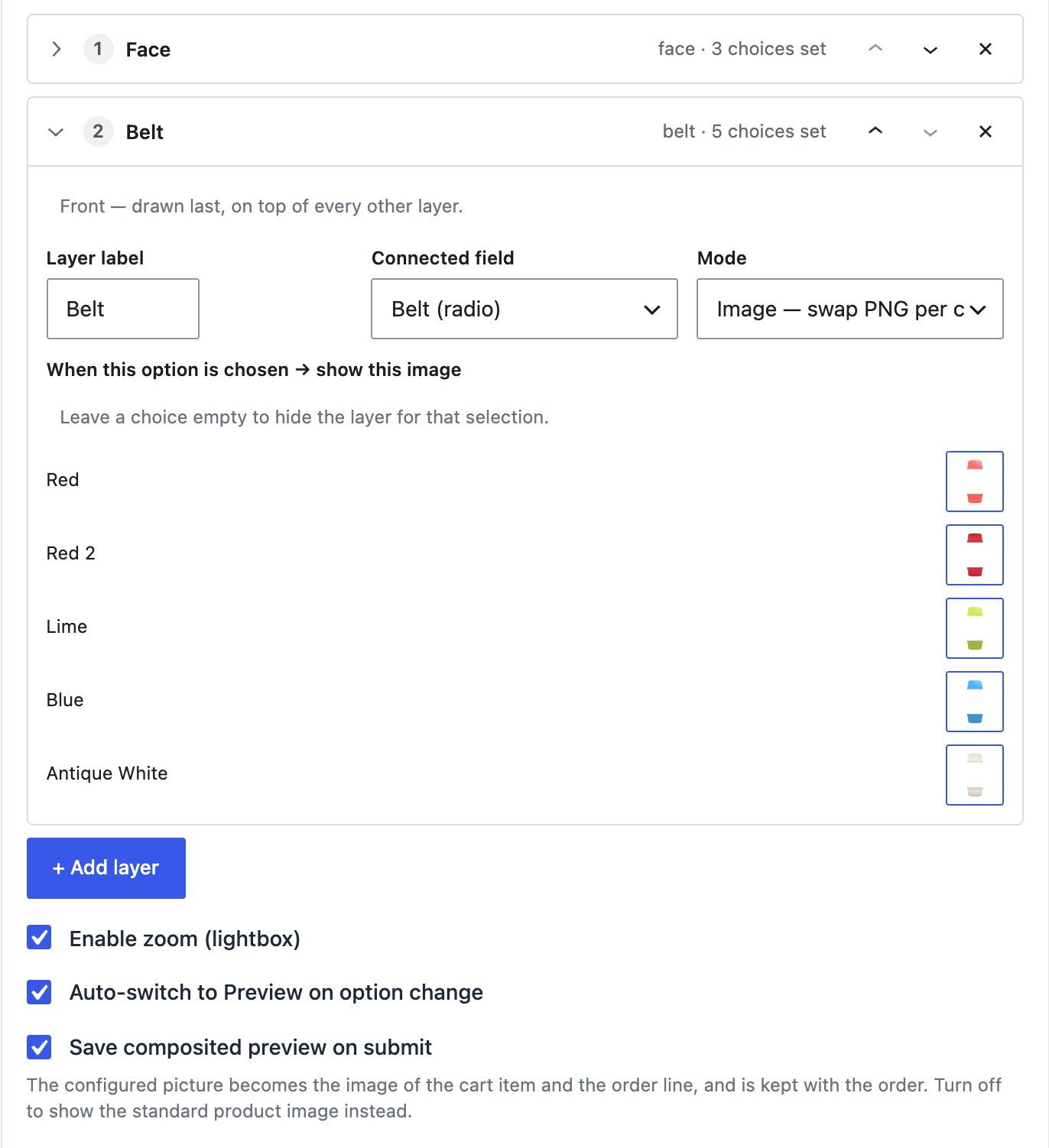
Layers. Each layer has a Layer label, a Connected field and a Mode. Only fields with options can drive a layer: radio, select or checkbox. For each option of that field, you set what the layer shows:
- Image — swap PNG per choice: “When this option is chosen → show this image”. The strap layer shows
red-strap.pngwhen Strap = Red. - Color — tint a mask PNG per choice: you upload one Mask PNG, and its non-transparent pixels are filled with the colour you map to each option (“When this option is chosen → fill the mask with this color”).
Leave a choice empty and the layer is hidden for that selection. That’s how you do “no saddle bag” or “no engraving plate”.
Stacking order is the list order. The first layer in the list is drawn first, at the back. Each layer below it is painted on top, so the last layer appears in front. Reorder with ↑ Up / ↓ Down.
Preview Background can be None (transparent), Solid color or Image: a wrist, a studio backdrop or a room. It sits behind the layers in the Preview only. Your gallery images stay as they are.
Settings include Auto-switch to Preview on option change, which jumps the main view to the composite as soon as the customer changes an option. You can also set the Preview thumbnail label, the Aspect ratio and the Thumbnail size (px).
Save to order. Turn on Save composited preview on submit and CraftForms renders the stacked image once, a moment after the last change, and sends it with the order under the Result field key (default layeredImg). On checkout it’s stored in CraftForms’ protected file storage, not the public Media Library, and listed on the Files screen with the customer’s other uploads.
It respects conditional logic too. If your form’s rules hide a field, its layer is hidden as well, even if the field still holds an old value. A “Monogram colour” layer disappears when the customer turns monogramming off.
How should you prepare the layer images?
The software side takes an afternoon. The images decide whether the result looks like a real product or a sticker book. Six rules:
- Use the same canvas for every layer. Export every PNG at the same pixel size, for example 1200 × 1200, with each part already in its final position. Layers are stacked edge to edge. Nothing gets nudged into place for you.
- Keep everything else transparent. A strap PNG contains the strap and nothing else.
- Render from one scene. If you have a 3D model or CAD file, render each part separately from the same camera angle. If you photograph, lock the camera on a tripod and shoot each part in place.
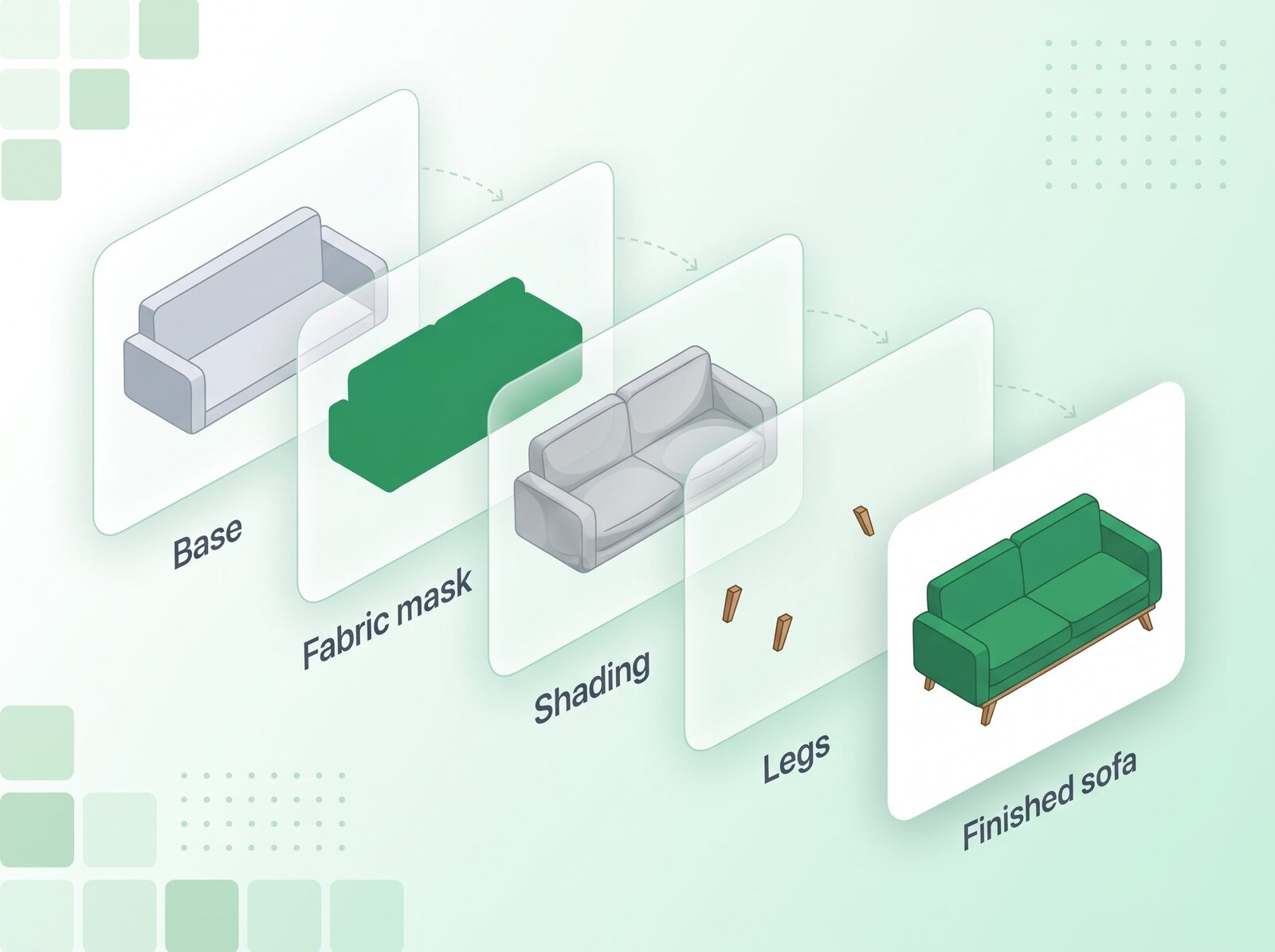
- Make masks flat shapes. A colour-mode mask only needs the silhouette of the area you recolour. The tint is flat, so add depth with a shading layer above it: a semi-transparent PNG of shadows and highlights in Image mode, bound to the same field with the same PNG set for every option, so it’s always on.
- Keep files light. A 1200 px PNG run through a compressor like TinyPNG is usually 50–300 KB. Image layers only load the PNG for the option that’s currently chosen.
- Serve the images from your own domain. The saved composite is drawn on a canvas, and browsers block that for images from another domain unless that server sends CORS headers. The live preview works either way, but the order would arrive without its picture.
Step by step: a watch configurator on a WooCommerce product
You need CraftForms Pro with WooCommerce active, and a simple product.
- Build the form. Create a CraftForms form with three Radio Fields:
case,dialandstrap. Set their Option Style to Image Swatches or Color Swatches. Give each option a clean value (steel,black,red). - Add the price. Give each option a price. In Smart Variables, create a linked variable per field that looks up the chosen option’s price (
case_price,dial_price,strap_price). The Price Formula is thencase_price + dial_price + strap_price. Formulas and price matrices work here too. Show the running total in an InfoBlock. - Connect it to the product. In the product’s CraftForms tab, turn on Connect a CraftForms form to this product and pick the form under CraftForms Form.
- Pick the element. Under Product Image / Interactive Preview, set Active Element to Layered Image. Your WooCommerce featured and gallery images still appear as thumbnails next to the Preview.
- Add the layers, back to front: Case → Dial → Strap. For each one, set the Connected field, keep Mode on Image, and set a PNG for every option.
- Choose a background if you want one: a plain colour or a wrist photo.
- Turn on Save composited preview on submit, so the order carries the finished picture.
- Test it on the front end. Click through every option and check the alignment, then add one to the cart and check the cart thumbnail.
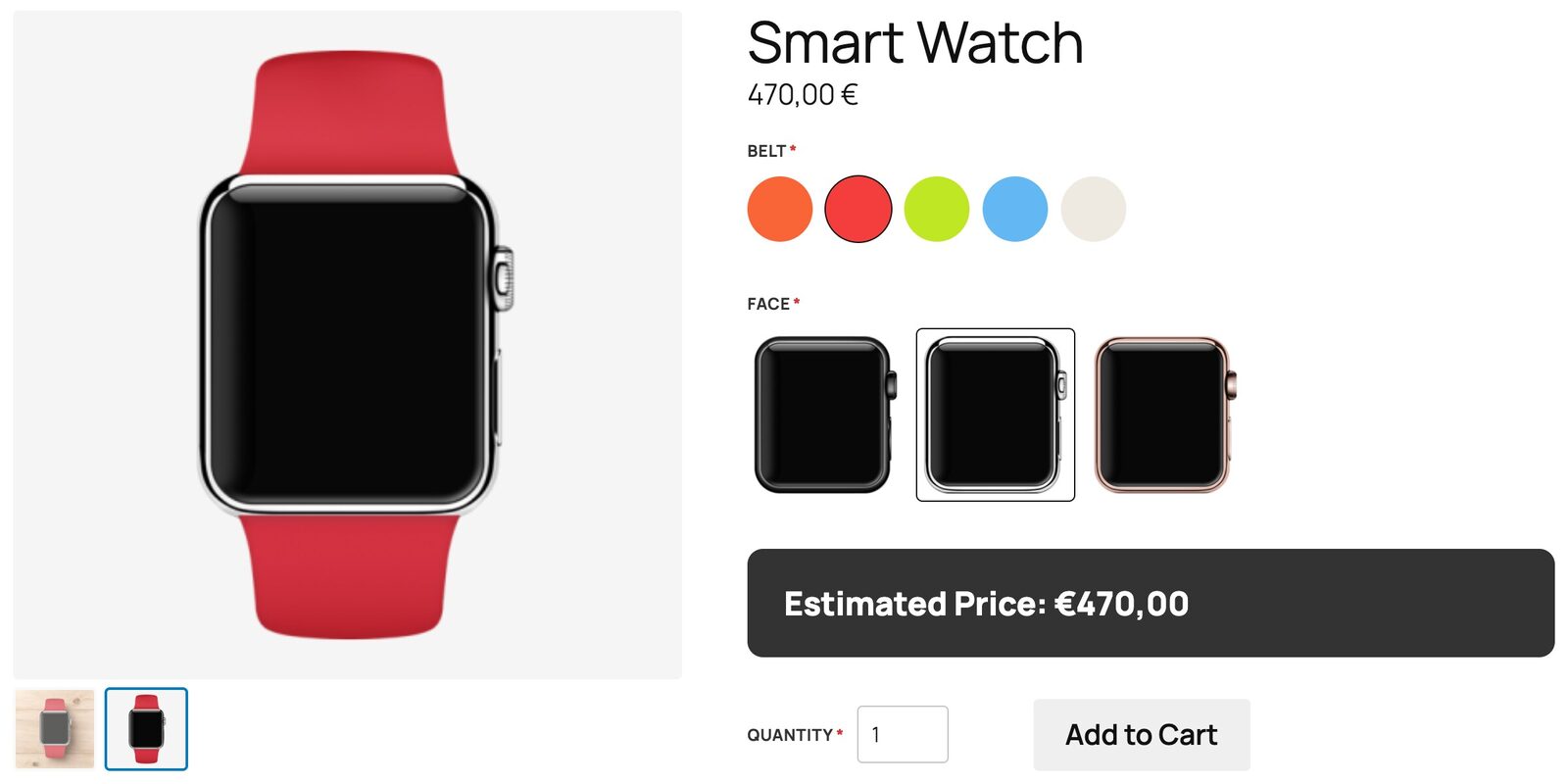
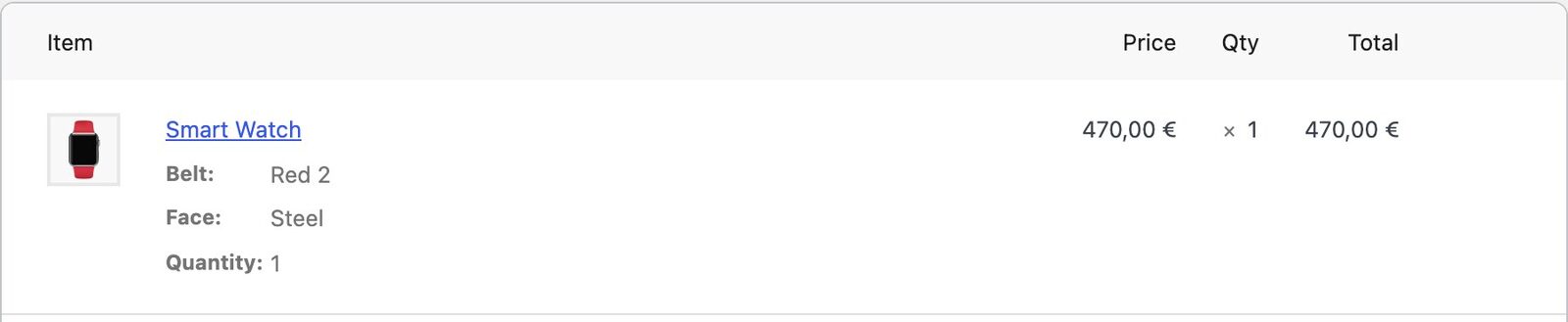
The faster route: under Product Starters, apply Smart Watch. It sets up the form, the layered preview for face and belt, and saving to the order. Without WooCommerce, pick Smart Watch Configurator from Choose a starter when you create a form. It puts the Layered Image block inside the form, with the price looked up from the selected face.
Which products work well as layered configurators?
Watches and accessories. Case, dial, strap, and optionally a hands layer. Use Image mode for everything, because metal finishes and leather grain don’t survive a flat tint. 13–20 PNGs cover a whole range. Price each part, plus an engraving fee from a text field.
Sofas and upholstered furniture. Use one base frame image without legs, a fabric layer in Color mode with one mask of the upholstered area, a legs layer in Image mode (oak, black metal, brass) and a cushions layer (tight back or scatter cushions). A shading layer on top keeps the folds visible. Put a room photo in Preview Background and customers see it in a living room; our view-in-room guide covers that setup. For pricing, use fabric grade × seat count from a lookup table, as in complex pricing without hundreds of variations.
Bikes. Frame colour in Color mode (one mask), wheelset and saddle in Image mode, plus accessories like a rack or mudguards. A layer shows one image at a time, so give each accessory its own layer. Several layers can share one “Accessories” checkbox field: the rack layer only sets an image for “Rack”, the mudguard layer only for “Mudguards”, and each appears when its box is ticked.
Sneakers and apparel. Upper, sole and laces as three masks in Color mode, each tied to a colour Radio Field with Color Swatches. Three masks and a shading layer cover 160 combinations. For hoodies and caps, add a “print area” layer driven by a design choice.
Two more that work well: signage (board shape × board colour × lettering colour) and pet collars and leads (webbing colour × buckle finish × tag shape).
Is a 2D layered configurator good enough, or do you need 3D?
3D configurators let customers rotate the product and zoom in anywhere. For some products, like a modular kitchen or a car interior, that’s worth it. It costs more in three ways:
- Models. Every product needs a production-quality 3D model with materials. Without existing CAD files, that’s modelling work for each product before you sell anything.
- Subscription. Most 3D configurators are hosted services with a monthly fee, and some add a fee per sale on top.
- Page weight. A WebGL viewer, the model and its textures often add several megabytes to the product page. On a mid-range phone that’s a slow first load.
A layered 2D configurator gives up rotation for speed and simplicity: a handful of PNGs, no outside service, and a preview that’s just stacked images. For products people buy from the front (watches, sofas, sneakers, signs, side-on bikes), that’s usually the right call. And if you do have a 3D pipeline, keep it: render each part to PNG from one camera angle and use those as layers.
| Layered Image (2D) | Typical 3D configurator | |
|---|---|---|
| Assets per product | One PNG per option | 3D model + materials |
| Ongoing cost | Included in CraftForms Pro | Monthly subscription, sometimes per-sale fees |
| Rotation / 360° | No, one view | Yes |
| Page weight | A few compressed PNGs | Viewer + model + textures |
| Finished image on the order | Yes (optional) | Varies by tool |
For a wider look at options and configurator plugins, see our WooCommerce product configurator roundup.
Can you use it without WooCommerce?
Yes. The Layered Image block works in any CraftForms form. Place it inside the form and it connects on its own, or put it elsewhere on the page and pick the form under Connected Form. Each submission then carries the composited image, and you can put it in a confirmation email or a PDF order sheet with the {{email.layeredImg.image_url}} token. See generating PDF order confirmations from a form.
If you sell the same configurable product under several names or sizes, one form, many products saves you rebuilding it.
FAQ
How do I make a visual product configurator in WooCommerce without 3D?
Export one transparent PNG per part and option, all on the same canvas size, and stack them with a layered-image tool. In CraftForms, set the product’s Active Element to Layered Image and bind each layer to a form field.
How many images does a layered product configurator need?
One per option per layer, added together. Three cases, four dials and six straps is 13 images for 72 combinations. In Color mode, one mask PNG covers every colour of that part.
Can customers pick any colour, or only the colours I set?
Only the colours you map to options. Color mode fills the mask with the colour assigned to the chosen option, so you control the palette and the price of each colour.
Is the configured image saved with the order?
Yes, if you turn on Save composited preview on submit. It becomes the line-item image in the cart, at checkout, in order emails and on the admin order screen, and is kept in protected storage rather than the public Media Library.
Does a layered configurator slow down the product page?
Much less than 3D. It loads a small viewer script and the PNGs for the chosen options, and the preview is stacked images, not a renderer. Keep PNGs compressed and around 1200 px.
Is Layered Image free?
No, it’s part of CraftForms Pro, like the WooCommerce integration. The free plugin includes the simpler Product Image block, which swaps whole photos based on options: see changing the product image by option.
Start with the watch
Apply the Smart Watch starter to a test product, click through the faces and belts, then swap the PNGs for your own parts. Once the alignment looks right on one product, the rest of the range is just more layers.