
CraftForms 1.8 Is Here — Multiple Payment Accounts, Abandoned-Form Capture
- Category
- Release
- Published
- Updated
- Reading time
- 10 min
- Tags
- —
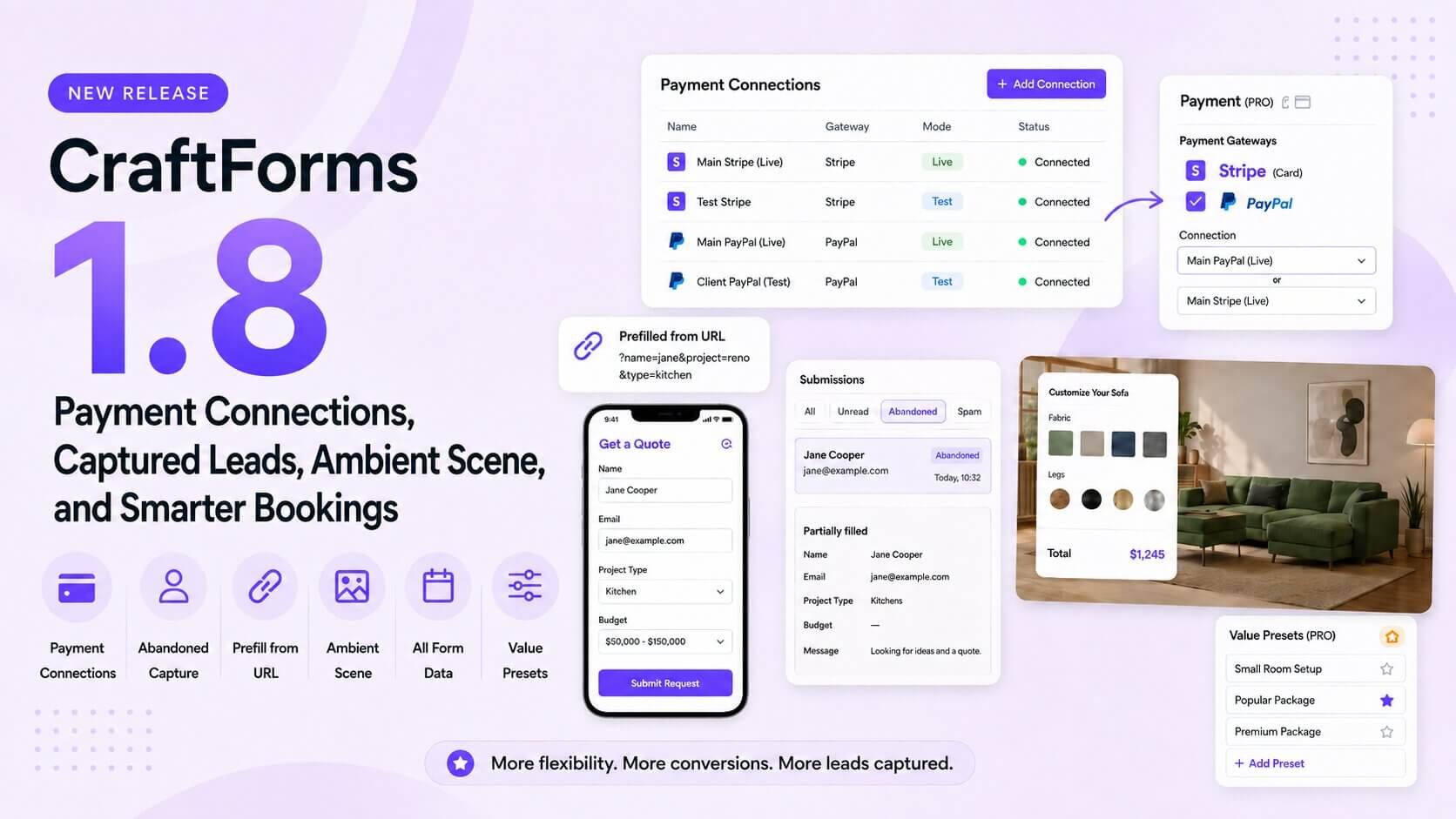
CraftForms 1.8 is out, and it’s the biggest release since commerce landed. Three things headline it: Payment Connections turn a single global Stripe/PayPal key pair into named, reusable accounts you can run side by side; abandoned-form capture saves partially-filled forms as leads instead of losing them; and a new Ambient Scene block puts a customer’s actual selections on a real background image, live, as they configure.
Around those: a new continuous-duration booking mode for meeting rooms and studios, a visual split-day marker for B&B turnover dates, one-click Value Presets, an All Form Data block for email and PDF templates, bulk image-swatch creation, dynamic data bound straight to post meta or site options, and two fixes worth knowing about.
Here’s everything in 1.8.
Payment Connections — run several Stripe and PayPal accounts from one install
Until now, CraftForms stored one Stripe key pair and one PayPal key pair per site. That’s fine until you need two: a live account and a test account you can flip between without retyping credentials, two brands on one WordPress install, or a client account alongside your own.
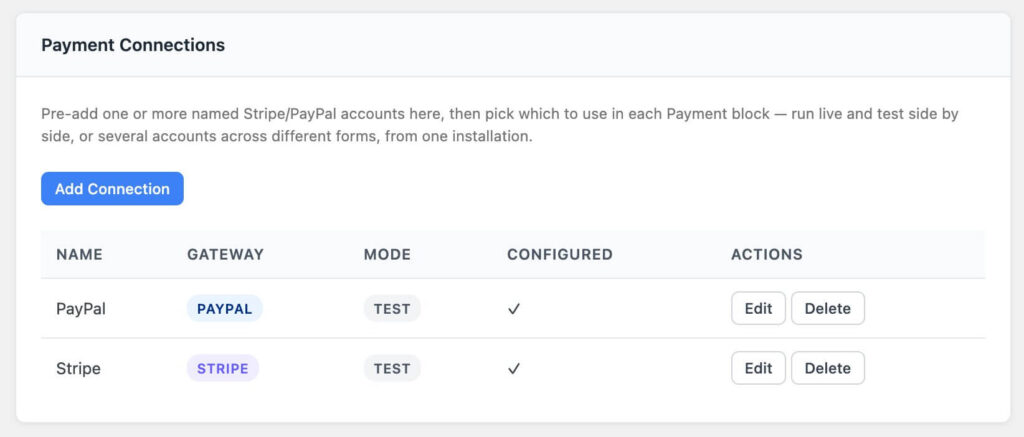
1.8 replaces that with Payment Connections — the same pattern the plugin already uses for SMTP Servers. In Settings → Payments, click Add Connection, give it a name, pick the gateway (Stripe or PayPal), pick Test or Live, and paste in the credentials. The table shows every connection with its gateway, mode, and whether it’s fully configured.
Then, on any Payment block, you simply choose which connection to use. Live and test can coexist on two different forms. Two Stripe accounts can coexist on two different products. Nothing is shared or guessed.
The plumbing underneath is account-aware end to end: webhook signatures are verified against each connection’s own webhook secret (and the incoming event is attributed to whichever connection actually verified it, not “the first one configured”), and a refund resolves back to the account that took the payment. Credentials stay encrypted in the database, and the Payment Connections REST endpoints are restricted to administrators and shop managers — an editor can’t read or create one.
Abandoned-form capture — stop losing half-finished leads
Someone fills in their name, their email, half a quote request… then a phone rings and the tab closes. Today that visitor is simply gone. In 1.8, they don’t have to be.
Open the Save Submission action’s settings and check “Capture abandoned submissions.” From then on, if a visitor starts filling that form and leaves without submitting — switching tabs, closing the page, or going idle for about 30 seconds — CraftForms quietly saves whatever they’d entered as a submission with the status Abandoned.
Abandoned entries live in the same Submissions screen as everything else: filter by the Abandoned status to see them, open one to read the partial data, and include them in the CSV export like any other submission. And if that visitor comes back and actually submits, the draft is promoted in place — the same record flips to Unread rather than leaving you with a duplicate to reconcile.
It’s off by default, deliberately. Storing data a visitor chose not to submit is GDPR-relevant, and the setting’s own help text says so — only turn it on if your privacy notice covers it. The endpoint that receives the drafts is create-only (never readable), nonce-protected, rate-limited to 20 requests a minute, capped at 200 fields per payload, and strips scripts out of anything it stores.
Prefilling forms from the URL
A field can now be filled straight from the query string: link to ?email=jane@example.com&plan=pro and any form field named email or plan starts out filled in. It’s the shortest path to a personalized form — put real values into a newsletter link, an ad landing page, or a “continue where you left off” email, and the visitor has less to type.
Only fields that already exist on the form are touched, so the URL can’t inject values into fields you didn’t build, and prefilled values survive a post-submit reset rather than blanking out.
One known limitation, documented rather than hidden: a field named after a WordPress reserved query var — name, s, p, page, cat, tag — can’t be prefilled this way, because WordPress claims those parameters first. Rename the field (full_name instead of name) and it works.
Booking: continuous durations and a visual turnover marker
Flexible/continuous time-duration booking (PRO)
CraftForms could already book a fixed slot (“the 10:00 appointment”) or a range of days (“Friday to Sunday”). What it couldn’t do is the thing meeting rooms, studios, courts, and rehearsal spaces need: pick a start time, then book as many consecutive slots as you want, back to back, with no gaps.
That’s the new Continuous Duration booking type, available both on the Booking Datepicker block and on a Catalog resource. Configure business hours (with an optional break), a slot interval, and min/max slots — plus, on a catalog resource, a turnaround buffer that keeps the next booking from starting the instant the last one ends.
The customer picks a start time and a duration; the picker only ever offers windows that are genuinely free. Existing bookings are padded by the turnaround buffer on both sides, the lunch break is never bookable, and a duration that would run through a break simply isn’t offered. Two people trying to grab the same window at the same moment are resolved with a database-level lock, so the second one is rejected rather than double-booked.
The booked value comes back as a start, an end, and a slot count — so field.count * 15 is a complete hourly-rate price formula.
Same-day turnover, now visible on the calendar
1.7.5 fixed the off-by-one that stopped a B&B from checking a new guest in on the morning another guest checked out. 1.8 makes that state legible on the calendar.
Turn on “Allow same-day turnover” and a date that’s still valid as a checkout — but no longer available to stay through — renders with a diagonal split marker (half red, half green) instead of looking like any other greyed-out day. Guests stop assuming the date is unavailable and abandoning the booking; the calendar tells them exactly what that date can be used for.
Product visuals: Ambient Scene, and image swatches in bulk
Ambient Scene (PRO)
The new Ambient Scene block is a background — a solid color or an image — with one or more regions placed on it, each bound to a form field. Whichever option the customer currently has selected for that field is the image shown in that region, updating live as they change their mind.
Put a sofa region and a wall-color region on the same room photo and a customer sees their actual combination, not a swatch grid. Set the background, drag a region into place, connect it to a Select, Radio, or Checkboxes field, then hit “Fill from field options” — it reuses the field’s own swatch images automatically, so a field you’ve already built as image swatches needs almost no extra setup.
Bulk “Add images from Media Library”
Building an image-swatch field used to mean adding an option, picking an image, adding an option, picking an image — twenty times for twenty finishes.
Now, with a Radio or Checkboxes field set to Image Swatches, there’s a second button: Add images from Media Library. Multi-select as many images as you like and you get one option per image, labeled from each image’s title, with a unique value generated automatically. Run it again later and images already in the field are skipped, so you can top up a swatch set without creating duplicates.
Value Presets — configure several fields in one click (PRO)
The new Value Presets block renders clickable badge-style buttons that set multiple field values at once. One “Weekend Package” button can set length, finish, quantity, and color simultaneously — as if the customer had filled in every one of them by hand.
It genuinely behaves like a real edit, not a shortcut: validation, conditional logic, smart variables, and price recalculation all fire exactly as they would from typing. Presets work across text, number, textarea, select, radio, checkbox, range slider, color picker, and booking date fields. Each button can carry an optional badge that supports {{mustache}} tokens — Save {{savings}}%, {{stock}} left, Most popular — re-rendered live as the form changes. And a button shows itself as active only while every one of its targets still matches, so it stops looking selected the moment a customer adjusts one thing by hand.
“All Form Data” block for emails and PDFs (free)
Building a notification email used to mean hand-writing one {{field}} token per row and keeping that template in sync every time the form changed. Worse, any field a customer left empty — or that conditional logic hid entirely — still rendered as an ugly blank row.
The new All Form Data block, available in both the email template and PDF template editors, inserts every submitted field at once. Pick how it renders — a table, a bulleted list, or paragraphs — and at send time the block expands into the real submission’s fields. Empty fields are skipped automatically, so a conditionally-hidden field never leaves a hole in the layout, and adding a field to the form never means editing the template again.
Dynamic data: bound smart variables and taxonomy terms
Two additions for forms that need to read data from outside the form.
Dynamic (bound) smart variables (PRO). Alongside Expression, Table, Linked, and Conditional, smart variables gain a Dynamic kind: instead of computing a value, it reads one — from this post’s meta (a meta key on whatever post the form is embedded on, e.g. _event_price on a CPT-driven catalog) or from a site option (any value another plugin saved via update_option()), with a fallback for when it’s missing. Resolved once per pageview, server-side, then usable in any formula or price calculation like any other variable. One form, embedded across hundreds of CPT entries, priced from each entry’s own meta.
Taxonomy term tokens. The dynamic-data picker — the little database icon that inserts {{token}} strings — now includes a term namespace: {{term.name}}, {{term.slug}}, {{term.description}}, {{term.link}}. A form on a category or product-category archive can name the term it’s sitting in, in a field label, an email subject, a webhook payload, or a PDF. The picker itself is available in more places too: field validation and default values, submit-action settings, and the email and PDF template editors.
Two fixes worth calling out
File Upload no longer throws a JS error when a theme moves it. Some themes and page builders reflow or relocate elements after the page’s initial render. When that happened to a File Upload field, its own setup code tried to insert its markup relative to an element that had already been moved out from under it, and threw an
insertBeforeerror — taking the upload field down with it. It now handles being moved.Layered images no longer read hidden fields’ stale values. On a product page, a layered-image visual could render a layer bound to a field that conditional logic had hidden — using that hidden field’s stale or default value instead of the value the customer actually chose. In practice, this meant a configurator with a pair of duplicate colour-conditional fields (one always hidden) could display the wrong-colour hardware regardless of the customer’s real selection. Hidden fields are now excluded, so the preview matches the order.
Get CraftForms 1.8 today
1.8 is about not losing anything — not a payment account you need to keep separate, not a half-filled lead, not a bookable hour between two meetings, not a field you forgot to add to an email template.
Update now to get all of it. New to CraftForms? The free version includes the full block-based form builder, abandoned-form capture on your own site, URL prefill, and the All Form Data block; Payment Connections, Ambient Scene, Value Presets, continuous-duration booking, bound dynamic variables, and capture on externally embedded forms arrive with Pro.